Virtual Machine Escape: Risks and Prevention Tips
Virtualization technology has become a cornerstone of modern computing, powering everything from cloud services to personal virtual machines on Windows 10 and 11. But with this convenience comes a serious security threat known as virtual machine escape, a vulnerability that every Windows user running virtual machines should understand and actively guard against.
What Is Virtual Machine Escape?
Virtual machine escape, also called VM escape or hypervisor escape, occurs when malicious code running inside a virtual machine (VM) breaks out of its isolated environment and gains unauthorized access to the underlying host operating system or other virtual machines sharing the same hardware.
Think of a virtual machine as a locked room inside your house. A virtual machine escape attack is the equivalent of someone breaking through the walls of that room and roaming freely through the rest of the building, with full access to everything inside.
This type of attack targets the hypervisor, the software layer (such as Hyper-V, VMware, or VirtualBox) that manages and separates virtual environments from the host system.
How Virtual Machine Escape Works
A VM escape attack typically follows a chain of steps:
- Step 1 – Initial compromise: An attacker delivers malware to a user inside a VM, often through phishing emails, malicious downloads, or unpatched software.
- Step 2 – Hypervisor exploitation: The malware identifies and exploits a vulnerability in the hypervisor or virtual device drivers (such as virtual network adapters or shared clipboards).
- Step 3 – Host access: Once the hypervisor is breached, the attacker gains control of the host OS, potentially accessing all other VMs, files, credentials, and network resources.
Why Virtual Machine Escape Is a Serious Threat
The Risks to Windows Users
For Windows 10 and 11 users who run virtual machines, whether for software testing, sandboxing suspicious files, or running multiple operating systems, a successful virtual machine escape can have devastating consequences:
- Complete host system compromise: The attacker gets root-level or administrator access to your actual Windows installation.
- Data theft: Personal files, browser passwords, saved credentials, and financial data become exposed.
- Lateral movement: In home networks, an escaped VM can serve as a launchpad to attack other connected devices.
- Ransomware deployment: Attackers can install ransomware on the host system after a virtual machine escape, encrypting all your data.
- Bypassing security tools: Security software installed inside the VM cannot detect or stop host-level activity once the escape has occurred.
Common Vulnerabilities Exploited in VM Escape Attacks
- Unpatched hypervisors — Outdated versions of Hyper-V, VirtualBox, or VMware contain known exploits that enable virtual machine escape.
- Shared clipboard and drag-and-drop features — These VM-to-host communication channels are among the most frequently abused attack vectors.
- Virtual hardware emulation bugs — Flaws in emulated graphics cards, USB controllers, or network adapters can be exploited to break out of the VM.
- Guest additions/tools — Software installed inside the VM to improve performance can introduce vulnerabilities that attackers leverage for escape.
How to Prevent Virtual Machine Escape on Windows 10/11
Preventing a virtual machine escape attack requires a layered approach, keeping software updated, restricting dangerous features, and applying the principle of least privilege.
Strengthen Your PC Security with Fortect
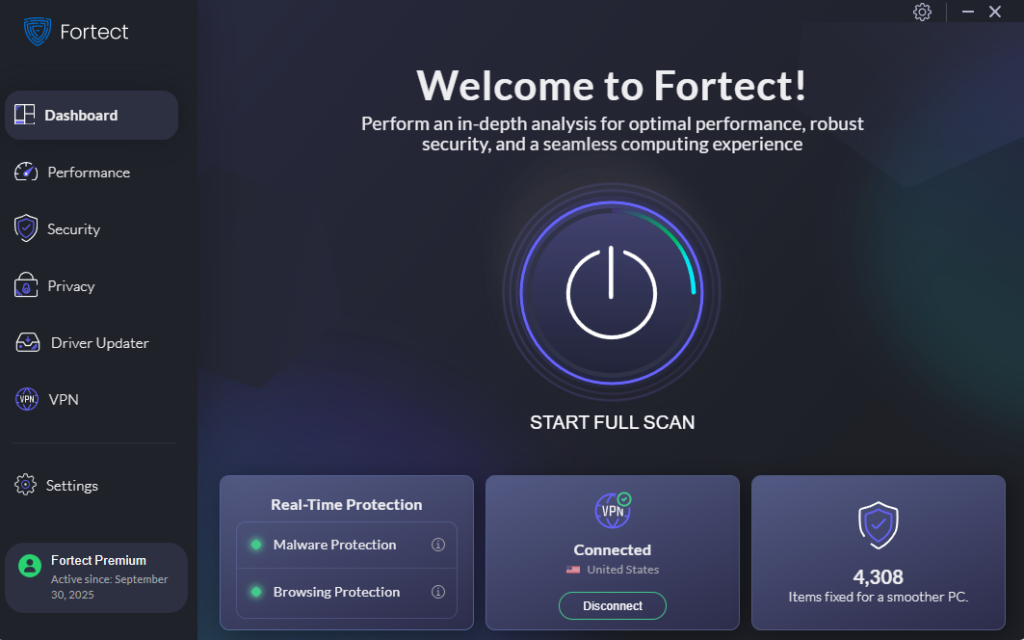
Before going into the manual steps, it is worth having a dedicated security tool actively working in the background. Fortect is purpose-built for Windows users who want continuous, real-time protection against threats that traditional antivirus software often misses, including the hypervisor-level exploits that make a virtual machine escape attack possible in the first place.
Here is how Fortect helps prevent, detect, and remove virtual machine escape threats:
- Real-time threat monitoring: Fortect continuously scans your Windows system for suspicious processes that attempt to cross VM isolation boundaries, a core behavior pattern of virtual machine escape attacks. It flags and blocks these actions before they reach the host OS.
- Exploit and malware removal: If malware has already entered a virtual machine and is attempting to escalate privileges or exploit hypervisor vulnerabilities, Fortect detects and eliminates it safely, stopping the escape chain before it completes.
- System file restoration: A successful or partial virtual machine escape attack often corrupts or alters critical Windows system files. Fortect’s built-in repair engine automatically restores those damaged files to their original state, recovering system stability without requiring a full Windows reinstall.
- Hypervisor environment protection: Fortect monitors changes to virtualization-related components on the host OS, including Hyper-V configurations and driver integrity, and alerts users when unauthorized modifications are detected.
- Proactive vulnerability alerts: Fortect identifies outdated or misconfigured system components on the host that are commonly exploited in virtual machine escape attacks, giving users actionable steps to close those gaps before attackers find them.
For Windows users running virtual machines, pairing Fortect with the manual prevention steps below creates a strong, dual-layer defense against virtual machine escape and other emerging threats targeting the host OS.
Download and install Fortect now.
Keep Windows and Hyper-V Updated
Keeping the host system and hypervisor fully patched is the single most important manual defense against virtual machine escape attacks. Most known VM escape exploits target vulnerabilities that already have patches available; staying updated closes those doors.
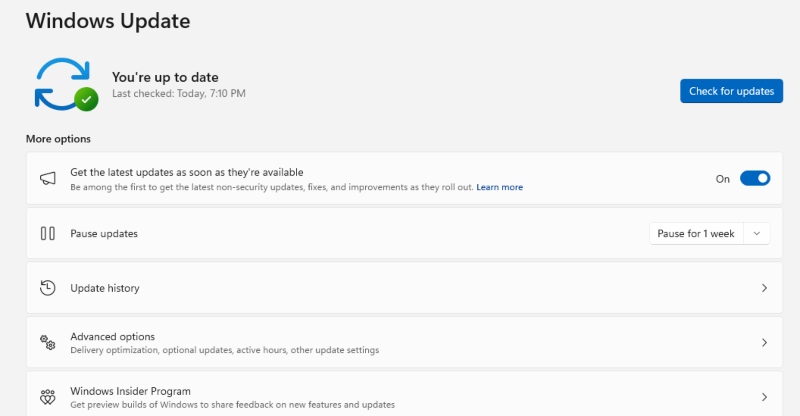
Steps to update Windows 10/11:
- Click the Start menu and open Settings (gear icon).
- Go to Windows Update (Windows 11) or Update & Security (Windows 10).
- Click Check for updates.
- Install all available updates, including optional driver updates.
- Restart your computer when prompted to apply all patches.
- Repeat this process regularly or enable Automatic Updates to stay protected.
Disable Unnecessary VM Features
Shared clipboard, drag-and-drop, and shared folders between the guest and host create direct communication channels that attackers exploit during virtual machine escape attempts. Disable any features not actively needed.
Steps to disable shared clipboard in Hyper-V (Windows 10/11):
- Open Hyper-V Manager from the Start menu.
- Right-click on your virtual machine and select Settings.
- Navigate to Integration Services in the left panel.
- Uncheck Guest services and any services not required.
- Click Apply, then OK.
For VirtualBox users:
- With the VM powered off, open VirtualBox Manager.
- Select your VM and click Settings.
- Go to General > Advanced.
- Set Shared Clipboard and Drag and Drop to Disabled.
- Click OK to save.
Restrict User Permissions on the Host
Running VM software or the host system with excessive privileges amplifies the damage a virtual machine escape attack can cause. If malware escapes the VM and lands on a limited-privilege account, its ability to cause harm is significantly reduced.
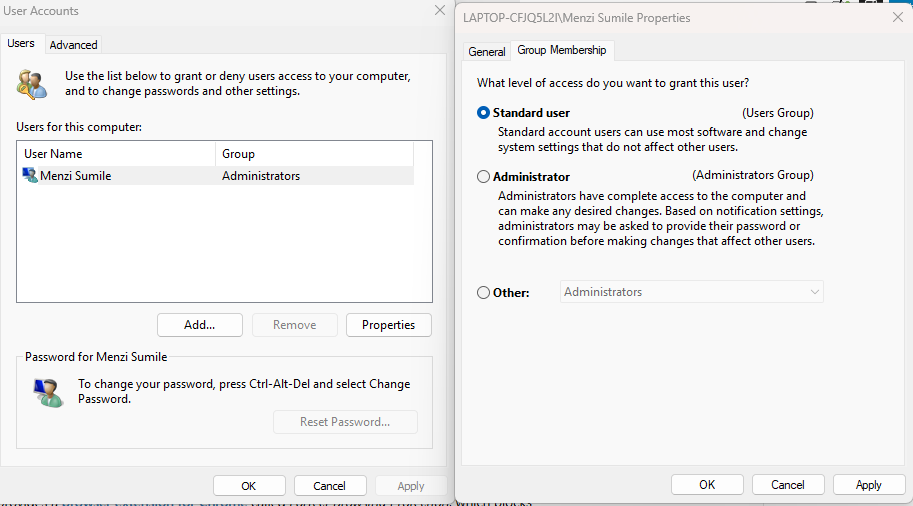
Steps to create a standard (non-admin) user account in Windows 10/11:
- Open Settings and go to Accounts.
- Select Family & other users.
- Click Add someone else to this PC (Windows 10) or Add account (Windows 11).
- Follow the prompts to create a new local account.
- Once created, click the account name and select Change account type.
- Set the account type to Standard User and click OK.
- Use this standard account for everyday computing and VM work.
To remove admin rights from an existing account:
- Go to Settings > Accounts > Family & other users.
- Select the account and click Change account type.
- Change from Administrator to Standard User and confirm.
Enable Windows Defender Credential Guard and Core Isolation
Windows 11 (and Windows 10 Enterprise) includes Core Isolation features that harden the system against the kind of hypervisor-level attacks used in virtual machine escape scenarios.
Steps to enable Core Isolation on Windows 10/11:
- Open Windows Security from the Start menu.
- Click Device Security.
- Under Core isolation, click Core isolation details.
- Toggle Memory integrity to On.
- Restart your computer when prompted.
Use Snapshots Carefully and Isolate VM Networks
- Avoid NAT networking if the VM is used to run untrusted software, use Host-Only or Internal networking to prevent the VM from reaching the local network or internet, limiting the reach of any virtual machine escape attempt.
- Do not store sensitive data such as passwords or banking credentials on a host system that also runs VMs with untrusted content.
- Regularly delete old VM snapshots, as they can contain outdated, vulnerable system states that make virtual machine escape easier to execute.
Additional Security Best Practices
Keep VM Software Up to Date
Whether using Hyper-V (built into Windows 10/11 Pro), VirtualBox, or VMware Workstation Player, always run the latest version. Hypervisor vendors regularly issue patches specifically addressing virtual machine escape vulnerabilities.
- For VirtualBox: Open VirtualBox, go to Help > Check for Updates.
- For VMware: Open VMware Workstation, go to Help > Software Updates.
- Hyper-V updates are delivered automatically through Windows Update.
Use Dedicated Machines for High-Risk Virtualization
If the goal is to regularly test malware samples or run high-risk software, consider using a dedicated physical machine not connected to personal accounts or home network shares. This physically separates the risk of a virtual machine escape from personal data and day-to-day computing.
Monitor for Unusual Host Activity
Even with precautions in place, monitoring the host system for anomalies is essential. Unusual spikes in CPU usage, unexpected new processes, or unfamiliar startup entries on the host can indicate a virtual machine escape attempt is in progress or has already occurred.
Final Thoughts
Virtual machine escape is not just a theoretical threat; it has been demonstrated in real-world security research and exploited in targeted attacks against Windows users. Understanding how it works, applying the prevention steps above, and using a dedicated tool like Fortect to actively monitor and protect the host system are the most effective ways to stay secure.
The key takeaways: keep everything updated, disable unnecessary VM features, limit account privileges, enable Core Isolation, and let Fortect handle real-time detection and repair on the host. A proactive defense is always far easier than recovering from a virtual machine escape attack after the fact.