How to Secure Windows 10 After End of Life
To secure Windows 10 after end of life, update everything you still can, practice safer browsing habits, back up your data, and invest in an all-in-one tool like Fortect to keep your PC protected and running smoothly.
How to Secure Your Windows 10 PC After End of Support
Step 1: Install All Remaining Windows Updates Now
Before the Windows 10 EOL deadline, make sure your system has every available update installed. Go to Settings > Update & Security > Windows Update and click “Check for updates.”
This ensures your PC is as protected as possible heading into the unsupported era. Don’t skip this; it closes dozens of known security holes before the updates stop coming.
Step 2: Switch to a Secure, Updated Browser
Even after Windows 10’s end of service, browsers like Chrome, Firefox, and Edge will continue receiving security updates independently. Keep whichever browser you use fully updated at all times.
Your browser is your biggest attack surface online. An up-to-date browser blocks many threats before they ever touch your operating system.
Step 3: Enable and Verify Windows Defender
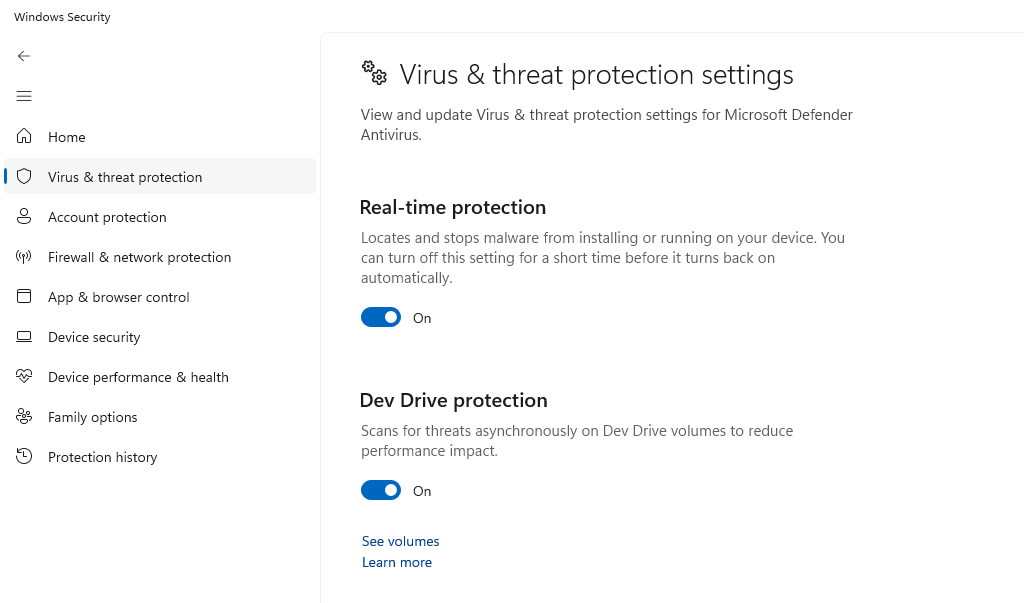
Windows Defender (built into Windows 10) will continue to function after the EOL date, though its virus definitions will eventually become outdated too. Keep it active as a baseline layer of defense.
Go to Settings > Privacy & Security > Windows Security to confirm real-time protection is turned on. A third-party security tool that stays updated independently is worth adding alongside it.
Step 4: Be Extra Careful With Email and Downloads
Phishing emails and malicious downloads are the most common entry points for attackers. On an unpatched system, a single bad click can cause serious damage.
Never open email attachments from unknown senders. Avoid downloading software from unofficial websites. When in doubt, don’t click.
Step 5: Back Up Your Data Regularly
Ransomware attacks surge whenever a widely-used OS reaches end of life, as happened with Windows 7. Keeping a recent backup means an attack doesn’t mean losing everything.
Use an external hard drive or a cloud backup service. Aim to back up at least once a week, and test that you can actually restore your files.
Step 6: Consider Upgrading to Windows 11
The safest long-term option after Windows 10’s end of life is upgrading to Windows 11, which receives active security support. Check compatibility at microsoft.com/en-us/windows/windows-11.
If your PC doesn’t meet Windows 11 requirements, it may be time to consider a hardware upgrade. Running an unsupported OS long-term carries a growing risk with every passing month.
Keep Your PC Protected With Fortect
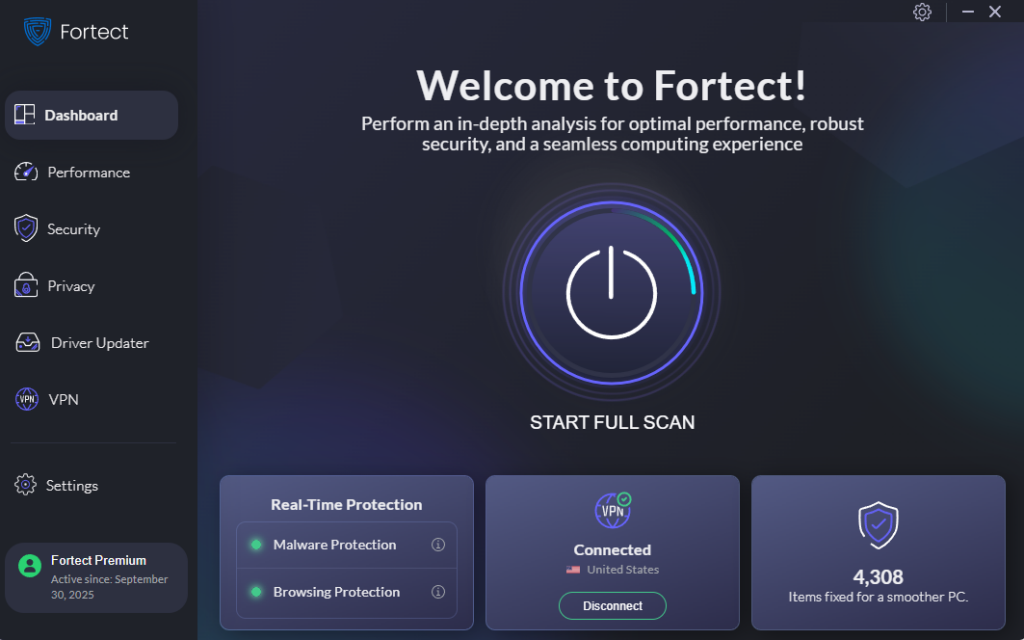
For home users navigating life after Windows 10 end of support, Fortect offers a practical safety net. Its real-time protection actively monitors your system for threats, removes malware when detected, and restores damaged or missing system files, so your PC keeps running the way it should, even without Microsoft’s backing.
Beyond security, Fortect cleans out junk files and resolves crashed or conflicting programs that quietly drain your PC’s performance over time. The result is a faster, more stable machine, without needing any technical expertise.
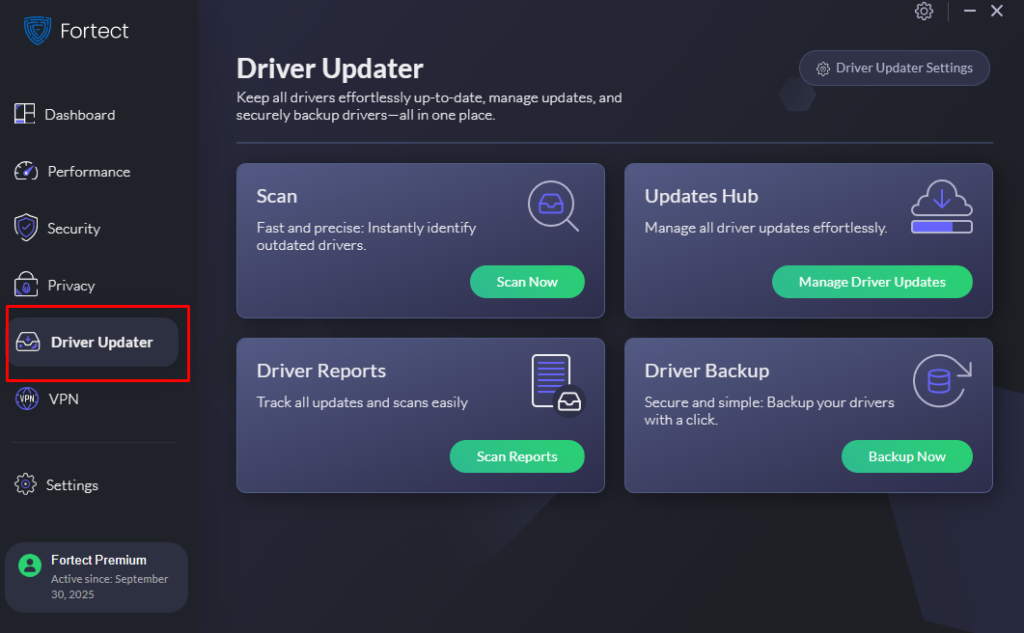
One of Fortect’s most valuable features for unsupported systems is its built-in Driver Updater. Outdated or broken drivers are among the most exploited security gaps on aging PCs. Fortect automatically replaces them with verified, up-to-date versions, closing vulnerabilities that attackers love to target.
If you’re staying on Windows 10 for now, give Fortect a try; it’s one of the smartest moves you can make to stay a step ahead of the risks.
Download Fortect now.
Windows 10 End of Support Doesn’t Have to Mean the End of Security
Windows 10 end of support is a real security milestone, but it doesn’t have to leave you helpless. By keeping your software updated, practicing safe browsing habits, backing up your data, and using a reliable protection tool like Fortect, you can significantly reduce your exposure.
The risks will grow over time, so the sooner you take action, the better. Whether you eventually upgrade to Windows 11 or continue securing your current setup, staying proactive is always your best defense.