How to Detect and Block AI-Generated MFA Bypass Phishing on Windows
To detect and block AI-generated MFA bypass phishing on Windows, you need to recognize fake login attempts early and use stronger authentication and built-in Windows security features to stop attackers from hijacking your session. These attacks are dangerous because they don’t rely on obvious scams anymore; instead, they use AI to create highly convincing emails, messages, and login pages that closely mimic trusted services like Microsoft, banks, or workplace portals.
Why MFA alone isn’t enough anymore? AI phishing tools can generate real-time fake login portals that capture your MFA code the moment you type it, then replay it instantly before it expires.
What Makes AI Phishing Attacks Different
Traditional phishing was easy to spot, with bad grammar, strange sender addresses, and urgent pressure tactics. AI-generated phishing flips every one of those signals.
Modern AI phishing attacks on Windows users often arrive as polished emails, SMS messages, or even Teams notifications. They include your real name, mimic the exact layout of legitimate services, and link to fake login pages that look pixel-perfect.
The bypass technique most commonly used is called an adversary-in-the-middle (AiTM) attack. A proxy page sits between you and the real site, silently relaying your MFA code to attackers in real time. You log in, and so do they.
Watch for these red flags: Unexpected “verify your account” prompts, login pages with slightly off URLs (e.g., micros0ft-login.com), and MFA requests you didn’t initiate yourself.
How to Detect and Block AI-Generated MFA Bypass Phishing on Windows
Check every URL before entering credentials
- Look at the full address bar, not just the logo on the page. A legitimate Microsoft or banking site will never have extra words, hyphens, or numbers crammed into the domain. If it looks even slightly off, close the tab immediately.
Switch to phishing-resistant MFA methods
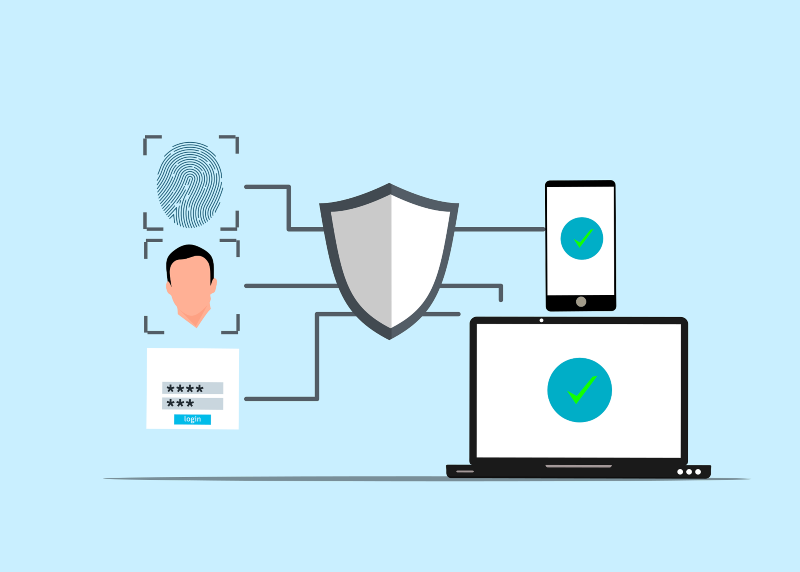
- Time-based one-time codes (those 6-digit numbers) can be intercepted mid-session. Where possible, switch to a hardware security key or passkey. On Windows, Windows Hello (face or fingerprint recognition) is tied to your device and can’t be relayed remotely.
Enable Microsoft Defender SmartScreen
- Open Windows Security → App & browser control → Reputation-based protection, and ensure SmartScreen is turned on for both Edge and downloaded files. SmartScreen can flag known phishing pages before they load.
Turn on Enhanced Phishing Protection in Windows 11
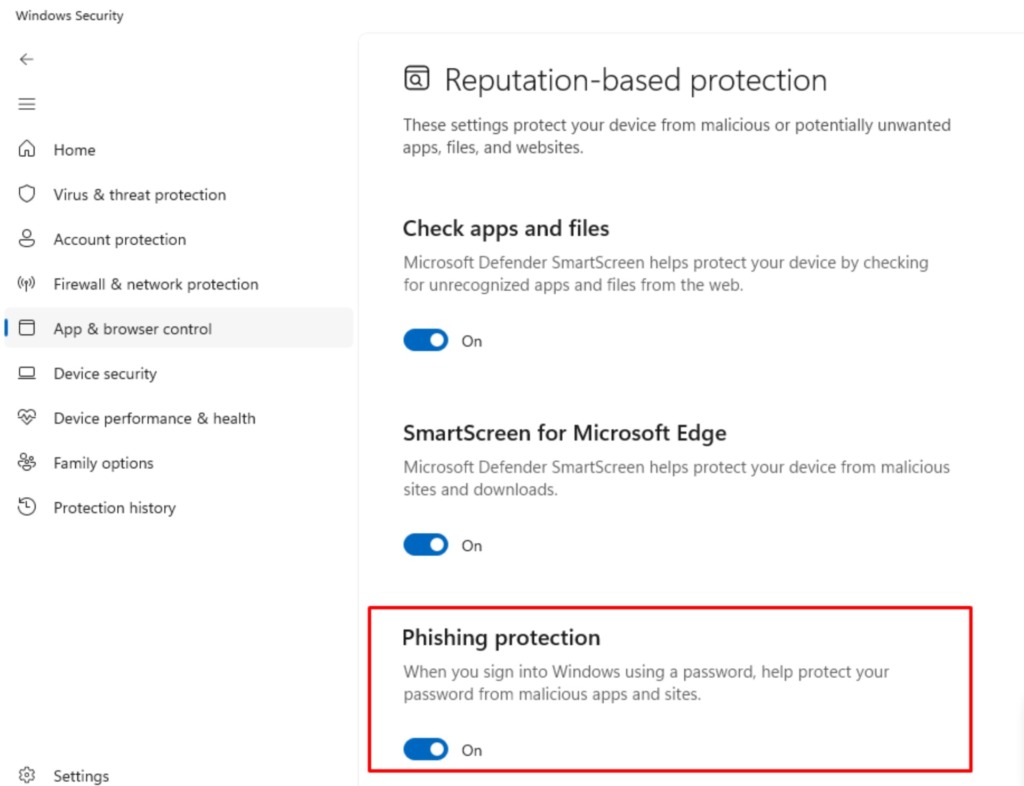
- Go to Settings → Privacy & Security → Windows Security → App & browser control → Reputation-based protection → Phishing protection. Enable all three options. This warns you if you type your Windows password into a suspected phishing site.
Use a password manager with autofill
- A good password manager only autofills credentials on the exact domain it recognizes. If the page is a fake, it won’t fill in anything, giving you a silent but reliable warning that something is wrong.
Keep Windows and your browser fully updated
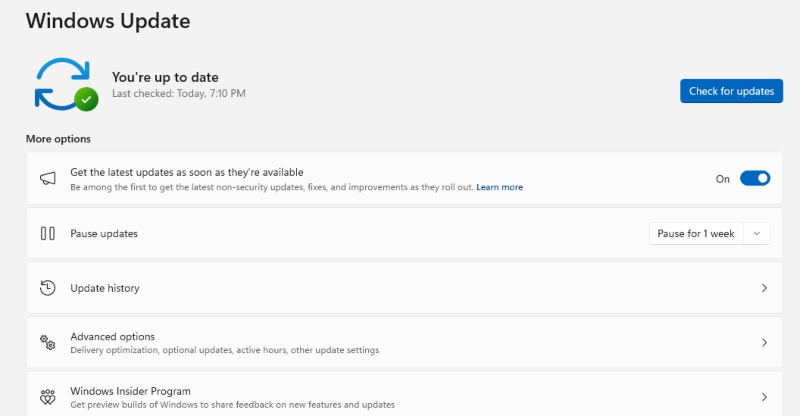
- Many AI phishing attacks exploit outdated browser components or unpatched Windows vulnerabilities to bypass security warnings. Enabling automatic updates closes these gaps before attackers find them.
Treat unexpected MFA prompts as a red flag
- If your authenticator app fires a code request and you didn’t initiate a login, deny it immediately, and change that account’s password. An uninvited MFA prompt is one of the clearest signs an attacker already has your password and is attempting to get through the second layer.
Tip: If you suspect a phishing page has already captured your credentials, go directly to the real site (type the address yourself) and change your password and MFA setup right away. Then check your account’s recent login activity for anything unusual.
Recommended Tool
Give Your PC a Stronger Defense Against Phishing Threats
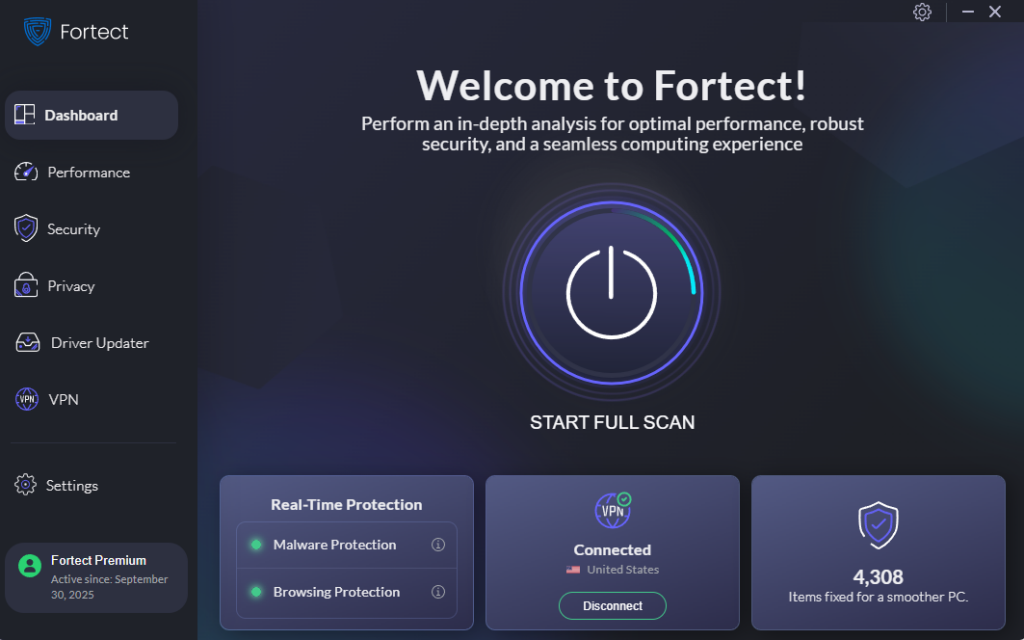
For an added layer of protection, Fortect is worth having on your Windows PC. Its real-time threat detection actively monitors for suspicious activity, including patterns associated with AI-generated MFA bypass phishing, removes identified threats, and repairs any Windows system files damaged during an attack. That last part matters: phishing malware often corrupts system components that ordinary antivirus tools leave broken even after the threat is removed.
Beyond security, Fortect cleans up junk files, closes out crashed background programs, and keeps your PC running at full speed. A sluggish machine is often a vulnerable one, and regular performance maintenance reduces the attack surface that attackers look for.
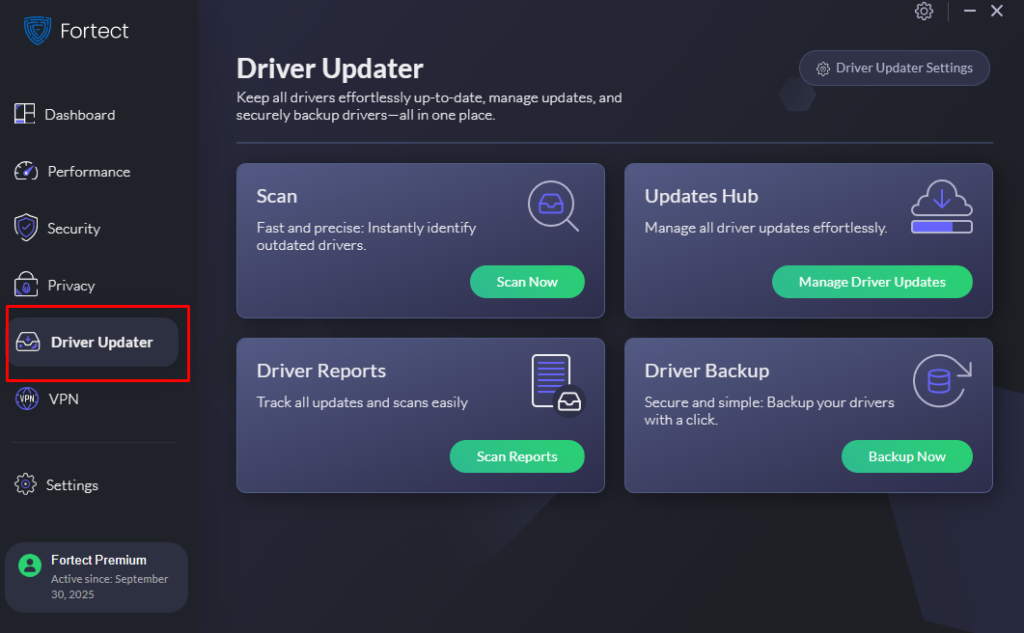
One feature that quietly makes a big difference: Fortect’s built-in Driver Updater automatically replaces outdated or corrupted drivers with verified, certified versions. Old drivers are a common but overlooked entry point for attackers, keeping them current closes security gaps that most users never think to check.
If keeping your Windows PC safe and fast sounds like something worth doing, Fortect makes it straightforward, no technical expertise required.
Try Fortect now for your Windows systems’ security.
Stay One Step Ahead of AI-Generated MFA Phishing
The threat from AI-generated MFA bypass phishing is real, but it’s not unstoppable. Most successful attacks rely on one moment of inattention, a URL not checked, a prompt approved without thinking, a software update skipped.
Building a few simple habits, verifying URLs, using phishing-resistant authentication, keeping Windows updated, and running reliable security software closes the door on the vast majority of these attacks.
Note: The most effective defense against AI-generated MFA phishing isn’t any single tool; it’s the combination of staying alert, using Windows’ built-in protections fully, and letting trusted software handle the threats you can’t see.