Operational Tech (OT) Ransomware: Prevention Guide
Ransomware has evolved far beyond attacking office computers and personal laptops. Today, Operational Technology (OT) ransomware represents one of the most dangerous cyber threats targeting the systems that control real-world infrastructure, from power grids and water treatment plants to manufacturing equipment and home automation systems. Understanding what OT ransomware is and how to protect against it is critical for anyone who uses connected devices or smart home technology.
What Is Operational Technology (OT) Ransomware?
Operational Technology refers to the hardware and software systems that monitor and control physical processes, devices, and infrastructure. Unlike traditional IT systems that manage data, OT systems manage machines, things like thermostats, smart meters, industrial controllers, and building management systems.
OT ransomware is a type of malicious software specifically designed to infiltrate, encrypt, or disrupt these physical control systems. Once infected, attackers can lock victims out of critical systems and demand a ransom payment, often in cryptocurrency, to restore access. For everyday users, this can mean losing control of smart home devices, security cameras, or connected appliances.
How OT Ransomware Differs from Traditional Ransomware
Traditional ransomware encrypts your files and documents. OT ransomware goes further; it can:
- Disable physical devices like smart locks or home security systems
- Disrupt the power or water supply managed by connected infrastructure
- Causes irreversible damage to hardware if the attacker chooses
- Hold safety-critical systems hostage, making the stakes far higher
Common Entry Points for OT Ransomware Attacks
Understanding how OT ransomware gets in is the first step toward keeping it out. Attackers typically exploit the following vulnerabilities:
Phishing Emails and Malicious Links
Phishing remains the most common attack vector. A deceptive email tricks the user into clicking a link or downloading an attachment that installs ransomware. Once on a Windows PC connected to a smart home hub or OT device, the malware can spread laterally to those systems.
Unpatched Software and Firmware Vulnerabilities
Outdated operating systems and device firmware are a gold mine for attackers. Known security flaws in older Windows versions or router firmware give hackers a reliable foothold into both IT and OT environments.
Weak or Default Passwords on Connected Devices
Many smart home devices ship with default credentials like “admin/admin” that users never change. Ransomware operators use automated tools to scan for these open doors and exploit them within minutes of a device going online.
Exposed Remote Desktop Protocol (RDP)
Remote Desktop Protocol is a common target. If RDP is enabled on a Windows machine and exposed to the internet without proper authentication, attackers can brute-force their way in and deploy ransomware across the network, including connected OT devices.
How to Protect Yourself from OT Ransomware on Windows 10/11
The good news is that strong prevention habits can dramatically reduce the risk of an OT ransomware attack. Here are practical, step-by-step actions to take on Windows 10 and Windows 11.
Strengthen Your PC Security with Fortect
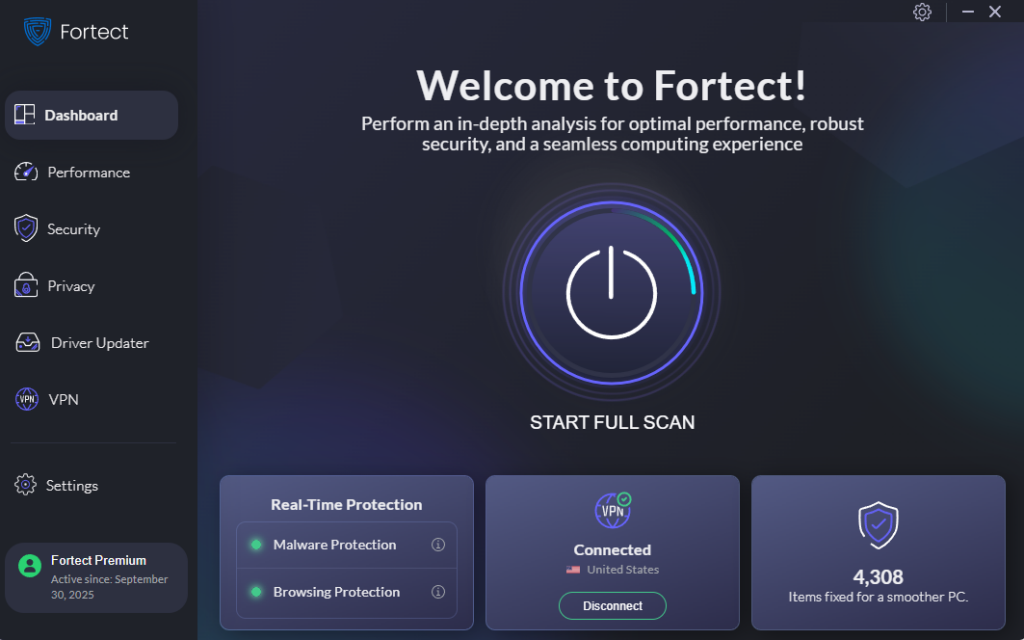
Fortect delivers advanced real-time malware protection for Windows users. It automatically scans your PC for traditional and emerging threats, including Operational Tech (OT) ransomware, removes malicious components, and repairs damaged system files to restore stability. Its smart threat-detection engine monitors suspicious behavior, blocks unauthorized changes, and alerts you before harmful actions can take place.
With a built-in performance scanner, Fortect also optimizes your PC by removing junk files, leftover malware traces, and crashed program data. This helps improve system reliability, reduce vulnerabilities that attackers exploit, and maintain smoother performance. By combining threat prevention, malware removal, and system repair, Fortect helps keep your device secure against Operational Tech (OT) ransomware while ensuring consistent, efficient operation.
Download and install Fortect now.
Strengthen Your Mac Security with Fortect
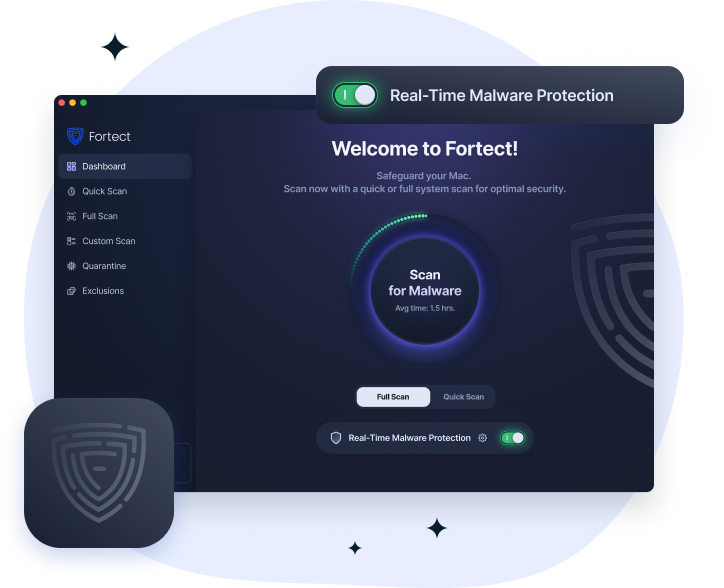
Fake VPN apps and trojanized downloads can bypass built-in macOS protections and expose systems to Operational Tech (OT) ransomware. These threats often hide inside seemingly legitimate apps, steal data, and install malicious components that spread across connected environments.
Fortect for Mac helps prevent and remove Operational Tech (OT) ransomware with real-time malware protection that continuously monitors suspicious activity and blocks threats before they execute. It performs full system and quick smart scans to detect hidden malware, while cloud-based security updates improve detection of emerging ransomware variants. Fortect also removes malicious files and restores system stability, helping keep your Mac protected and running smoothly.
Restrict User Account Privileges
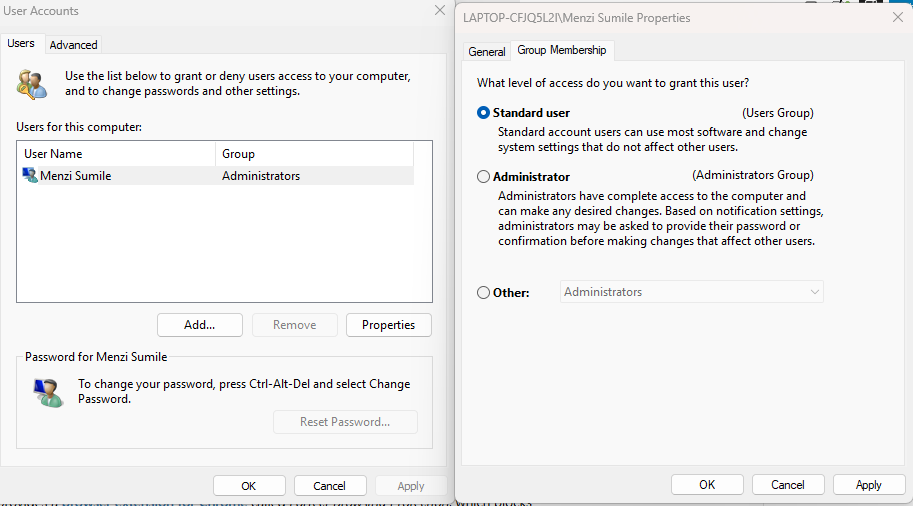
Running as an administrator at all times is dangerous. Use a standard account for daily use and reserve admin rights for system tasks only. Here’s how to create a restricted standard user account on Windows 10/11:
Open Settings > Accounts > Family & other users.
Under Other users, click Add account (Windows 11) or Add someone else to this PC (Windows 10).
Select I don’t have this person’s sign-in information, then Add a user without a Microsoft account.
Enter a username and password, then click Next.
Once the account is created, click on it and select Change account type.
Choose Standard User from the dropdown and click OK.
Use this standard account for everyday browsing and tasks.
Enable Controlled Folder Access (Ransomware Protection)
Windows 10 and 11 include a built-in ransomware protection feature. To enable it:
- Open Windows Security from the Start menu.
- Click Virus & threat protection.
- Scroll down to Ransomware protection and click Manage ransomware protection.
- Toggle Controlled folder access to On.
- Click Protected folders to add any additional folders containing important files.
- Click Allow an app through Controlled folder access if a trusted app gets blocked.
Disable Remote Desktop Protocol If Not Needed
If RDP is not actively needed, disabling it removes a major attack surface. To disable RDP on Windows 10/11:
- Right-click This PC or My Computer and select Properties.
- Click Remote settings on the left panel.
- Under Remote Desktop, select Don’t allow remote connections to this computer.
- Click Apply, then OK.
- Additionally, open Windows Firewall and ensure no inbound rules allow RDP (port 3389) unless intentionally configured.
Keep Windows Updated
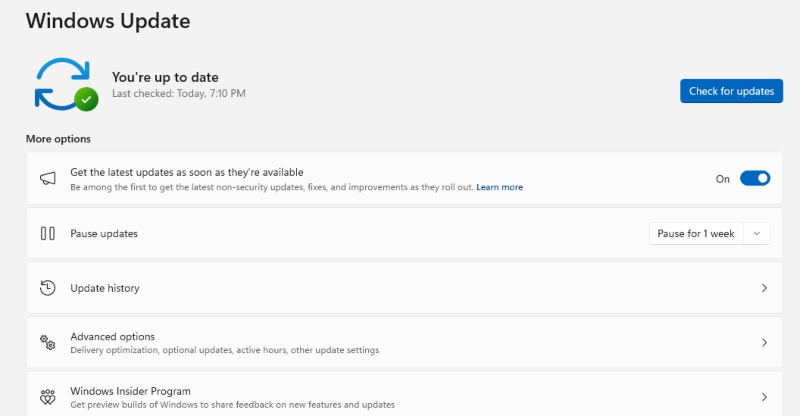
Regular updates patch known vulnerabilities that ransomware exploits. To update Windows 10/11:
- Press the Windows key and open Settings (gear icon).
- Click on Update & Security (Windows 10) or Windows Update (Windows 11).
- Click Check for updates.
- If updates are available, click Download & Install.
- Restart the computer when prompted to apply all changes.
- Repeat this process monthly or enable automatic updates by toggling on Receive updates for other Microsoft products.
Secure Smart Home and Connected OT Devices
Since OT ransomware often pivots through a home network to reach smart devices, securing those devices is essential:
- Change default usernames and passwords on every smart device immediately after setup.
- Place IoT (Internet of Things) devices on a separate guest network or VLAN if the router supports it.
- Regularly check for and install firmware updates for routers, smart hubs, and connected appliances.
- Disable Universal Plug and Play (UPnP) on the router if it is not needed.
- Remove smart devices that are no longer used or supported by the manufacturer.
The Role of Backups in OT Ransomware Recovery
Even with all preventive measures in place, having a solid backup strategy is the ultimate safety net. Follow the 3-2-1 backup rule: keep three copies of important data, stored on two different media types, with one copy stored offsite or in secure cloud storage.
On Windows 10/11, use File History (Settings > Update & Security > Backup) to automatically back up files to an external drive. For full system images, use Windows Backup and Restore to create recovery points that can be used to restore the entire system if ransomware strikes.
Warning Signs Your System May Be Compromised
Recognizing early signs of an OT ransomware infection can help minimize damage. Watch for:
- Unexplained slowdowns on the Windows PC or connected devices
- Smart home devices behaving erratically or becoming unresponsive
- Unusual network traffic spikes, especially at odd hours
- Files suddenly become inaccessible or appear with strange extensions
- Ransom notes appearing on the desktop or within folders
- Security software is being disabled without user action
If any of these signs appear, immediately disconnect the affected device from the internet and the home network, then run a full scan with Windows Defender or a trusted antivirus tool.
Conclusion
Operational Technology ransomware is no longer a threat reserved for large industrial facilities. As smart homes become more common and Windows PCs become the control hub for connected devices, everyday users are increasingly in the crosshairs. By keeping systems updated, restricting user access, enabling Windows built-in ransomware protection, securing connected devices, and maintaining reliable backups, the risk of falling victim to an OT ransomware attack drops significantly. Staying informed and proactive is the most powerful defense available.