
Autonomous AI Malware: A New Security Risk
Cybercriminals have consistently adapted to new technologies, but artificial intelligence has given them a powerful new weapon. Autonomous AI malware is no longer a sci-fi concept. It is an active, evolving threat that everyday Windows users need to understand and defend against right now.
What Is Autonomous AI Malware?
Autonomous AI malware is malicious software that utilizes artificial intelligence to make its own decisions, eliminating the need for a human hacker to guide it in real-time. Unlike traditional malware that follows a fixed script, AI-driven malware can learn from its environment, adapt to your defenses, and find new ways to attack your system on its own.
How It Differs From Traditional Malware
Traditional viruses and ransomware follow pre-written instructions. If your antivirus recognizes the pattern, it blocks it. Autonomous AI malware changes the game entirely:
- It mutates its own code to evade antivirus detection (a technique called polymorphic behavior).
- It studies your system behavior before striking, making it harder to catch.
- It can launch attacks at the optimal moment — for example, when you’re away, or your system is idle.
- It communicates with command servers using encrypted, AI-generated patterns that bypass network filters.
Why Autonomous AI Malware Is a Growing Threat to Windows Users

Windows 10 and Windows 11 remain the most widely used desktop operating systems in the world, making them the primary target for cybercriminals deploying AI-powered threats.
AI-Powered Phishing and Social Engineering
One of the most dangerous uses of autonomous AI malware is in AI-generated phishing. These attacks craft hyper-personalized emails, fake login pages, and fraudulent messages using data scraped from your social media or past breaches. The messages look and sound real because AI wrote them specifically for you.
Self-Spreading Network Worms
AI malware can scan your home network, identify connected devices (smart TVs, routers, phones), and spread laterally without any additional human input. Once inside one device, it quietly maps everything else connected to your Wi-Fi.
Ransomware With AI Decision-Making
Modern ransomware is evolving with AI, and some variants, like the emerging ghost ransomware, now use autonomous AI malware to decide which files are most valuable. Instead of encrypting everything randomly, they target critical documents, photos, and work files first, increasing pressure on victims to pay quickly.
How to Protect Your Windows 10/11 PC From Autonomous AI Malware
You don’t need to be a tech expert to protect yourself. Follow these practical steps on your Windows 10 or Windows 11 computer.
Strengthen Your PC Security with Fortect
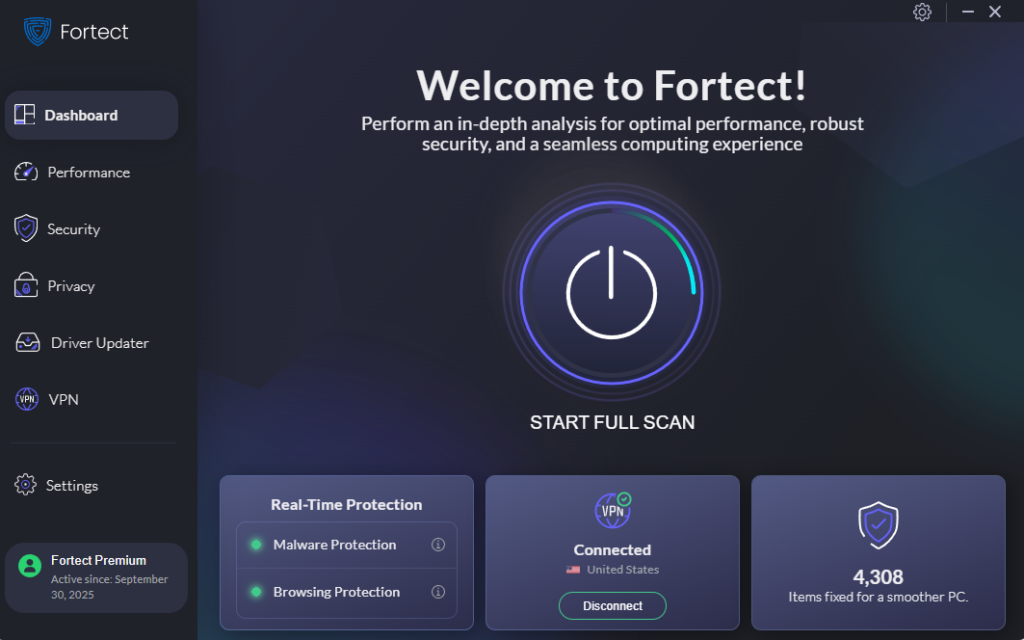
Fortect delivers advanced real-time malware protection for Windows users. It automatically scans your PC for traditional and emerging threats, including autonomous AI malware, eliminates them safely, and restores damaged system files for improved performance. Its smart threat-detection engine monitors suspicious activity and alerts you before harmful actions can take place, helping keep your device secure and running efficiently. Think of it as a proactive shield running quietly in the background while you go through the steps below.
The new Fortect Premium now features a built-in VPN with Auto-Protect for public Wi-Fi, keeping your connection secure even on open networks. Encrypting your internet traffic protects your data from hackers and emerging threats, including Autonomous AI malware, which can exploit unsecured networks. With AI-driven attacks becoming more sophisticated, a VPN is essential for shielding your device from these intelligent threats and keeping your online activity private.
Download and install Fortect now
Fortect for Mac: Extra Protection for Modern Threats
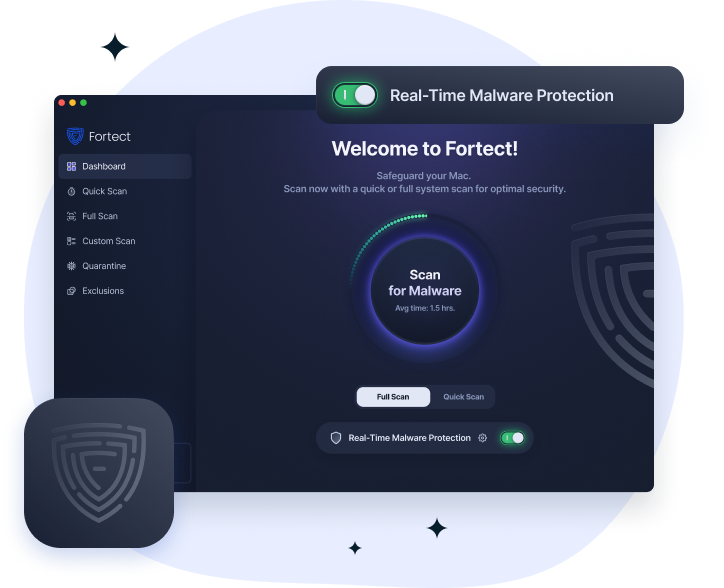
Cyber threats are evolving quickly, and Mac users are no longer off the radar. Emerging risks like Autonomous AI malware are designed to adapt and bypass traditional security layers, making built-in protections alone less reliable. Fortect for Mac works alongside Apple’s native defenses to close these gaps and strengthen your system against modern ransomware, spyware, and stealth attacks.
Key Features
- Real-Time Malware Defense: Continuously detects and blocks suspicious activity without slowing your system.
- Cloud-Based Threat Intelligence: Uses cloud analysis to identify new and emerging threats faster.
- Quick Smart Scan: Rapid scans that locate and fix common issues in minutes.
- Full System Scan: Deep scanning across your Mac for thorough threat detection and repair.
Step 1: Keep Windows Fully Updated
Security patches are your first line of defense. AI malware exploits known vulnerabilities, updates close those doors.
On Windows 10/11:
- Click the Start menu and open Settings (gear icon).
- Go to Update & Security (Windows 10) or Windows Update (Windows 11).
- Click Check for updates.
- Install all available updates, including optional driver updates.
- Restart your PC when prompted.
- Turn on Automatic Updates so this happens without you needing to remember.
Step 2: Enable and Configure Windows Defender
Windows Defender (Microsoft Defender Antivirus) now includes AI-based threat detection. Make sure it’s fully active.
On Windows 10/11:
- Open Start > Settings > Privacy & Security > Windows Security.
- Click Virus & threat protection.
- Ensure Real-time protection is toggled On.
- Click Virus & threat protection settings and enable Cloud-delivered protection and Automatic sample submission — these use Microsoft’s AI threat intelligence to catch new malware faster.
- Run a Quick Scan weekly or a Full Scan monthly.
Step 3: Restrict User Account Privileges
Autonomous AI malware often needs administrator-level access to do serious damage. Running your daily account as a standard user limits what malware can do, even if it gets in.
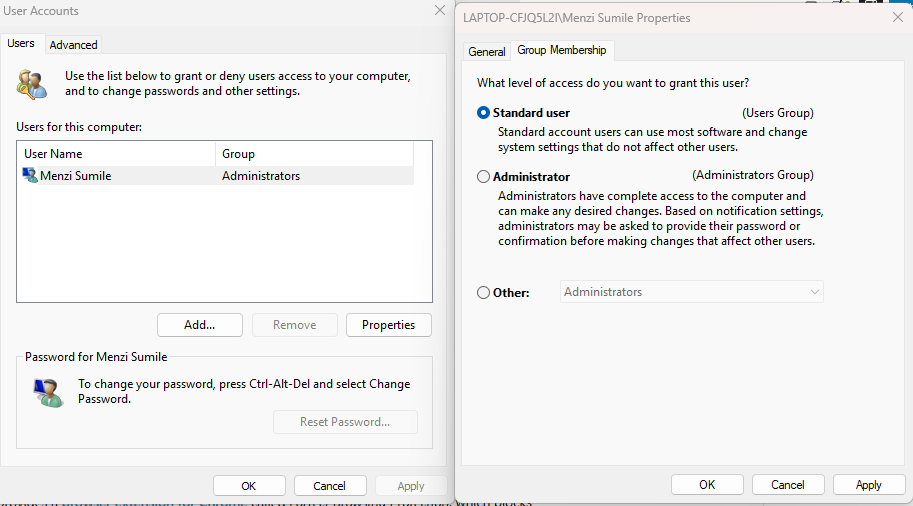
To create or switch to a Standard User account on Windows 10/11:
- Open Start > Settings > Accounts > Family & other users.
- Click Add account to create a new account, or click an existing one.
- Select Change account type.
- In the dropdown, choose Standard User instead of Administrator.
- Click OK.
Use the standard account for everyday browsing and only log into your admin account when installing trusted software.
Step 4: Enable Controlled Folder Access
This Windows feature blocks unauthorized apps, including AI malware, from modifying your important files.
On Windows 10/11:
- Open Windows Security > Virus & threat protection.
- Scroll to Ransomware protection and click Manage ransomware protection.
- Toggle Controlled folder access to On.
- Click Protected folders to add any extra folders you want to guard (Documents and Desktop are included by default).
Step 5: Use a DNS-Level Security Filter
AI malware communicates with remote servers to receive instructions and execute them. A secure DNS service can block those connections before they start. Switch your DNS to a free, security-focused service like Cloudflare (1.1.1.1) or Google (8.8.8.8).
On Windows 10/11:
- Open Settings > Network & Internet > Change adapter options.
- Right-click your active network connection and select Properties.
- Select Internet Protocol Version 4 (TCP/IPv4) and click Properties.
- Choose Use the following DNS server addresses.
- Enter 1.1.1.1 as Preferred and 1.0.0.1 as Alternate (Cloudflare), then click OK.
Additional Security Habits That Matter
Beyond the steps above, a few everyday habits dramatically reduce your risk:
- Never click unsolicited links or email attachments, even if they appear to come from someone you know. AI-generated phishing is nearly indistinguishable from real messages.
- Back up your files to an external drive or an offline cloud backup (not just a synced folder, which ransomware can also encrypt).
- Avoid connecting to public Wi-Fi without using a VPN, as unsecured networks can expose your traffic to threats such as AI-driven malware and Wi-Fi snooping, allowing attackers on the same network to intercept sensitive data.
- Be cautious with browser extensions; malicious AI-powered extensions can log keystrokes and steal passwords silently.
Conclusion
With remote work becoming increasingly common, Autonomous AI malware is now rampant, targeting users who access sensitive data from home networks and shared devices. This next-generation malware is faster, smarter, and harder to detect than traditional threats. Fortunately, you don’t need to be a cybersecurity expert to stay safe. Keeping Windows updated, using Microsoft Defender with cloud protection, limiting user permissions, and following safe browsing habits are essential steps for strong remote work security. Staying proactive is key; your digital safety depends on it.




