
How to Detect and Prevent UEFI Firmware Attacks?
To detect and prevent UEFI firmware attacks, you need to update your firmware, enable Secure Boot, and run offline scans, because standard antivirus tools can’t reach threats that hide below Windows. UEFI-level infections live in the chip that starts your computer, meaning they survive full system reinstalls and stay active before your desktop even loads.
Knowing exactly what to do, and in what order, is what separates a protected PC from a compromised one.
What Are UEFI Firmware Attacks?
UEFI (Unified Extensible Firmware Interface) is the software built into your motherboard that boots your computer. Attackers who compromise this layer gain persistent, nearly invisible control over your system.
Why They’re So Dangerous
Because UEFI sits below the operating system, standard security tools can’t reach it. Malware planted here, sometimes called a “bootkit” or “implant”, can spy on everything you do, disable your defenses, or silently reinstall itself even after you wipe your drive.
Who’s at Risk
You don’t need to be a high-profile target. Outdated firmware, unpatched drivers, and phishing downloads are all common entry points for everyday users.
Warning Signs Your Firmware May Be Compromised
Your PC won’t announce a UEFI infection, but these signs can hint that something is wrong below the surface.
Watch For These Red Flags
- Your security software gets disabled unexpectedly and won’t stay on
- Your PC behaves strangely after a full Windows reinstall
- Unfamiliar processes run at startup that you can’t remove
- BIOS settings keep changing without your input
None of these alone confirms a firmware attack, but any combination warrants a deeper look.
How to Detect and Prevent UEFI Firmware Attacks on Windows
These steps are written for everyday Windows users, no technical background needed.
Step 1: Check for a UEFI firmware update. Go to your PC or motherboard manufacturer’s website (e.g., Dell, ASUS, HP) and search for your model. Download and install the latest firmware update. Manufacturers patch known vulnerabilities through these updates.
Step 2: Enable Secure Boot Open Settings → System → Recovery → Advanced Startup → Restart Now. Navigate to UEFI Firmware Settings, then find the Secure Boot option and make sure it’s turned on. Secure Boot blocks unauthorized software from loading during startup.
Step 3: Enable TPM (Trusted Platform Module). In the same UEFI settings menu, look for TPM and make sure it’s enabled. TPM works alongside Secure Boot to verify system integrity at every boot.
Step 4: Run Windows Defender Offline Scan. Open Windows Security → Virus & Threat Protection → Scan Options → Microsoft Defender Offline Scan. This scan runs before Windows loads, giving it a better chance of catching low-level threats.
Step 5: Audit startup programs. Press Ctrl + Shift + Esc to open Task Manager, then click the Startup tab. Disable anything unfamiliar. Bootkits often register themselves here to stay active.
Step 6: Avoid unofficial BIOS tools. Never flash your firmware using files from unofficial forums or third-party sites. Only use tools and files provided directly by your hardware manufacturer.
Strengthen Your PC Security with Fortect
Once you’ve taken those protective steps, keeping your defenses strong on an ongoing basis matters just as much. Fortect delivers advanced real-time protection specifically built for Windows users, automatically scanning for deep-rooted threats, including UEFI firmware attacks, eliminating them safely, and restoring any system files they may have damaged along the way. Its threat-detection engine runs quietly in the background, catching suspicious behavior before it can do real harm.
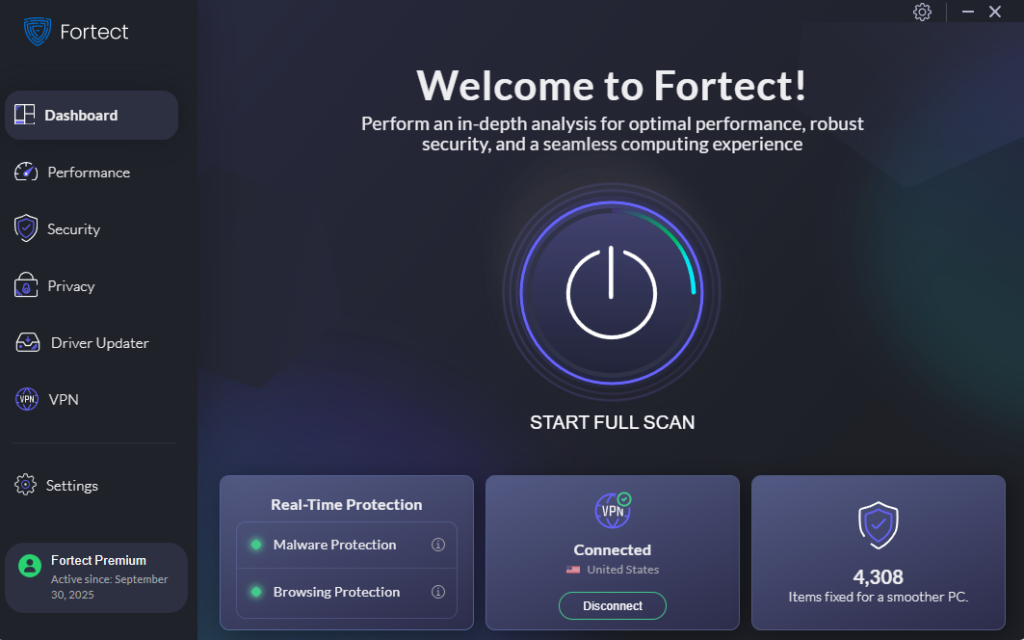
Beyond threat removal, Fortect also cleans out junk files and clears crashed program data that slows your PC down over time, keeping everything running the way it should.
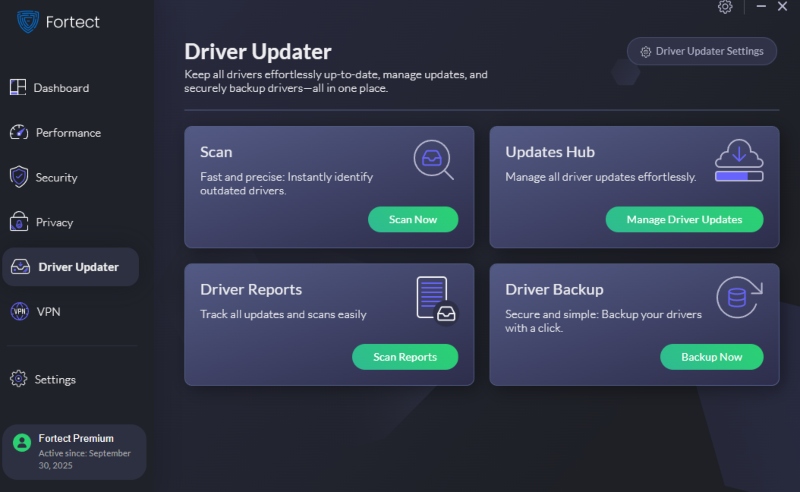
Fortect Premium goes a step further with a built-in Driver Updater that finds outdated or corrupted drivers and replaces them with verified, trusted versions. Since compromised drivers are a known entry point for firmware-level attacks, keeping them current is a genuine security measure, not just a performance boost. If you want a cleaner, faster, and more secure PC without managing everything manually, Fortect is worth a look.
Download and install Fortect today.
Conclusion
UEFI firmware attacks are serious, but they’re not unstoppable. Keeping your firmware updated, enabling Secure Boot and TPM, and running deep offline scans are the most effective defenses available to home users today. The key is staying proactive, because by the time most people notice something is wrong, a UEFI firmware attack has already had time to dig in. A few simple habits now can save a lot of headaches later.



