
Improve Security with Telemetry Anomaly Scoring
Every day, Windows devices quietly collect performance and behavior data in the background. Most users ignore it, but that same data stream, when analyzed intelligently, can be one of the strongest defenses against cyber threats on a personal computer. Telemetry anomaly scoring turns raw system telemetry into a ranked risk signal, helping Windows users detect unusual activity before it becomes a serious problem.
What Is Telemetry Anomaly Scoring?
Telemetry anomaly scoring is a security method that analyzes data collected from a device’s operating system, such as CPU usage patterns, network connections, login times, and application behavior, and assigns a numerical score to flag unusual or suspicious activity.
Think of it as a health monitor for your computer. When everything runs normally, the score stays low. When something behaves out of the ordinary, an unknown process suddenly consuming memory, an app connecting to an unfamiliar server, or a login attempt at 3 a.m., the score spikes, alerting the system or user that something may be wrong.
How Anomaly Scoring Relates to Windows Telemetry
Windows 10 and 11 have a built-in telemetry system that continuously logs device activity. This includes:
- Diagnostic data – crash reports, error logs, hardware status
- Usage data – which apps are opened, how often, and for how long
- Security data – firewall activity, threat detections, and user login events
- Network telemetry – DNS queries, connection attempts, data transfer volumes
Anomaly scoring tools, whether built into Windows Security or third-party software, process this telemetry stream and apply statistical baselines to detect deviations. When a behavior deviates significantly from the norm, it gets a higher anomaly score.
Why Telemetry Anomaly Scoring Matters for Personal Security
Early Detection of Malware and Ransomware
Traditional antivirus software relies on known threat signatures. Telemetry anomaly scoring, by contrast, detects behavioral anomalies, meaning it can flag new, unknown malware based on what it does rather than what it is. For example, if a program starts rapidly encrypting files in the Documents folder, the anomaly score will rise sharply even if the program has never been seen before.
Identifying Unauthorized Access
If someone gains unauthorized access to a Windows account through a stolen password or phishing attack, their usage patterns will likely differ from those of the regular user. Anomaly scoring picks up on these differences: unusual login times, unfamiliar IP addresses, or access to files that the account never normally touches.
Detecting Insider Threats and Account Compromise
Even on a home device shared by family members, telemetry anomaly scoring can detect when a trusted account begins behaving oddly, such as accessing parental control settings, attempting to install software outside normal hours, or browsing unusual categories of websites.
How to Use Windows Security Features That Support Anomaly Detection
Windows 10 and 11 include built-in tools that leverage telemetry data to detect anomalies. Here’s how to enable and configure them.
Strengthen Your PC Security with Fortect
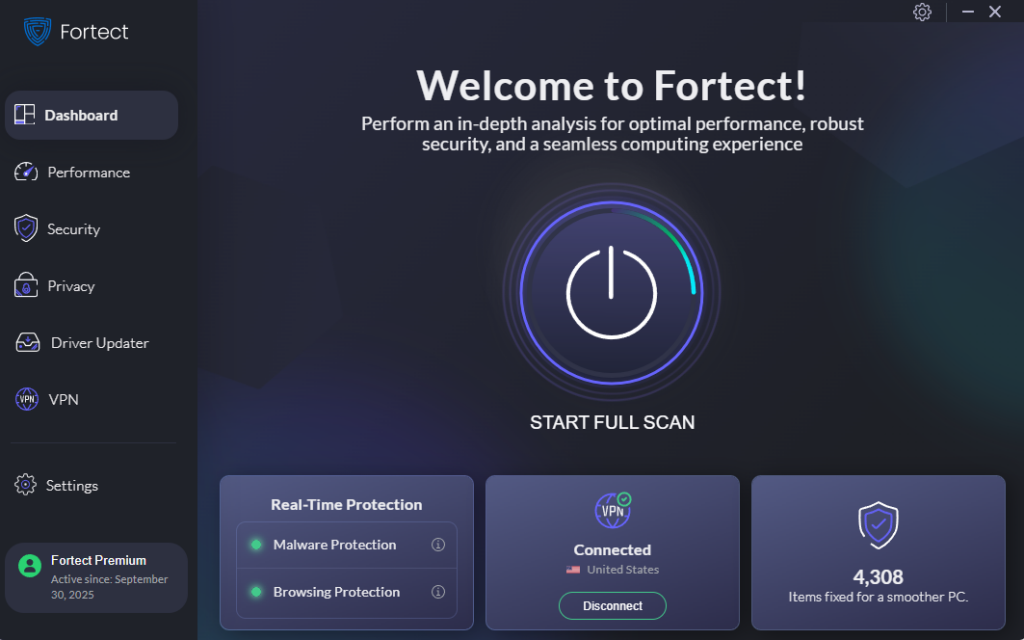
Before diving into manual configuration, it’s worth knowing that a dedicated tool can handle much of this automatically. Fortect delivers advanced real-time malware protection for Windows users. It automatically scans your PC for traditional and emerging threats, including telemetry anomaly scoring-based detections, eliminates them safely, and restores damaged system files for improved performance. Its smart threat-detection engine monitors suspicious activity and alerts you before harmful actions can take place, helping keep your device secure and running efficiently. For users who want robust, always-on protection without navigating complex system settings, Fortect is a reliable first line of defense.
Download and install Fortect today on your Windows systems.
Telemetry anomaly scoring is often used to detect unusual behavior, but attackers can also exploit gaps in monitoring to stay hidden on macOS. To reduce that risk, you need more than Apple’s built-in protections, especially when dealing with stealthy malware that mimics normal system activity.
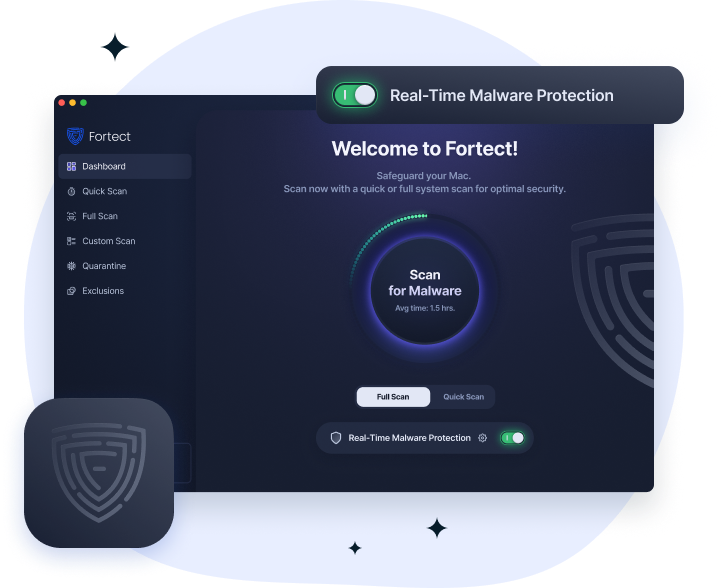
Fortect for Mac helps prevent and resolve threats tied to telemetry anomaly scoring by adding real-time monitoring that catches suspicious patterns early, even when they appear legitimate. It works alongside macOS security to close visibility gaps, using cloud-based intelligence to identify emerging threats and deep system scans to uncover hidden issues. This layered approach makes it harder for malicious activity to blend in with normal telemetry, improving detection accuracy while keeping your system secure.
Step 1: Enable Enhanced Diagnostic Data Collection
- Open Settings (press Windows + I).
- Go to Privacy & Security → Diagnostics & Feedback.
- Under Diagnostic data, select Send optional diagnostic data.
- This enables richer telemetry that supports more accurate anomaly detection in Windows Defender and Microsoft’s threat intelligence systems.
Step 2: Turn On Microsoft Defender’s Advanced Protection
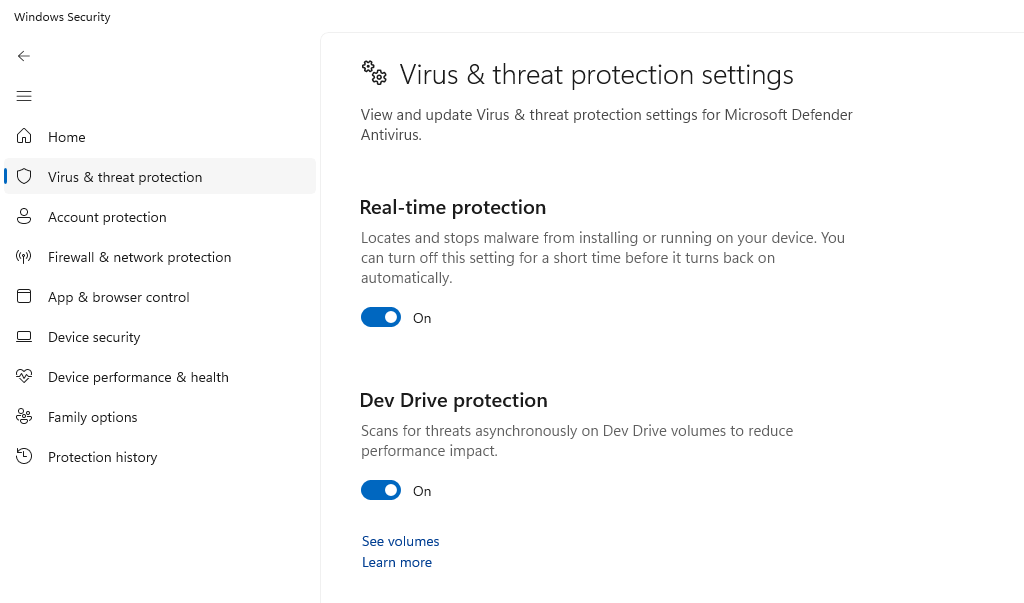
- Open Windows Security from the Start menu or system tray.
- Click Virus & threat protection.
- Under Virus & threat protection settings, click Manage settings.
- Enable the following:
- Real-time protection – On
- Cloud-delivered protection – On
- Automatic sample submission – On
Cloud-delivered protection connects your device to Microsoft’s telemetry anomaly scoring infrastructure, which compares your device’s behavior against billions of anonymized data points in real time.
Step 3: Enable Tamper Protection
Tamper protection prevents unauthorized changes to your security settings, a critical layer when anomaly scoring is active.
- In Windows Security, go to Virus & threat protection → Manage settings.
- Scroll down to Tamper Protection.
- Toggle it On.
Step 4: Review Your Protection History
Windows Security logs every flagged event; these logs are the visible output of anomaly scoring in action.
- Open Windows Security.
- Click Virus & threat protection → Protection history.
- Review any items marked as Severe, High, or Informational.
- For each flagged item, click it to see the affected file, process name, and recommended action.
Step 5: Enable Windows Defender Firewall Logging
Firewall logs capture network anomalies, unusual outbound connections, port scanning, and unauthorized remote access attempts.
- Press Windows + R, type wf.msc, and press Enter.
- In the Windows Defender Firewall with Advanced Security window, click Windows Defender Firewall Properties in the right panel.
- Under each profile tab (Domain, Private, Public), click Customize under Logging.
- Set Log dropped packets and Log successful connections to Yes.
- Note the log file path (default: %systemroot%\system32\LogFiles\Firewall\pfirewall.log) for review.
Understanding Your Anomaly Score in Practice
What to Look For in Telemetry Logs
Even without specialized software, Windows users can interpret telemetry-based anomaly signals by reviewing:
- Event Viewer (eventvwr.msc) → Windows Logs → Security: Look for Event ID 4625 (failed login), 4648 (login with explicit credentials), or 4688 (new process creation).
- Task Manager → Startup tab: Unexpected programs set to launch at startup are a common anomaly indicator.
- Resource Monitor (resmon.exe) → Network tab: Look for unknown processes making outbound connections.
Common Anomaly Score Triggers to Know
| Behavior | Anomaly Signal |
| Unknown process accessing webcam or microphone | High |
| Rapid file modifications across multiple folders | Very High (possible ransomware) |
| Login attempt from a new location or IP | Medium–High |
| Unusual spike in outbound network traffic at night | Medium |
| A new scheduled task was created by an unknown process | High |
Best Practices to Complement Telemetry Anomaly Scoring
Keep Windows Updated
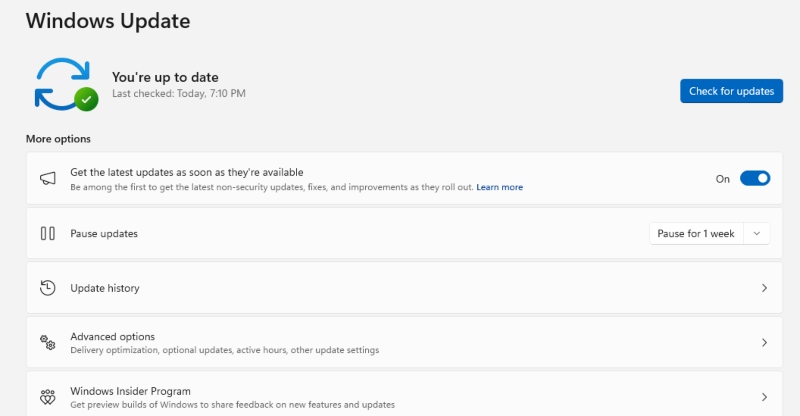
Security patches frequently improve Windows Defender’s anomaly detection models. To update:
- Go to Settings → Windows Update.
- Click Check for updates.
- Install all Security and Critical updates immediately.
Use a Standard User Account for Daily Tasks
Running Windows as an administrator gives malware elevated privileges. Limiting your daily account reduces the blast radius of anomalous activity.
- Go to Settings → Accounts → Family & other users.
- Click Add account → create a new standard account for everyday use.
- Reserve the administrator account for installing software only.
Review Connected Apps Regularly
Apps with unnecessary permissions generate unnecessary telemetry noise and create additional attack surfaces.
- Go to Settings → Privacy & Security → App permissions.
- Review which apps have access to Location, Camera, Microphone, and Contacts.
- Revoke access for any app that no longer needs it.
Conclusion
Telemetry anomaly scoring transforms the background data your Windows device already collects into an active security layer. By enabling the right Windows settings, reviewing protection logs, and understanding what abnormal system behavior looks like, everyday users gain a meaningful edge against malware, unauthorized access, and account compromise, without needing enterprise tools or technical expertise.
The best security posture is one that detects threats early, and telemetry anomaly scoring is one of the most effective ways to achieve this on a personal Windows device.



