Botnet Mitigation: Protect Your PC in 2026
Cyber threats are evolving fast, and botnets remain one of the most dangerous and underestimated risks facing everyday Windows users. Whether your PC is used for browsing, gaming, or remote work, it can be quietly recruited into a botnet without any visible signs. Understanding botnet mitigation is the first step toward regaining control of your device and personal data.
What Is a Botnet and Why Should You Care?
A botnet is a network of infected computers, called “bots” or “zombies”, that a hacker (known as a bot herder) controls remotely. Once your PC is compromised, it can be used to launch distributed denial-of-service (DDoS) attacks, send spam emails, steal login credentials, mine cryptocurrency, or spread malware to other devices, all without your knowledge.
Common Signs Your PC May Be Infected
- Your PC runs unusually slowly even when idle
- Internet speeds drop significantly for no clear reason
- Your email contacts receive messages you never sent
- Unfamiliar programs appear in Task Manager or startup apps
- Your PC overheats frequently, or fans run at full speed constantly
Botnet infections are designed to remain hidden, making proactive botnet protection strategies even more critical.
How Botnets Infect Windows PCs
Understanding the infection vectors helps you block them before they become a problem.
Phishing Emails and Malicious Attachments
Phishing remains the number one delivery method for botnet malware. Cybercriminals disguise malicious links or attachments as legitimate invoices, shipping notices, or security alerts. Clicking these installs a bot client silently in the background.
Drive-By Downloads
Visiting a compromised website can trigger an automatic malware download, no clicking required. This is especially common on sites running outdated plugins or unpatched content management systems.
Software Vulnerabilities and Unpatched Systems
Outdated Windows versions and unpatched applications are prime targets. Exploit kits scan for known vulnerabilities and inject bot malware directly through security gaps. This is why keeping Windows updated is a core botnet defense tactic.
Infected USB Drives and External Media
Plugging in an unknown USB drive can auto-execute malware in seconds. This method is less common today but is still used in targeted attacks.
Botnet Mitigation: Step-by-Step Protection for Windows 10/11 Users
The good news is that effective botnet removal and prevention don’t require advanced technical skills. The following steps walk through everything a Windows user needs to do.
Step 1: Keep Windows Updated
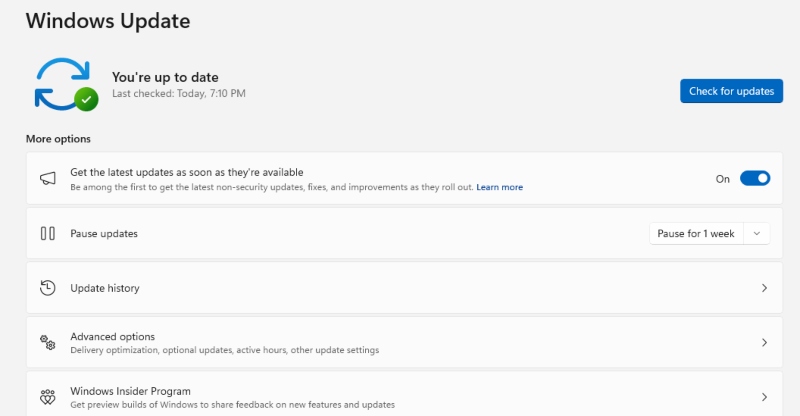
Windows updates patch the exact vulnerabilities that botnet malware exploits. Here’s how to check for and install updates on Windows 10 and 11:
- Click the Start button and open Settings (gear icon).
- Go to Windows Update (Windows 11) or Update & Security > Windows Update (Windows 10).
- Click Check for updates.
- If updates are available, click Download and install.
- Restart your PC when prompted to apply all patches.
Enable automatic updates to ensure you never miss a critical security fix.
Step 2: Install and Run Reputable Antivirus Software
Windows Defender (built into Windows 10/11) provides solid baseline protection, but pairing it with a dedicated anti-malware tool improves botnet detection significantly.
- Open Windows Security from the Start menu.
- Go to Virus & threat protection.
- Click Quick scan for a fast check, or Scan options > Full scan for a thorough sweep.
- Review and act on any threats flagged by the scan.
For an extra layer of protection, run Malwarebytes (free version) alongside Windows Defender to catch what signature-based tools may miss.
Step 3: Enable and Configure Windows Firewall
A properly configured firewall blocks unauthorized outbound communications, the very traffic a botnet relies on to receive commands from its control server.
- Open Control Panel > System and Security > Windows Defender Firewall.
- Ensure the firewall is On for both private and public networks.
- Click Advanced settings to review inbound and outbound rules.
- Block any unfamiliar or suspicious programs attempting outbound access.
Step 4: Restrict User Account Privileges
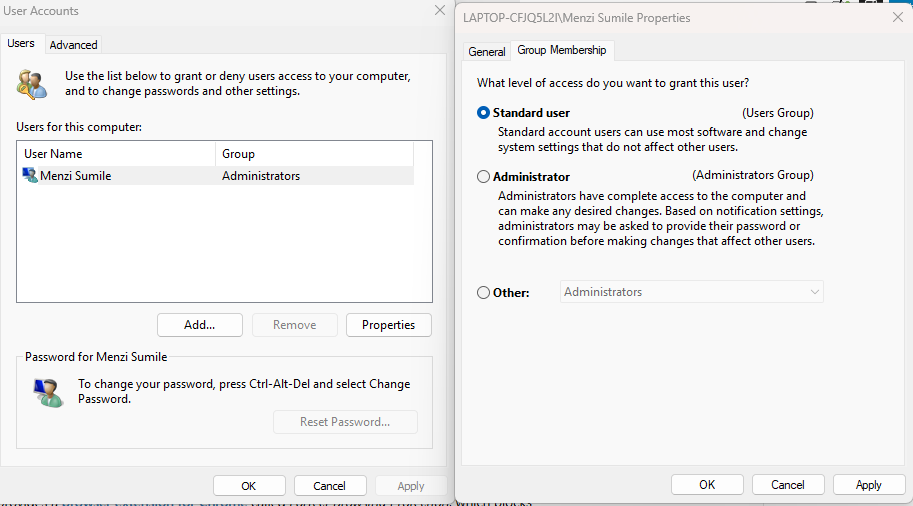
Botnets often need administrator access to install themselves deeply. Using a standard user account for everyday tasks dramatically limits what malware can do.
To create a standard user account on Windows 10/11:
- Go to Settings > Accounts > Family & other users.
- Click Add account (Windows 11) or Add someone else to this PC (Windows 10).
- Follow the prompts to create a new account.
- Once created, click the account name and select Change account type.
- Set it to Standard User and click OK.
Use the standard account for daily browsing and only switch to the administrator account when installing trusted software.
Step 5: Disable Unnecessary Remote Access Features
Botnets can exploit Remote Desktop Protocol (RDP) and other remote access tools to maintain persistence on your PC.
- Open Settings > System > Remote Desktop.
- Toggle Enable Remote Desktop to Off if you don’t use it.
- Press Win + R, type services.msc, and press Enter.
- Locate Remote Registry, right-click, and select Properties.
- Set Startup type to Disabled and click OK.
Step 6: Use a DNS-Based Threat Filter
DNS filtering blocks connections to known botnet command-and-control (C2) servers before they can be established. Services like Cloudflare’s 1.1.1.1 for Families or Quad9 (9.9.9.9) automatically block malicious domains.
To change your DNS on Windows 10/11:
- Go to Settings > Network & Internet > Wi-Fi (or Ethernet).
- Click your active connection, then select Edit under DNS server assignment.
- Switch from Automatic to Manual.
- Enter a secure DNS address such as 9.9.9.9 (Quad9) for IPv4.
- Save your changes.
Strengthen Your PC Security with Fortect
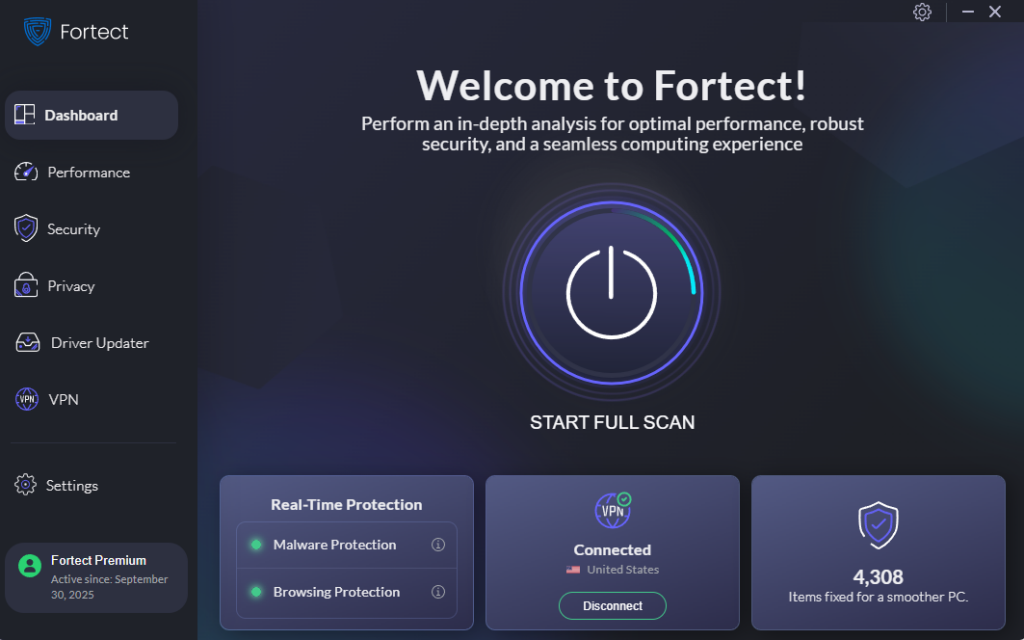
While manual steps go a long way, maintaining consistent botnet mitigation on your own can be time-consuming, and one missed update or overlooked process is all it takes for an infection to slip through. Fortect delivers advanced real-time malware protection for Windows users. It automatically scans your PC for traditional and emerging threats, including botnet malware, eliminates them safely, and restores damaged system files for improved performance. Its smart threat-detection engine monitors suspicious activity and alerts you before harmful actions can take place, helping keep your device secure and running efficiently.
Download and install Fortect today.
Fortect for Mac: Extra Protection Against Modern Threats
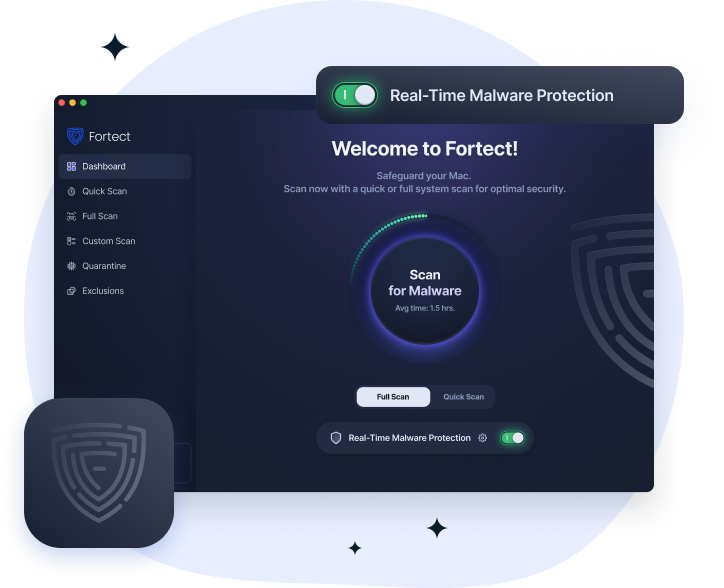
Botnet mitigation is becoming more important for Mac users as cyber threats grow more advanced. Fortect for Mac adds real-time protection alongside macOS security to help block malware, spyware, and hidden attacks before they spread.
Key Features
- Real-time malware monitoring and blocking
- Cloud-based threat detection for emerging attacks
- Quick Smart Scan for fast issue detection
- Full System Scan for deeper protection and repair
Additional Botnet Prevention Best Practices
Beyond the step-by-step fixes above, these habits form a strong long-term defense against botnet infection and other cyber threats.
Use Strong, Unique Passwords and a Password Manager
Credential-stuffing attacks power many botnet recruitment campaigns. Using unique passwords for every account and storing them in a reputable password manager eliminates this risk.
Be Cautious With Email Links and Attachments
Never open attachments or click links from unknown senders. Even messages from known contacts can be spoofed. When in doubt, verify the sender through a separate channel before opening anything.
Avoid Pirated Software and Unofficial Download Sources
Cracked software and unofficial installers are among the most common botnet delivery mechanisms. Always download programs from official websites or the Microsoft Store.
Monitor Network Traffic Regularly
Use the built-in Resource Monitor (search it in the Start menu) to check which programs are sending and receiving data. Unexplained high network activity from an unknown process is a red flag worth investigating.
What to Do If Your PC Is Already Infected
If botnet malware is already present, act quickly:
- Disconnect from the internet to stop C2 communication immediately.
- Boot into Safe Mode — press F8 or hold Shift while restarting and select Safe Mode with Networking.
- Run a full antivirus and Malwarebytes scan in Safe Mode.
- Remove all flagged threats and restart normally.
- Change all passwords from a clean, separate device.
- Notify your ISP — many providers can detect and flag botnet traffic from your IP address and provide additional assistance.
Final Thoughts
Botnet mitigation is not a one-time fix; it’s an ongoing practice. Keeping Windows updated, using strong security tools, restricting account privileges, and staying alert to phishing attempts, such as botnet attack are all part of a layered defense strategy. The more proactive steps taken today, the less likely a PC becomes part of a criminal network tomorrow. Cyber hygiene is the single most effective botnet defense available to any Windows user in 2026.