
Office Document Exploits: Risks and Prevention Tips
Every day, millions of people open Word documents, Excel spreadsheets, and PowerPoint presentations without a second thought. But hidden inside these familiar files can lurk some of the most dangerous cyber threats targeting everyday Windows users. Understanding office document exploits, what they are, how they work, and how to stop them, is one of the most important steps anyone can take to protect their personal data and devices.
What Are Office Document Exploits?
Office document exploits are malicious techniques that use everyday document file formats, such as .docx, .xlsx, .pptx, or .pdf, to deliver malware, steal data, or take control of a victim’s computer. Rather than attacking software directly, cybercriminals hide the attack inside a file that looks completely normal and trustworthy.
These exploits take advantage of features built into document software, features like macros, embedded scripts, and external content links, to execute harmful code the moment a file is opened.
Common Types of Office Document Exploits
Macro-Based Malware. Macros are small automation scripts built into Microsoft Office programs. Attackers embed malicious Visual Basic for Applications (VBA) code inside a document. When the victim enables macros, the code runs and can download ransomware, install keyloggers, or open backdoors into the system.
Malicious OLE Objects. Object Linking and Embedding (OLE) lets Office files contain embedded content from other programs. Attackers abuse this feature to embed executable files or scripts directly inside a document. Clicking on what appears to be an icon or image inside the file triggers the malicious code.
Exploiting Unpatched Vulnerabilities. Software vulnerabilities in Microsoft Office can be exploited through specially crafted document files. A classic example is CVE-2017-11882, a memory corruption vulnerability in Microsoft Equation Editor that allowed remote code execution simply by opening a document, no macros needed.
Phishing Documents with Malicious Links. Some malicious documents don’t carry the payload themselves. Instead, they contain urgent-looking instructions that trick users into clicking links that download malware or redirect them to credential-harvesting websites.
Template Injection Attacks. A document may appear clean on its own, but it silently loads a malicious macro-enabled template from a remote server when opened. This technique bypasses security tools that only scan the file locally.
Why Windows Users Are Frequently Targeted
Windows users represent the largest share of desktop operating system users worldwide, making them the primary target for document-based attacks. Cybercriminals commonly distribute malicious office files through:
- Phishing emails disguised as invoices, shipping notices, job offers, or urgent account alerts
- Malicious file-sharing links on social media or messaging apps
- Fake software download sites are bundling documents with installers
- Compromised websites that automatically download files (drive-by downloads)
Because Microsoft Office files are universally trusted and used in daily life, most users open them without hesitation, which is exactly what attackers count on.
How to Protect Yourself: Prevention Tips for Windows 10/11
Strengthen Your PC Security with Fortect
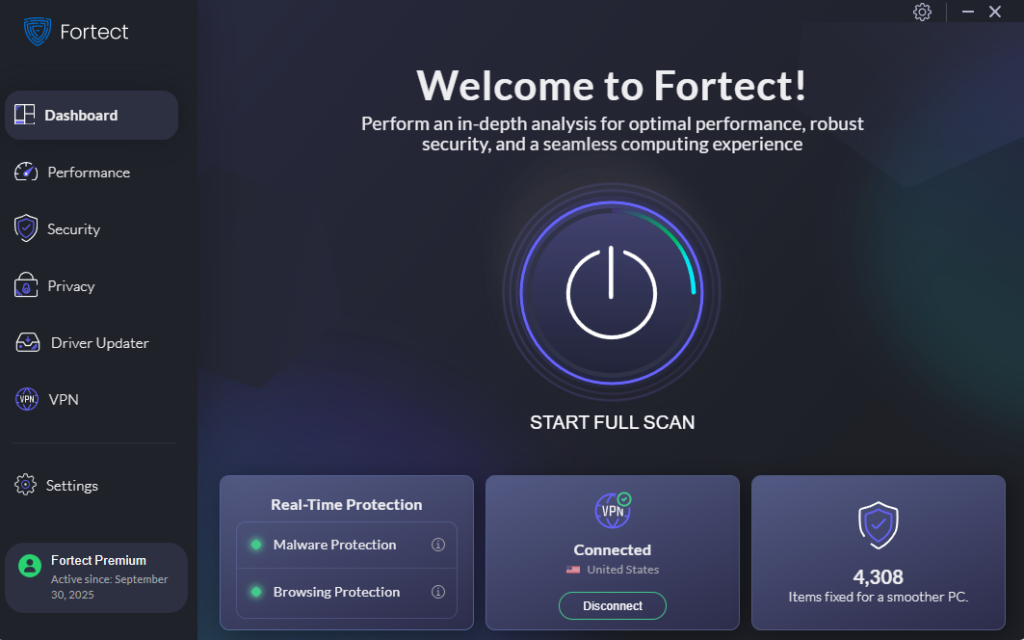
Before diving into manual settings, it’s worth knowing that a dedicated security tool can add a critical extra layer of defense, especially against evolving threats like office document exploits. Fortect delivers advanced real-time malware protection for Windows users. It automatically scans your PC for traditional and emerging threats, including office document exploits, eliminates them safely, and restores damaged system files for improved performance. Its robust threat-detection engine monitors suspicious activity and alerts you before harmful actions can take place, helping keep your device secure and running efficiently.
Download and install Fortect now.
Disable Macros by Default in Microsoft Office
Macros are the most commonly abused feature in office document exploits. Disabling them by default removes the most common attack vector.
How to disable macros in Microsoft Word (Windows 10/11):
- Open Microsoft Word.
- Click File → Options.
- Select Trust Center from the left panel.
- Click Trust Center Settings.
- Click Macro Settings in the left panel.
- Select Disable all macros with notification (recommended) or Disable all macros without notification for maximum security.
- Click OK to save.
Repeat these steps for Excel and PowerPoint. With this setting enabled, Office will warn you before running any macro, giving you the chance to cancel before any damage is done.
Keep Windows and Microsoft Office Updated
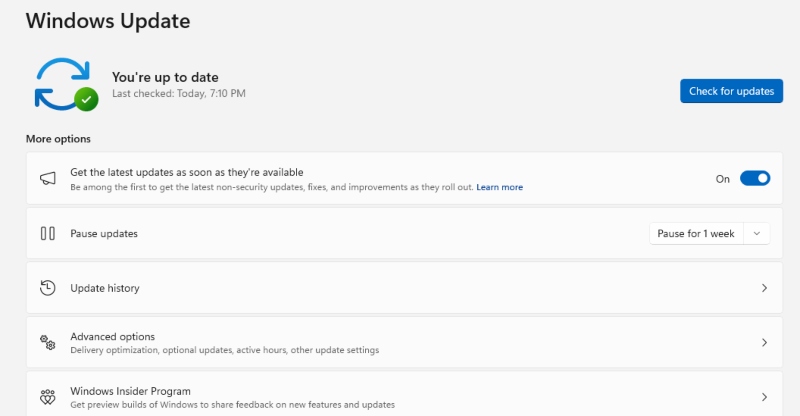
Unpatched software is the number one enabler of document exploits. Keeping Windows and Office up to date closes known security holes that attackers actively exploit.
How to update Windows 10/11:
- Click the Start button and open Settings (gear icon).
- Go to Windows Update (in Windows 11, it’s directly in the left panel; in Windows 10, select Update & Security).
- Click Check for updates.
- If updates are available, click Download & Install.
- Restart your computer when prompted to apply updates.
How to update Microsoft Office (Microsoft 365 / Office 2019/2021):
- Open any Office application (e.g., Word).
- Click File → Account.
- Under Product Information, click Update Options → Update Now.
- Office will check for and install any available updates.
Enable Protected View
Microsoft Office’s Protected View opens documents from the internet or email attachments in a restricted read-only mode, blocking most exploits from executing.
How to verify Protected View is enabled:
- Open Word, go to File → Options → Trust Center → Trust Center Settings.
- Click Protected View.
- Ensure all three checkboxes are ticked:
- Enable Protected View for files originating from the internet
- Enable Protected View for files located in potentially unsafe locations
- Enable Protected View for Outlook attachments
- Click OK.
Never click “Enable Editing” on a document unless certain it is safe and from a trusted source.
Use Windows Defender and Keep It Active
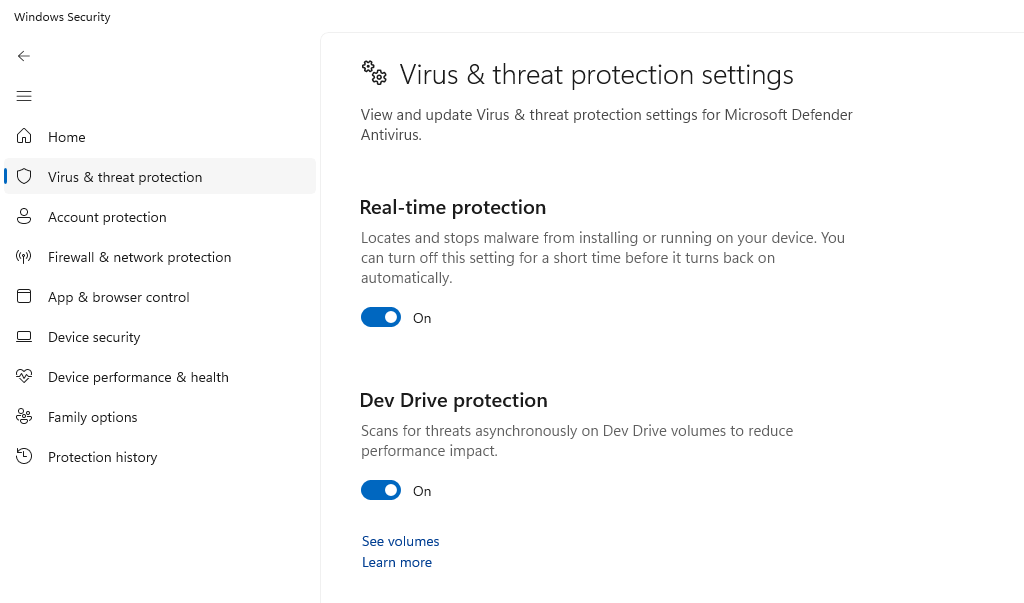
Windows Defender (Microsoft Defender Antivirus) includes real-time protection against malicious documents and can detect many known exploit patterns before they execute.
How to verify Windows Defender is active on Windows 10/11:
- Open Settings → Privacy & Security → Windows Security.
- Click Virus & threat protection.
- Under Virus & threat protection settings, confirm Real-time protection is toggled On.
- Click Check for updates under Virus & threat protection updates to ensure the latest definitions are installed.
Enable Attack Surface Reduction (ASR) Rules
Windows 10/11 includes Attack Surface Reduction rules, a powerful built-in security feature that can specifically block Office-based exploit techniques, including malicious macro execution and OLE object abuse.
How to enable ASR rules via Windows Security:
- Open Windows Security → Virus & threat protection.
- Click Manage settings under Virus & threat protection settings.
- Scroll to Attack Surface Reduction rules and click Manage Attack Surface Reduction rules.
- Enable rules relevant to Office, such as Block Office applications from creating executable content and Block Win32 API calls from Office macros.
Be Cautious With Email Attachments and Downloads
Even with all protective settings enabled, social engineering remains a powerful tool. Follow these habits to stay safe:
- Never enable macros in a document unless there is absolute certainty about the source and a legitimate need.
- Verify unexpected attachments by contacting the sender through a separate channel before opening.
- Preview documents in the browser (e.g., Google Docs Viewer or Outlook’s built-in preview) before downloading them.
- Avoid opening documents from unknown senders, even if they appear urgent or official.
Quick Summary: Office Document Exploit Protection Checklist
| Protection Step | Why It Matters |
| Keep Windows & Office updated | Patches known vulnerabilities |
| Disable macros by default | Removes the #1 attack vector |
| Enable Protected View | Blocks exploits in untrusted files |
| Keep Windows Defender active | Detects known malicious documents |
| Enable ASR rules | Blocks advanced Office-based attack techniques |
| Practice safe email habits | Prevents social engineering attacks |
Final Thoughts
Office document exploits remain one of the most effective weapons in a cybercriminal’s arsenal precisely because they hide in plain sight. A routine-looking Word document or Excel file can silently compromise an entire system in seconds. The good news is that the built-in security tools available in Windows 10 and Windows 11, when properly configured and kept up to date, provide strong, layered defenses against these threats.
Taking just a few minutes to apply the steps outlined above can make the difference between a secure system and a devastating malware infection. Stay informed, stay updated, and always think before enabling any content in an unexpected document.




