
Is Someone Remotely Accessing Your PC? Signs to Check
Remote access to your computer can be legitimate, like when tech support helps troubleshoot issues, but unauthorized remote access is a serious security threat. If someone is remotely accessing your PC without permission, they can steal personal information, install malware, or monitor your activities. Here’s how to detect and prevent unauthorized remote desktop access.
Warning Signs Someone Is Remotely Accessing Your PC
Unexplained Mouse Movement and Activity
One of the most obvious signs of remote access is watching your mouse cursor move on its own. If you notice your computer performing actions without your input, opening files, clicking menus, or typing text, someone may be controlling your PC remotely.
Unusual Network Activity
Check your network usage through Task Manager. Press Ctrl + Shift + Esc, click the Performance tab, and select Ethernet or Wi-Fi. Unexpectedly high data transfer when you’re not actively using the internet suggests remote computer access.
Programs Opening or Closing Automatically
Applications launching without your interaction, especially remote desktop software like TeamViewer, AnyDesk, or Windows Remote Desktop, indicate potential unauthorized access to your computer.
Changed System Settings
If your firewall settings, user accounts, or system configurations change without your knowledge, this could signal that someone is remotely controlling your PC and has made modifications.
Unknown User Accounts
New administrator or user accounts you didn’t create are red flags for remote access intrusion.
How to Check If Someone Is Remotely Accessing Your Computer
Using Windows Event Viewer
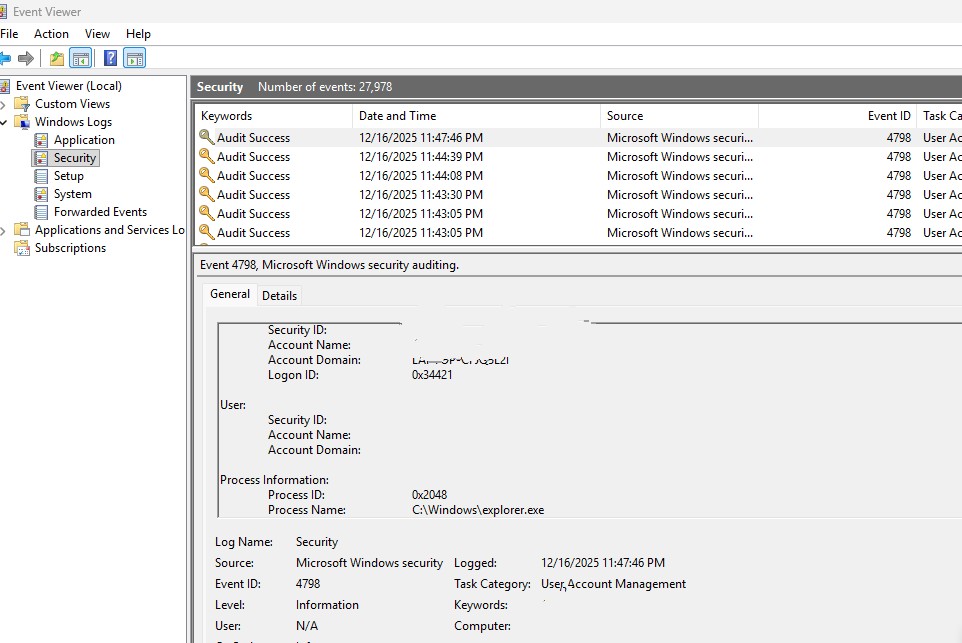
- Press Windows + R, type
eventvwr.msc, press Enter. - Navigate to:
Windows Logs → Security - Look for Event ID 4624 (successful logon) or Event ID 4647 (logoff).
- Check if there are logins from unknown users or unexpected IP addresses.
Review Active Remote Desktop Connections
Note: The command query user works only if your Windows edition supports Remote Desktop Services, which is usually Pro, Enterprise, or Education editions, not on Home editions.
For Windows 10:
- Press Windows + R to open Run
- Type cmd and press Enter
- Type query user and press Enter
- Look for active sessions beyond your current login
For Windows 11:
- Right-click the Start button
- Select Terminal or Command Prompt
- Type query user and press Enter
- Check for suspicious active sessions
Using Task Manager
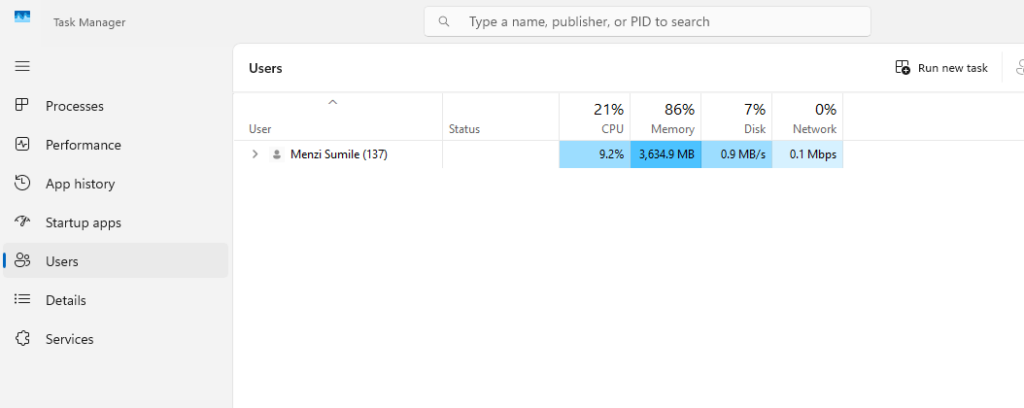
- Press Ctrl + Shift + Esc to open Task Manager.
- Go to the Users tab.
- Look for any users other than your account. If you see unknown accounts, it could indicate a remote session.
Check Remote Desktop Settings
Windows 10/11:
- Press Windows + I to open Settings
- Click System
- Select Remote Desktop (Windows 11) or search for “remote desktop settings” (Windows 10)
- Verify if Remote Desktop is enabled
- If enabled without your knowledge, turn it off immediately
Examine Recently Used Programs
Windows 10/11:
- Press Windows + R
- Type recent and press Enter
- Review recently opened files and applications for unfamiliar activity
Review Event Viewer Logs
Windows 10/11:
- Press Windows + X
- Select Event Viewer
- Navigate to Windows Logs > Security
- Look for Event ID 4624 (successful logon) and Event ID 4634 (logoff)
- Check timestamps and account names for suspicious remote logon attempts
How to Stop Unauthorized Remote Access
If you’ve discovered signs of remote access or want to strengthen your defenses against potential threats, taking immediate action is crucial. Many remote access intrusions occur through malware or trojans that create backdoors into your system without your knowledge.
Strengthen Your PC Security with Fortect
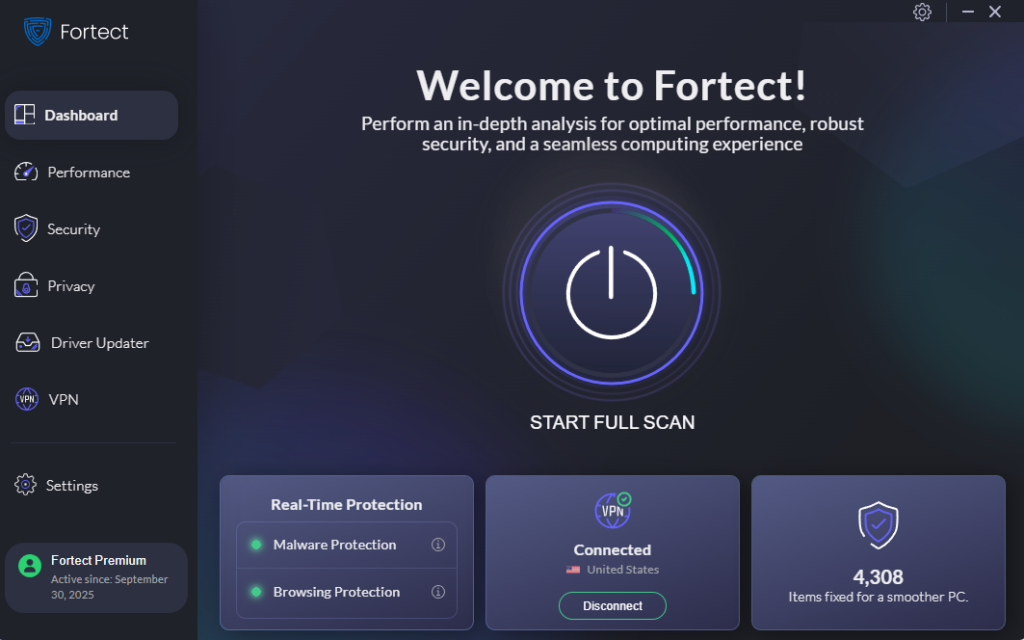
Fortect delivers advanced real-time malware protection for Windows users. It automatically scans your PC for traditional and emerging threats, including unauthorized programs remotely accessing your PC, eliminates them safely, and restores damaged system files for improved performance. Its smart threat-detection engine monitors suspicious activity and alerts you before harmful actions can take place, helping keep your device secure and running efficiently.
Download and install Fortect today.
Disable Remote Desktop Completely
Windows 10/11:
- Open Settings (Windows + I)
- Go to System > Remote Desktop
- Toggle Enable Remote Desktop to Off
- Click Confirm
Remove Unknown Remote Access Software
Windows 10/11:
- Press Windows + I for Settings
- Select Apps > Installed apps (Windows 11) or Apps > Apps & features (Windows 10)
- Scroll through the list
- Uninstall suspicious remote access programs like TeamViewer, AnyDesk, Chrome Remote Desktop, or LogMeIn if you didn’t install them
Update Windows Security
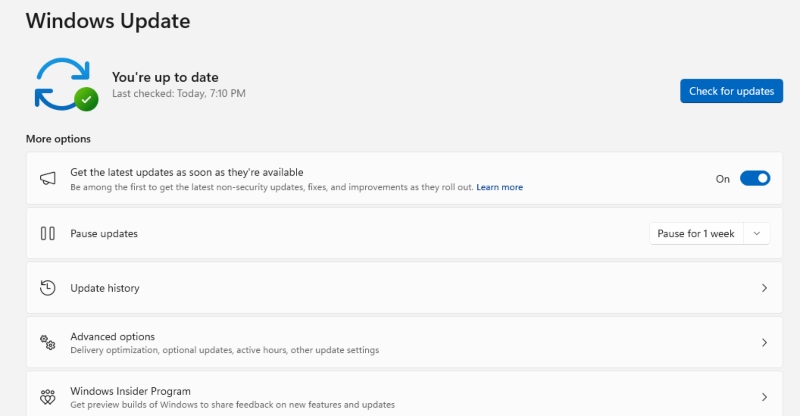
Windows 10/11:
- Press Windows + I
- Click Update & Security (Windows 10) or Windows Update (Windows 11)
- Select Check for updates
- Install all available security updates
- Restart your computer when prompted
Change Your Passwords
Immediately change passwords for your Windows account, email, and any sensitive accounts. Use strong, unique passwords with a combination of letters, numbers, and symbols.
Enable Windows Firewall
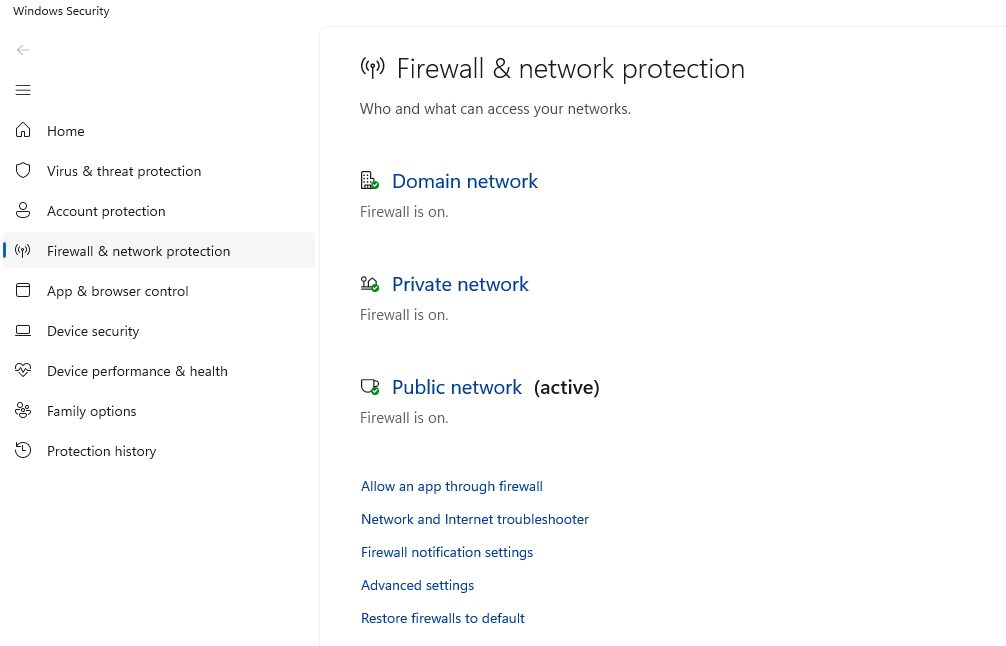
Windows 10/11:
- Press Windows + I
- Search for Windows Security
- Click Firewall & network protection
- Ensure all networks (Domain, Private, Public) show firewall as On
Protect Your PC from Remote Access Threats
Use Two-Factor Authentication

Enable two-factor authentication on your Microsoft account and other important accounts to add an extra security layer against remote intrusion.
Install Antivirus Software
Quality antivirus software detects and removes remote access trojans (RATs) and other malware that enable unauthorized PC control.
Monitor Your Network
Regularly check connected devices through your router’s admin panel. Unfamiliar devices may indicate a network compromise.
Be Cautious with Remote Support
Only grant remote desktop access to verified, trusted technicians. Never allow remote access from unsolicited calls or emails claiming to be tech support.
Conclusion
Detecting whether someone is remotely accessing your PC requires vigilance and regular system checks. Monitor for unusual activity, review your remote desktop settings, and disable features you don’t use. If you discover unauthorized remote computer access, immediately disconnect from the internet, change your passwords, run security scans, and consider professional help for complete system cleanup. Prevention through strong passwords, updated security software, and careful permission management keeps your Windows PC secure from remote access threats.





