Raspberry Robin Malware: Detecting This Network Threat
Raspberry Robin malware has quietly become one of the most widely distributed worms affecting Windows users worldwide. First spotted in 2021 and named by cybersecurity researchers at Red Canary, this malware spreads through infected USB drives and has evolved into a serious threat, acting as a gateway for ransomware, data theft, and other destructive attacks. Understanding what it is, how it spreads, and how to detect and remove it can make all the difference in keeping a personal computer safe.
What Is Raspberry Robin Malware?
Raspberry Robin is a Windows worm, a type of self-replicating malware that primarily spreads through infected USB devices. Once connected to a computer, the malware silently installs itself and communicates with remote command-and-control (C2) servers, often hidden within the Tor network.
How Raspberry Robin Works
The infection chain typically begins the moment an infected USB drive is plugged into a Windows PC. The malware uses a malicious .LNK shortcut file disguised as a legitimate folder on the drive. When a user double-clicks it, Windows runs a command through msiexec.exe, a trusted Windows installer tool, to secretly download and install the malware without triggering obvious alerts.
Once installed, Raspberry Robin:
- Uses legitimate Windows tools (like msiexec, odbcconf, and rundll32) to evade detection
- Communicates through Tor nodes to hide its network traffic
- Downloads additional malicious payloads, including ransomware like LockBit and Clop
- Creates persistence mechanisms so it survives system reboots
Why Is It So Dangerous?
Raspberry Robin is classified as a malware loader, meaning its main job is to open a backdoor and invite in more dangerous threats. Security researchers have linked it to cybercriminal groups associated with Evil Corp and FIN11, making it a high-priority threat even for everyday home users.
How Raspberry Robin Spreads
Infected USB Drives
The primary infection vector is a compromised USB flash drive. These drives may come from:
- Shared or borrowed USB drives
- USB devices purchased second-hand
- Drives used on public or workplace computers
Network Propagation
Once inside a system, Raspberry Robin can also attempt to spread across local networks, particularly dangerous for households sharing a home network with multiple devices.
Signs Your Windows PC May Be Infected
Detecting Raspberry Robin malware early is critical. Watch for these warning signs:
- Unexpected USB activity — lights blinking when no file operations are happening
- Unusual network traffic — particularly outgoing connections at odd hours
- Slow system performance without a clear cause
- Disabled Windows Defender or antivirus tools — malware often targets security software
- Unfamiliar processes running in Task Manager (e.g., suspicious rundll32.exe or msiexec.exe activity)
- New scheduled tasks or registry entries you didn’t create
How to Detect Raspberry Robin on Windows 10/11
1: Check Running Processes in Task Manager
- Press Ctrl + Shift + Esc to open Task Manager.
- Click the Details tab.
- Look for unusual instances of msiexec.exe, rundll32.exe, or odbcconf.exe running without a clear trigger.
- Right-click any suspicious process and select Open file location to inspect its source.
2: Scan with Windows Defender
- Click the Start menu and type Windows Security, then press Enter.
- Select Virus & threat protection.
- Click Scan options, then choose Full scan.
- Click Scan now and wait for the scan to complete.
- If threats are detected, follow the prompts to Remove or Quarantine them.
3: Check for Suspicious Scheduled Tasks
- Press Windows + R, type taskschd.msc, and press Enter.
- In Task Scheduler, browse the Task Scheduler Library.
- Look for tasks with random names, tasks that run msiexec or .dll files, or tasks with no clear description.
- Right-click and Delete any task that looks unfamiliar.
4: Review Startup Programs
- Open Task Manager (Ctrl + Shift + Esc).
- Click the Startup tab.
- Disable any unfamiliar programs by right-clicking and selecting Disable.
5: Run Microsoft’s Malicious Software Removal Tool (MSRT)
- Press Windows + R, type mrt, and press Enter.
- Click Next, choose Full Scan, and click Next again.
- Allow the scan to finish and follow instructions if malware is found.
Strengthen Your PC Security with Fortect
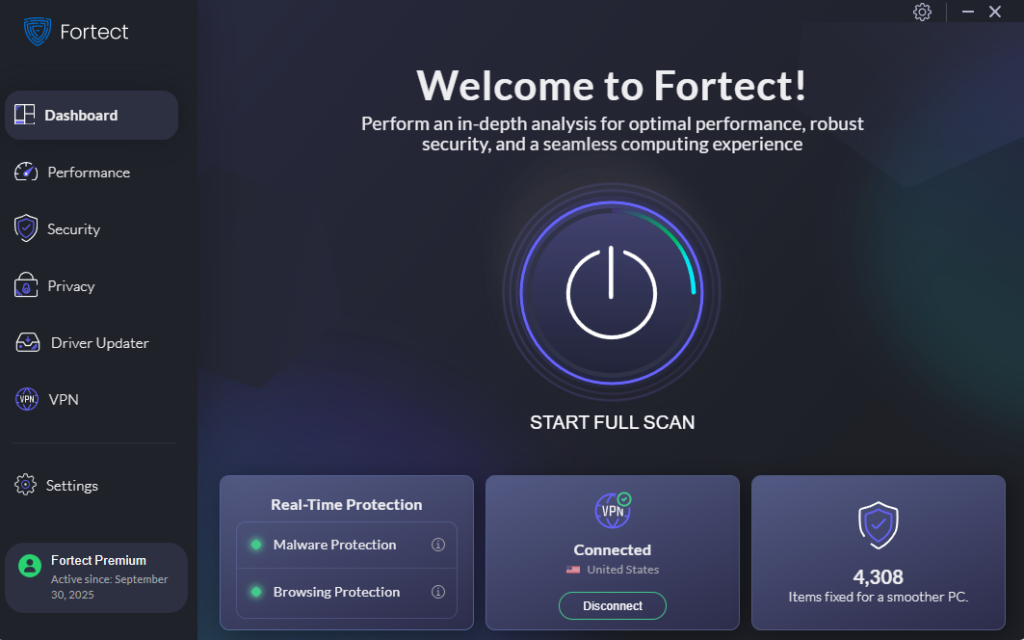
Manually scanning for threats is a good habit, but Raspberry Robin malware is designed to stay hidden, and that’s where an intelligent security tool makes a real difference. Fortect provides advanced, real-time protection built specifically for Windows users, automatically detecting both well-known and emerging threats like Raspberry Robin before they can take hold.
Beyond threat removal, Fortect also repairs damaged system files that malware leaves behind, restoring stability and performance without requiring a full Windows reset. Its proactive threat-detection engine continuously monitors suspicious system behavior, flagging unauthorized processes, unusual network calls, and tampered Windows tools, so potential attacks are stopped early, not after the damage is done.
Download and install Fortect now.
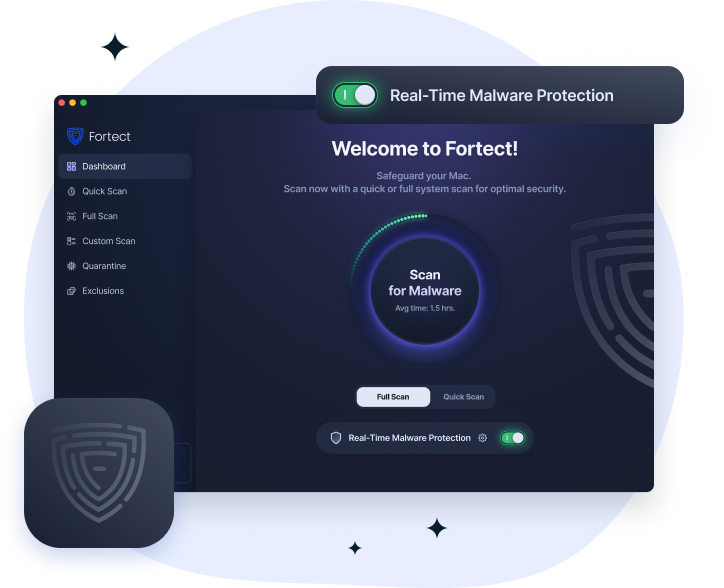
Fortect for Mac adds an extra layer of protection against threats like Raspberry Robin malware. While macOS has built-in security, Fortect helps detect suspicious activity in real time, block emerging malware, and remove hidden threats before they spread across your network. It’s robust and full-system scans quickly identify infections, helping keep your Mac secure against evolving cyberattacks.
How to Protect Your Windows PC from Raspberry Robin
Disable AutoPlay for USB Drives
AutoPlay is what allows malware on USB drives to launch automatically.
Steps to disable AutoPlay on Windows 10/11:
- Open Settings → Bluetooth & devices (Windows 11) or Devices (Windows 10).
- Click AutoPlay.
- Toggle Use AutoPlay for all media and devices to Off.
Restrict Access to Removable Drives (Windows 10/11)
Preventing USB drives from running executable content adds a strong layer of protection.
Steps using Group Policy (Windows 10/11 Pro):
- Press Windows + R, type gpedit.msc, and press Enter.
- Navigate to: Computer Configuration → Administrative Templates → Windows Components → AutoPlay Policies.
- Double-click Turn off AutoPlay, set it to Enabled, and apply to All drives.
- Click OK and restart the PC.
Keep Windows Updated
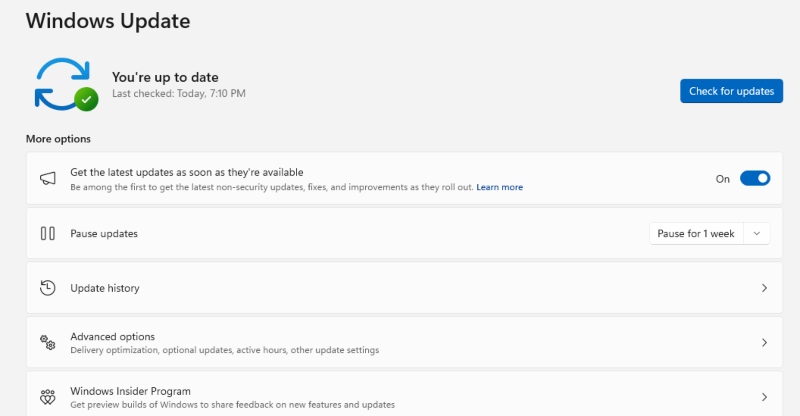
Raspberry Robin exploits unpatched vulnerabilities. Keeping Windows up to date is one of the most effective defenses.
Steps to update Windows 10/11:
- Click the Start menu and go to Settings (gear icon).
- Select Windows Update.
- Click Check for updates.
- Install all available updates, including optional and driver updates.
- Restart the computer when prompted.
Enable Controlled Folder Access
This Windows Security feature helps block unauthorized changes to files by malware.
- Open Windows Security → Virus & threat protection.
- Under Ransomware protection, click Manage ransomware protection.
- Toggle Controlled folder access to On.
Use a Standard User Account
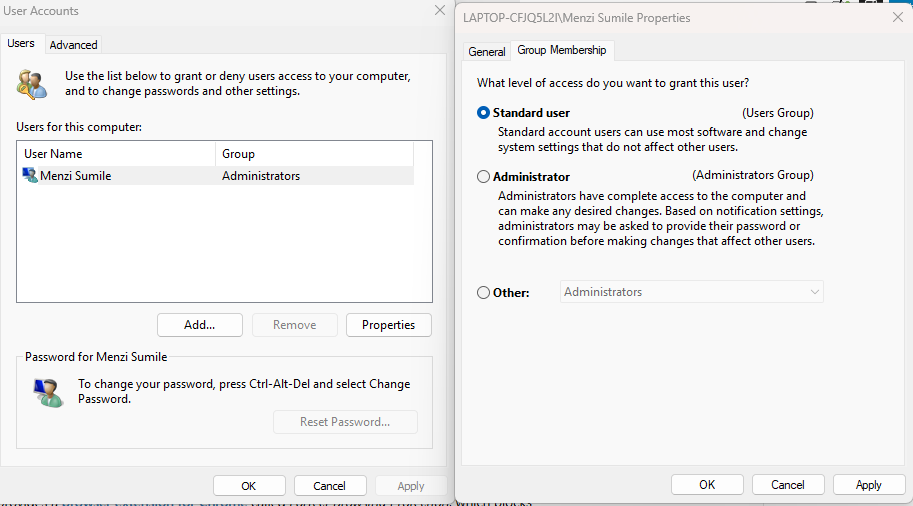
Raspberry Robin has a limited impact when not run with administrator privileges.
Steps to create a standard user account:
- Go to Settings → Accounts → Family & other users.
- Click Add account (Windows 11) or Add someone else to this PC (Windows 10).
- Follow the wizard and ensure the new account is set to Standard User, not Administrator.
- Use the standard account for daily tasks.
What to Do If You’re Already Infected
If Raspberry Robin malware is suspected to already be on the system, act quickly:
- Disconnect from the internet immediately to stop C2 communication.
- Do not plug in any USB drives to avoid further spread.
- Run a full scan with Windows Defender and a second-opinion tool like Malwarebytes Free.
- If the infection persists, consider using Windows Reset: Go to Settings → System → Recovery → Reset this PC and choose Remove everything.
- After cleaning, change all passwords from a separate, clean device.
Final Thoughts on Raspberry Robin Malware
Raspberry Robin malware is a sophisticated and evolving threat that every Windows user should be aware of. Its ability to disguise itself using legitimate Windows tools and serve as a launchpad for ransomware makes it especially dangerous. The good news is that with consistent habits, updating Windows regularly, disabling AutoPlay, avoiding unknown USB drives, and running active security scans, the risk of infection drops significantly.
Staying informed and taking a few simple precautions are the best weapons against this growing network threat.