Malware Sandbox Evasion: How Attacks Bypass Analysis
Malware sandbox evasion is a technique that attackers use to evade detection and avoid security testing environments. Security tools often run suspicious files inside a sandbox to observe behavior safely. However, modern malware can recognize these controlled environments and stay dormant, allowing threats to slip past detection and infect real systems.
For Windows 10/11 users, this means malware can appear harmless during scans but activate later. Understanding how malware sandbox evasion works and how to reduce exposure helps prevent stealth infections, credential theft, and persistent threats.
What Is Malware Sandbox Evasion?
Malware sandbox evasion refers to the techniques used by malicious software to evade detection in virtual environments, security sandboxes, or analysis tools. Once detected, the malware hides its malicious behavior or delays execution.
Instead of running immediately, the payload may:
- Sleep for hours or days
- Require user interaction
- Check system hardware details
- Detect virtualization artifacts
- Monitor running security processes
These tactics allow malware to bypass automated analysis and infect Windows devices silently.
Common Malware Sandbox Evasion Techniques
Attackers continuously refine sandbox detection. The most common methods include:
Time-Based Evasion
Malware delays execution to outlast sandbox analysis windows. Many sandboxes monitor files only for a few minutes.
Examples:
- Long sleep timers
- Delayed payload downloads
- Trigger after reboot
User Interaction Checks
Some malware waits for real human behavior before activating.
It may require:
- Mouse movement
- Keyboard input
- File opening
- Multiple clicks
If no activity is detected, the malware assumes it’s inside a sandbox and remains inactive.
Virtual Machine Detection
Malware checks for signs of virtual environments used in sandboxing.
It looks for:
- Virtual hardware drivers
- Low RAM allocation
- Generic CPU names
- VM-specific registry keys
If detected, malicious behavior is suppressed.
Environment Awareness
Advanced threats analyze system properties before running.
These checks include:
- Installed applications
- Domain membership
- Screen resolution
- System uptime
If the system appears artificial, the malware hides its payload.
Fileless Sandbox Evasion
Fileless malware operates in memory and avoids writing files to disk. This reduces detection during sandbox analysis and bypasses traditional antivirus scanning.
Why Malware Sandbox Evasion Is Dangerous for Windows Users
Sandbox evasion increases the success rate of attacks. Malware can bypass antivirus engines, security scanners, and behavioral detection.
This can lead to:
- Credential theft
- Keylogging
- Remote access trojans
- Crypto wallet theft
- Browser session hijacking
- Persistent backdoors
Because the malware remains inactive during scanning, users may believe their system is clean.
Signs of Sandbox-Evading Malware
These threats are stealthy, but some warning signs include:
- Delayed suspicious activity after downloads
- Unknown processes running after reboot
- Unexpected network traffic
- Disabled Windows security features
- New startup entries without permission
- System slowdown after idle time
If suspicious activity appears hours after opening a file, sandbox evasion may be involved.
How Malware Reaches Windows 10/11 Systems
Sandbox-evading malware commonly spreads through:
- Email attachments
- Cracked software downloads
- Fake browser updates
- Malicious ads
- Phishing links
- Script-based downloads
- Document macros
These files appear harmless during scanning but execute later.
How to Protect Windows 10/11 from Malware Sandbox Evasion
Reducing risk requires layered protection. These steps help limit delayed malware execution and detect threats that attempt to bypass sandbox analysis.
Strengthen Your PC Security Against Malware Sandbox Evasion
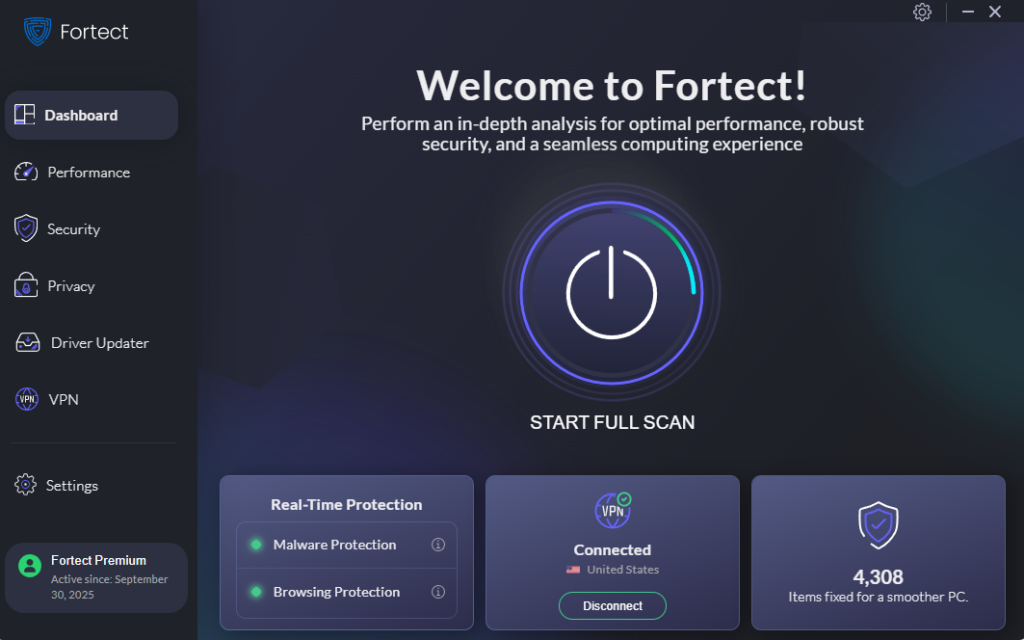
Advanced threats that use malware sandbox evasion often activate after scans complete, making traditional detection less effective. A repair and security tool that monitors behavior in real time can identify delayed execution, suspicious scripts, and hidden payloads before damage spreads.
Fortect for your Windows systems helps address this risk by scanning for stealth malware behavior, detecting delayed payload execution, removing hidden threats, and repairing system files altered by sandbox-evading attacks. Its real-time monitoring identifies suspicious activity even after the initial scan, helping stop malware that attempts to bypass analysis environments.
Download and install Fortect today.
Malware sandbox evasion is a serious technique used by advanced malware to bypass security analysis by hiding or delaying its malicious behavior until it is outside a controlled environment. This makes detection harder for traditional tools and increases the risk for Mac users who assume built-in protections are enough.
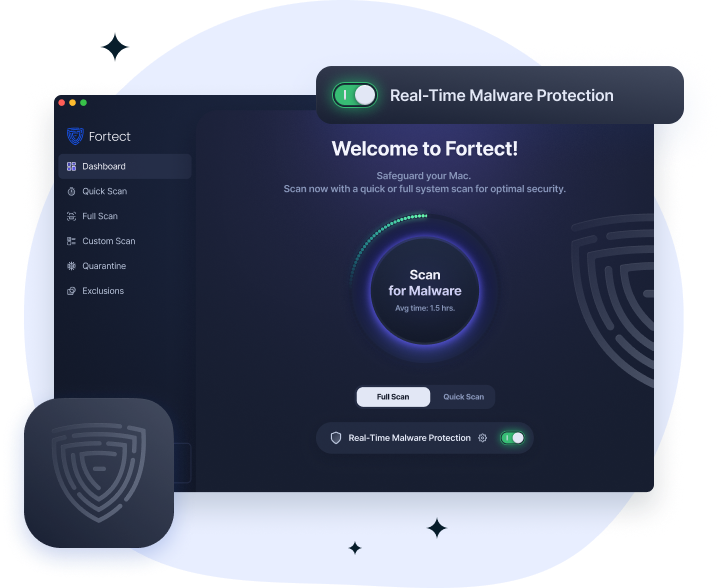
Fortect for Mac helps counter malware sandbox evasion by reinforcing system-level protection and detecting suspicious behavior that attempts to avoid analysis. It actively monitors processes in real time, blocks hidden malicious activity, and helps remove threats that slip past standard macOS defenses.
With cloud-based threat intelligence and deep scanning capabilities, Fortect for Mac can identify, isolate, and fix vulnerabilities linked to sandbox-evasion tactics, restoring stronger system security and improving overall protection against evolving cyber threats.
Keep Windows 10/11 Updated
Security updates improve behavior-based detection and memory protection.
Steps to Update Windows 10/11
- Press Windows + I to open Settings
- Click Windows Update
- Select Check for updates
- Download and install available updates
- Restart your PC if required
Regular updates reduce exposure to advanced evasion techniques.
Enable Real-Time Protection in Windows Security
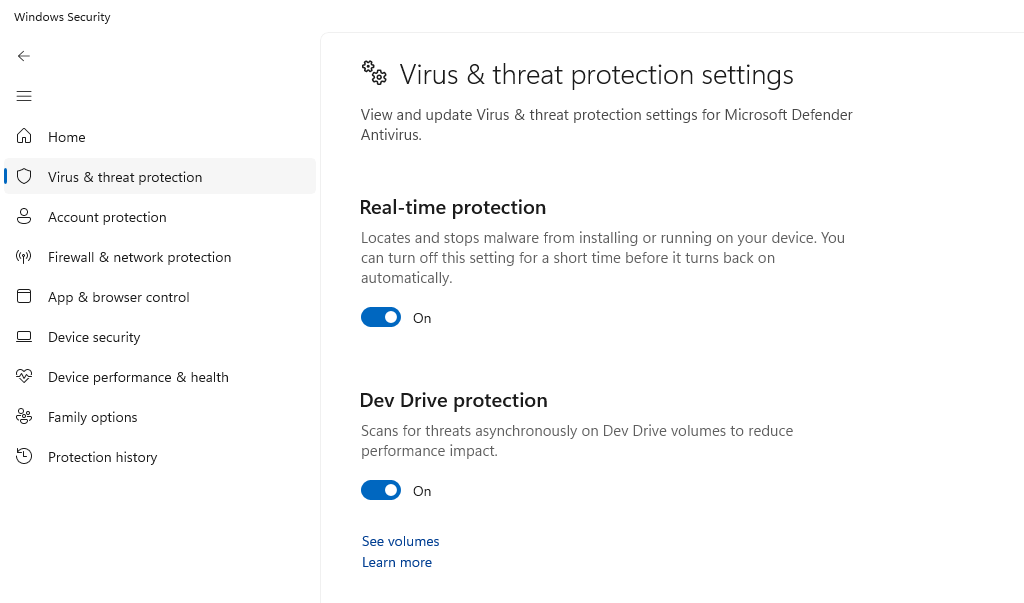
Real-time protection monitors behavior even after delayed execution.
Steps to Enable Real-Time Protection
- Open Start Menu
- Search Windows Security
- Click Virus & threat protection
- Select Manage settings
- Turn on Real-time protection
- Enable Cloud-delivered protection
Cloud detection helps identify late-stage malware activity.
Restrict Unknown App Execution
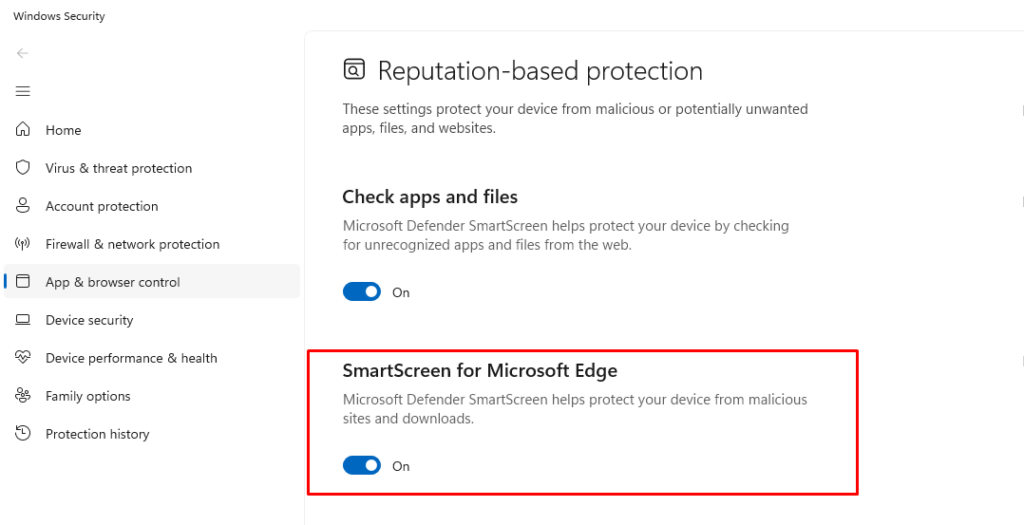
Blocking unauthorized apps prevents delayed payload activation.
Steps to Restrict Apps Using App & Browser Control
- Open Windows Security
- Click App & browser control
- Select Reputation-based protection settings
- Enable:
- Check apps and files
- SmartScreen for Microsoft Edge
- Potentially unwanted app blocking
This reduces the execution of suspicious downloads.
Disable Office Macros by Default
Many sandbox-evading attacks use macro-based payloads.
Steps to Disable Macros
- Open Microsoft Word or Excel
- Click File > Options
- Select Trust Center
- Click Trust Center Settings
- Choose Macro Settings
- Select Disable all macros with notification
- Click OK
This blocks delayed script execution.
Use Standard User Account Instead of Admin
Limiting permissions prevents malware from installing persistence mechanisms.
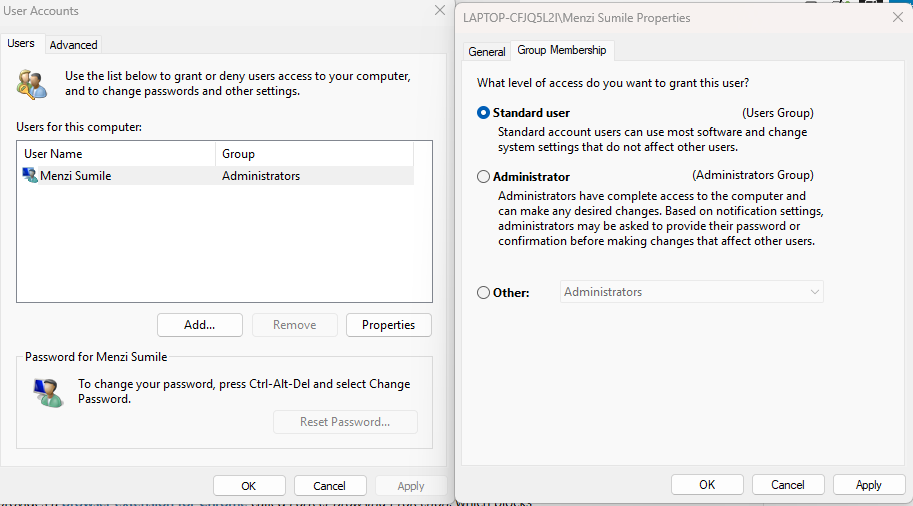
Steps to Create a Standard User Account
- Open Settings
- Click Accounts
- Select Family & other users
- Click Add account
- Create a new user
- Select the account
- Click Change account type
- Choose Standard User
- Click OK
This reduces system-wide compromise.
Enable Controlled Folder Access
This blocks unauthorized processes from modifying files.
Steps to Enable Controlled Folder Access
- Open Windows Security
- Click Virus & threat protection
- Select Manage ransomware protection
- Turn on Controlled folder access
Even delayed ransomware payloads will be blocked.
Additional Prevention Tips
To reduce sandbox evasion risk:
- Avoid cracked software downloads
- Don’t open unexpected attachments
- Scan files before opening
- Monitor startup programs
- Restart the PC after suspicious downloads
- Remove unknown browser extensions
- Avoid enabling macros from unknown sources
These habits limit delayed malware execution.
Conclusion
Malware sandbox evasion makes threats harder to detect by hiding malicious behavior during analysis. Instead of executing immediately, attackers delay payloads, detect virtual environments, and require user interaction. This allows malware to bypass sandbox detection and activate later on real systems.
For Windows 10/11 users, the best defense combines updates, real-time protection, restricted app execution, and safe browsing habits. While sandbox evasion techniques continue evolving, layered security significantly reduces the chance of stealth infections and delayed attacks.