Collaboration Platform Exploits: Risks & Fixes
Messaging apps and shared workspaces are part of daily work, but they’re also a favorite target for attackers. Here’s a clear breakdown of how these exploits work, why they matter for Windows users, and how to stay protected.
What Are Collaboration Platform Exploits?
Collaboration platform exploits are cyberattacks that target tools like Microsoft Teams, Slack, Zoom, Discord, and Google Meet.
These platforms combine file sharing, messaging, video calls, and login credentials in one place. That makes them valuable entry points for attackers trying to access your data or device. Unlike traditional phishing emails, these attacks feel more legitimate because they appear inside trusted apps. That familiarity lowers suspicion, making users more likely to click links or download files without thinking twice.
Common Collaboration Platform Security Risks
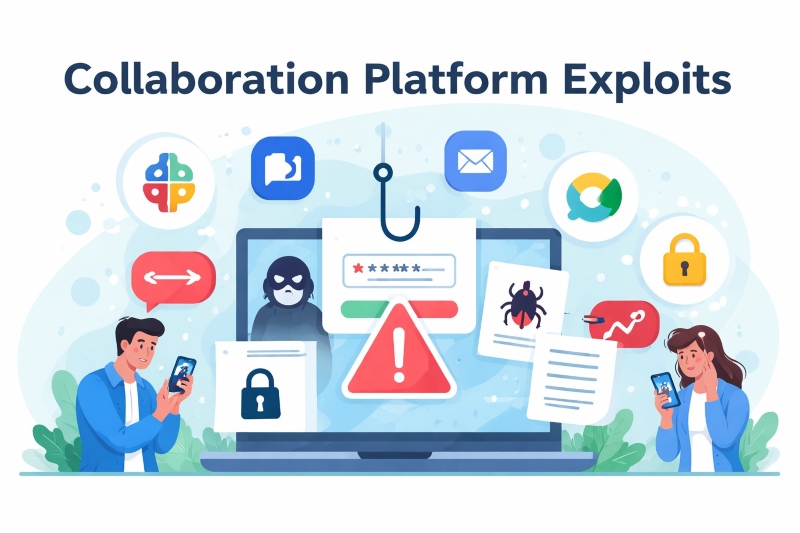
- Phishing Links in Chats: Attackers send messages, often impersonating someone you know, with links to fake login pages. These are designed to steal your credentials. Since messages come from within a trusted platform, users are more likely to click.
- Malicious File Sharing: Attackers share infected files disguised as normal documents or installers. Once opened, they can install malware such as ransomware, keyloggers, or remote access tools (RATs).
- Meeting Link Hijacking: Unsecured meeting links can be accessed by unauthorized users. This can lead to disruptions or even privacy breaches, where outsiders listen in on sensitive conversations.
- Account Takeover: Weak or reused passwords without multi-factor authentication (MFA) make accounts easy targets. If your password is exposed in a breach, attackers can access your messages, files, and contacts instantly.
- Third-Party App Risks: Plugins and integrations can introduce vulnerabilities. Some requests require excessive permissions or contain security flaws that attackers can exploit.
Quick Risk Overview
- ⚠️ Chat phishing: Fake links in messages steal login details
- 📄 Malicious files: Infected attachments spread through workspaces
- 📹 Meeting hijacking: Unauthorized users joining calls
- 🔓 Account takeover: Weak passwords and no MFA
How to Protect Yourself on Windows 10/11
Strengthen Your PC Security with Fortect
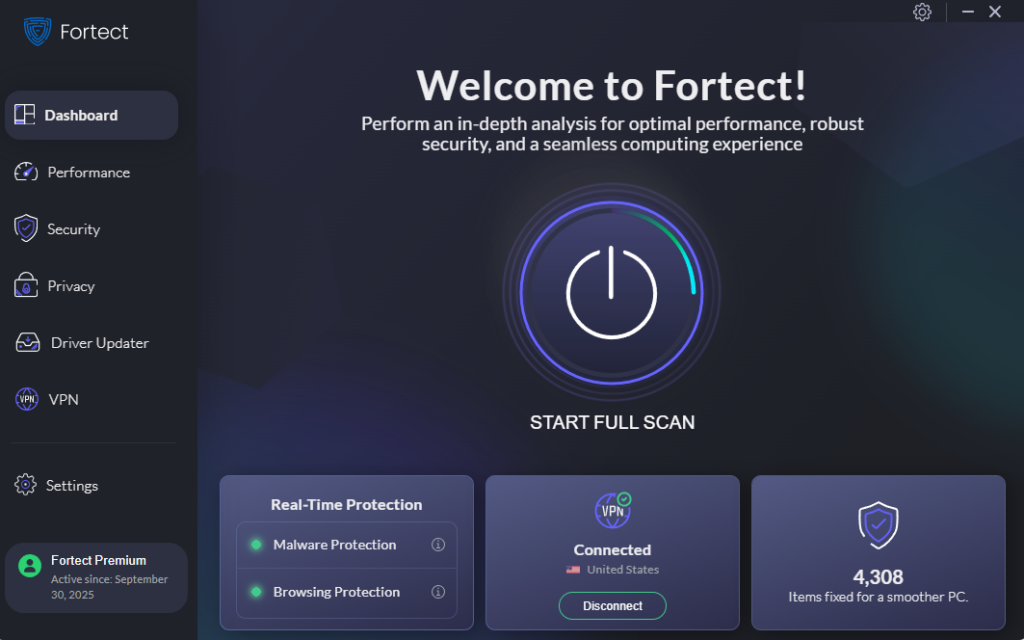
Before relying solely on manual steps, using a dedicated security tool can make a real difference. Fortect helps protect your Windows PC with real-time threat detection, identifying both common and emerging risks, including those linked to collaboration platform exploits. It scans your system for hidden malware, removes threats safely, and repairs any system damage they may have caused. At the same time, its proactive monitoring keeps an eye on suspicious activity, helping you stay protected even while using everyday apps like messaging and meeting platforms.
Download and install Fortect today.
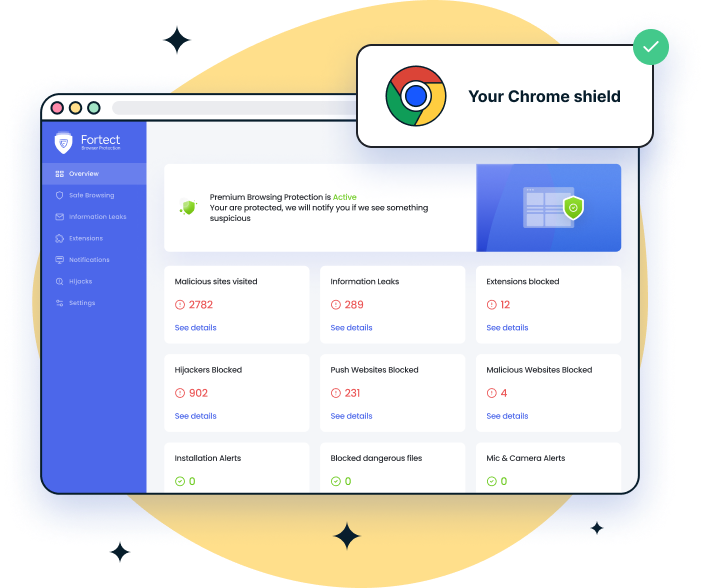
For Chrome users dealing with collaboration platform exploits, Fortect Browsing Protection adds an extra layer of defense right where many attacks begin, the browser. It helps block malicious links before they load, flags suspicious pages often used in chat-based phishing, and removes harmful extensions that could expose your data. This is especially useful when links and files are shared through platforms like Teams, Slack, or Discord, where threats often appear legitimate at first glance.
Keep Windows and Apps Updated
Unpatched software is one of the easiest ways in for attackers.
- Press Windows + I to open Settings
- Go to Windows Update (or Update & Security)
- Click Check for updates
- Install all available updates
- Restart your PC
- Update each collaboration app individually
Enable Multi-Factor Authentication (MFA)
MFA adds a second layer of security beyond your password.
- Open your account settings
- Go to Security or Two-Factor Authentication
- Enable MFA
- Use an authenticator app instead of SMS
- Save backup recovery codes offline
Restrict App Permissions
Limit what apps can access on your system.
- Go to Settings > Privacy & Security
- Review Camera, Microphone, Location, and Files
- Disable access for unnecessary apps
- Turn off background access for unused apps
Audit Third-Party Integrations
Remove apps you don’t trust or no longer use.
- Open Connected Apps or Integrations
- Review permissions
- Remove unknown or unused apps
- Only install trusted integrations
Secure Meeting Links
Prevent unauthorized access to your calls.
- Enable waiting rooms or lobbies
- Use unique meeting links
- Add passwords to meetings
- Avoid sharing links publicly
How to Spot an Attack
Watch for these warning signs:
- Urgent messages pushing immediate action
- Links that don’t match official domains
- Unexpected files from known contacts
- Login alerts from unfamiliar locations
- Apps requesting unusual permissions
If a message pressures you to act quickly, treat it as suspicious. Legitimate services don’t force urgent actions through random links.
Best Practices for Staying Safe
- Verify unusual requests through another channel
- Use strong, unique passwords for every account
- Keep Windows Defender active
- Avoid public Wi-Fi without a VPN
- Log out from shared or public devices
Related Reads:
VPN Exploits via Browser Extensions
Hyper-V Exploits
Browser Exploits
ClickFix Fake Windows Update Attack