LockBit Ransomware Explained: Risks and Defense
LockBit ransomware is one of the most dangerous and prolific cyber threats targeting everyday Windows users today. Understanding how it works, and more importantly, how to defend against it, can be the difference between losing years of personal files and staying protected.
What Is LockBit Ransomware?
LockBit is a type of malicious software that encrypts the files on an infected computer and demands a ransom payment, usually in cryptocurrency, in exchange for a decryption key. First spotted in 2019, it has since evolved through multiple versions, including LockBit 2.0 and LockBit 3.0 (also known as LockBit Black), making it one of the most advanced ransomware strains ever documented.
Unlike older ransomware families, LockBit is engineered for speed. It can encrypt thousands of files in minutes, leaving victims with little time to react. It also deletes shadow copies and backup restore points on Windows, which means standard recovery options often fail after an attack.
How LockBit Spreads
LockBit ransomware reaches victims through several common entry points:
- Phishing emails — Malicious attachments or links disguised as invoices, package deliveries, or account alerts.
- Malvertising — Infected advertisements on websites that trigger a download without any user action.
- Cracked software downloads — Pirated games, apps, or tools bundled with the ransomware payload.
- Remote Desktop Protocol (RDP) exploitation — Attackers gain access through weak or exposed remote login credentials.
- Unpatched Windows vulnerabilities — Outdated systems with known security flaws can be exploited silently.
What Happens During a LockBit Attack
Once LockBit executes on a Windows machine, it follows a rapid, automated sequence:
- Privilege escalation — It attempts to gain administrator-level access.
- Lateral spread — It scans the local network for other connected devices.
- Shadow copy deletion — It removes Windows Volume Shadow Copies to prevent easy restoration.
- File encryption — It encrypts documents, photos, videos, and databases, appending a unique extension to each file.
- Ransom note drop — A text or HTML ransom note is placed in every affected folder.
Victims are then directed to a dark web payment portal with a countdown timer. Paying the ransom is never recommended; there is no guarantee of decryption, and it funds future attacks.
The Real Risks of LockBit for Windows Users
Permanent Data Loss
If no clean backup exists, encrypted files are practically unrecoverable without the attacker’s key. Personal photos, work documents, tax records, and creative projects can all be permanently lost.
Financial Damage
Ransom demands from LockBit infections have ranged from hundreds to thousands of dollars. Beyond the ransom itself, victims may also face costs to restore systems, replace hardware, or hire professional recovery services.
Identity and Privacy Exposure
Newer LockBit variants practice double extortion; they exfiltrate data before encrypting it. This means personal information like passwords, banking details, and private communications could be published or sold even if the ransom is paid.
System Downtime
A compromised Windows PC becomes unusable until it is fully wiped and rebuilt or decrypted, resulting in significant lost time and productivity.
How to Protect Your Windows PC from LockBit Ransomware
Prevention is far more effective than recovery. The following steps significantly reduce the risk of a LockBit infection on Windows 10 and Windows 11.
Strengthen Your PC Security with Fortect
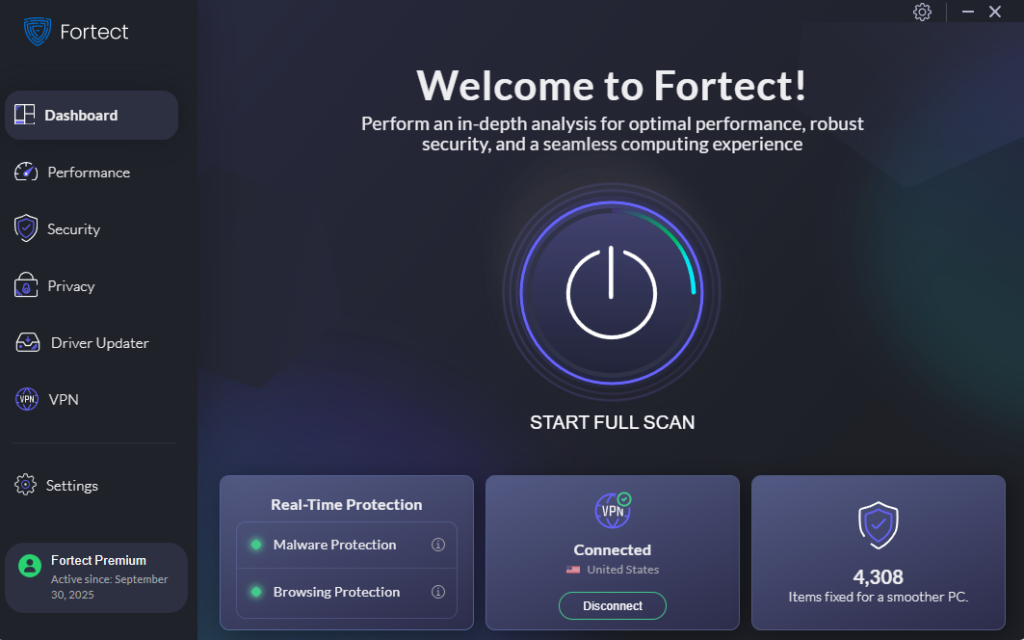
While manual steps go a long way, having a dedicated security tool running in the background adds a critical extra layer of defense, especially against fast-moving threats like LockBit ransomware. Fortect delivers advanced real-time malware protection built specifically for Windows users. It automatically scans the PC for both traditional and emerging threats, including LockBit ransomware, eliminates them safely, and restores damaged system files for improved performance.
What makes Fortect particularly effective against LockBit is its smart threat-detection engine, which monitors for suspicious behavioral patterns, such as rapid file encryption, shadow copy deletion, and unauthorized privilege escalation, all hallmarks of a LockBit attack in progress. Instead of waiting until damage is done, Fortect alerts users before harmful actions can take place, blocking the ransomware before it can lock files or compromise personal data.
For Windows users who want a hands-off, always-on layer of ransomware defense, Fortect helps keep the device secure, system files intact, and performance running smoothly, without requiring technical expertise to operate.
Download and install Fortect today.
Fortect for Mac: Stop and Prevent LockBit Ransomware
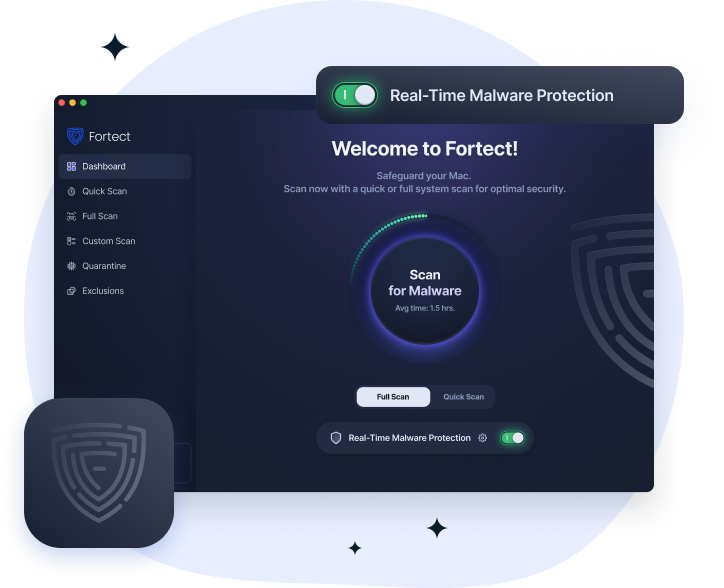
LockBit ransomware can encrypt files and bypass basic macOS defenses. Fortect for Mac adds real-time protection to detect, block, and remove LockBit before it causes damage. It works alongside macOS security to close gaps that cybercriminals exploit.
Key Features:
- Real-Time Malware Defense – Detects and blocks LockBit instantly
- Cloud-Based Threat Intelligence – Identifies new ransomware threats fast
- Quick Smart Scan – Finds suspicious activity in minutes
- Full System Scan – Deep scans and removes hidden ransomware traces
Fortect helps prevent LockBit infections and keeps your Mac protected beyond standard built-in security.
Keep Windows Updated
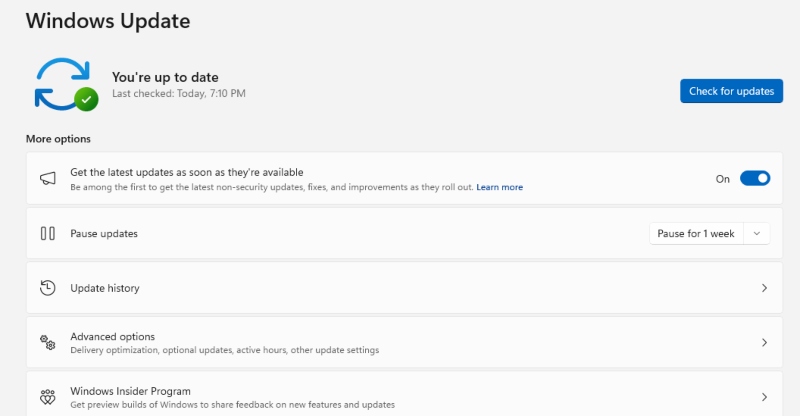
Outdated Windows systems are a primary target. Applying updates, patches, and known vulnerabilities to LockBit and other ransomware exploits.
How to update Windows 10/11:
- Click the Start button and open Settings (gear icon).
- Go to Update & Security (Windows 10) or Windows Update (Windows 11).
- Click Check for updates.
- If updates are available, click Download and install.
- Restart the computer when prompted.
- To enable automatic updates, click Advanced options and turn on Receive updates for other Microsoft products.
Enable and Configure Windows Defender
Windows Defender (Microsoft Defender Antivirus) provides built-in ransomware protection at no extra cost.
How to enable Ransomware Protection in Windows 10/11:
- Open Windows Security from the Start menu.
- Click Virus & threat protection.
- Scroll down and click Manage ransomware protection.
- Toggle Controlled folder access to On.
- Click Protected folders to add sensitive folders like Documents, Pictures, and Desktop.
This feature blocks unauthorized apps, including ransomware, from modifying files in protected folders.
Restrict User Account Privileges
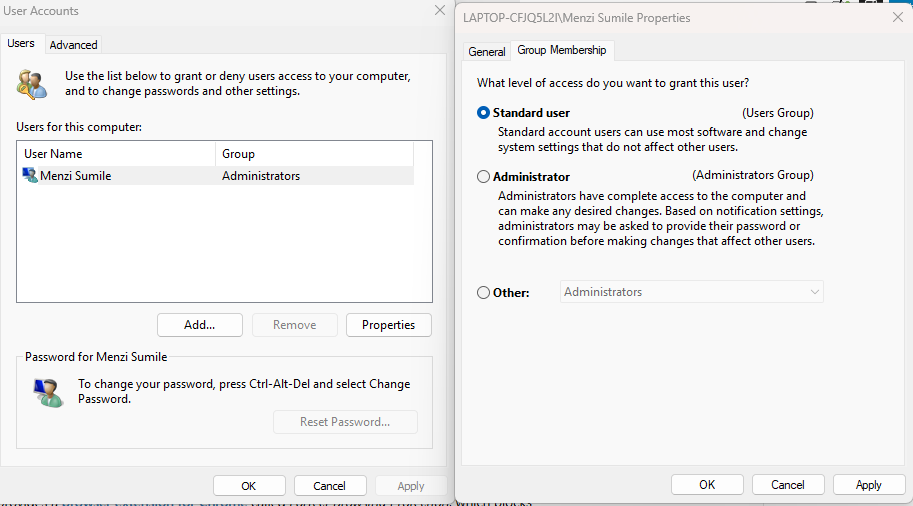
Running Windows as a standard user (not an administrator) limits the damage ransomware can do, since it cannot escalate privileges as easily.
How to create and switch to a Standard User account on Windows 10/11:
- Open Settings → Accounts → Family & other users.
- Click Add account (Windows 11) or Add someone else to this PC (Windows 10).
- Follow the prompts to create a new Microsoft or local account.
- Once created, click the account name and select Change account type.
- Set the account type to Standard User and click OK.
- Use this standard account for daily use, and reserve the administrator account for installations only.
Back Up Files Regularly with the 3-2-1 Rule
A reliable backup is the most powerful recovery tool against ransomware. Follow the 3-2-1 backup rule:
- Keep 3 copies of the data
- Store on 2 different media types (e.g., external drive + cloud)
- Keep 1 copy offsite or offline
How to set up File History backup on Windows 10/11:
- Connect an external hard drive.
- Open Settings → Update & Security → Backup (Windows 10) or Settings → System → Storage → Advanced storage settings → Backup options (Windows 11).
- Under Back up using File History, click Add a drive and select the external drive.
- Toggle Automatically back up my files to On.
- Click More options to set how often backups run and how long to keep them.
After backup, disconnect the drive — LockBit can encrypt connected external drives too.
Avoid Suspicious Links, Attachments, and Downloads
Most LockBit infections start with a click. Practicing safe browsing habits closes the most common entry points:
- Never open email attachments from unknown senders.
- Hover over links before clicking to preview the actual destination URL.
- Only download software from official sources (Microsoft Store, developer websites).
- Avoid cracked or pirated software — these are a top delivery vehicle for ransomware.
Disable Remote Desktop Protocol (RDP) If Not Needed
RDP is a common attack vector for LockBit.
How to disable RDP on Windows 10/11:
- Right-click This PC and select Properties.
- Click Remote settings (Windows 10) or Advanced system settings → Remote tab (Windows 11).
- Under Remote Desktop, select Don’t allow remote connections to this computer.
- Click OK and Apply.
What to Do If Infected with LockBit Ransomware
If LockBit ransomware is suspected on a Windows device, act immediately:
- Disconnect from the internet and network — Unplug the Ethernet cable or disable Wi-Fi to stop lateral spread.
- Do not pay the ransom — Payment does not guarantee file recovery and encourages further attacks.
- Report the attack — File a report with the Cybersecurity and Infrastructure Security Agency (CISA) at cisa.gov or your local cybercrime unit.
- Check for free decryptors — Visit No More Ransom (nomoreransom.org), a project offering free decryption tools for some ransomware variants.
- Restore from backup — Wipe the infected drive and restore files from a clean, pre-infection backup.
- Seek professional help — A certified cybersecurity professional can assess the damage and assist with recovery.
Conclusion
LockBit ransomware is a serious threat, but it is not unstoppable. Keeping Windows updated, enabling built-in ransomware protection, maintaining offline backups, and practicing safe online habits are the most effective defenses available to everyday users. Staying proactive is always easier and cheaper than recovering from an attack.