
Malvertising and Living-off-Trusted-Service (LOTS) Tactics
Online ads fund most of the free internet, but they’ve also become one of the most effective tools cybercriminals use to attack everyday Windows users. If you’ve ever clicked an ad and ended up on a suspicious page, or had your browser redirect you somewhere you didn’t intend, you may have already brushed up against malvertising. Pair that with a newer technique called Living-off-Trusted-Service (LOTS), and you have a combination that’s hard to detect and easy to fall for.
This guide breaks down what these threats are, how they work, and, most importantly, what you can do right now to protect yourself on Windows 10 and Windows 11.
What Is Malvertising?
Malvertising (short for malicious advertising) is the practice of injecting harmful code or redirects into online advertisements. These ads appear on legitimate websites, news outlets, streaming platforms, and even government sites, because attackers exploit the ad networks that serve them, not the websites themselves.
How Malvertising Works
When you load a webpage, dozens of ad calls can happen in milliseconds. Cybercriminals purchase ad space through these networks, submit ads that look normal, and hide malicious payloads inside them. The attack can unfold in two ways:
- Click-based: You click the ad and get redirected to a phishing site or a page that silently downloads malware.
- Drive-by download: Some malware exploits browser or plugin vulnerabilities and triggers a download without any click at all. Just loading the ad is enough.
Common malvertising payloads include ransomware, spyware, adware, trojans, and info-stealers that harvest saved passwords and banking credentials.
Why Legitimate Sites Are Not Enough Protection
Many people assume that visiting well-known websites keeps them safe. Unfortunately, malvertising exploits the trust you place in those sites. The website owners often have no idea that the ad network they rely on has been compromised. The attacker targets the supply chain, the ad ecosystem, not the website directly.
What Is Living-off-Trusted-Service (LOTS)?
Living-off-Trusted-Service (LOTS) is a cyberattack strategy where criminals abuse legitimate, widely trusted cloud services and platforms to host malicious content, communicate with compromised systems, or distribute malware, all while blending into normal traffic.
How LOTS Tactics Work
Instead of setting up a suspicious-looking server that security tools might flag, attackers use services you interact with every day, such as:
- Google Drive, OneDrive, or Dropbox – to host malware disguised as documents
- GitHub or Pastebin – to store attacker commands or scripts
- Discord or Telegram – as command-and-control (C2) channels
- Microsoft Azure or Amazon Web Services – to serve phishing pages with trusted SSL certificates
Because these services use real HTTPS certificates and trusted domain names, firewalls and antivirus tools often let the traffic through without question. Security software is looking for known-bad domains; traffic going to drive.google.com or github.com rarely raises a red flag.
The Connection Between Malvertising and LOTS
These two tactics are frequently chained together. Here’s a typical combined attack flow:
- You see an ad on a news website for a free software download.
- Clicking it redirects you to a convincing page hosted on a trusted cloud service (LOTS).
- You download what appears to be a PDF or installer from Google Drive.
- The file is actually malware that phones home via a Discord webhook — also a trusted service.
At no point does your browser or antivirus encounter an obviously suspicious domain. That’s the point.
Warning Signs You May Be Targeted
Knowing the red flags can help you stop an attack before it causes damage. Watch out for:
- Ads that urge you to download a “required update” for Flash, Java, or your browser
- Pop-ups claiming your PC is infected, often with a fake countdown timer
- Being redirected to a different site after clicking what looked like a normal ad
- Unexpected downloads appear in your Downloads folder after browsing
- Sponsored search results that mimic official software download pages (a rising malvertising vector)
How to Protect Yourself on Windows 10 and Windows 11
The good news is that you can significantly reduce your risk with a few practical steps. No technical expertise required.
Strengthen Your PC Security with Fortect
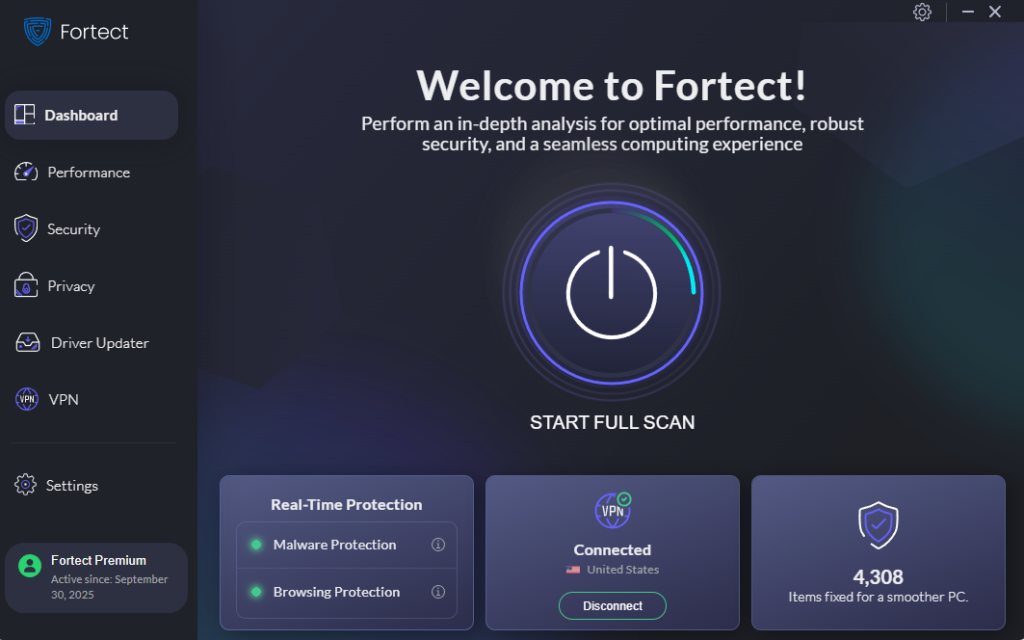
Fortect delivers advanced real-time malware protection for Windows users, specifically designed to catch threats that traditional tools miss. It automatically scans your PC for both conventional and emerging threats, including malvertising and Living-off-Trusted-Service (LOTS) tactics, eliminates them safely, and restores damaged system files for improved performance. Its smart threat-detection engine monitors suspicious activity and alerts you before harmful actions can take place, helping keep your device secure and running efficiently. Think of it as a safety net that works alongside the built-in Windows steps below.
Download and install Fortect today.
Fortect for Mac: Protection Against Malvertising and LOTS Tactics
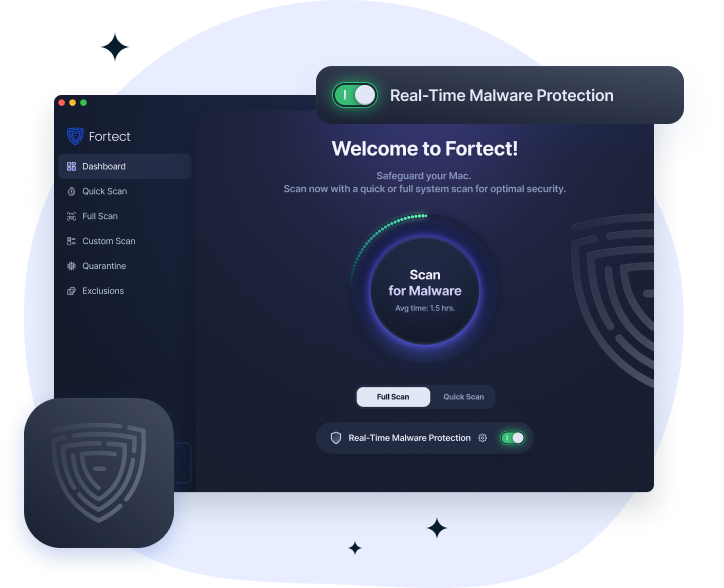
Cybercriminals increasingly use malvertising and living-off-trusted-service (LOTS) tactics to bypass traditional macOS defenses. These attacks hide behind legitimate platforms, making them harder to detect and easier to execute. Relying only on built-in protection can leave gaps, especially as threats evolve to target Mac users more aggressively.
Fortect for Mac adds an extra security layer that works alongside Apple’s native protections. Its real-time monitoring helps detect suspicious behavior linked to malicious ads and abuse of trusted services, while cloud-based threat intelligence improves detection of emerging attack patterns. With quick smart scans and full system scans, it can identify hidden threats and reduce the risk of compromise before they escalate.
Step 1: Keep Windows Up to Date
Malvertising drive-by downloads often exploit unpatched browser or OS vulnerabilities. Keeping Windows updated closes those gaps.
On Windows 10 and Windows 11:
- Click the Start menu and open Settings (gear icon).
- Go to Windows Update (on Windows 10, it’s under Update & Security).
- Click Check for updates.
- If updates are available, click Download & install.
- Restart your PC when prompted.
To make sure updates happen automatically: in the same Windows Update screen, select Advanced options and ensure Receive updates for other Microsoft products is toggled on.
Step 2: Use a Browser with Built-In Ad Protection
Your browser is the front door for malvertising malware attacks.
- Microsoft Edge (built into Windows 10/11) includes Microsoft Defender SmartScreen, which blocks known malicious pages and downloads. Make sure it’s enabled:
- Open Edge and click the three-dot menu (…) in the top right.
- Go to Settings > Privacy, search, and services.
- Scroll to Security and confirm Microsoft Defender SmartScreen is toggled On.
- Consider installing the uBlock Origin browser extension (available for Edge, Chrome, and Firefox). It blocks ads at the network level, preventing malvertising from ever loading, including drive-by downloads that require no click.
Step 3: Enable Windows Security and Real-Time Protection
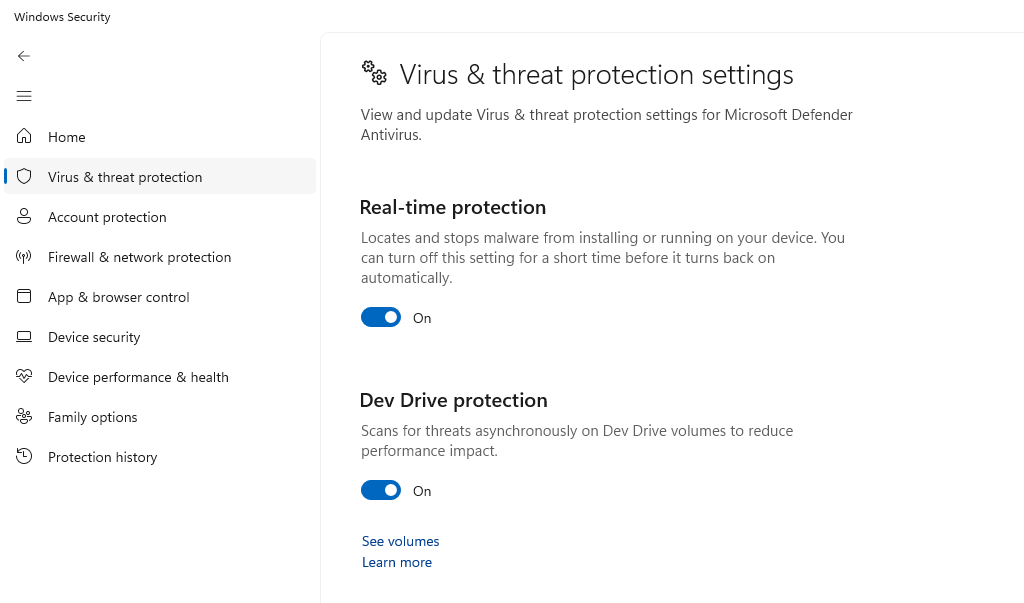
Windows comes with Microsoft Defender Antivirus, which offers solid protection when kept active and updated.
- Open Start and search for Windows Security.
- Open it and click Virus & threat protection.
- Under Virus & threat protection settings, click Manage settings.
- Ensure Real-time protection, Cloud-delivered protection, and Automatic sample submission are all toggled On.
Step 4: Enable Controlled Folder Access (Ransomware Protection)
This Windows feature prevents unauthorized apps, including ransomware delivered via malvertising, from modifying your personal files.
- Open Windows Security > Virus & threat protection.
- Scroll down to Ransomware protection and click Manage ransomware protection.
- Toggle Controlled folder access to On.
- You can add folders to protect by clicking Protected folders.
Step 5: Run Your Browser in a Standard User Account
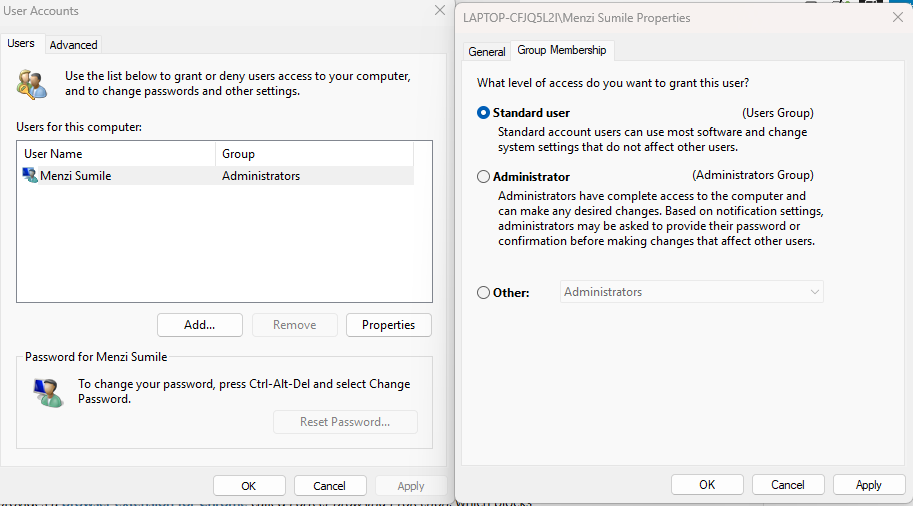
Malware delivered through malvertising has far less power if your Windows account doesn’t have administrator privileges. Consider creating a separate standard account for everyday browsing.
- Open Settings > Accounts > Family & other users.
- Click Add account (Windows 11) or Add someone else to this PC (Windows 10).
- Follow the prompts, then set the account type to Standard User rather than Administrator.
- Use this standard account for day-to-day browsing.
Step 6: Be Cautious with Cloud Service Links
Since LOTS attacks use trusted platforms like Google Drive and OneDrive, apply healthy skepticism to links shared via:
- Unsolicited emails or DMs containing cloud storage links
- Ads promoting free software hosted on personal cloud drives
- GitHub repositories promoted through social media that you weren’t already following
If someone sends you a Google Drive link you weren’t expecting, verify with the sender through a separate channel before opening it.
Quick Summary: Your Malvertising and LOTS Defense Checklist
- Update Windows regularly — patch vulnerabilities that attackers exploit
- Install uBlock Origin — stop malicious ads before they load
- Enable SmartScreen in Edge — block phishing and malicious downloads
- Keep Windows Defender active — real-time protection catches known malware
- Turn on Controlled Folder Access — ransomware can’t encrypt what it can’t touch
- Browse from a Standard User account — limit malware’s ability to install itself
- Scrutinize unexpected cloud links — LOTS attacks hide in trusted platforms
Conclusion
Malvertising and Living-off-Trusted-Service tactics are effective precisely because they exploit the things you trust most, popular websites, familiar cloud services, and everyday tools. The best defense isn’t paranoia; it’s a set of consistent, layered habits that make you a much harder target. Keeping your system patched, using an ad blocker, and applying a bit of critical thinking to unexpected downloads and links will go a long way toward keeping your Windows PC safe.
Related Reads:
AI Detects Malware Faster Than Traditional Antivirus
Malware Hidden in Signed Drivers
The Type of Malware Your Antivirus Might Miss
Repair-Based Malware Protection Is the Future of Windows Security



