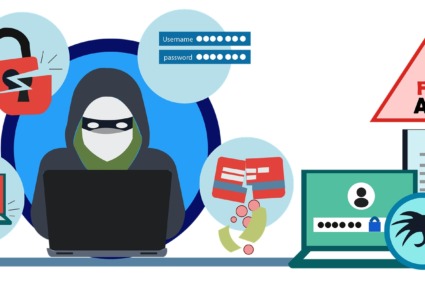
Automated Patching: Stop Modern Malware Faster
Modern malware moves fast. Ransomware can encrypt an entire hard drive in minutes. Spyware can silently harvest passwords before a single alert appears. What separates a secure Windows PC from a compromised one is often a single missing patch, and how quickly that gap gets closed. Automated patching is the most reliable way for everyday Windows users to stay ahead of these threats without becoming a full-time security expert.
What Is Automated Patching?
Automated patching is the process of having your operating system and software download and install security updates automatically, without requiring manual action. Instead of waiting for a user to notice an available update and choose to install it, the system handles the entire cycle on its own, detecting, downloading, and applying patches in the background.
Why Manual Updates Fall Short
Most people know they should update their software. Few do it consistently. Life gets in the way, work deadlines, ignored pop-ups, or simply not knowing how critical a particular patch really is. Cybercriminals count on this delay. The time between a vulnerability being discovered and a patch being released is called the vulnerability window. The time between a patch being released and a user actually installing it extends that window dramatically.
Automated patch management eliminates that human delay.
The Link Between Unpatched Systems and Malware
Malware authors actively monitor public vulnerability disclosures. Once a patch is released, they reverse-engineer it to understand the flaw it fixes, then build exploits targeting users who haven’t updated yet. This is known as an n-day exploit, and it is the dominant attack method used against home users today. By the time most people hear about a major vulnerability in the news, automated patch systems have often already protected users who have updates enabled.
How Automated Patching Protects Against Modern Malware
Closing Zero-Day and Known Exploit Gaps
A zero-day vulnerability is a flaw that is unknown to the software vendor; there’s no patch yet. These are dangerous, but they’re also relatively rare in targeted attacks against home users. Far more common are attacks exploiting known vulnerabilities, flaws that already have patches available, just not yet applied.
Automated patching directly addresses this second, more prevalent category. When Microsoft releases Patch Tuesday updates (released on the second Tuesday of each month), an automated system installs them within hours. A manual system might leave those gaps open for weeks.
Keeping the Entire Software Stack Protected
Modern malware doesn’t only attack Windows itself. It targets:
- Web browsers (Chrome, Edge, Firefox)
- PDF readers (Adobe Acrobat, Foxit)
- Media players and plugins
- Office productivity suites
- Communication apps (Zoom, Slack, Teams)
Enabling automatic updates across all of these applications, not just Windows, creates a comprehensive automated patch management approach that significantly shrinks the overall attack surface.
How to Enable Automated Patching on Windows 10 and Windows 11
Getting automated patching fully set up on a Windows PC is straightforward. The following steps cover Windows Update settings as well as app-level automation.
Step 1: Enable Windows Update Automatic Updates
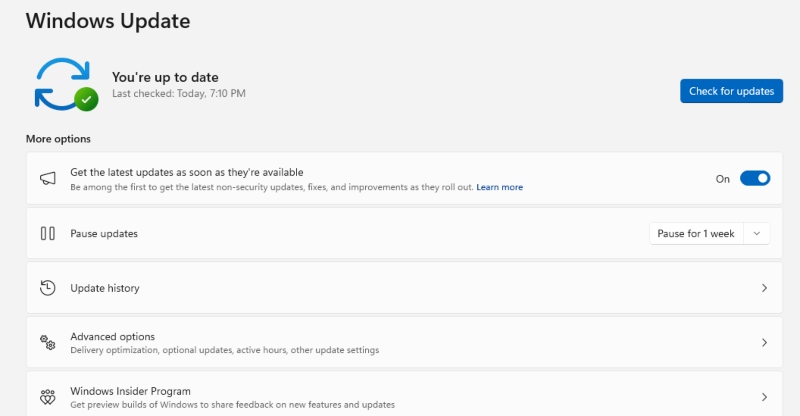
On Windows 10:
- Click the Start menu and open Settings (gear icon).
- Go to Update & Security.
- Select Windows Update from the left panel.
- Click Advanced options.
- Under Choose how updates are installed, ensure Automatic (recommended) is selected.
- Toggle on Receive updates for other Microsoft products when you update Windows.
On Windows 11:
- Click the Start menu and open Settings.
- Navigate to Windows Update in the left sidebar.
- Click Advanced options.
- Enable Get me up to date to allow updates to install as soon as possible.
- Toggle on Receive updates for other Microsoft products.
- Under Additional options, turn on Optional updates to capture driver and firmware patches.
Step 2: Schedule Active Hours to Avoid Disruption
Automatic updates can restart a PC at inconvenient times. Setting Active Hours prevents that.
On Windows 10/11:
- Go to Settings > Windows Update > Advanced options.
- Click Active hours.
- Choose Automatically adjust active hours or set a manual range (e.g., 8:00 AM to 11:00 PM).
- Windows will avoid restarting during this period.
Step 3: Enable Automatic Updates for Microsoft Store Apps
- Open the Microsoft Store.
- Click the profile icon in the upper-right corner.
- Select App settings.
- Toggle App updates to On.
Step 4: Enable Automatic Updates for Third-Party Browsers
Google Chrome:
- Chrome updates automatically by default. To verify, click the three-dot menu > Help > About Google Chrome.
- Chrome will check for updates and install them on this screen if pending.
Mozilla Firefox:
- Open the three-bar menu > Settings.
- Scroll to Firefox Updates.
- Select Automatically install updates (recommended).
Step 5: Use Windows Security for Real-Time Protection Alongside Patching
Automated patching works best alongside real-time malware protection. Ensure Windows Defender is active:
- Go to Settings > Privacy & Security > Windows Security.
- Click Open Windows Security.
- Under Virus & threat protection, confirm Real-time protection is toggled On.
- Under Windows Update, confirm your update status shows no missing patches.
Strengthen Your PC Security with Fortect
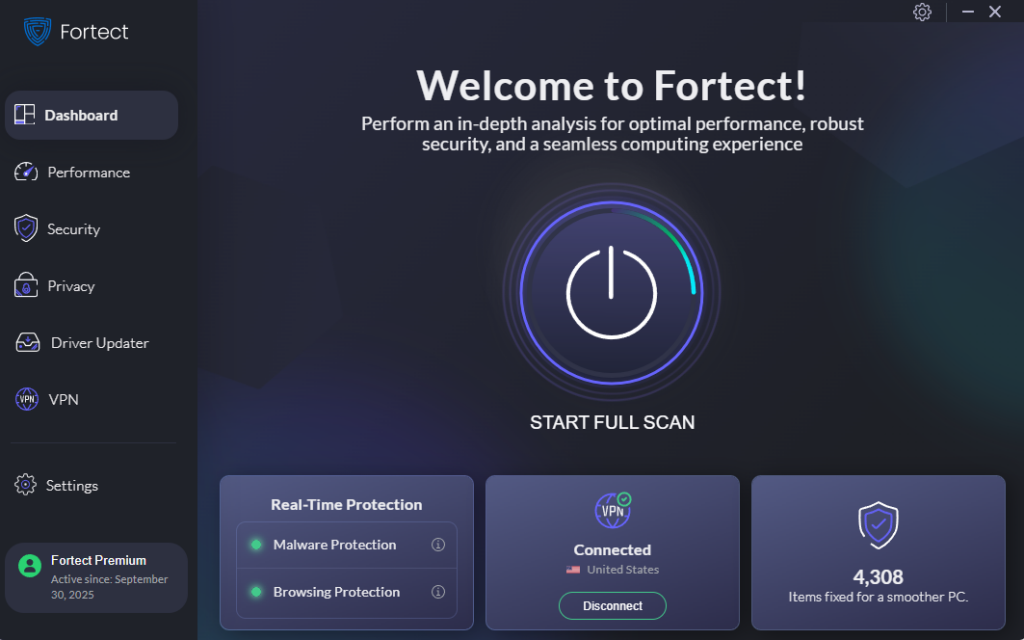
While the steps above cover the built-in Windows tools, pairing them with a dedicated solution adds an extra layer of defense. Fortect delivers advanced real-time malware protection for Windows users. It automatically scans your PC for traditional and emerging threats, including vulnerabilities that slip through gaps in automated patching, eliminates them safely, and restores damaged system files for improved performance. Its smart threat-detection engine monitors suspicious activity and alerts you before harmful actions can take place, helping keep your device secure and running efficiently.
Download and install Fortect today.
Common Misconceptions About Automatic Software Updates
“Updates Break My Computer”
This concern is understandable; historically, some updates caused compatibility issues. Microsoft has significantly improved its testing processes. Deferring updates indefinitely is far riskier than an occasional minor bug that gets patched in a follow-up release.
“My Computer Is Too Old to Bother”
Older hardware running Windows 10 is still a target. In fact, older machines are more targeted because users are less likely to keep them updated. Automated patch deployment requires no extra hardware resources; it simply runs quietly in the background.
“I Use Antivirus, So I Don’t Need Updates”
Antivirus software and patch management serve different functions. Antivirus detects and removes malware after it attempts to execute. Patching removes the vulnerability before the malware has a foothold. Both layers are needed; neither replaces the other.
Best Practices for Home Users: Building a Patching Routine
Keep a Patching Checklist
Beyond Windows Update, periodically verify the following are set to auto-update:
- Web browser(s)
- PDF reader
- Java (if installed — consider removing if unused)
- Media players
- Password manager
Restart Promptly After Updates
Many patches don’t fully apply until the system restarts. When Windows shows a restart prompt after an update, act on it within 24 hours rather than postponing indefinitely.
Check for Updates After Long Periods Offline
If a PC has been offline for an extended period, manually trigger a Windows Update check on reconnection: Settings > Windows Update > Check for updates.
Why Automated Patching Is Non-Negotiable in 2025
Cyber threats have evolved far beyond viruses spread on floppy disks. Modern malware includes fileless attacks that live entirely in memory, ransomware-as-a-service sold by criminal groups, and stealthy info-stealers designed to go undetected for months. The attack toolkits used today are sophisticated, fast, and largely automated on the attacker’s side.
The only proportional response for everyday users is to automate defenses with equal efficiency. Automated patching is not a premium security feature; it is the minimum baseline for any Windows PC connected to the internet. It requires no technical expertise, no subscription, and no ongoing attention. It simply needs to be turned on and left to work.
Every unpatched vulnerability is an open door. Automated patch management is how that door stays closed.
Keep Windows updated. Keep third-party software updated. Let automation do the heavy lifting, so malware never gets the chance to walk in.