
SOLVED: Malware Hidden in Windows Language Packs
To remove malware in Windows language packs, run a full system scan with a dedicated security tool like Fortect, delete the suspicious language pack installer, and restore any corrupted system files. The steps below walk you through the entire process.
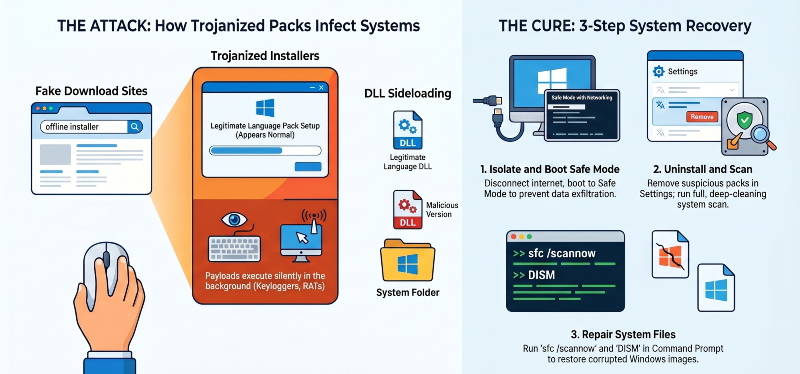
Attackers have been distributing trojanized language pack installers through fake download sites that rank high in search results. The installer looks legitimate and may even complete the language pack setup correctly, but it quietly drops malware in the background. By the time you notice something is wrong, the payload has already executed.
Key Takeaways
- Remove malware in Windows language packs by scanning with a dedicated security tool, deleting the suspicious installer, and repairing corrupted system files.
- Attackers distribute trojanized language packs through fake download sites; the installer may work correctly while malware runs silently in the background.
- Safe Mode + a full system scan is the safest removal approach before attempting manual cleanup.
- Always install language packs through Windows Settings or Windows Update, never from third-party sources.
- Fortect automates detection, removal, repair, and driver updates in a single scan, so nothing gets left behind.
How Malware Gets Hidden in Windows Language Packs
Trojanized Installers
A malicious actor repackages a legitimate language pack with an added payload, a keylogger, a RAT (remote access trojan), or an info-stealer. When you run the installer, the malware executes silently alongside the actual language pack setup.
Fake Download Sites
SEO-poisoned pages rank for searches like “download Hindi language pack Windows 10” or “Windows language pack offline installer.” These sites serve modified .cab or .exe files that look authentic but are loaded with malicious code.
DLL Sideloading via Language Files
In more advanced attacks, threat actors abuse how Windows loads language resource DLLs. A malicious .dll with the same name as a legitimate one gets placed in a directory Windows searches first, causing the malicious version to load instead of the real one.
Step-by-Step: How to Remove the Malware
Step 1: Disconnect From the Internet
Cut your network connection immediately. This prevents the malware from communicating with its command-and-control server or exfiltrating data while you clean the system.
Step 2: Boot Into Safe Mode
Restart your PC and boot into Safe Mode with Networking. Most malware cannot load its components in Safe Mode, making it easier to detect and remove.
- Press Windows + R, type msconfig, go to the Boot tab
- Check Safe Boot > Network, then restart
Step 3: Uninstall the Suspicious Language Pack and Installer
- Go to Settings > Time & Language > Language & Region
- Remove any language you did not intentionally install or download from a third-party site
- Go to Settings > Apps and uninstall any unfamiliar installers that appeared around the same time
Step 4: Run a Full Malware Scan
Use Windows Defender or a dedicated security tool to run a deep scan. Windows Defender can catch common threats, but it may miss more advanced payloads embedded in system-level files.
Step 5: Check for Persistence Mechanisms
- Open Task Manager > Startup tab and disable anything unfamiliar
- Press Windows + R, type regedit, and check HKCU\Software\Microsoft\Windows\CurrentVersion\Run for unknown entries
- Check the Task Scheduler for newly created tasks you did not set up
Step 6: Restore System Files
Run the following commands in Command Prompt (Admin) to repair any files the malware may have corrupted:
- sfc /scannow — scans and repairs protected Windows files
- DISM /Online /Cleanup-Image /RestoreHealth — restores the Windows image
Use Fortect to Remove Malware Hidden in Language Pack Infections
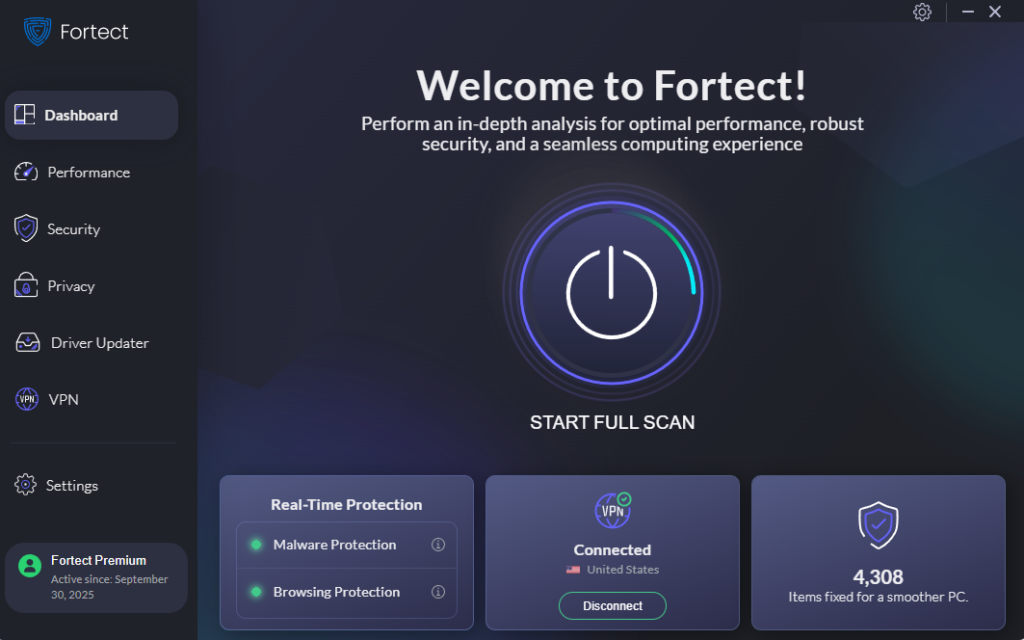
Once you have completed the manual steps, it is worth doing a final pass with Fortect to make sure nothing was missed.
Its real-time protection engine scans deep into system-level files and processes, the kind of places where malware in Windows language packs tends to hide after a trojanized installer runs. It does not just flag threats; it removes them and automatically restores the Windows files and registry entries that the infection damaged, leaving your system in a clean, working state.
Beyond threat removal, Fortect handles the performance side of recovery, too. Malware installations often leave behind residual junk files, broken program entries, and crashed processes that slow your PC down long after the threat is gone. Fortect’s cleanup module clears all of that out so your system runs the way it should, not just safe, but fast.
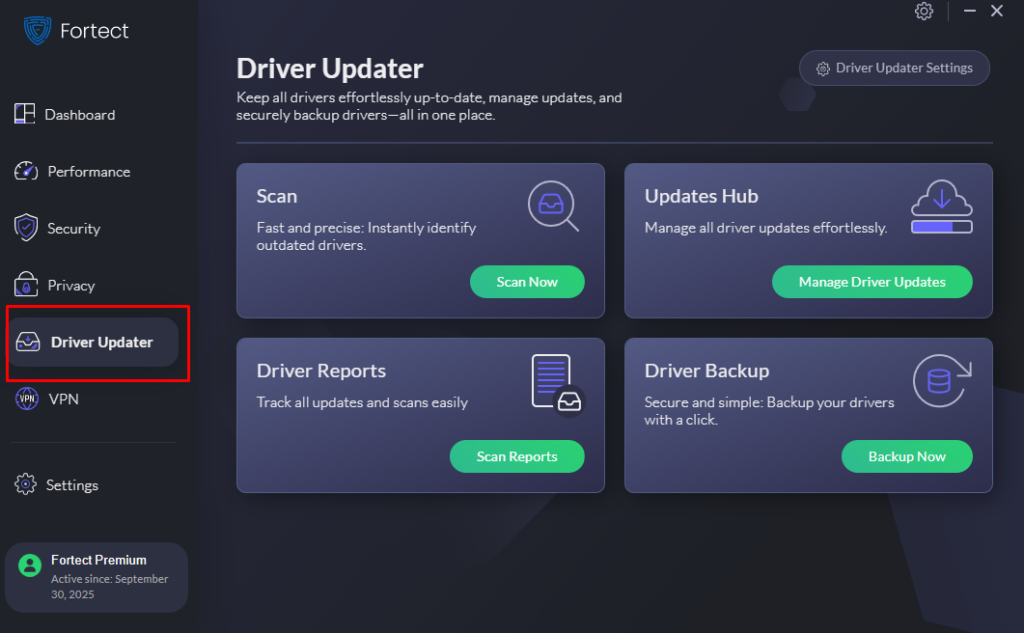
It also includes a built-in Driver Updater that replaces outdated or corrupted drivers with manufacturer-verified versions. This matters because attackers frequently exploit driver vulnerabilities as a secondary entry point; closing those gaps is part of a complete recovery, not an afterthought.
If you want a single tool that handles detection, removal, repair, and prevention in one pass, give Fortect a try. It takes the guesswork out of making sure your system is fully clean.
How to Prevent This in the Future
- Always install language packs through Settings > Time & Language > Add a Language, which pulls directly from Microsoft
- Never download language packs from third-party sites, forums, or torrent sources
- If you need an offline installer, use only Microsoft’s official support pages
- Keep Windows Update enabled so security patches apply automatically
- If a site asks you to disable your antivirus before downloading, close the tab


