How to Tell If Remote Access Tools Are Installed Without Permission
Remote access tools allow someone to control your computer from another location. While these programs serve legitimate purposes like technical support and remote work, they can become serious security threats when installed without your knowledge. Unauthorized remote access software can give cybercriminals complete control over your system, exposing your personal data, financial information, and privacy.
This guide will help you identify if remote access tools are running on your Windows computer without permission and show you how to remove them.
Warning Signs Your Computer May Have Unauthorized Remote Access
Before diving into technical detection methods, watch for these behavioral indicators that suggest someone might be accessing your computer remotely:
Your mouse cursor moves on its own or clicks without your input. Programs open and close unexpectedly, or files appear that you didn’t create. Your computer remains active when you’re not using it, with hard drive lights flashing or fan noise continuing. You notice unusual network activity or slower internet speeds during idle times.
Password changes you didn’t make, disabled security software, or new user accounts appearing in your system are red flags. If you receive notifications about login attempts from unfamiliar locations, take immediate action.
How to Check for Remote Access Software on Windows 10/11
Strengthen Your PC Security with Fortect
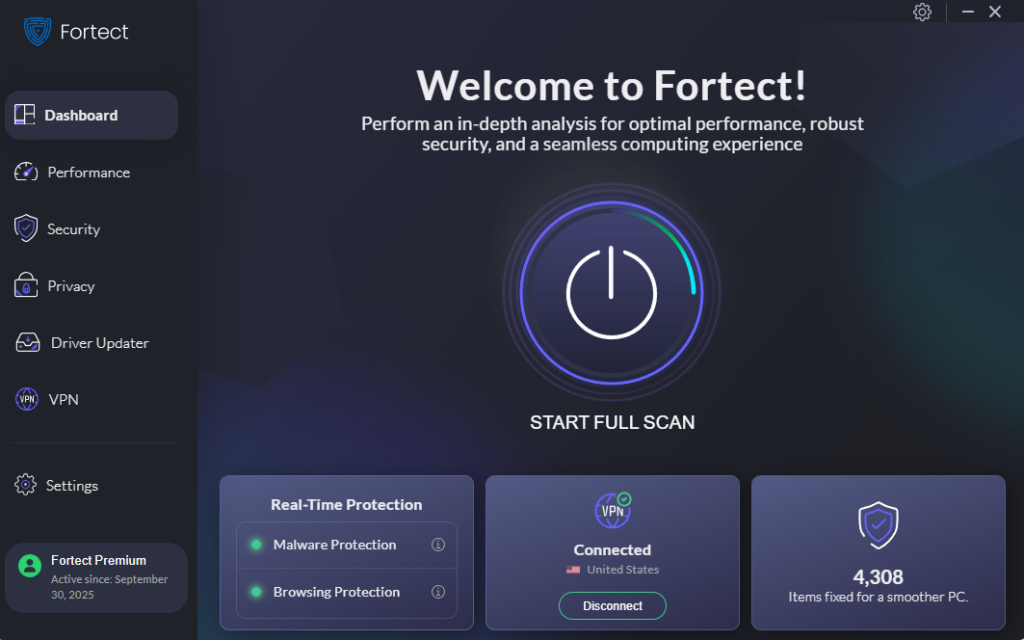
Detecting unauthorized remote access tools manually is essential, but having continuous protection adds an extra layer of security. Fortect delivers advanced real-time malware protection specifically designed for Windows users concerned about unauthorized access and system security.
The software automatically scans your PC for both traditional and emerging threats, including unauthorized remote access tools that may have been installed without your knowledge. Once detected, Fortect eliminates these threats safely and restores any damaged system files that may have been compromised, improving both your security and overall system performance. Its intelligent threat-detection engine continuously monitors suspicious activity in the background and alerts you before harmful actions can take place, helping keep your device secure and running efficiently.

Fortect Premium also features a built-in Driver Updater that identifies and replaces outdated or corrupted drivers with secure, verified versions from trusted sources. This feature is particularly important for preventing unauthorized remote access, as cybercriminals often exploit outdated or compromised drivers as entry points to install remote access software on your computer. By keeping all drivers updated and stable, Fortect effectively closes these security gaps, strengthens your PC’s defenses against remote access threats, and ensures a cleaner, faster, and more reliable system overall.
Check Currently Running Programs
The Task Manager reveals active processes and programs on your system.
Step 1: Press Ctrl + Shift + Esc simultaneously to open Task Manager.
Step 2: Click the “Processes” tab if not already selected.
Step 3: Look for suspicious program names in the list. Common remote access tools include TeamViewer, AnyDesk, Chrome Remote Desktop, RemotePC, LogMeIn, and Windows Remote Desktop.
Step 4: Click the “Details” tab to see technical process names. Look for entries like “TeamViewer.exe,” “AnyDesk.exe,” or “RemoteDesktop.exe.”
Step 5: Right-click any suspicious process and select “Open file location” to see where the program is stored.
Review Installed Programs and Applications
Check your complete list of installed software to find unauthorized remote access applications.
Step 1: Press Windows + I to open Settings.
Step 2: Click “Apps” from the left sidebar.
Step 3: Select “Installed apps” (Windows 11) or “Apps & features” (Windows 10).
Step 4: Scroll through the alphabetically sorted list, looking for remote access software you don’t recognize.
Step 5: Click the three-dot menu next to suspicious programs and select “Uninstall.”
Examine Startup Programs
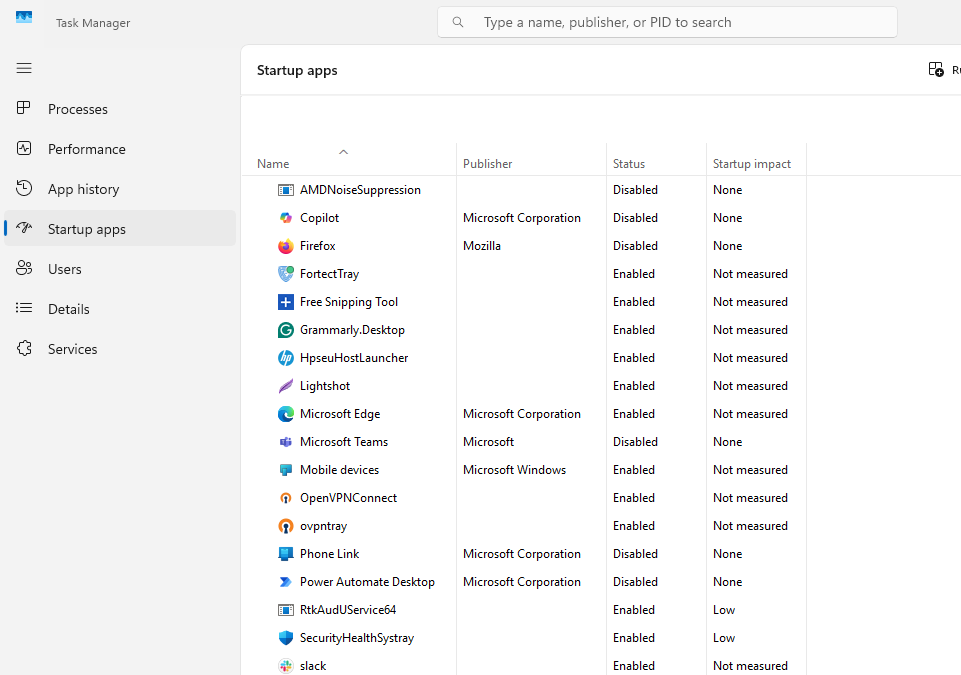
Many remote access tools configure themselves to launch automatically when Windows starts.
Step 1: Press Ctrl + Shift + Esc to open Task Manager.
Step 2: Click the “Startup” tab at the top.
Step 3: Review the “Name,” “Publisher,” and “Status” columns for unfamiliar programs.
Step 4: Right-click any suspicious enabled startup item and select “Disable” to prevent it from running at boot.
Step 5: Research unknown program names online before disabling to avoid affecting legitimate Windows functions.
Check Windows Firewall Allowed Apps
Remote access software requires firewall permissions to communicate over networks.
Step 1: Press Windows + R, type “firewall.cpl” and press Enter.
Step 2: Click “Allow an app or feature through Windows Defender Firewall” from the left panel.
Step 3: Review the list of allowed programs for remote access applications.
Step 4: If you find unauthorized remote software, uncheck both “Private” and “Public” boxes next to it.
Step 5: Click “OK” to save changes and block the program’s network access.
Verify Remote Desktop Settings
Windows includes built-in remote desktop functionality that attackers might enable.
Step 1: Press Windows + I to open Settings.
Step 2: Click “System” then select “Remote Desktop” (Windows 11) or search for “Remote Desktop settings” (Windows 10).
Step 3: Check if “Enable Remote Desktop” is turned on. If you didn’t enable this feature, turn it off immediately.
Step 4: Review “User accounts” to see who has remote access permissions.
Step 5: Remove any unfamiliar user accounts from the authorized list.
How to Check Network Connections for Remote Access Activity
Monitor Active Network Connections
Step 1: Press Windows + X and select “Windows Terminal” or “Command Prompt (Admin).”
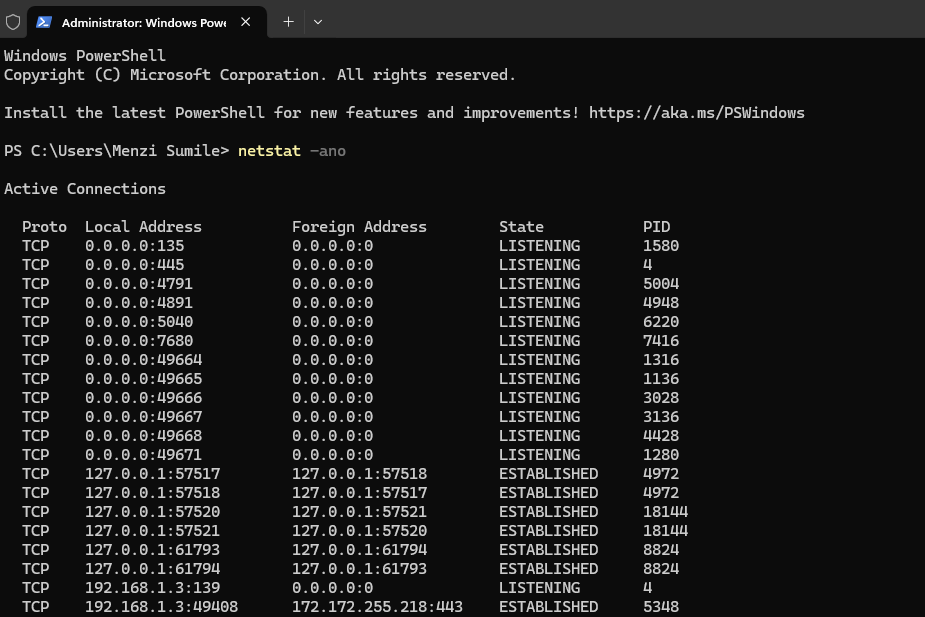
Step 2: Type netstat -ano and press Enter.
Step 3: Look for “ESTABLISHED” connections to unfamiliar IP addresses, particularly on ports commonly used for remote access (3389 for RDP, 5900 for VNC, 5938 for TeamViewer).
Step 4: Note the Process ID (PID) number in the rightmost column for suspicious connections.
Step 5: Open Task Manager, go to “Details” tab, and match the PID to identify which program is making the connection.
How to Remove Unauthorized Remote Access Tools
Once you’ve identified unwanted remote access software, removal is straightforward but must be thorough.
Step 1: Disconnect from the internet immediately by disabling Wi-Fi or unplugging your ethernet cable.
Step 2: Open Settings (Windows + I), navigate to “Apps,” then “Installed apps.”
Step 3: Find the unauthorized remote access program and click “Uninstall.”
Step 4: Follow the uninstallation wizard completely, selecting options to remove all program data.
Step 5: Restart your computer after uninstallation completes.
Step 6: Run a full system scan using Windows Security or your antivirus software to detect any remaining malicious files.
Step 7: Change all important passwords from a secure device, including your Windows login, email, and banking credentials.
Protecting Your Computer from Future Unauthorized Access
Prevention requires combining good security practices with technical safeguards.
Keep Windows Security and your antivirus software updated with automatic scanning enabled. Never install software from untrusted sources or click suspicious email attachments. Use strong, unique passwords for your Windows account and enable two-factor authentication where available.
Regularly review your installed programs and startup items monthly. Disable Windows Remote Desktop unless you specifically need it. Configure your firewall to deny unexpected connection requests.
Create a standard user account for daily activities rather than using an administrator account constantly. This limits what unauthorized software can install without your explicit permission.
When to Seek Professional Help
If you’ve found unauthorized remote access tools but can’t remove them, or if suspicious activity continues after removal, professional assistance may be necessary. Persistent infections, ransomware threats, or evidence of data theft warrant immediate expert intervention.
Contact a certified computer technician or cybersecurity professional who can perform a deep system analysis and ensure the complete removal of malicious software.
Your computer’s security directly impacts your personal privacy and financial safety. By regularly checking for unauthorized remote access tools and maintaining strong security practices, you protect yourself from potential cyberthreats and maintain control over your digital life.