
How to Secure Windows 11 from Malicious Spotlight‑Style Search Plugins
Secure Windows 11 from malicious Spotlight-style search plugins by disabling unknown search extensions and running a full system scan immediately. These plugins mimic macOS Spotlight or built-in Windows Search.
They intercept queries and redirect results to malicious sites. Attackers use them to harvest data and install additional malware. Removing them requires more than a simple uninstall.
Key Takeaways
- Malicious Spotlight-style search plugins hijack search queries and redirect users to harmful sites.
- These plugins typically arrive through bundled downloads, fake updates, and malicious ads.
- Removal involves uninstalling suspicious apps, resetting browsers, and checking startup entries.
- Running System File Checker restores files damaged during an infection.
- Ongoing protection combined with regular audits offers the strongest defense against malicious Spotlight-style search plugins.
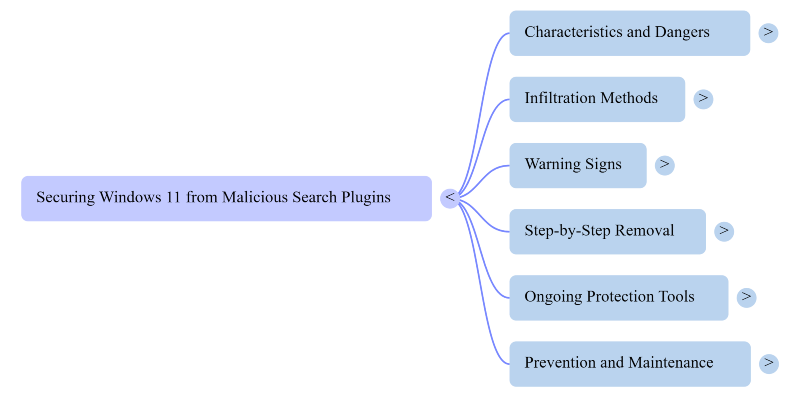
What Makes Spotlight-Style Search Plugins Dangerous
These plugins often arrive bundled with free software downloads. They install browser extensions and desktop widgets that mimic legitimate search tools. Once active, they intercept every search query typed into the system. Results get redirected through ad networks and phishing pages. Some variants log keystrokes during search sessions.
Others inject fake system alerts to trick users into downloading more malware. The interface looks polished and familiar. This is intentional. Familiarity lowers suspicion and increases click-through rates.
How These Plugins Infiltrate Windows 11
Most infections start with software bundling during installation. Users click through setup screens without reading each step. A checkbox pre-selects the plugin as a “recommended search enhancement.” Some plugins arrive through fake browser updates. Others get pushed through malicious ad campaigns on legitimate websites.
Cracked software downloads remain a common delivery method, too. Once installed, the plugin modifies registry entries and browser shortcuts. It changes default search providers and homepage settings. This grants persistence even after a browser reset attempt.
Warning Signs of an Infected System
Search results start looking different than usual. New toolbars appear without explanation. The default search engine changes without user action. Browser homepage settings reset on their own. Pop-up windows appear during normal searches. System performance slows down noticeably during search operations.
Task Manager may show unfamiliar background processes running constantly. Some of these processes disguise themselves using names similar to legitimate Windows services. This makes manual detection difficult for average users.
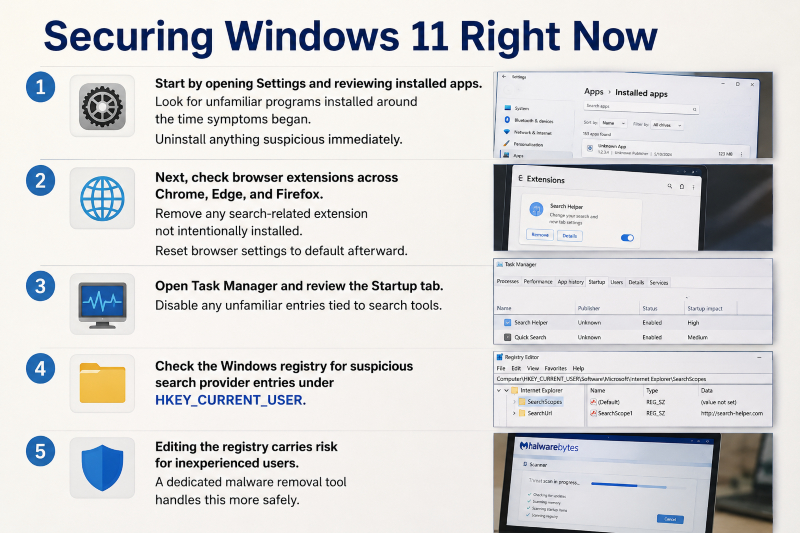
Start by opening Settings and reviewing installed apps.
- Look for unfamiliar programs installed around the time symptoms began.
- Uninstall anything suspicious immediately.
- Next, check browser extensions across Chrome, Edge, and Firefox.
- Remove any search-related extension not intentionally installed.
- Reset browser settings to default afterward. Open Task Manager and review the Startup tab.
- Disable any unfamiliar entries tied to search tools.
- Check the Windows registry for suspicious search provider entries under HKEY_CURRENT_USER.
- Editing the registry carries risk for inexperienced users.
A dedicated malware removal tool handles this more safely.
Restoring System Files After Removal
Malicious plugins often modify or replace core system files. Simple removal does not always repair this damage. Corrupted DLL files can cause search functions to behave unpredictably even after cleanup. Windows System File Checker offers a built-in repair option. Running “sfc /scannow” in Command Prompt restores damaged files from a protected cache. This step is often skipped during manual malware removal. Skipping it leaves lingering instability behind.
A Practical Option for Ongoing Protection
Manual removal fixes the immediate problem but does not prevent reinfection. This is where a dedicated tool becomes a reasonable next step. Fortect’s real-time protection actively watches for threats like malicious spotlight-style search plugins before they gain a foothold. It detects the threat, removes it, and restores any system files damaged during the infection.
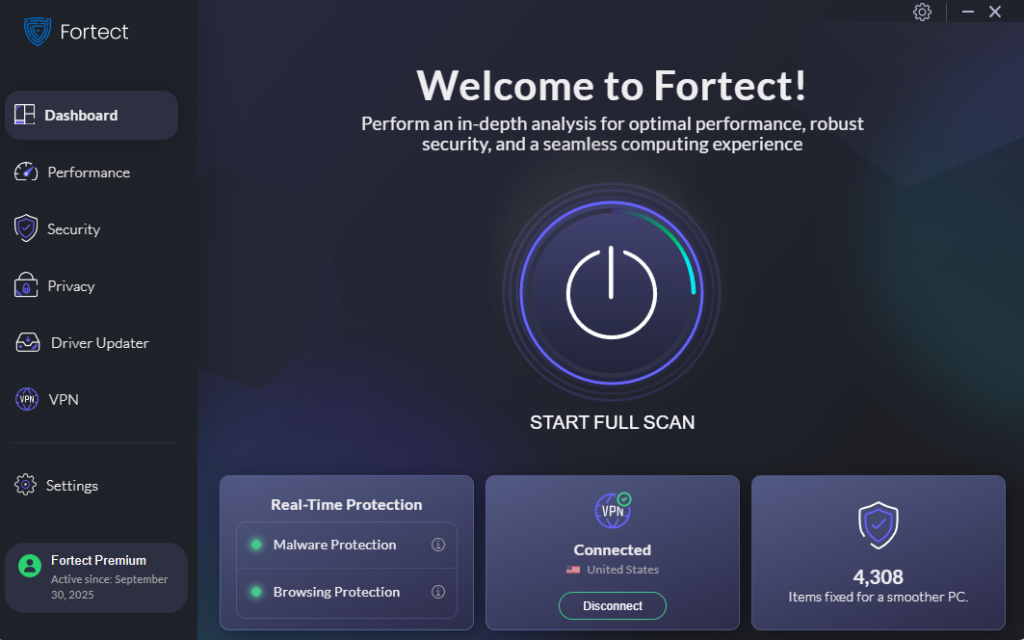
Launch Fortect and click Scan. Fortect reviews every installed program and driver on the system. It flags threats along with outdated or corrupted drivers and updates them automatically. It also cleans the system of both modern and legacy threats using its real-time protection engine. For anyone concerned about lingering search hijackers or future infections, it may be worth trying.
The new Fortect Premium now includes a built-in VPN with Auto-Protect on public Wi-Fi, helping keep your internet connection private and secure. It encrypts your online activity to protect sensitive data from hackers and network snoopers, reducing the risk of credential theft if malicious Spotlight-style search plugins redirect you to fraudulent or phishing websites.
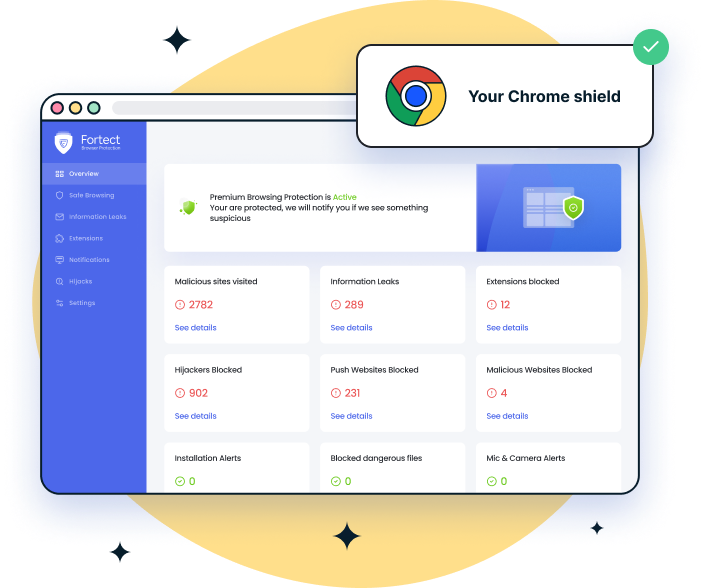
If you use Google Chrome, adding a trusted security extension can help reduce the risk of malicious Spotlight-style search plugins. Fortect Browsing Protection adds an extra layer of security by blocking malicious websites before they load, warning you about suspicious pages that may lead to phishing or scams, and detecting and removing harmful browser extensions that could compromise your privacy or redirect your searches.
Preventing Future Infections
Avoid downloading software from unofficial sources going forward. Read every installation screen carefully during setup. Uncheck any bundled offers before clicking next. Keep Windows 11 updated with the latest security patches. Enable Microsoft Defender’s real-time protection if it was previously disabled. Review installed browser extensions every month.
Remove anything unrecognized or unused. Consider limiting administrator privileges on shared devices. Malicious plugins often need elevated permissions to install successfully. Restricting this access reduces the attack surface significantly.
Why Regular System Audits Matter
Search-based malware evolves constantly to avoid detection. A plugin that seemed harmless last month may behave differently today. Regular audits catch issues before they escalate into larger problems. This includes checking startup programs and installed extensions weekly. It also means monitoring for unexpected changes to default settings. Consistency matters more than any single scan. A scheduled routine catches threats that a one-time cleanup might miss.




