
How to Secure Homomorphic Encryption Adoption Safely
Homomorphic encryption adoption is one of the most significant privacy-preserving advances available to everyday users today. Whether you store personal files in the cloud, use online banking, or share sensitive documents, this technology can protect your data in ways that traditional encryption cannot.
We will break down what it means, why it matters, and how Windows 10/11 users can take practical steps toward safer data handling.
What Is Homomorphic Encryption?

Homomorphic encryption (HE) is a form of cryptography that allows computations to be performed on encrypted data, without ever decrypting it first. The result of those computations, when decrypted, matches exactly what would have been produced had the operations been performed on unencrypted data.
In simpler terms: your data stays locked, even while it’s being used.
Why It Matters for Everyday Users
Traditional encryption protects data at rest and in transit, but the moment a cloud server or app needs to process your data, it must first decrypt it, exposing it to potential vulnerabilities. Homomorphic encryption eliminates that gap.
Key benefits for personal users include:
- Private cloud computing — Your files can be processed on cloud servers without the provider ever seeing the raw data.
- Secure health data — Medical apps can analyze your records without exposing sensitive information.
- Protected financial queries — Banking and budgeting apps can perform calculations without reading your account details in plain text.
Common Risks in Homomorphic Encryption Adoption
Before embracing any new encryption technology, it’s important to understand the risks involved in the adoption process itself.
Misconfigured Encryption Settings
Even powerful encryption tools fail when settings are incorrect. Using weak key sizes, outdated libraries, or skipping certificate validation can undermine the entire security layer.
Trusting Unverified Software
Many apps claim to use advanced encryption, including homomorphic encryption. Without proper vetting, users may install software that misrepresents its security features or contains malware.
Lack of Operating System Hardening
Homomorphic encryption at the application level means very little if the underlying operating system is compromised. Securing Windows 10/11 is a foundational step before adopting any privacy-enhancing technology.
How to Prepare Your Windows 10/11 System for Safer Encryption Use
Taking these steps on your Windows device creates a secure environment for homomorphic encryption tools and other privacy-sensitive applications.
Strengthen Your PC Security with Fortect
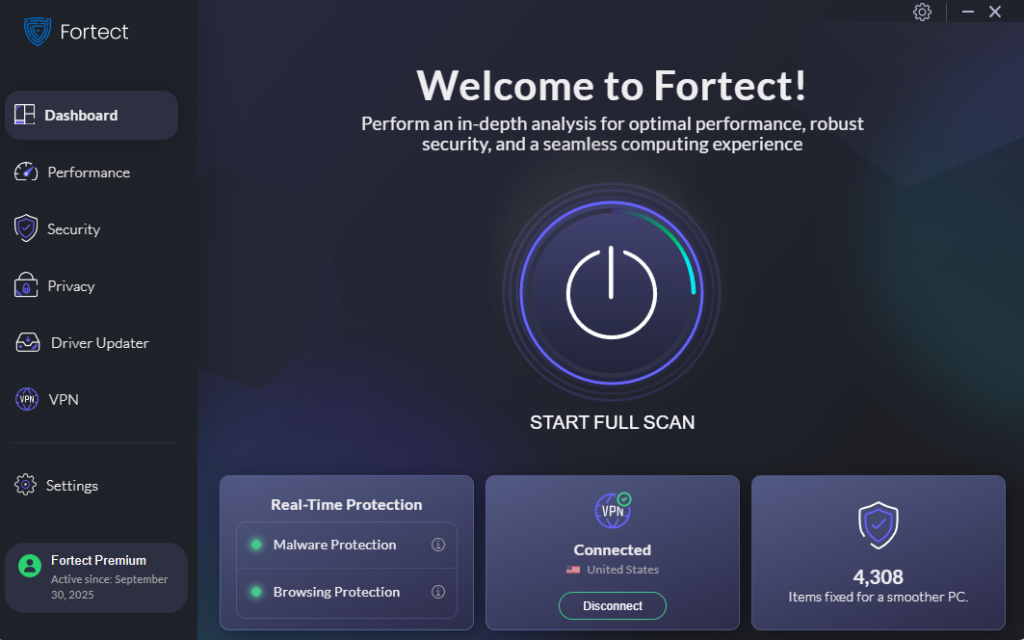
Fortect is a Windows security and repair utility that scans your PC for malware, corrupted system files, and performance issues, then fixes them automatically. As homomorphic encryption adoption grows, so does the sophistication of threats designed to undermine it. Fortect identifies and removes those threats before they can interfere with your encryption tools or compromise the keys they depend on. It also restores damaged system files that could otherwise destabilize your security setup, keeping your Windows environment clean and fully operational.
Download and install Fortect today.
Step 1: Keep Windows Fully Updated
Outdated operating systems are the most common attack vector for data theft.
How to update Windows 10/11:
- Click the Start menu and open Settings (gear icon).
- Go to Update & Security (Windows 10) or Windows Update (Windows 11).
- Click Check for updates.
- Install all available updates, including optional and driver updates.
- Restart your computer when prompted.
- Return to Windows Update and repeat until no updates remain.
Enable automatic updates to ensure your system is always protected without manual intervention.
Step 2: Restrict User Account Privileges
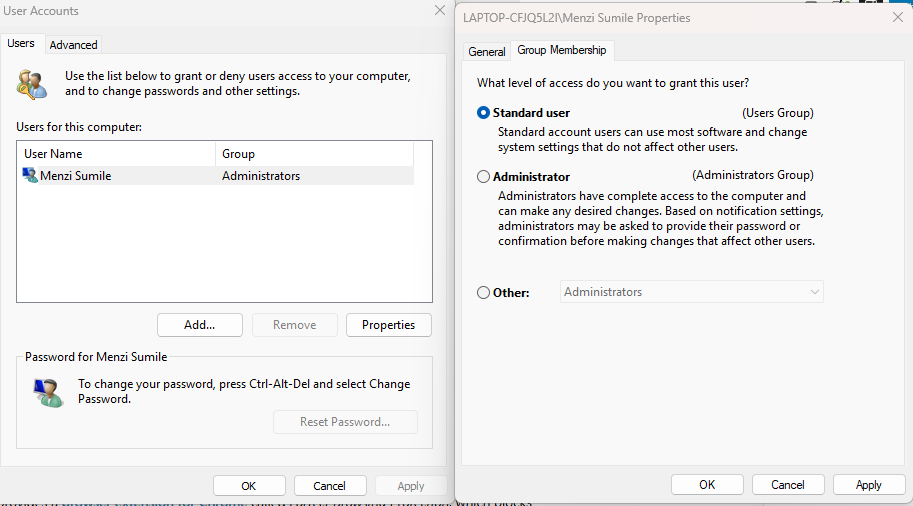
Running Windows as an administrator by default increases the risk of unauthorized software installations and system-level attacks.
How to restrict user accounts on Windows 10/11:
- Open Settings → Accounts → Family & other users.
- Click on your secondary or guest account under Other users.
- Select Change account type.
- In the dropdown, choose Standard User and click OK.
- For daily use, log in with the Standard User account.
- Reserve the Administrator account only for software installations and system changes.
This limits the damage any malicious software can do, even if it bypasses application-level encryption.
Step 3: Enable BitLocker Full-Disk Encryption
BitLocker is Windows’ built-in encryption tool. It protects data at rest, which complements homomorphic encryption tools used for cloud processing.
How to enable BitLocker on Windows 10/11:
- Go to Start → Control Panel → System and Security → BitLocker Drive Encryption.
- Click Turn on BitLocker next to your system drive (usually C:).
- Choose how to unlock the drive at startup (recommended: PIN).
- Save your recovery key to a USB drive or your Microsoft account.
- Select Encrypt used disk space only for faster setup on new drives, or Encrypt entire drive for older systems.
- Click Start encrypting.
Step 4: Use Windows Defender and Enable Tamper Protection
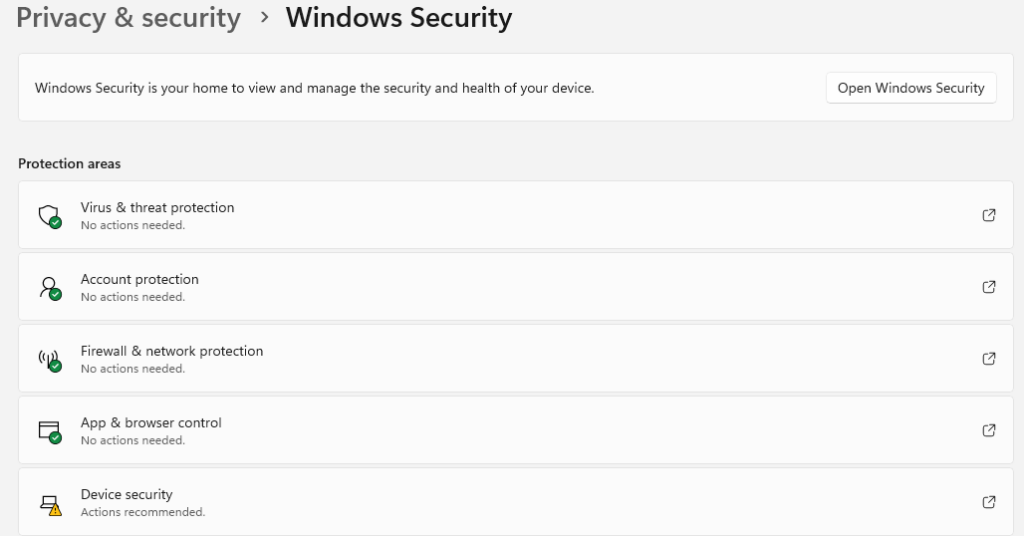
Malware can intercept data before homomorphic encryption has a chance to protect it.
How to enable Tamper Protection:
- Go to Settings → Update & Security → Windows Security.
- Click Open Windows Security.
- Select Virus & threat protection.
- Scroll to Virus & threat protection settings → click Manage settings.
- Toggle Tamper Protection to On.
This prevents unauthorized applications from disabling your antivirus, a common tactic in data theft attacks.
How to Safely Adopt Homomorphic Encryption Tools as a Consumer
Choose Verified and Open-Source Libraries
Look for applications that use recognized homomorphic encryption libraries such as Microsoft SEAL, OpenFHE, or HEAAN. Open-source tools have been reviewed by independent security researchers, reducing the risk of hidden vulnerabilities.
Verify App Permissions Before Installing
Before downloading any encryption-related app on Windows:
- Right-click the installer and select Properties.
- Go to the Digital Signatures tab to confirm the app is signed by a verified publisher.
- Check the permissions the app requests during installation — encryption tools should not need access to your camera, microphone, or contacts.
Use a Password Manager with Strong Key Management
Homomorphic encryption relies on cryptographic keys. If those keys are weak or improperly stored, the encryption is compromised regardless of algorithm strength.
- Use a reputable password manager (such as Bitwarden or 1Password) to store encryption keys securely.
- Generate keys with a minimum length of 2048 bits for RSA-based systems, or follow the tool’s recommended settings for lattice-based HE schemes.
Audit Cloud Providers That Claim HE Support
If a cloud service states it uses homomorphic encryption to protect your data:
- Look for third-party security audits or certifications (SOC 2, ISO 27001).
- Check if the provider publishes transparency reports.
- Confirm the encryption scheme used (fully homomorphic vs. partially homomorphic) and understand its limitations.
Understanding the Limits of Homomorphic Encryption
Homomorphic encryption is not a catch-all solution. Current implementations, especially fully homomorphic encryption (FHE), are computationally intensive and may not be practical for all consumer applications yet.
Partially homomorphic encryption (PHE) supports only one type of operation (addition or multiplication), while somewhat homomorphic encryption (SHE) supports a limited number of both. For most consumer use cases today, PHE or SHE is what apps realistically implement.
Understanding these distinctions helps set realistic expectations and prevents over-reliance on a single privacy tool.
Conclusion
Safe homomorphic encryption adoption starts with a secure foundation. For Windows 10/11 users, that means keeping the operating system updated, restricting account privileges, enabling full-disk encryption, and carefully vetting the tools and services being trusted with personal data.
Homomorphic encryption represents a powerful shift in how privacy is handled, but its strength depends entirely on how responsibly it is implemented and adopted. Taking a methodical, layered approach to security ensures that this cutting-edge technology works as intended: keeping data private, even when it’s actively being used.





