
How to Protect Windows 11 from Malicious Widgets
Malicious Widgets can compromise your Windows 11 PC by displaying deceptive content, collecting personal data, or serving as an entry point for malware. The best way to stay protected is to install apps and widgets from trusted sources, keep Windows updated, and regularly monitor what has access to your system.
Windows 11 widgets are designed to provide quick access to news, weather, calendars, stocks, and other useful information. While Microsoft’s built-in Widgets board is generally secure, cybercriminals often disguise malicious software as helpful widgets, desktop gadgets, browser extensions, or utility apps to trick users into installing them.
Key Takeaways
- Malicious Widgets often disguise themselves as helpful desktop tools or browser add-ons.
- Download software only from trusted sources and keep Windows 11 updated.
- Use Microsoft Defender and regularly review installed apps and extensions.
- Watch for warning signs like pop-ups, browser redirects, and unexplained slowdowns.
- Consider additional maintenance tools like Fortect if you want extra protection and system optimization alongside Windows security.
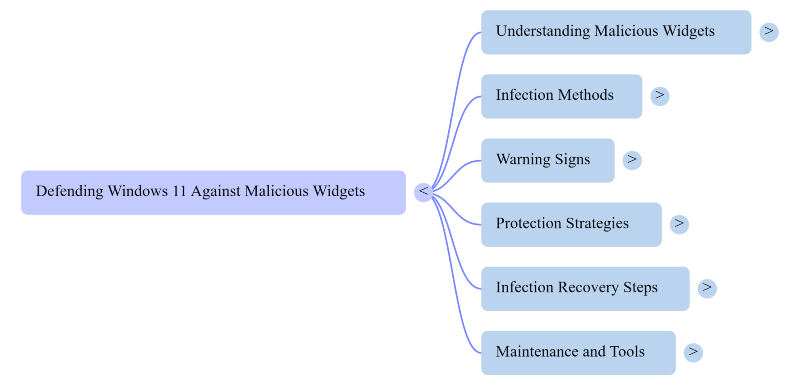
What Are Malicious Widgets?
Malicious widgets are fake or compromised applications that mimic legitimate Windows widgets or gadget-style tools. Their goal is to gain unauthorized access to your device or personal information.
Depending on the threat, they may:
- Display fake alerts to scare users into downloading malware.
- Track browsing habits and collect personal data.
- Redirect users to phishing websites.
- Install additional malicious software.
- Slow down system performance by consuming resources.
Since Windows 11 integrates online services and widgets into the desktop experience, attackers may exploit users who install unofficial third-party tools without verifying their source.
How Do Malicious Widgets Infect Windows 11?
Cybercriminals use several methods to spread these threats.
- Fake Widget Downloads: Attackers create websites offering custom widgets or desktop enhancements that secretly install malware.
- Browser Extensions: Some malicious browser add-ons act like widgets and collect browsing data or inject unwanted advertisements.
- Bundled Software: Free applications may include unwanted widget-like programs during installation if users skip custom setup options.
- Phishing Emails: Emails containing links to fake productivity tools or weather widgets can trick users into downloading infected files.
- Fake Updates: Scammers may display pop-ups claiming your widget software needs an urgent update, leading to malware installation.
Signs Your Windows 11 PC Has a Malicious Widget
A compromised widget may not always be obvious, but common warning signs include:
- Frequent pop-up ads.
- Browser redirects.
- High CPU or memory usage.
- Unexpected toolbar or desktop additions.
- Unknown apps appearing after software installation.
- Slower system performance.
- Antivirus alerts about suspicious activity.
If you notice several of these symptoms together, it’s worth investigating recently installed applications and extensions.
How to Protect Windows 11 from Malicious Widgets
Protecting your PC doesn’t require advanced technical skills. A few good habits can significantly reduce your risk.
Download Apps From Trusted Sources
Use the Microsoft Store whenever possible. If downloading software elsewhere, stick to reputable developers with verified websites.
Keep Windows 11 Updated
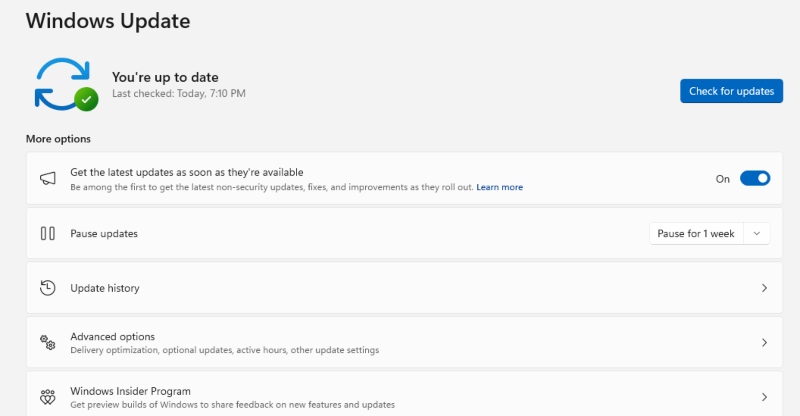
- Microsoft regularly patches security vulnerabilities that attackers could exploit.
- Go to Settings > Windows Update and install updates as they become available.
Review Installed Apps
Periodically check installed programs and uninstall anything unfamiliar.
Navigate to:
- Settings > Apps > Installed Apps
- Remove software you don’t recognize or no longer use.
Be Careful With Browser Extensions
Install extensions only from official browser stores and review permissions before enabling them.
If an extension requests access unrelated to its purpose, avoid installing it.
Use Microsoft Defender
- Windows Security includes real-time protection that can detect many forms of malware and suspicious applications.
- Run regular scans to identify potential threats.
Avoid Clicking Suspicious Pop-Ups
- Never trust unexpected alerts claiming your PC is infected or that a widget requires an urgent update.
- Close the browser tab instead of interacting with the message.
Limit Administrator Access
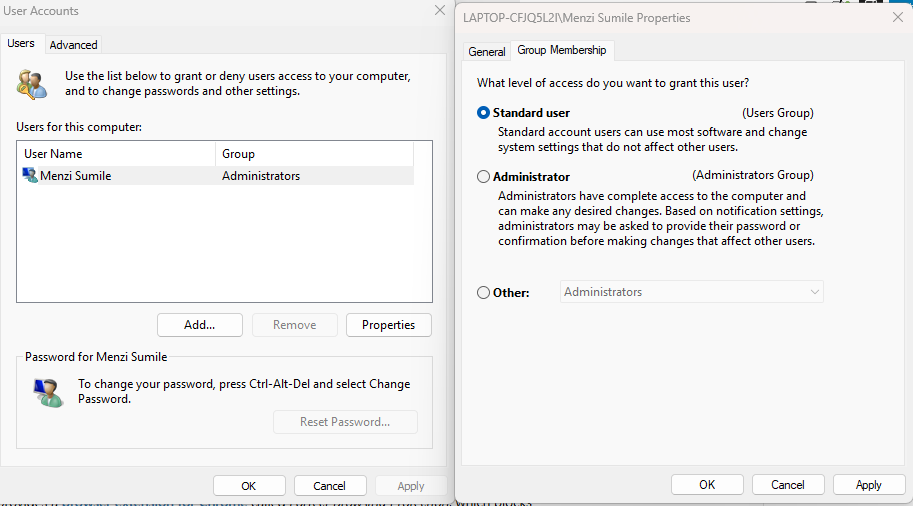
Using a standard user account for everyday tasks can reduce the impact of malicious software attempting to make system changes.
What to Do if You Installed a Suspicious Widget
If you think you’ve installed a malicious widget, act quickly.
- Disconnect from the internet if suspicious activity continues.
- Uninstall the application from Windows Settings and remove related browser extensions.
- Run a full Microsoft Defender scan and allow it to quarantine detected threats.
- Check startup applications by opening Task Manager and disabling unknown entries.
- Finally, update Windows and change passwords for important accounts if you suspect personal information was exposed.
A Practical Option for Keeping Windows Secure
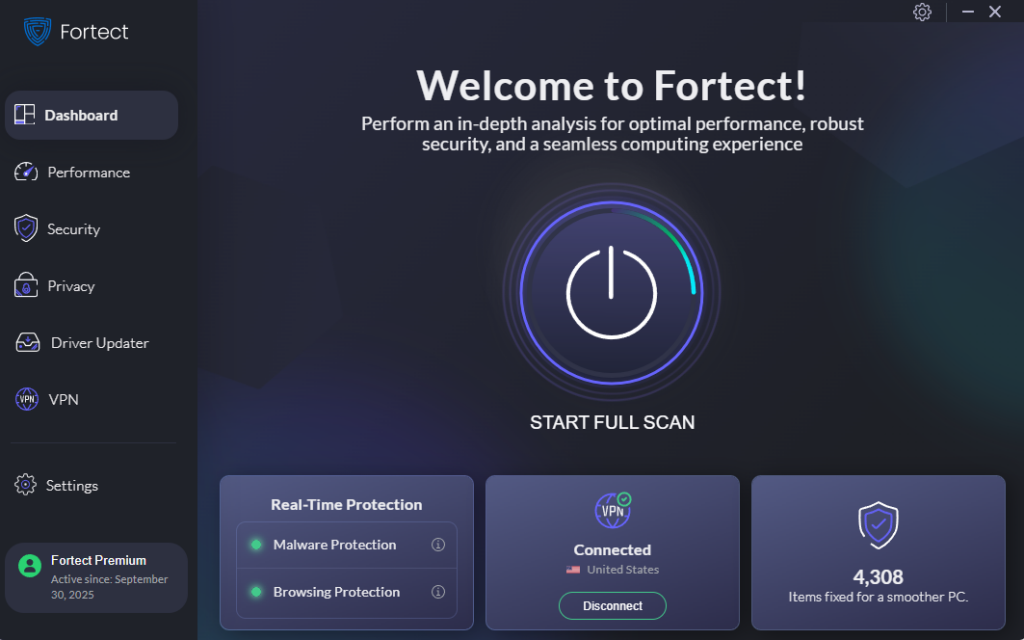
While Windows Security provides solid built-in protection, some users prefer additional tools that simplify maintenance. Fortect is one option worth considering if you want an all-in-one approach to keeping your PC healthy and secure.
Its real-time malware protection can help detect and remove threats such as malicious widgets, remove harmful files, and repair damaged Windows system files that malware may corrupt. Beyond security, it cleans junk files and leftovers from crashed programs that can slow down everyday performance.
Another useful feature is its built-in Driver Updater, which replaces outdated or corrupted drivers with verified versions. Keeping drivers current can help close security gaps that attackers sometimes exploit. If you want an extra layer of protection alongside Windows’ built-in defenses, Fortect may be a practical tool to try.
If you think you’re experiencing a suspicious widget, Chrome users can use the Fortect Browsing Protection extension for added security. It helps block unsafe websites before they load, warns about suspicious pages, and identifies harmful extensions that may put your data at risk.
Can Windows 11’s Built-In Widgets Be Trusted?
Generally, yes. Microsoft’s built-in Widgets feature is designed with modern security protections and receives updates through Windows Update.
The greater risk comes from unofficial third-party widget software, fake gadget packs, and browser-based imitations pretending to offer extra functionality.
The safest approach is to use official Windows features and carefully verify any additional software before installing it.
Conclusion
Malicious software doesn’t always arrive as an obvious virus. Fake widgets, gadget-style apps, and deceptive browser tools can expose personal information, install malware, or reduce system performance.
Fortunately, protecting Windows 11 is straightforward. Download software from trusted sources, keep your PC updated, use Microsoft Defender, review installed apps regularly, and stay cautious of unexpected downloads or pop-ups. These simple habits can significantly reduce the risk of compromise while helping your system run smoothly.



