
How to Prevent Widget Hijacking on Windows 11
To prevent widget hijacking on Windows 11, disable or restrict the Widgets panel, audit your Microsoft Edge extensions, keep Windows fully updated, and use an all-in-one security tool like Fortect to detect threats, remove malicious software, and keep your PC protected around the clock.
Windows 11 Widgets seem harmless: a glance at the weather, your news feed, and stock prices right from your taskbar. But because the panel runs on Microsoft Edge under the hood, it is also a potential attack surface. Rogue extensions, bundled freeware, and unpatched system vulnerabilities can give attackers a quiet way in, hijacking your widget feed to serve up malicious content, track your behavior, or redirect you to phishing pages.
Key Takeaways
- Widget hijacking occurs when malicious software or extensions take control of the Windows 11 Widgets panel to inject content, track activity, or redirect you to harmful sites.
- The Widgets panel runs on Microsoft Edge, so securing your browser, especially reviewing and removing suspicious extensions, is one of the most important prevention steps.
- Always install software from official sources and use Custom install settings to avoid bundled tools that quietly alter your browser and widget configuration.
- Keep Windows 11 and Microsoft Edge updated at all times; most widget-based attacks exploit vulnerabilities that already have patches available.
- A tool like Fortect adds a persistent layer of defense by detecting threats in real time, cleaning your system, and keeping your drivers updated to reduce your overall attack surface.
What Is Widget Hijacking and Why Does It Happen?
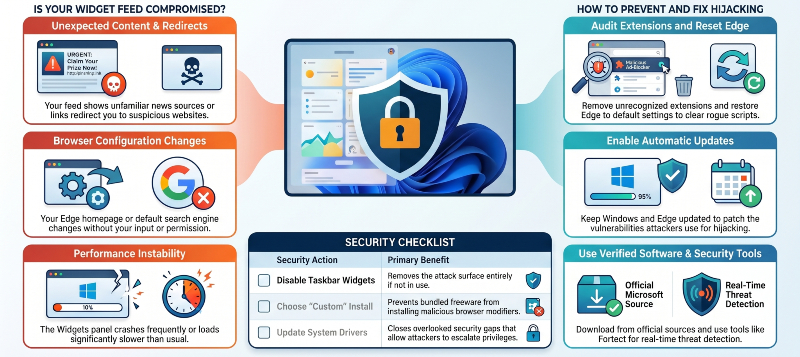
Widget hijacking is a form of browser or system-level manipulation where a third-party program, extension, or script gains unauthorized control over your widget feed. Instead of seeing your trusted news sources or your weather update, you see ads, clickbait, or content you never asked for. In more serious cases, those injected links lead to phishing pages or malware downloads.
It happens most often through rogue browser extensions, bundled freeware installers, and outdated system drivers that create security gaps. Windows 11 Widgets are powered by Microsoft Edge under the hood, which means anything that compromises your Edge environment can compromise your widget panel too.
How to Tell If Your Widgets Have Been Hijacked
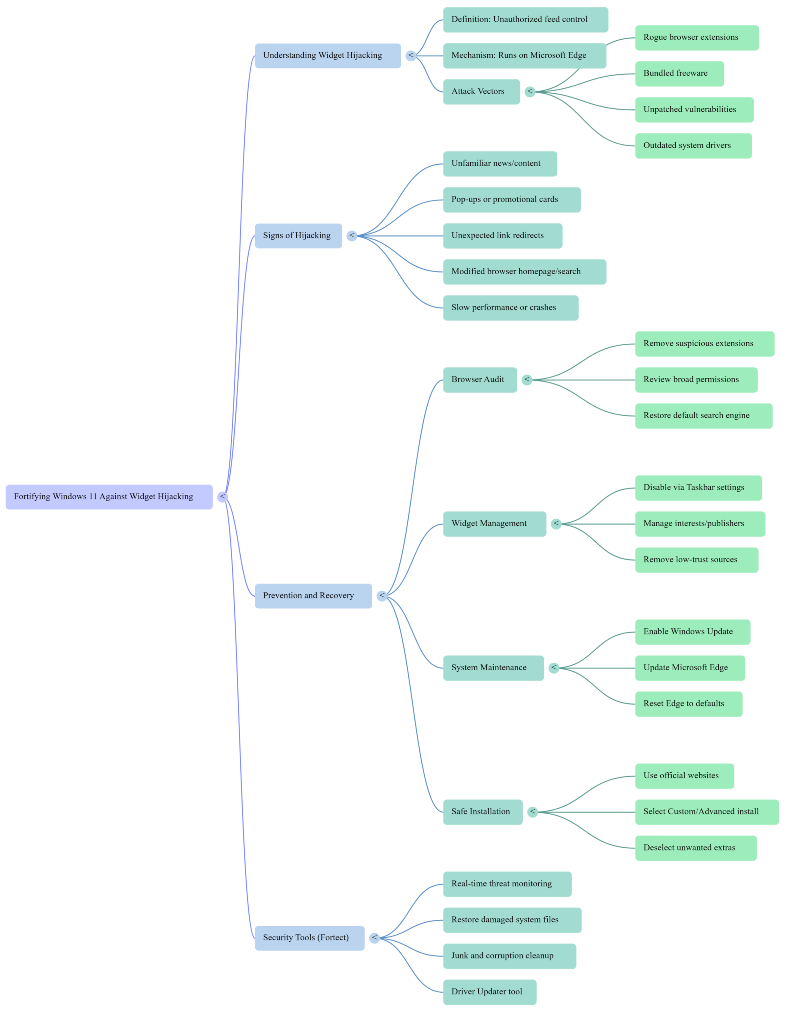
The signs are not always obvious, but these are the most common indicators that something is off:
Your widget feed suddenly shows news sources or content you have never followed. You see pop-ups or promotional cards inside the Widgets panel. Clicking a widget link redirects you somewhere unexpected. Your Edge browser homepage or search engine changed without your input. The Widgets panel loads slowly or crashes more than usual.
If any of these sound familiar, your system may already be compromised. The good news is that most of these are reversible with the right steps.
How to Prevent Widget Hijacking on Windows 11
1. Audit and Remove Suspicious Browser Extensions
Since Windows 11 Widgets rely on Mine has been changed under Settings > Privacy, search, and services. Restore it to your preferred provider if it has been altered.
2. Disable Widgets or Restrict Third-Party News Sources
If you do not rely on the Widgets panel heavily, consider disabling it entirely. Right-click your taskbar, select Taskbar settings, and toggle off Widgets. If you want to keep it active, go to the Widgets panel, click your profile icon at the top, and manage your interests to remove any unfamiliar publishers from your feed.
Microsoft also lets you control which content providers appear in your feed. Removing low-trust sources cuts off one of the main vectors attackers use to inject malicious cards into your panel.
3. Keep Windows 11 and Edge Updated
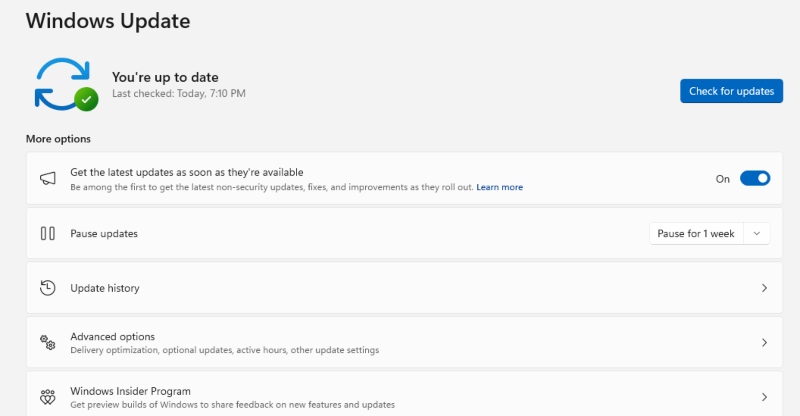
Unpatched vulnerabilities in Windows and Edge are the most reliable way for attackers to get a foothold on your machine. Go to Settings > Windows Update and make sure automatic updates are enabled. For Edge, open the browser menu, go to Help and feedback > About Microsoft Edge, and let it update if a newer version is available.
Do not delay these updates. Many widget-based attacks exploit security holes that Microsoft has already patched; the only reason they succeed is that the update was never installed.
4. Watch What You Install
A significant number of widget hijacking cases trace back to freeware downloaded from unofficial sources. Bundled installers often include third-party tools that modify your browser and widget settings without clearly disclosing it. Always download software from official websites, and always choose Custom or Advanced during installation so you can deselect unwanted extras.
If you recently installed something new right before your widgets started behaving strangely, that is likely your culprit. Uninstall it through Settings > Apps > Installed apps and reset your Edge settings afterward.
5. Reset Microsoft Edge to Default Settings
If the damage is already done, resetting Edge is one of the fastest ways to undo widget hijacking caused by a rogue extension or script. Open Edge, go to Settings > Reset settings, and select Restore settings to their default values. This clears extensions, resets your homepage and search engine, and removes most injected configurations without deleting your bookmarks or saved passwords.
7. Use Fortect to Remove Widget Hijacking Threats
Microsoft Edge, start there. Open Edge, go to Settings > Extensions, and review every extension installed. Remove anything you do not recognize or no longer use. Pay close attention to extensions that request broad permissions like “Read and change all data on websites you visit”, those are prime candidates for abuse.
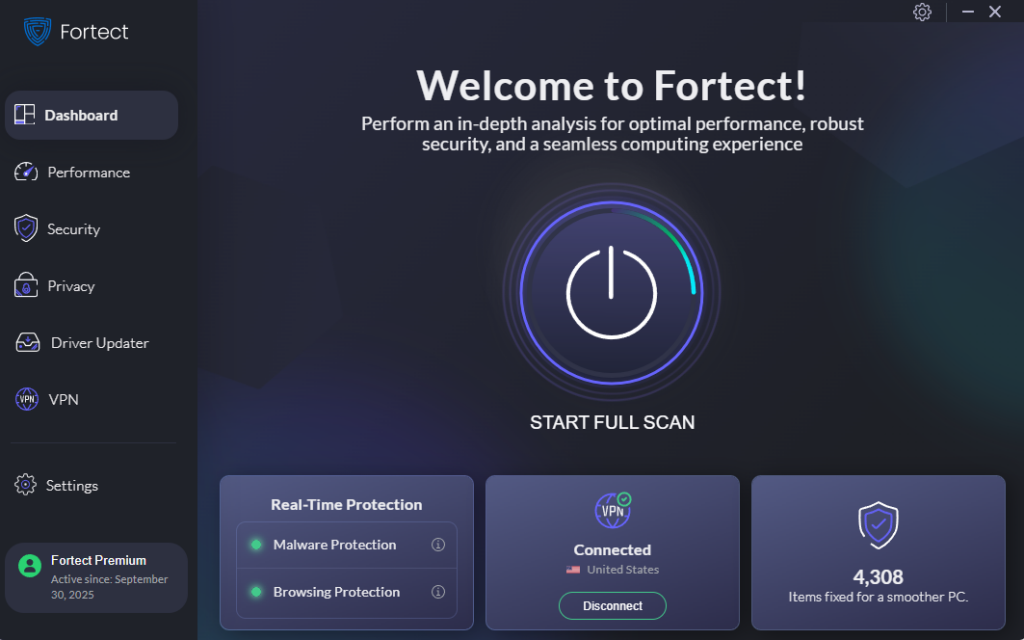
Also, check if your default search engiManual steps go a long way, but they do not catch everything. Fortect is built to handle the threats that slip through, including the kind that quietly compromise your system settings, widget behavior, and browser configuration.
Fortect’s real-time protection actively monitors your PC for widget hijacking attempts and related threats. When it detects malicious activity, it removes the threat and restores any damaged or altered system files to their original state, so your Windows environment stays intact and trustworthy.
Beyond security, Fortect also cleans up junk files and removes crashed or corrupted programs that slow your system down. A cleaner PC is a faster PC, and it gives attackers fewer hiding places to work with.
Fortect also includes a built-in Driver Updater that replaces outdated or corrupted drivers with verified versions. Outdated drivers are a frequently overlooked security gap; attackers exploit them to escalate privileges and dig deeper into your system. Keeping your drivers current closes that gap before it can be used against you.
If you want a straightforward way to stay protected without managing everything manually, Fortect is worth a try. It handles the background work so you can focus on everything else.
Download Fortect now.




