How to Prevent Malware From Hijacking Windows 10/11 Cursors and Mouse Events
You can prevent mouse hijacking malware by monitoring erratic cursor movement, restricting unauthorized driver installs, and running real-time protection tools. Attackers use this malware to remotely control your cursor, click buttons without your consent, and trigger hidden commands. It often hides inside fake drivers, browser extensions, or remote access tools.
Windows 10 and 11 users are common targets because of widespread remote desktop use. Once installed, this malware can automatically move files, approve pop-ups, or disable security settings.
Key Takeaways
- Mouse hijacking malware fakes clicks and cursor movement using rogue drivers or remote tools.
- Watch for unexpected cursor activity, new toolbars, or sudden slowdowns.
- Disable unused remote access features and block unsigned drivers immediately.
- Real-time protection and driver verification tools reduce long-term risk significantly.
- Consistent monitoring is the best long-term defense against mouse hijacking malware.
What Is Mouse Hijacking Malware?
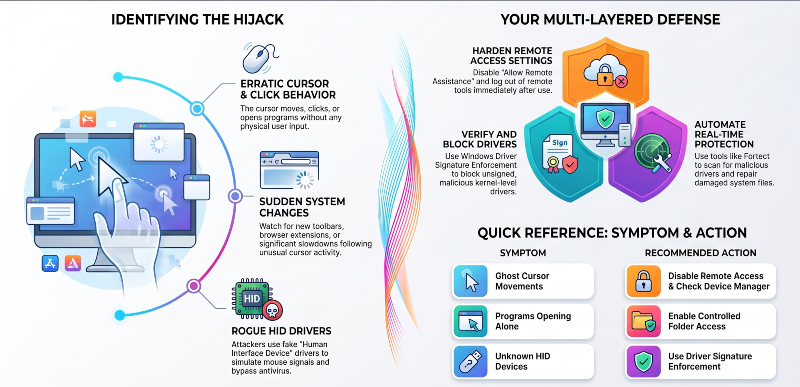
Mouse hijacking malware manipulates cursor behavior without the user’s input. It simulates clicks, drags windows, or opens menus on its own. Some variants exploit legitimate remote access software like TeamViewer or AnyDesk. Others install rogue HID (Human Interface Device) drivers to fake mouse signals. This lets attackers bypass antivirus alerts that only monitor keyboard activity. Victims often notice the cursor moving briefly before freezing or lagging.
Common Signs of Cursor Hijacking
- The cursor moves without any hand on the mouse.
- Clicks register in places you never touched.
- Programs open or close without your action.
- New toolbars or extensions appear suddenly.
- The system feels slower right after these events.
Any of these signs points to hijacking attempts in progress.
How to Prevent Mouse Hijacking Malware
- Start by disabling unnecessary remote access tools.
- Only allow trusted apps like TeamViewer when actively needed.
- Turn off “Allow Remote Assistance connections” in System Properties.
- Update Windows regularly to patch known HID driver vulnerabilities.
- Use an admin account only for installations, not daily browsing.
- Review installed drivers periodically through Device Manager.
- Remove anything unfamiliar labeled as a “mouse” or “HID-compliant device.”
- Block unsigned drivers using Windows’ Driver Signature Enforcement feature. This stops malicious kernel-level drivers from loading silently.
- Enable Controlled Folder Access under Windows Security settings. This blocks unauthorized programs from modifying protected folders.
- Avoid downloading mouse or keyboard utility software from unverified sites. Many fake driver tools bundle hidden malware payloads. Always verify software publishers through official manufacturer websites first.
- Enable multi-factor authentication for remote login tools. This prevents attackers from reactivating hijacked sessions later.
- Disable Bluetooth and USB auto-connect features when not in use. Hackers sometimes spoof wireless mouse signals to inject commands. Keep firewall rules strict for inbound remote connections.
- Regularly audit startup programs for unknown background processes.
Strengthen Protection With Fortect
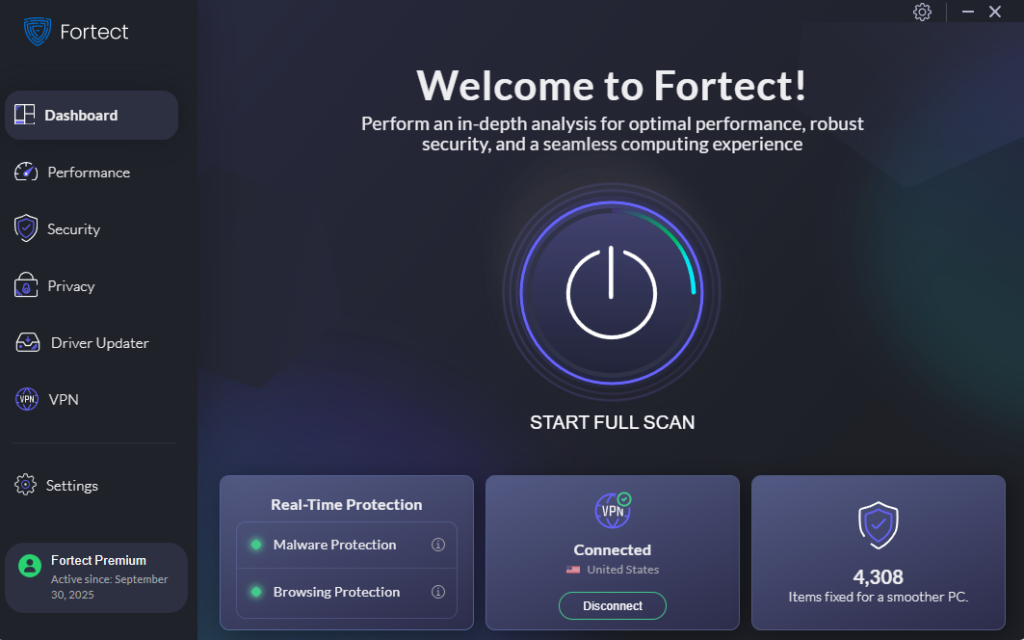
Manual prevention steps help, but ongoing protection matters more. Fortect offers real-time protection that actively scans for mouse hijacking malware and similar threats. It detects malicious drivers, isolates them, and repairs any damaged system files left behind. This keeps Windows running the way it should, without leftover corruption from an attack. Beyond security, Fortect also performs routine performance cleanup. It clears junk files, resolves crashed programs, and frees up system resources for smoother performance.
Many hijacking attempts hide in outdated components, which is where Fortect’s built-in Driver Updater becomes useful. It replaces outdated or corrupted drivers with verified, manufacturer-approved versions. This closes the same security gaps attackers often exploit through fake HID drivers. For anyone concerned about cursor hijacking or hidden malware, giving Fortect a try is a practical next step toward long-term protection.
Stay Secure Beyond the Desktop
Public Wi-Fi networks add another layer of risk. Fortect Premium now includes a built-in VPN with Auto-Protect for open networks. It activates automatically when you connect to unsecured Wi-Fi. This encrypts your internet traffic and keeps your data private from prying eyes. Attackers often use unsecured connections as an entry point for zero-day exploits. A protected connection removes that opportunity before it starts.
Download Fortect today.
Additional Habits That Reduce Risk
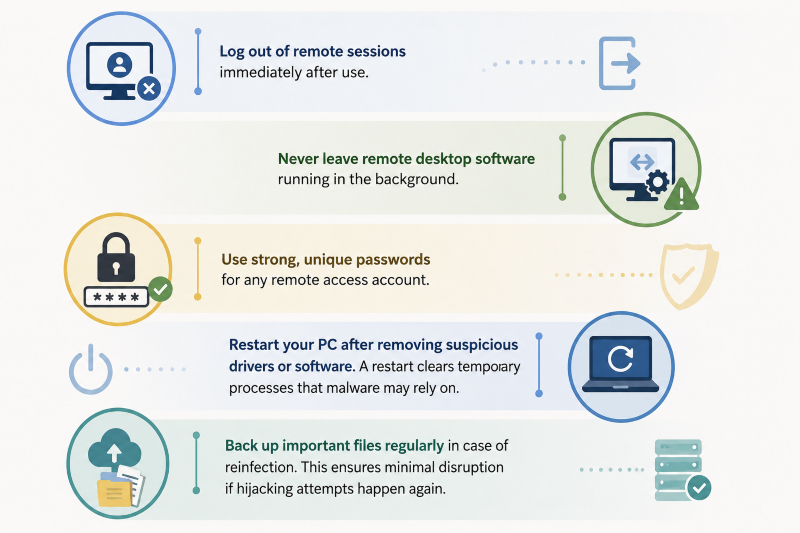
Log out of remote sessions immediately after use. Never leave remote desktop software running in the background. Use strong, unique passwords for any remote access account. Restart your PC after removing suspicious drivers or software. A restart clears temporary processes that malware may rely on. Back up important files regularly in case of reinfection. This ensures minimal disruption if hijacking attempts happen again.
When to Seek Professional Help
Persistent cursor hijacking despite these steps may signal a deeper infection. Rootkits and kernel-level malware sometimes resist standard removal tools. In that case, a full system scan with updated security software is essential. Professional malware removal services can also identify hidden persistence mechanisms. Waiting too long risks further data exposure or system compromise.