
How to Fix Windows Notifications Not Working
Missing important alerts because your Windows notifications stopped working? This frustrating issue prevents you from receiving updates about emails, messages, app activities, and system alerts. Whether you’re using Windows 10 or Windows 11, this guide will walk you through proven solutions to restore your notification functionality.
Understanding Why Windows Notifications Stop Working
Windows notification problems stem from several common causes. Your notification settings may have been accidentally disabled, Focus Assist might be blocking alerts, or corrupted system files could be interfering with the notification center. Sometimes, specific apps lose notification permissions after Windows updates, or the Windows notification service itself stops running properly.
Check Your Basic Notification Settings
Before diving into complex troubleshooting, verify your fundamental notification configuration.
Enable Notifications in Windows 11
- Click the Start button and select Settings (gear icon)
- Navigate to System from the left sidebar
- Click on Notifications
- Toggle on “Notifications” at the top of the page
- Scroll down to review app-specific notification permissions
- Enable notifications for individual apps as needed
Enable Notifications in Windows 10

- Press Windows key + I to open Settings
- Select System
- Click Notifications & actions from the left menu
- Toggle on “Get notifications from apps and other senders”
- Scroll through the app list and enable notifications for desired applications
Make sure the “Show notifications on the lock screen” option is also enabled if you want alerts while your computer is locked.
Disable Focus Assist Mode
Focus Assist (previously called Quiet Hours) silences notifications during specific times or activities. This feature often activates automatically without users realizing it.
Turn Off Focus Assist in Windows 11

- Open Settings and go to System
- Select Notifications
- Click on Focus assist
- Choose “Off” to disable the feature completely
- Review automatic rules under “Automatic rules” and disable any unwanted triggers
Turn Off Focus Assist in Windows 10
- Open Settings and select System
- Click Focus assist
- Select “Off” to receive all notifications
- Check the automatic rules section and turn off rules like “During these times” or “When I’m duplicating my display”
Restart the Windows Notification Service
The Windows Push Notifications System Service handles notification delivery. Restarting this service often resolves notification failures.
- Press Windows key + R to open Run dialog
- Type “services.msc” and press Enter
- Scroll down and locate “Windows Push Notifications System Service”
- Right-click the service and select Restart
- If the service isn’t running, right-click and choose Start
- Double-click the service to open properties
- Set Startup type to “Automatic”
- Click Apply, then OK
Restart your computer after making these changes to ensure the service initializes properly.
Clear Notification Cache and Reset Settings
Corrupted notification data can prevent alerts from displaying correctly. Clearing this cache often resolves persistent issues.
- Press Windows key + R to open Run
- Type “%LocalAppData%\Microsoft\Windows\Notifications” and press Enter
- Select all files in the folder (Ctrl + A)
- Delete all selected files
- Restart your computer
This process removes corrupt notification data without affecting your personal files or settings.
Run the Windows Troubleshooter
Windows includes a built-in troubleshooter specifically designed to detect and fix notification problems automatically.
Restore System Performance with Fortect
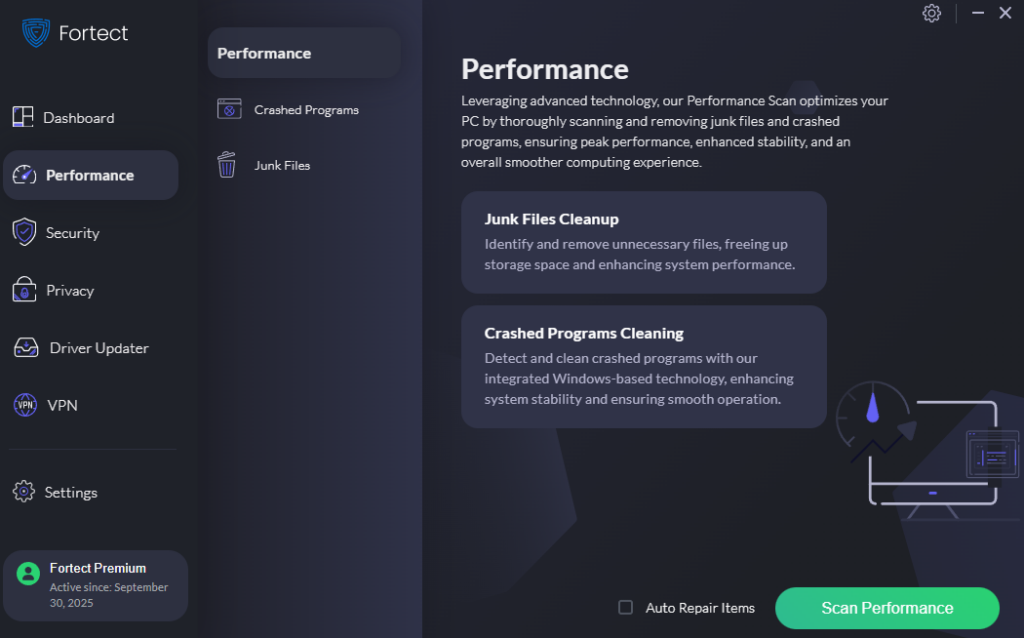
When Windows notifications are not working, issues persist despite manual troubleshooting, and underlying system problems like corrupted files may be to blame. Fortect provides comprehensive system repair for Windows users experiencing notification failures and other performance issues. It automatically scans your PC for damaged system components that could be preventing notifications from functioning properly, safely repairs them, and restores critical files needed for the notification system to operate correctly.
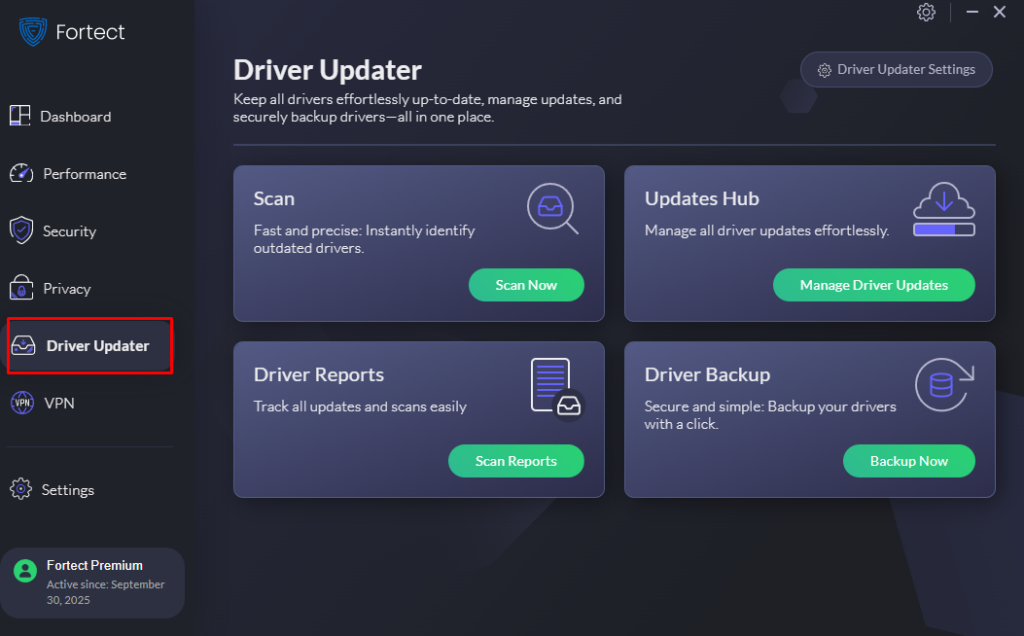
Fortect Premium also includes a Driver Updater that identifies and replaces outdated or corrupted drivers with verified versions from trusted sources. Since notification issues can sometimes stem from faulty audio, display, or system drivers, keeping these components updated is essential. By maintaining all drivers in optimal condition, Fortect helps eliminate common causes of Windows notifications not working while improving overall system stability and performance.
Download and install Fortect today.
For Windows 11
- Open Settings and select System
- Click Troubleshoot
- Select Other troubleshooters
- Find “Windows Store Apps” troubleshooter
- Click Run and follow on-screen instructions
For Windows 10
- Open Settings and go to Update & Security
- Select Troubleshoot from the left menu
- Click Additional troubleshooters
- Select “Windows Store Apps” and click Run the troubleshooter
- Follow the prompts to complete the process
Update Windows to the Latest Version
Outdated Windows versions may contain bugs affecting notification functionality. Installing the latest updates often resolves these issues.
Update Windows 11
- Open Settings and click Windows Update from the left sidebar
- Click Check for updates
- If updates are available, click Download & install
- Restart your computer when prompted
Update Windows 10
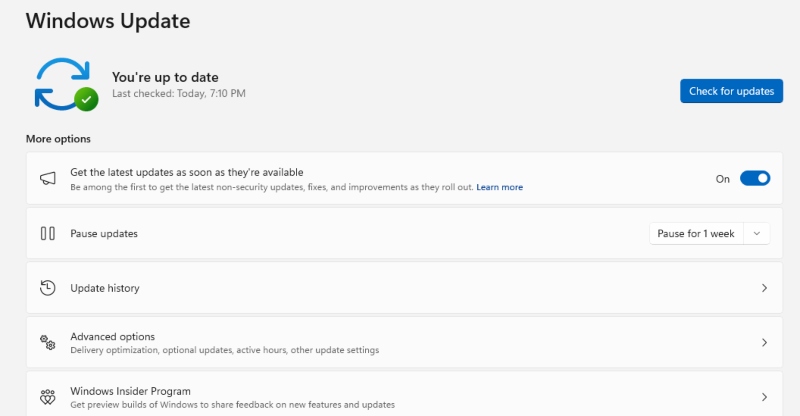
- Press Windows key + I to open Settings
- Go to Update & Security
- Click Windows Update
- Select Check for updates
- Install any available updates and restart
Check App-Specific Notification Permissions
Individual apps may have disabled notifications within their own settings, separate from Windows system settings.
- Open the specific app experiencing notification issues
- Navigate to the app’s settings or preferences menu
- Look for notification or alert settings
- Enable push notifications or desktop alerts
- Save changes and restart the app
For Microsoft Store apps, ensure they’re updated to the latest version, as outdated apps may lose notification capabilities.
Create a New User Account
If notifications still aren’t working, your user profile may be corrupted. Creating a new account can determine if this is the issue.
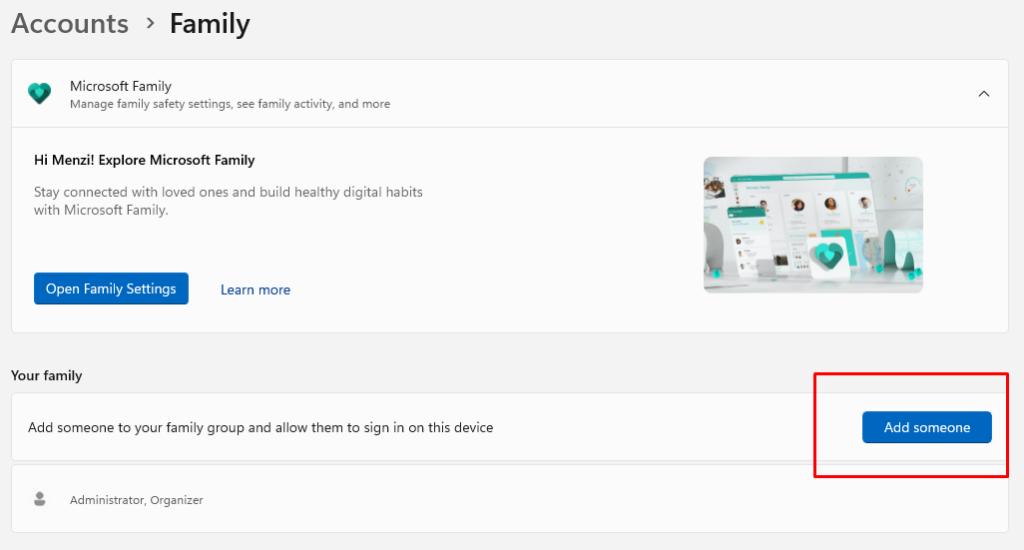
- Open Settings and go to Accounts
- Select Family & other users (or Other users in Windows 11)
- Click “Add someone else to this PC”
- Follow the prompts to create a new local account
- Sign in to the new account and test notifications
If notifications work in the new account, consider transferring your files and using the new profile permanently.
Conclusion
Windows notification issues typically resolve with one of these solutions. Start with the simplest fixes, like checking notification settings and disabling Focus Assist, before moving to more advanced troubleshooting. Most users find success by restarting the notification service or clearing the notification cache. If problems persist after trying all methods, consider contacting Microsoft Support or checking for hardware issues affecting your system’s functionality.





