
How to Catch Malware Using Event Viewer
You can catch malware using Event Viewer by checking the Windows Logs and Application/Security logs for unusual entries like unexpected process launches, failed login attempts, or new scheduled tasks, since these are common signs that something has slipped past your defenses. Event Viewer won’t name the malware for you, but it shows the digital footprints malicious programs leave behind: services starting on their own, drivers loading from strange locations, or accounts being created without your knowledge.
The tool is built into every version of Windows, which makes it a convenient first stop when your PC starts acting strange, and you want answers before running a full scan.
Key Takeaways
- You can catch malware using Event Viewer by reviewing the Security, Application, and System logs for unusual logins, new accounts, or unfamiliar services and drivers.
- Specific Event IDs (like 4625, 4720, and 4732) are useful shortcuts for spotting suspicious account and login activity
- Filtering logs by date, severity, or Event ID makes the search manageable instead of overwhelming
- Event Viewer only records activity; it doesn’t remove threats or repair damage on its own, so the cleanup step still needs to happen separately, whether that’s done manually or with software like Fortect
- A sudden gap or wipe in your logs can itself be a sign of tampering, not a clean bill of health
How to Catch Malware Using Event Viewer: Step by Step
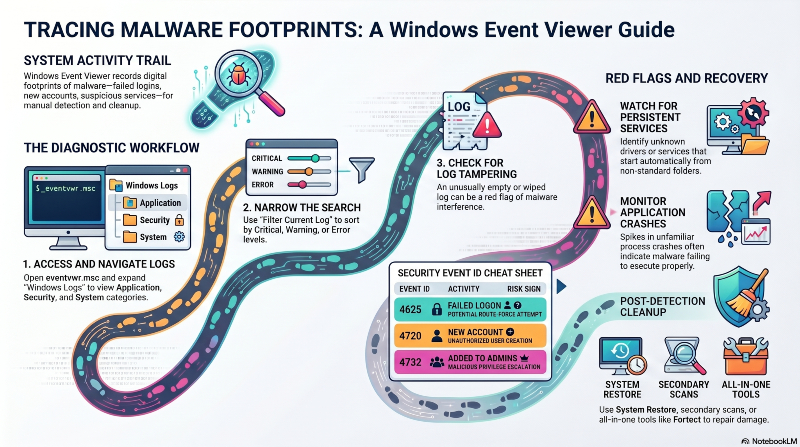
- Open Event Viewer. Press Windows + R, type eventvwr.msc, and hit Enter. You can also search for “Event Viewer” directly in the Start menu.
- Expand Windows Logs. On the left-hand tree, you’ll find four categories worth checking: Application, Security, System, and Setup. Each one tells a different part of the story.
- Check the Security log for account and login activity. This log tracks logins, account changes, and privilege escalations. Three Event IDs worth knowing: 4625 (repeated failed logon attempts, which can indicate a brute-force attempt). A 4720 (a new user account was created). Another is 4732 (a user was added to a privileged group, like Administrators). Spotting any of these around the time your PC started acting up is a strong signal worth following up on.
- Check the Application log for unfamiliar crashes. A sudden spike in crash reports from processes you don’t recognize. Another is unfamiliar applications attempting to run, which can point to malware trying and failing to execute properly.
- Check the System log for suspicious services and drivers. Look for services that start automatically but aren’t tied to any software you installed. Drivers are loading from folders outside the usual Windows or Program Files directories. These are classic signs of rootkits or persistence mechanisms malware uses to survive a restart.
- Filter the logs to narrow your search. Scrolling through thousands of entries isn’t practical. Click “Filter Current Log” on the right-hand panel and narrow results by event level (Critical, Warning, Error). A date range matching when the problem started, or a specific Event ID from step 3.
Once You’ve Found Something Suspicious
Spotting a suspicious entry is only half the job. Once you’ve identified the process, service, or account behind it, the next step is removing the threat and undoing whatever damage it caused. Since malware often corrupts system files, alters startup settings, or leaves behind components even after the original program is deleted.
Cleaning Up and Repairing What Malware Left Behind
Spotting the threat is one part of the job; undoing what it did to your system is the other. Manual removal works but takes time, and it’s easy to miss a corrupted file or leftover registry entry along the way. A System Restore point can roll things back if you caught the issue early enough, and a second antivirus scan is a reasonable way to confirm the system is actually clean afterward. There’s also all-in-one cleanup software out there, like Fortect, which bundles real-time detection, removal, file repair, junk cleanup, and driver updates into one pass, useful if you’d rather not piece the cleanup together from separate tools. Whichever route you take, the point is the same: the logs tell you something happened, but they don’t fix it for you.
Limitations of Using Event Viewer for Malware Detection
Event Viewer is a logging tool, not a security tool. It records events, but it doesn’t analyze them for threats or block anything from running. Sophisticated malware can also disable logging entirely or clear the event log to cover its tracks, which means an unusually empty log can itself be a red flag.
It’s best used alongside antivirus software and regular system scans rather than as a replacement for them. Think of it as a diagnostic aid that helps you understand what happened, not a frontline defense.





