
The ErrTraffic Campaign: Fake Errors, Real Threats
A pop-up says your browser is broken. A font is missing. Chrome needs an urgent update. The page looks garbled and unreadable. The fix seems simple: just paste a command and run it. But that “fix” is the attack.
That is exactly how the ErrTraffic Campaign works, and it is fooling more than half the people who encounter it.
What Is the ErrTraffic Campaign?
ErrTraffic Campaign is a cybercrime operation powered by a tool called ErrTraffic, a malware-as-a-service (MaaS) platform first discovered in early December 2025 by researchers at Hudson Rock. The threat was uncovered when researchers identified a forum advertisement on a prominent Russian-language cybercrime marketplace, posted by a threat actor using the alias LenAI, promoting ErrTraffic v2.Panel, a full-featured attack deployment suite.
For just $800, criminals can purchase the complete ErrTraffic package, which includes a control panel and script system that creates convincing fake glitches on compromised websites. This low barrier to entry is what makes the campaign especially dangerous; even low-skill attackers can launch effective, wide-scale attacks.
How ErrTraffic Works: The ClickFix Method
ErrTraffic is built around a social engineering technique known as ClickFix. Instead of delivering malware via automatic download, attackers present what appears to be a critical system error, urging users to manually fix the problem by pasting code into system-level tools like Windows Run or PowerShell. As a result, the malicious payload executes with full user privileges, often bypassing antivirus and behavioral monitoring solutions.
ErrTraffic operates through a simple JavaScript injection. Once attackers gain access to a website, they only need to add a single line of code that links the site to their command-and-control panel. The script automatically identifies a visitor’s operating system, browser, and language. It then displays a customized fake error, often posing as a “Chrome Update” or a missing font alert. When users click the fix option, a PowerShell command is copied to their clipboard with instructions to paste and run it manually.
The whole process takes about a second to trigger, and the delay before the modal appears is configurable; operators can set how long to wait before showing the fake error prompt.
What the Fake Errors Look Like
The campaign uses several convincing lure types to trick Windows users:
- Fake Chrome/browser update prompt — A message claiming your browser is outdated and must be updated immediately
- Missing font alert — A fake “system font required” dialog claiming the page cannot be correctly rendered because a font is missing — one that feels more technical and may be more convincing to certain users
- Garbled/glitchy page content — The page content is scrambled and distorted to create urgency, making the “fix” feel necessary
None of these errors is real. They are manufactured on-demand to trigger panic and a fast response.
Why the ErrTraffic Campaign Is So Effective
The 60% Conversion Rate Problem
Data pulled from active ErrTraffic campaigns shows conversion rates approaching 60%. That means more than half of the visitors who see the fake error message follow the instructions and install malware. This is an unprecedented success rate in the malware ecosystem.
Fake error malware works because it plays on a very human reaction. When something on a screen suddenly looks broken, most people want to fix it fast and move on. That split-second decision is exactly what attackers are counting on.
Why It Bypasses Traditional Antivirus
This technique helps the attack bypass many security tools because the action appears user-initiated. Since the victim is the one who pastes and executes the command, standard security software does not flag it as a threat. The malware runs with the same permissions as the logged-in user, which on most home Windows computers means full administrative access.
A Self-Spreading Attack Chain
Once malware is installed, credentials and session data are stolen. Those compromised logins are then used to breach additional websites. Each newly hacked site becomes another delivery vehicle for the same attack. That cycle allows the campaign to grow without direct involvement from the original operator.
What Malware Does ErrTraffic Deliver on Windows?
Once active, the tool can deliver infostealers like Lumma or Vidar on Windows devices. These are information-stealing programs designed to silently harvest:
- Saved browser passwords
- Banking credentials and credit card numbers
- Session cookies (used to hijack accounts without needing a password)
- Crypto wallet data
- Autofill data and form history
ErrTraffic does not serve payloads directly; it routes victims to separate infrastructure, making it harder to trace and take down.
How to Protect Yourself on Windows 10 and Windows 11
Strengthen Your PC Security with Fortect
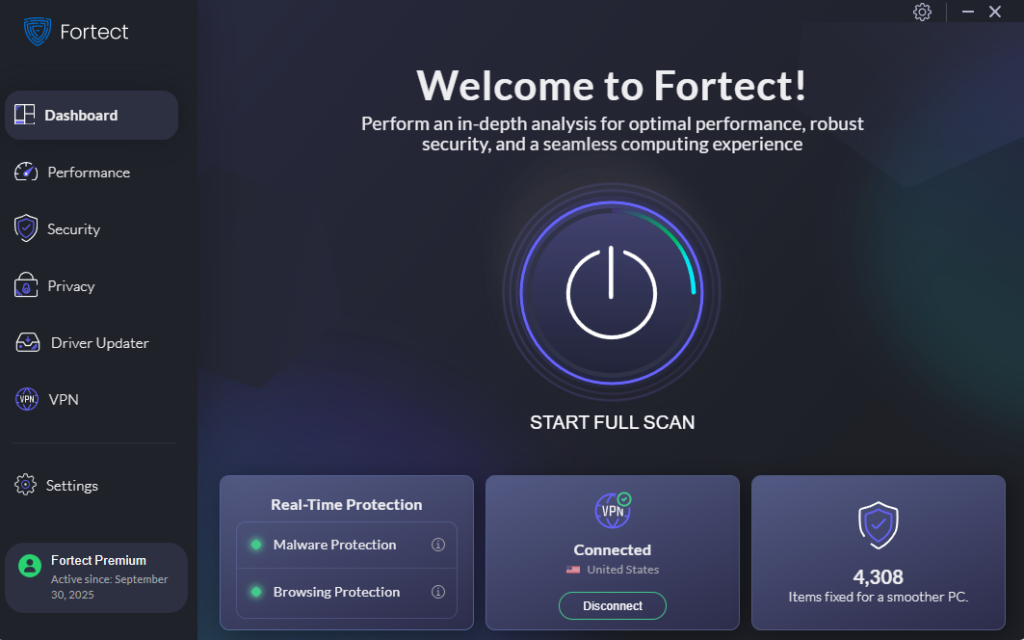
While manual steps go a long way, the ErrTraffic Campaign is specifically engineered to slip past standard defenses, which is why having a dedicated security layer matters. Fortect is built for exactly this kind of threat. Unlike traditional antivirus tools that rely on known virus definitions, Fortect uses advanced real-time threat detection designed to catch the behavior-based, user-triggered attacks that define the ErrTraffic Campaign, including ClickFix-style PowerShell execution, infostealer deployment, and compromised site redirects.
When an ErrTraffic-injected script attempts to run on a compromised webpage, Fortect’s monitoring engine can detect the suspicious activity before harmful commands execute. If a payload like Lumma or Vidar does reach your system, Fortect scans, isolates, and removes it, then automatically restores any system files that were damaged in the process, keeping your PC stable and performing well.
Download and install Fortect now.
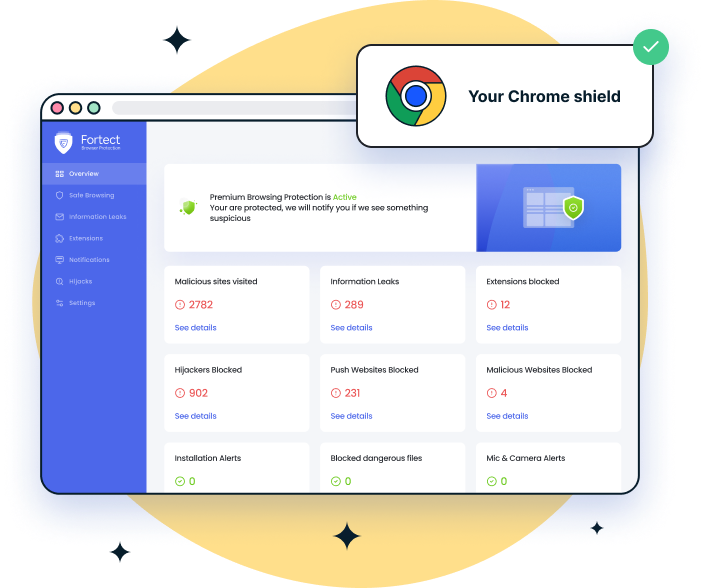
For Chrome users, Fortect Browsing Protection adds a strong defense against threats like the ErrTraffic campaign and fake Chrome/browser update messages. It blocks malicious sites before they load, warns you about suspicious update pages designed to trick users into downloading malware, and removes harmful browser extensions that could steal data or compromise your system.
Recognize the Warning Signs
The most important defense is knowing what a real Windows error looks like versus a fake one. Key red flags include:
- Any website asking you to copy and paste a command into PowerShell or the Windows Run dialog
- Pop-ups with scrambled text, broken fonts, or urgent countdown timers
- Browser update prompts appearing on a random webpage (not from Windows Update or your browser’s built-in settings)
- Messages claiming a system file or font is missing
Real Windows system errors never appear as pop-ups on websites.
How to Update Windows the Safe Way (Windows 10/11)
Always update Windows through the official Settings panel, never through a browser prompt.
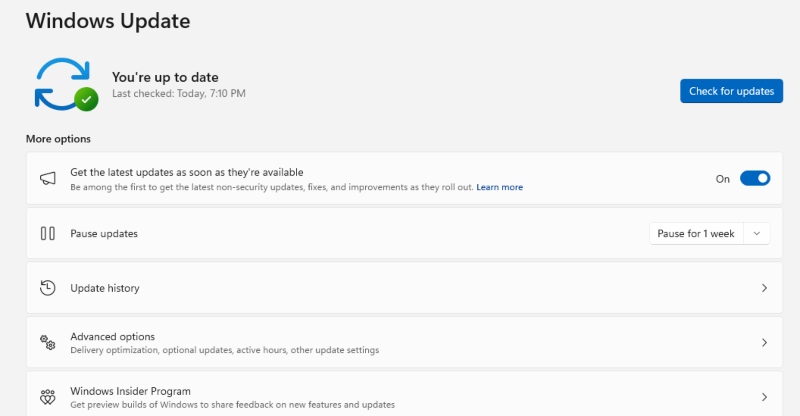
1: Click the Start button and open Settings (the gear icon).
2: Go to Update & Security (Windows 10) or Windows Update (Windows 11).
3: Click Check for updates. Windows will automatically find and download any available updates.
4: Click Install now if updates are available, then restart your PC when prompted.
That is the only legitimate way Windows will ask you to update. No website pop-up will ever replicate this process.
How to Block PowerShell from Running Unknown Scripts (Windows 10/11)
Since ErrTraffic relies on PowerShell commands, restricting script execution adds an important layer of protection.
1: Click Start, type PowerShell, then right-click it and choose Run as administrator.
2: In the PowerShell window, type the following command and press Enter:
Set-ExecutionPolicy RemoteSigned
3: When prompted, type Y and press Enter to confirm.
4: Close PowerShell.
This setting prevents unsigned scripts from running automatically, which stops many ErrTraffic-style payloads even if a user accidentally pastes a command.
How to Enable Windows Defender Real-Time Protection (Windows 10/11)
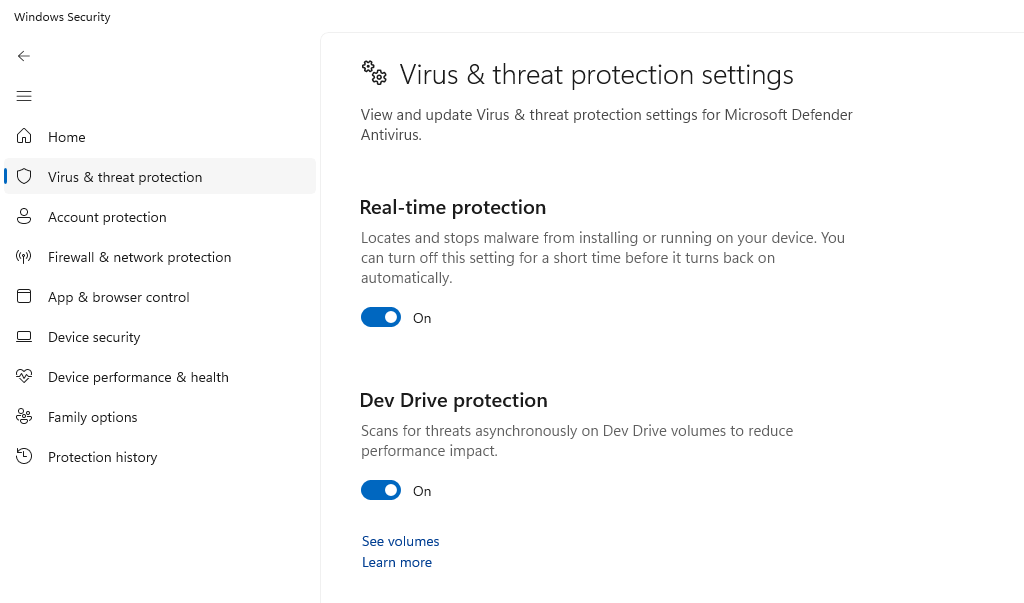
1: Click Start and open Settings.
2: Go to Privacy & Security (Windows 11) or Update & Security (Windows 10), then click Windows Security.
3: Select Virus & threat protection.
4: Under Virus & threat protection settings, click Manage settings.
5: Ensure that Real-time protection is On.
Keep this enabled at all times. Windows Defender provides a baseline of protection against known infostealer payloads like Lumma and Vidar.
Additional Safe Browsing Habits
- Never paste commands into Run or PowerShell from instructions found on a website
- Keep your browser updated through the browser itself: in Chrome, go to the three-dot menu → Help → About Google Chrome to check for updates
- Strong antivirus software can help block malicious scripts, detect infostealers, and stop suspicious behavior before damage spreads
Quick Reference: Real vs. Fake Error
| Situation | Real or Fake? |
| Windows Update notification in Settings | Real |
| Pop-up on a website asking to update Chrome | Fake |
| PowerShell prompt from a webpage | Fake |
| Font installation request from a website | Fake |
| Windows Defender alert in the taskbar | Real |
| Browser asking to paste a command to “fix” a page | Fake |
Final Takeaway
The ErrTraffic Campaign is a reminder that the most effective cyberattacks do not exploit software; they exploit human instinct. The urge to fix a broken page, follow clear instructions, and move on is exactly what attackers design for. Slowing down makes a real difference. Closing a suspicious page and trusting built-in system updates can stop these attacks cold.


