SOLVED: How Deepfake Attacks are Evolving Beyond Video
Deepfake attacks used to mean one thing: fake videos of celebrities saying things they never said. But that era is over. Today, deepfake technology has expanded far beyond manipulated video clips into a sophisticated toolkit that scammers, identity thieves, and cybercriminals use to target everyday people, including you.
This guide breaks down exactly how deepfake attacks have evolved, the new forms they take, and the concrete steps you can take on Windows 10 and Windows 11 to protect yourself right now.
What Are Deepfake Attacks Today?
Deepfake attacks use artificial intelligence, specifically deep learning models, to generate convincing fake audio, images, video, or real-time impersonations of real people. The term “deepfake” combines “deep learning” and “fake,” and while the technology once required expensive hardware and expert knowledge, free and low-cost tools have made it accessible to anyone.
The threat has shifted from entertainment and misinformation to direct personal harm: financial fraud, identity theft, social engineering, and non-consensual intimate imagery.
How Deepfake Attacks Have Evolved Beyond Video
Voice Cloning and Audio Deepfakes
One of the fastest-growing forms of AI-powered fraud is voice cloning. Attackers need as little as three to ten seconds of your voice, pulled from a YouTube video, a public social media post, or a voicemail, to generate a convincing imitation of how you sound.
This is used in:
- Grandparent scams: Criminals clone a grandchild’s voice and call elderly relatives claiming to be in trouble and needing immediate money.
- Phone impersonation fraud: Scammers clone a boss’s or bank representative’s voice to authorize fake transfers or extract account information.
- Vishing attacks: Voice phishing calls that sound exactly like someone you trust.
Unlike video deepfakes, audio deepfakes require almost no visual evidence to detect and can be deployed over a simple phone call.
Real-Time Face-Swapping
Modern deepfake tools now operate in real time during live video calls. Using a webcam and an AI model, an attacker can appear on screen as someone else entirely, a family member, a bank employee, or even a government official.
This evolution means:
- Zoom and Teams calls are no longer proof of who you’re talking to.
- Scammers can conduct live “verification” calls while impersonating real people.
- Romance scammers use real-time face swaps to maintain fake personas across weeks or months of contact.
Synthetic Identity Creation
Deepfakes are now used to create entirely fake people, synthetic identities that have no real counterpart. These AI-generated faces are used to:
- Open fraudulent bank accounts or credit lines.
- Bypass KYC (Know Your Customer) identity verification at financial institutions.
- Create fake profiles on dating apps, social networks, or job platforms.
Websites like “This Person Does Not Exist” demonstrated this capability publicly, but criminals have weaponized more advanced versions.
Image-Based Deepfake Scams
Static image deepfakes, convincingly edited photos, are used in:
- Fake ID fraud: Creating government ID images with an attacker’s face but your personal information.
- Non-consensual intimate imagery (NCII): Generating fake explicit photos of real individuals for extortion, also called “deepfake sextortion.”
- Social proof manipulation: Creating fake screenshots of endorsements, reviews, or news articles.
Deepfake-Powered Phishing Emails
AI now generates highly personalized phishing emails by scraping your social media, combining it with deepfake profile images, and crafting messages that appear to come from people you know. These are far more convincing than traditional phishing because they reference real events, relationships, and communication styles unique to you.
How to Protect Yourself on Windows 10 and Windows 11
Strengthen Your PC Security with Fortect
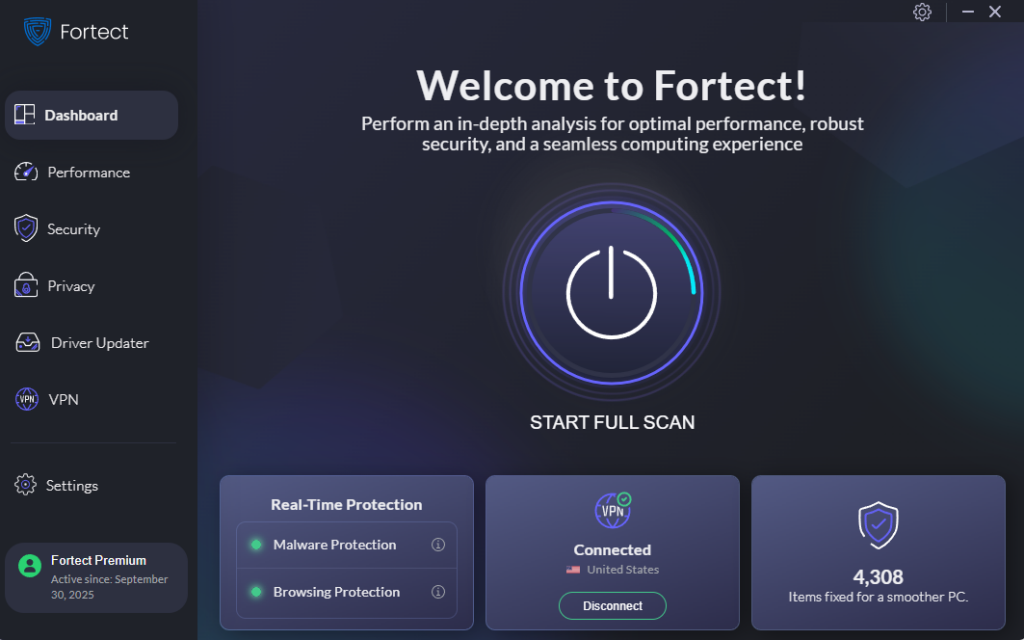
Fortect provides real-time protection that goes beyond standard antivirus tools by actively identifying and stopping both known malware and new, fast-evolving threats. It continuously monitors system behavior to catch suspicious activity early, including attack methods linked to deepfake-based scams used to deliver malicious payloads.
When a threat is detected, Fortect removes it safely and helps repair damaged system files to keep performance stable and reliable. Its detection engine works in the background to flag unusual behavior before it can escalate into system damage or data loss, helping maintain both security and smooth PC performance without constant manual scans.
Download and install Fortect now.
Fortect for Mac helps strengthen protection against modern cyber threats, including malware and AI-driven scams like deepfakes and video impersonation. As these attacks become more convincing, relying only on built-in macOS security is no longer enough.
Fortect works alongside macOS by monitoring system activity in real time, using cloud-based intelligence to detect new threats quickly, and running quick and full system scans to find and remove hidden issues before they cause damage.
For deepfakes and video impersonation, cybersecurity experts like CISA stress the importance of layered protection and verifying information through separate channels. Fortect helps support this by reducing the risk of system infections that attackers often use to enable or spread these kinds of scams.
Enable Windows Security and Keep It Updated
Your first line of defense is keeping Windows fully patched and Windows Security active.

Steps to check and update Windows 10/11:
- Click the Start menu and select Settings (the gear icon).
- Go to Update & Security (Windows 10) or Windows Update (Windows 11).
- Click Check for updates.
- If updates are available, click Download and install.
- Restart your computer when prompted to apply all patches.
Steps to verify Windows Security is active:
- Open the Start menu and type Windows Security, then press Enter.
- Ensure all protection areas show a green checkmark: Virus & threat protection, Account protection, Firewall & network protection.
- If any show a warning, click on the section and follow the prompts to enable it.
Use Multi-Factor Authentication on All Accounts
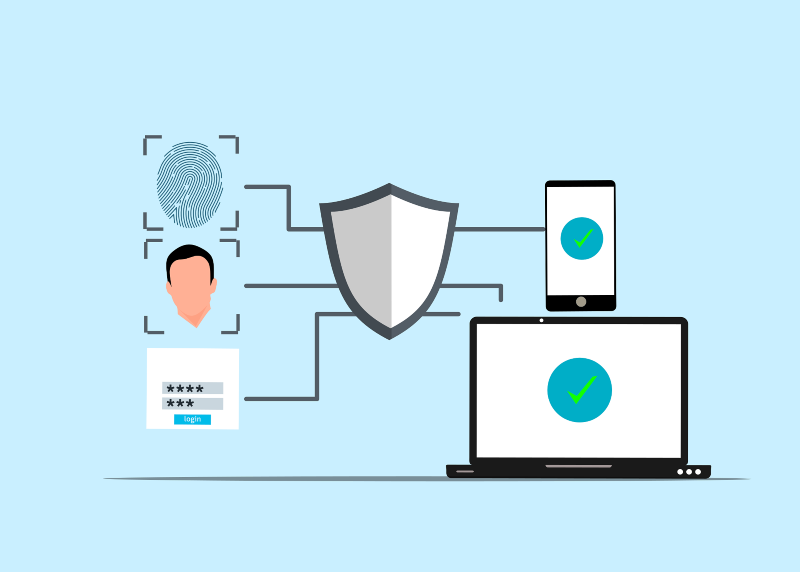
Since deepfake attacks often aim to compromise your accounts by impersonating you, MFA is critical.
Steps to enable MFA on your Microsoft account:
- Go to account.microsoft.com in your browser.
- Sign in, then click Security in the top navigation.
- Click Advanced security options.
- Under Two-step verification, click Turn on.
- Follow the setup wizard to link your phone number or authenticator app.
Set Up a Family Safety PIN or Code Word
To defend against voice clone scams targeting family members, establish a verbal safe word that only your family knows. This is a word or short phrase that a caller must say to confirm their identity — something no deepfake can guess.
Additionally, use Windows Family Safety to restrict younger or elderly family members’ exposure:
- Open Settings > Accounts > Family & other users.
- Click Add a family member and set up a child or adult account.
- Visit family.microsoft.com to set content filters and screen time limits that reduce exposure to social engineering platforms.
Control Camera and Microphone Access
Since deepfake attacks harvest audio and video from your devices, limit which apps can access your camera and microphone.
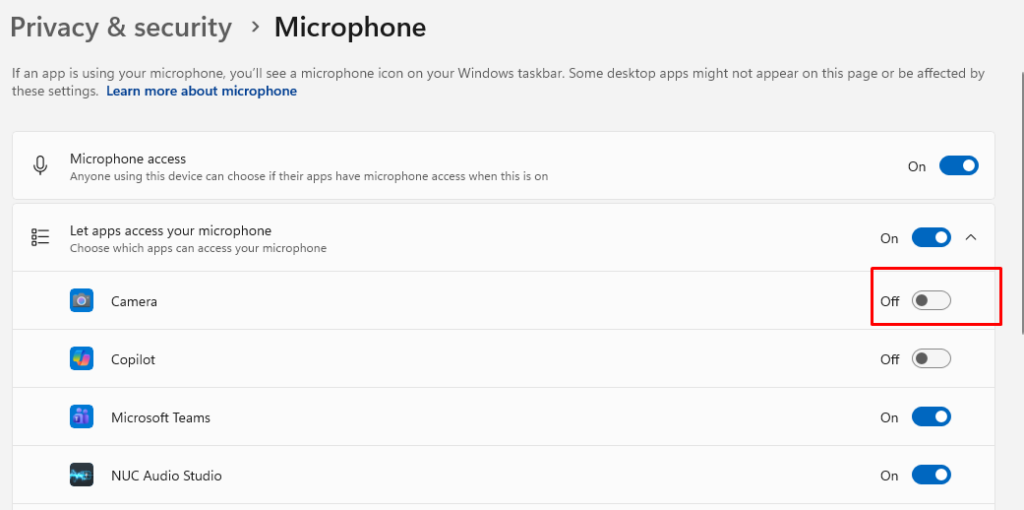
Steps on Windows 10/11:
- Open Settings > Privacy (Windows 10) or Settings > Privacy & security (Windows 11).
- Click Camera under App permissions.
- Toggle off access for any apps that don’t genuinely need your camera.
- Go back and click Microphone.
- Toggle off microphone access for apps you don’t use for calls or recordings.
Be Skeptical of Unexpected Calls and Video Requests
No technical tool replaces awareness. If you receive an unexpected call from a family member or official claiming urgency:
- Hang up and call back using a number you already know or find independently.
- Ask a question only the real person would know.
- Never transfer money or share personal information based on a voice or video call alone, no matter how convincing it sounds.
Spotting Deepfake Red Flags
Even sophisticated deepfakes still show signs. Watch for:
- Unnatural blinking or no blinking at all in video calls.
- Blurry edges around the hairline, ears, or jaw.
- Audio-video sync issues — lip movements that don’t perfectly match speech.
- Lighting inconsistencies between the face and background.
- Robotic or slightly off-tempo speech in voice clone calls.
- Pressure and urgency — a hallmark of scams, regardless of the medium.
Conclusion
Deepfake attacks are no longer a futuristic threat or a problem only for celebrities and politicians. They’re a present danger for ordinary Windows users, in your email, on your phone, and in your video calls. Staying protected means keeping your system updated, locking down app permissions, enabling multi-factor authentication, and maintaining healthy skepticism about unexpected digital contact.
The technology will keep improving. Your awareness is the one defense it can’t replicate.