
SOLVED: Browser-Centered Exploits Targeting Session Tokens & Extensions
You log into your bank, close the tab, and think you’re safe. But what if an attacker already copied your session token before you closed it? They now own your account; no password is required. This is the reality of browser-centered exploits, one of the fastest-growing threats targeting everyday Windows users.
We will explain how session token theft and malicious browser extensions work, and provide you with clear, actionable steps to secure your Windows 10 or 11 machine today.
What Are Browser-Centered Exploits?
A browser-centered exploit is any cyberattack that uses your web browser as the primary entry point. Because your browser stores your login cookies, saved passwords, browsing history, and autofill data, it is one of the richest targets on your device.
Session Tokens: The Key to Your Online Accounts
When you log into a website, the server creates a session token, a unique string of characters stored as a browser cookie. This token proves you are authenticated, so you don’t have to re-enter your password on every page. If an attacker steals that token, they can impersonate you entirely without ever knowing your password or bypassing two-factor authentication (2FA).
This type of attack is called session hijacking or cookie theft. It affects Gmail, Facebook, banking sites, cloud services, and anything where you stay “logged in.”
How Attackers Steal Session Tokens
- Infostealer malware: Programs like Redline Stealer, Raccoon, and Vidar silently copy your browser’s cookie database files from disk and transmit them to attackers.
- Man-in-the-browser (MitB) attacks: Malicious code injected into a compromised website intercepts your browser’s communication in real time.
- Cross-site scripting (XSS): Injected scripts on vulnerable websites read your session cookies and send them to an attacker-controlled server.
- Phishing with session relay: Reverse-proxy phishing tools (like Evilginx) sit between you and a real login page, capturing your session token the moment you authenticate.
How Malicious Browser Extensions Exploit You
Browser extensions are small programs that run inside your browser with significant permissions. Legitimate extensions like ad blockers and password managers are genuinely useful, but attackers abuse the extension system to gain persistent access to your browsing session.
What Rogue Extensions Can Do
- Read all data on every website you visit (including banking sites)
- Capture keystrokes and steal passwords as you type
- Silently copy and exfiltrate session cookies
- Redirect your browser to phishing pages
- Inject ads or cryptomining scripts into web pages
Real threat: In 2023–2024, dozens of Chrome extensions with millions of combined users were discovered secretly harvesting session cookies and sending them to remote servers; some had been in the Chrome Web Store for years.
How Rogue Extensions Get Installed
- Fake download pages: You search for a free tool; the top result is a fake page that installs a malicious extension instead.
- Bundled software installers: Free programs include extensions as “optional extras” that are pre-checked during installation.
- Compromised legitimate extensions: A trusted developer’s account is hacked; the extension is updated silently with malicious code.
- Sideloading: Attackers trick users into dragging a .crx file into the browser directly, bypassing store review.
How to Protect Your Session Tokens on Windows 10/11
Strengthen Your PC Security with Fortect
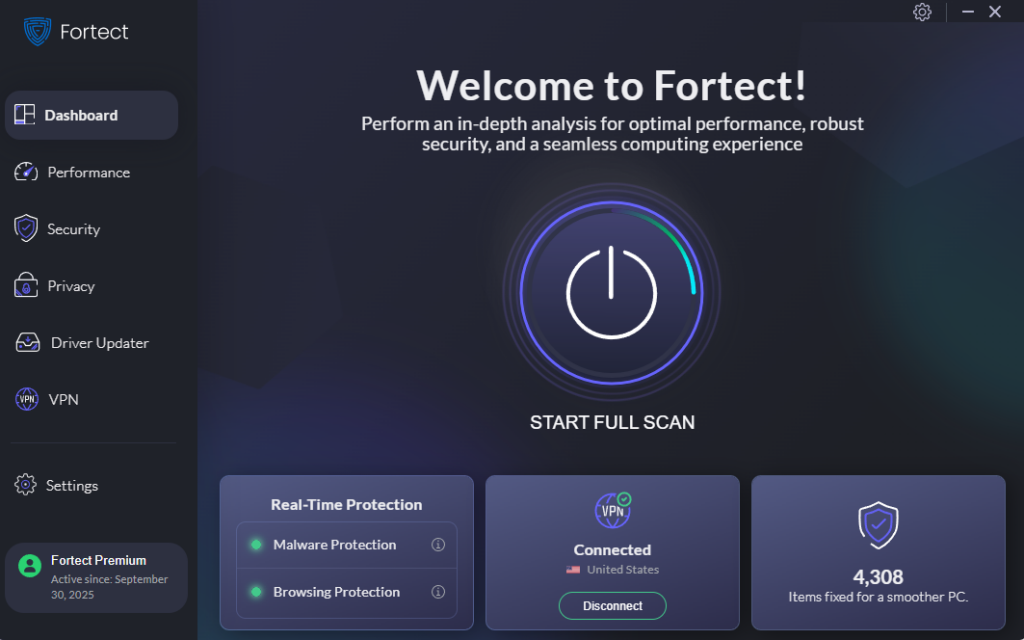
Fortect delivers advanced real-time malware protection for Windows users, purpose-built to detect and neutralize threats like browser-centered exploits targeting session tokens and extensions. It automatically scans your PC for both traditional and emerging threats, eliminates them safely, and restores damaged system files for improved performance. Its smart threat-detection engine monitors suspicious browser activity and alerts you before harmful actions can take place, helping keep your Windows device secure and running efficiently.
Download Fortect now!
Session token theft, malicious browser extensions, and in-browser exploits all happen directly inside the browser environment itself. Because of this, even strong network-level protections may not be enough to stop a compromised extension or malicious script from stealing cookies, hijacking active sessions, or accessing authenticated data in real time.
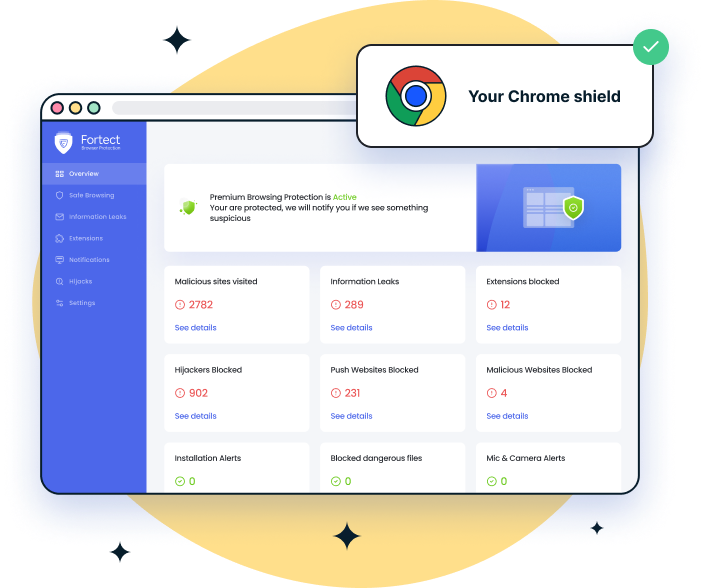
For Chrome users, the Fortect Browsing Protection extension adds an important layer of defense by proactively blocking dangerous websites before they load, warning against suspicious or phishing pages, and helping identify and remove harmful extensions that could put active sessions and sensitive data at risk.
Enable and Update Windows Defender (Real-Time Protection)
Windows Defender catches most infostealer malware before it can access your browser’s cookie files.
Steps for Windows 10 & 11
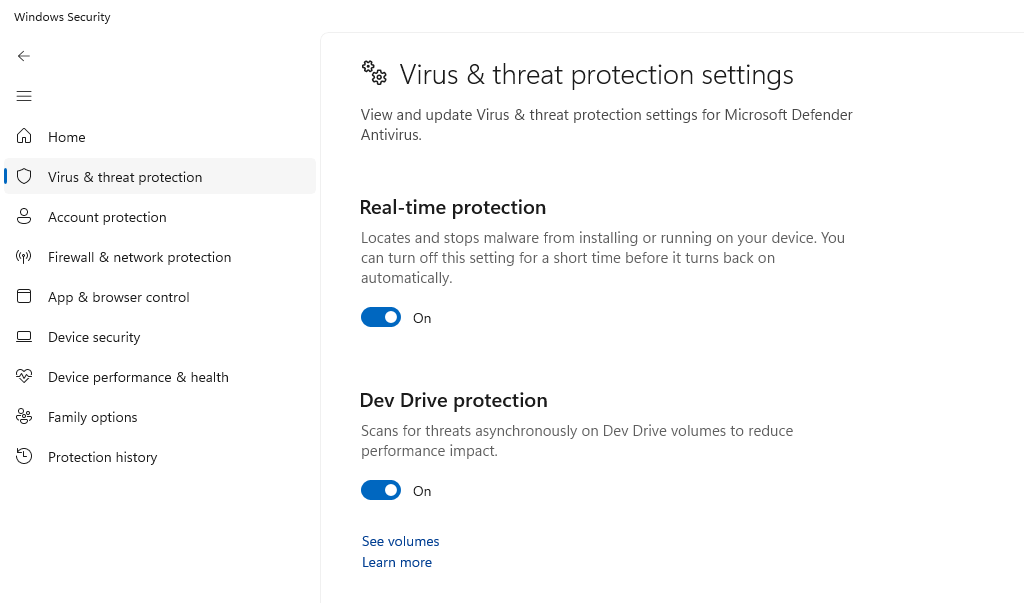
Press Windows + I to open Settings. Go to Privacy & Security → Windows Security → Virus & Threat Protection. Under Virus & Threat Protection Settings, click Manage Settings. Make sure Real-Time Protection, Cloud-Delivered Protection, and Automatic Sample Submission are all toggled On. Return to Virus & Threat Protection and click Check for Updates to pull the latest definitions.
Keep Windows Fully Updated
Browser exploits frequently rely on unpatched operating system vulnerabilities. Keeping Windows updated closes those doors.
Steps for Windows 10 & 11
Press Windows + I to open Settings. Click Windows Update (Windows 11) or Update & Security → Windows Update (Windows 10). Click Check for Updates. Install all available updates. Restart your computer when prompted to apply kernel and security patches. To automate this: go to Advanced Options and enable Receive Updates for Other Microsoft Products and Automatic Updates.
Audit and Remove Suspicious Browser Extensions
Google Chrome / Microsoft Edge
In Chrome, go to chrome://extensions. In Edge, go to edge://extensions. Review every extension. For any you don’t recognize or no longer use, click Remove. For extensions you want to keep, click Details and review what permissions they request. Remove any that claim access to “all your data on all websites” unless necessary. In Chrome, enable Enhanced Safe Browsing: go to chrome://settings/security and select Enhanced Protection.
Use a Browser Profile Dedicated to Sensitive Accounts
Keeping your banking and email in a separate, extension-free browser profile limits the blast radius if a rogue extension is installed in your main profile.
Create a Clean Profile in Chrome or Edge. Click your profile icon (top-right corner of the browser). Click Add (Chrome) or Add Profile (Edge) and name it something like “Banking.” In this new profile, install zero extensions. Use it exclusively for sensitive logins.
Enable Windows SmartScreen
SmartScreen blocks downloads of known malware — including infostealers that target browser cookie files.
Steps for Windows 10 & 11
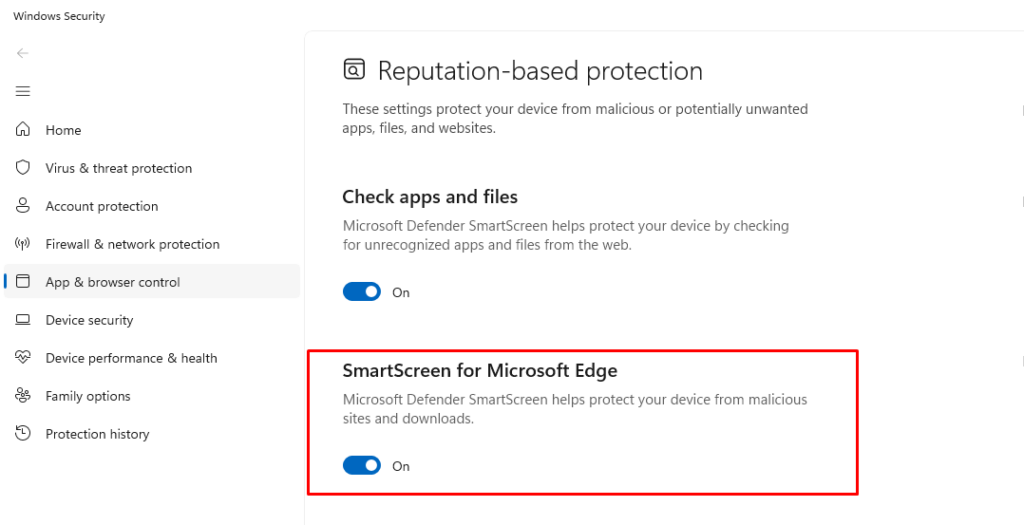
Open Windows Security (Windows + I → Privacy & Security → Windows Security). Click App & Browser Control. Set Check Apps and Files to Warn or Block. Set SmartScreen for Microsoft Edge and SmartScreen for Microsoft Store Apps to On.
Additional Browser Security Best Practices
Clear Session Cookies After Sensitive Sessions
Manually clearing cookies after banking or logging into sensitive accounts removes the token from your disk, leaving nothing for infostealer malware to grab. In Chrome or Edge, press Ctrl + Shift + Delete, select Cookies and other site data, and clear for the desired time range.
Enable Two-Factor Authentication — but Know Its Limits
2FA protects your login credentials but does not protect your active session tokens. An already-authenticated session can still be hijacked. Use 2FA alongside the steps above, not instead of them.
Never Install Extensions from Outside Official Stores
Only install extensions from the Chrome Web Store, Microsoft Edge Add-ons store, or Firefox Add-ons. Be skeptical of any website instructing you to drag and drop an extension file into your browser.
Quick rule: If an extension asks for permission to “read and change all your data on websites you visit”, treat that as a red flag unless the extension is from a well-known, trusted developer.
Quick Reference: Threats vs. Fixes
| Threat | How It Works | Your Fix |
| Infostealer malware | Copies browser cookie database files from disk | Windows Defender real-time protection + SmartScreen |
| Session hijacking via XSS | Proxy captures the token at authentication | Keep browser updated; use Enhanced Safe Browsing |
| Rogue browser extension | Extension reads cookies and keystrokes | Audit extensions; remove unknowns; use clean profile |
| Phishing session relay | Proxy captures token at authentication | Check URLs carefully; use browser phishing warnings |
| Bundled software installer | Installs rogue extension with free software | Always choose Custom install; uncheck pre-ticked extras |
Bottom line
Browser-centered exploits are effective because they bypass passwords entirely; your authenticated session is the prize. By keeping Windows and your browser updated, maintaining real-time antivirus protection, carefully controlling which extensions you install, and isolating sensitive accounts in a clean browser profile, you make yourself a significantly harder target. These aren’t complicated steps, but they are the ones most users skip. Don’t be one of them.


