
SOLVED: Email + Phone Multi-Vector Attacks
If you’ve ever received a suspicious email followed by a strange phone call asking you to “verify” something, you’ve already been targeted by an email + phone multi-vector attack. This type of cybercrime is rising rapidly, and most Windows users are unaware of it until it’s too late. We will explain exactly what these attacks are, how scammers pull them off, and what you can do right now to protect yourself.
What Are Email + Phone Multi-Vector Attacks?
A multi-vector attack is a coordinated scam that uses more than one communication channel to trick you. In the case of email and phone attacks, cybercriminals send a deceptive email first, then follow up with a phone call, or vice versa, to make the scam seem more believable.
Unlike a basic phishing email that you might ignore, these combined attacks are designed to build urgency and credibility. The goal is to steal your login credentials, personal data, or financial information, or trick you into installing malware on your Windows PC.
Common names for this type of attack
You may hear these attacks called vishing + phishing combos, telephone-oriented attack delivery (TOAD), or hybrid social engineering attacks. They all refer to the same core strategy: using two or more channels simultaneously to manipulate victims.
How These Attacks Actually Work
Step 1 — The phishing email arrives
You receive an email that looks official, it might appear to come from Microsoft, your bank, Amazon, PayPal, or the IRS. The email often contains a fake invoice, a password expiration notice, a suspicious login alert, or an order confirmation you didn’t make.
The email usually includes a phone number, telling you to “call immediately” if you didn’t authorize the activity. This is the trap.
Step 2 — The follow-up phone call (vishing)
Either you call the number in the email, or the scammer calls you directly. The caller pretends to be a support agent, IT technician, or government representative. They reference the email to seem legitimate and then pressure you to:
- Give them your Windows login password or Microsoft account credentials
- Allow remote access to your PC using tools like AnyDesk or TeamViewer
- Pay a fake “security fee” using gift cards or a wire transfer
- Install software that is actually malware or ransomware
Why it’s so effective
The two-channel approach adds perceived legitimacy. Most people assume that if both an email and a phone call match up, the contact must be genuine. Scammers also use caller ID spoofing to make calls appear to come from Microsoft, your bank, or a local number you trust.
Real-World Examples to Watch For
Microsoft tech support scam
An email claims your Microsoft account has been compromised and lists a support number. You call in, and the “technician” asks you to open Event Viewer on your PC and points out “errors” (which are completely normal) to convince you your computer is infected. They then request remote access.
Fake Amazon or PayPal order
You receive a convincing invoice email for a purchase you didn’t make. The email says to call a number to dispute the charge. On the phone, the scammer collects your account details or directs you to a fake refund portal that steals your banking credentials.
IRS or government impersonation
An email warns you of unpaid taxes with severe consequences. A follow-up phone call from a spoofed government number demands immediate payment via gift cards, a method no real government agency ever uses.
How to Protect Yourself on Windows 10/11
Strengthen Your PC Security with Fortect
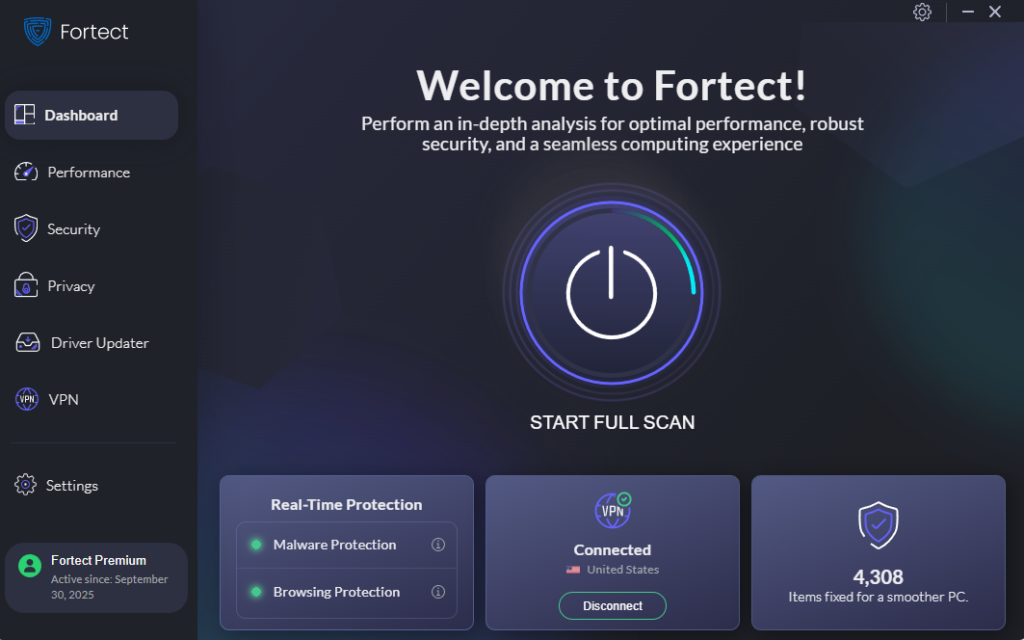
Before diving into manual steps, it’s worth knowing that a dedicated security tool can do much of the heavy lifting for you. Fortect delivers advanced real-time malware protection for Windows users. It automatically scans your PC for traditional and emerging threats, including email + phone multi-vector attacks that slip past standard defenses, eliminates them safely, and restores damaged system files for improved performance. Its smart threat-detection engine monitors suspicious activity and alerts you before harmful actions can take place, helping keep your device secure and running efficiently.
Download and install Fortect now.
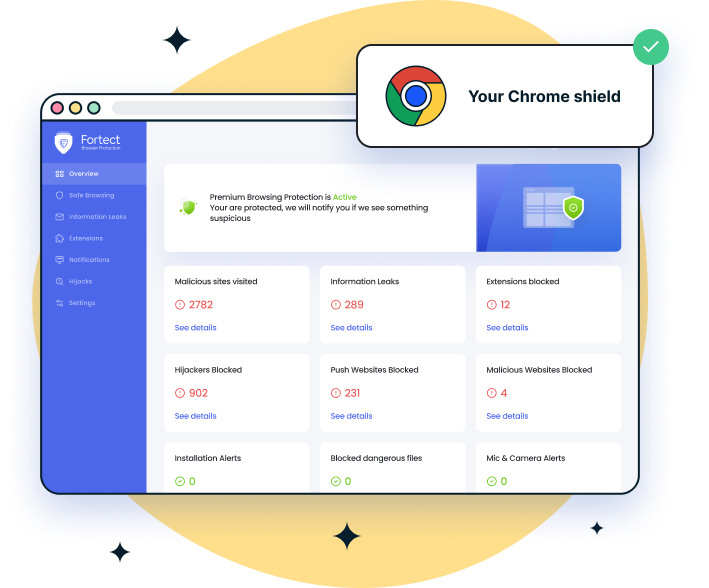
For Chrome users, the easy-to-use Fortect Browsing Protection adds an extra layer of security by blocking dangerous websites, alerting you to suspicious pages, and removing harmful extensions. While it helps prevent phishing links and browser-based scams, it cannot fully stop multi-vector attacks that involve phone calls, SMS, or social engineering outside the browser. Effective defense requires layered protection, including strong MFA, email security, endpoint protection, and user awareness to handle threats beyond the browser.
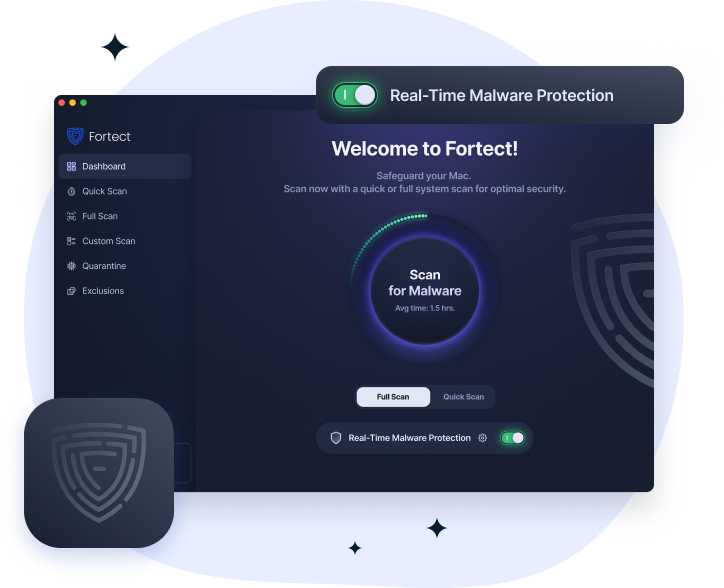
Fortect for Mac strengthens your defense against modern cyber threats, including email + phone multi-vector attacks that combine phishing emails with vishing or SMS scams. While macOS provides basic security, Fortect fills the gaps that attackers exploit, blocking malicious websites, harmful extensions, and phishing links that often initiate these attacks. Its real-time monitoring, cloud-based threat intelligence, and fast scans help detect and stop threats before they reach you, providing a critical layer of protection that complements Apple’s built-in defenses. With Fortect, Mac users gain comprehensive, proactive security against evolving multi-vector attacks.
Enable Microsoft Defender and keep it updated
Microsoft Defender is built into Windows 10 and 11 and provides real-time protection against malware that attackers may try to install.
Steps to verify Defender is active:
- Press Windows + I to open Settings
- Go to Privacy & Security → Windows Security
- Click Virus & threat protection
- Make sure Real-time protection is toggled ON
- Click Check for updates under Virus & threat protection updates
Block remote access tools from being misused
If anyone on a call asks you to install AnyDesk, TeamViewer, or Quick Assist, stop and hang up. Legitimate companies never cold-call you asking for remote access. You can also uninstall Quick Assist to eliminate the risk.
How to uninstall Quick Assist on Windows 11:
- Press Windows + I → Apps → Optional features
- Search for Quick Assist in the installed features list
- Click it and select Uninstall
Use your email’s spam filter and report phishing
In Microsoft Outlook or the Windows Mail app, right-click the suspicious email and select Report → Report Phishing. In Gmail, click the three-dot menu and choose Report phishing. Never click links inside suspicious emails — navigate directly to the company’s official website instead.
Keep Windows fully updated
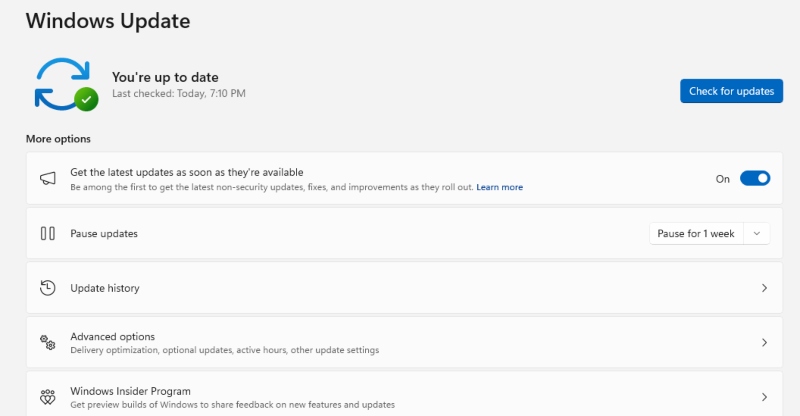
Scammers exploit unpatched security vulnerabilities. Windows Updates close these gaps before attackers can use them.
How to update Windows 10/11:
- Press Windows + I to open Settings
- Click Windows Update (Windows 11) or Update & Security (Windows 10)
- Click Check for updates
- Install all available updates and restart your PC when prompted
- Repeat until it shows You’re up to date
Set up multi-factor authentication (MFA) on your accounts
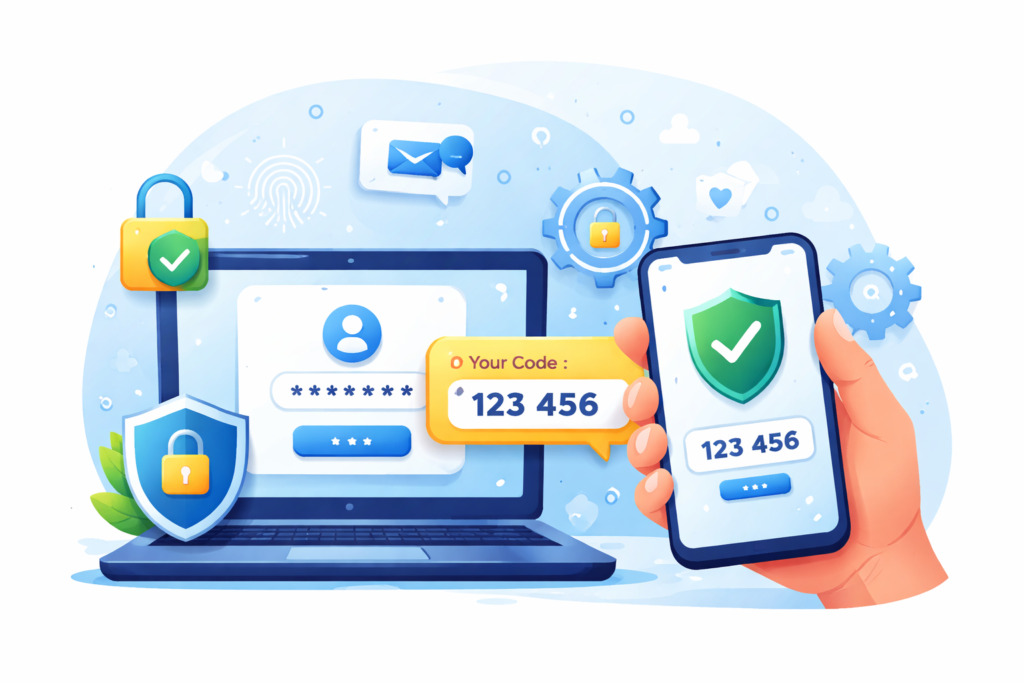
Even if scammers steal your password, MFA stops them from logging in. Enable it on your Microsoft account, email, banking apps, and any other important service.
How to enable MFA on your Microsoft account:
- Go to account.microsoft.com and sign in
- Click Security → Advanced security options
- Under Two-step verification, click Turn on
- Follow the setup wizard to link your phone number or authenticator app
Warning Signs You’re Being Targeted
Know the red flags of a combined phishing and vishing attack:
- An email that asks you to call a phone number rather than click a link
- A caller who references an email you just received and creates urgency
- Requests to install remote desktop software or allow screen sharing
- Demands for payment via gift cards, wire transfer, or cryptocurrency
- Caller ID showing a well-known company name (spoofing is trivial for scammers)
- High-pressure tactics warning of account suspension, legal action, or arrest
What to Do If You’ve Already Been Attacked
Immediate steps to take on Windows 10/11
- Disconnect your PC from the internet immediately — unplug Ethernet or turn off Wi-Fi
- Run a full malware scan: Windows Security → Virus & threat protection → Full scan
- Change passwords for your Microsoft account, email, and bank from a separate, clean device
- Enable MFA on all affected accounts right away
- Contact your bank immediately if any financial information was shared
- Report the scam to the FTC at reportfraud.ftc.gov or your local cybercrime authority
The Bottom Line
Email and phone multi-vector attacks are dangerous precisely because they utilize two channels to establish false trust simultaneously. The golden rule: no legitimate company will email you and then call to demand access to your computer or immediate payment.
Keep Windows updated, run Microsoft Defender, enable multi-factor authentication, and trust your instincts. If something feels off, hang up, delete the email, and verify through official channels directly. That single habit is your strongest defense against multi-channel social engineering attacks.


