SOLVED: AI-Generated Online Profiles Used in Scams
AI-generated online profiles are no longer just a tech curiosity; they are a serious and growing threat to everyday internet users. Consequently, scammers are now using artificial intelligence to create convincing fake identities on social media, dating apps, and online marketplaces, making it harder than ever to know who you’re really talking to.
How Do AI Systems Generate Online Profiles?

AI-generated online profile is a fake digital identity built using artificial intelligence tools, including AI face generators, large language models, and deepfake technology. These profiles feature realistic-looking photos of people who don’t exist, produced by tools like StyleGAN or Midjourney. The bios, messages, and posts are crafted by AI chatbots that convincingly mimic natural human conversation.
Fraudsters use these synthetic identities to run romance scams, investment fraud, phishing attacks, and fake job offers. Because the profile photos appear genuine and the conversations seem genuine, victims often don’t realize they’ve been deceived until significant damage has been done.
How Scammers Use AI Profiles to Target You
Romance Scams and Emotional Manipulation
Scammers establish fake romantic relationships over weeks or months, utilizing AI-generated profile pictures and AI-assisted messaging. Once trust is established, they request money, gift cards, or cryptocurrency, often with urgent, emotionally manipulative stories like a medical emergency or a stranded business deal.
Pig Butchering and Investment Fraud
Pig butchering” scams involve an AI profile posing as a successful investor or financial advisor. After gaining your trust, they introduce you to a fake cryptocurrency platform. Eventually, you’re shown fabricated profits, encouraged to invest more, and then the platform vanishes along with your money.
Fake Job Offers and Phishing Attempts
AI-generated LinkedIn and social media profiles impersonate recruiters from legitimate companies. They send fake job offers that ask you to submit personal information, pay for a “background check,” or download malicious software disguised as onboarding materials.
How to Spot an AI-Generated Profile: Key Warning Signs
Red Flags in the Profile Photo

AI-generated face images often share recognizable flaws:
- Blurry or asymmetrical ears and earrings
- Unnaturally smooth skin with no visible pores
- Strange backgrounds with melting objects or repeated patterns
- Hair that blends oddly into the background
- Eyes that look slightly “off” or have mismatched pupils
- Only one or two photos on the entire account
Suspicious Account Behavior
- Account was created recently, but already has hundreds of connections
- Responses are unusually fast, perfectly written, or feel generic
- They refuse video calls or always have an excuse to avoid them
- They quickly move the conversation to WhatsApp, Telegram, or email
- They bring up money, investments, or personal crises very early on
How to Verify If a Profile Is AI-Generated?
Run a Reverse Image Search
- Right-click the profile photo and select Save image as to download it.
- Open your browser and go to images.google.com.
- Click the camera icon in the search bar, then select Upload a file.
- Select the saved photo and click Open.
- Review the results. If the same face appears on multiple unrelated profiles, the account is likely fake.
- For a second check, go to tineye.com and repeat the same upload process.
Use an AI Face Detection Tool
- Visit a free AI image detector such as Illuminarty (illuminarty.ai) or Hive Moderation (hivemoderation.com).
- Upload the downloaded profile photo.
- Any tool will return a confidence score showing how likely the image is AI-generated.
- A result above 85% likelihood is a strong red flag.
Enable Microsoft Defender SmartScreen (Windows 10/11)
SmartScreen warns you before visiting known phishing or scam websites linked from fake profiles.
- Click the Start menu and open Settings (gear icon).
- Go to Privacy & Security > Windows Security.
- Click App & Browser Control.
- Under Reputation-based protection, click Reputation-based protection settings.
- Enable SmartScreen for Microsoft Edge and SmartScreen for Microsoft Store apps.
- Confirm Phishing Protection is enabled under the same menu.
Strengthen Your PC Security with Fortect
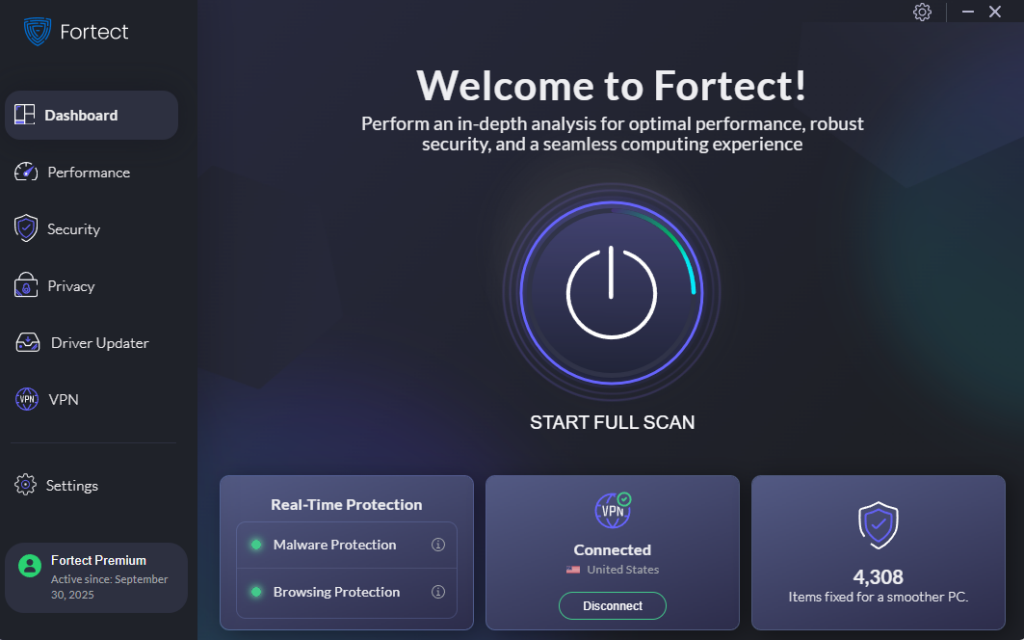
Taking the steps above goes a long way, but staying protected against threats linked to AI-generated online profiles also means keeping your Windows PC secure from the inside out. Fortect delivers advanced real-time malware protection designed specifically for Windows users. It automatically scans your PC for traditional and emerging threats, including malware distributed through AI-generated online profiles and fake identity scams, eliminates them safely, and restores damaged system files for improved performance.
Its smart threat-detection engine monitors suspicious activity and alerts you before harmful actions can take place, helping keep your device secure and running efficiently. Beyond security, Fortect’s built-in performance scanner optimizes your PC by scanning and removing junk files and crashed programs, ensuring peak performance, enhanced stability, and an overall smoother computing experience.
Download and install Fortect now.
For Chrome users, this easy-to-use extension, Fortect Browsing Protection, adds an extra layer of security by blocking dangerous websites before they load, warning you about suspicious pages, and removing harmful extensions. This extension also helps protect against threats like AI-generated online profiles that are designed to trick users into scams, keeping your data safe while you browse.
Fortect for Mac: Protect Against Modern Cyber Threats
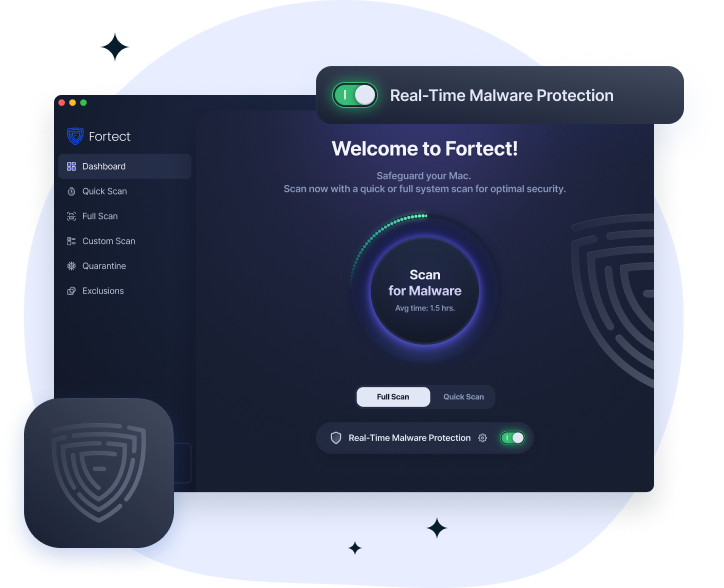
Cybercriminals are evolving rapidly, and Mac users are increasingly targeted by sophisticated attacks. Fortect for Mac protects against modern threats such as ransomware, spyware, stealth attacks, and even AI-generated online profiles that generate scams, which can trick users into giving up sensitive information. Working alongside Apple’s native security,
Fortect fills the critical gaps attackers exploit, providing intelligent, real-time protection to keep your system safe from threats you might not even notice. With Fortect, your Mac is shielded from both visible and hidden dangers.
What to Do If You Have Been Targeted
If you suspect you’ve been in contact with a scammer using an AI-generated identity, act immediately:
- Stop all contact. Do not send money, personal information, or document photos.
- Report the profile on the platform using the built-in “Report” button.
- Contact your bank right away if you sent money or shared financial details.
- File a report with the FTC at reportfraud.ftc.gov (US users).
- Report investment or romance scams to the FBI’s Internet Crime Complaint Center at ic3.gov.
- Run a virus scan: Start > Settings > Privacy & Security > Windows Security > Virus & Threat Protection > Quick Scan.
Stay Protected Going Forward
AI-generated fake profiles will only become more convincing as the technology advances. Never send money to someone you haven’t met in person. Always video call new contacts before building any personal or financial relationship online. Keep Windows updated for the latest security patches: Settings > Windows Update > Check for updates. If a profile feels too perfect, it probably is. Trust your instincts, verify before you trust, and report anything suspicious.
Related Online Scam Reads: