Back Button Hijacking Explained and Prevention
The back button is one of the most trusted controls in any browser. When it stops working as expected, something is wrong, and that something often has a name: back button hijacking. Understanding what it is, how it works, and how to stop it can protect your browsing experience and keep your personal data safer.
What Is Back Button Hijacking?
Back button hijacking (also called browser history hijacking or history stack manipulation) is a deceptive web technique where a website manipulates your browser’s navigation history to prevent you from leaving. When you click the back button, instead of returning to the previous page, you either stay on the same page, get redirected to a different unwanted page, or are looped back repeatedly.
It is not a virus in the traditional sense; it is a browser-level exploit that abuses legitimate browser APIs, most commonly the History API (history.pushState and history.replaceState). These tools were built to help web developers create smooth single-page experiences, but bad actors weaponize them to trap users.
How Back Button Hijacking Works
When you visit a malicious or aggressive website, the page may silently push dozens of fake history entries into your browser stack using JavaScript. Here is what the sequence looks like:
- You land on Site A (the hijacking site).
- JavaScript fires and pushes 10–20 duplicate entries into your browser history.
- You click the back button.
- Instead of leaving Site A, your browser steps back through the fake history entries — all pointing to Site A.
- You are effectively trapped in a loop.
Some variants go further. Rather than looping, they redirect you to a scam page, fake virus alert, phishing form, or ad-heavy landing page the moment you try to leave.
Why Websites Use This Technique
Back button hijacking is commonly used by:
- Ad networks and spam sites profit from keeping you on the page longer.
- Phishing websites are trying to prevent you from escaping before capturing credentials.
- Fake tech support scam pages that display alarming pop-ups telling you to call a number.
- Malicious redirect chains are used in malvertising campaigns.
Signs You Are Experiencing Back Button Hijacking
Recognizing the symptoms early saves time and frustration. Watch for:
- Clicking the back button returns you to the same page repeatedly.
- Your browser history suddenly shows dozens of identical URL entries.
- A new tab or page opens automatically when you try to navigate away.
- A pop-up or alert freezes your browser and discourages you from leaving.
- The URL changes slightly with each back button click, but the page looks the same.
How to Escape a Hijacked Back Button on Windows 10/11
If you are already stuck in a hijacking loop, these steps will help you break free immediately.
Strengthen Your PC Security with Fortect
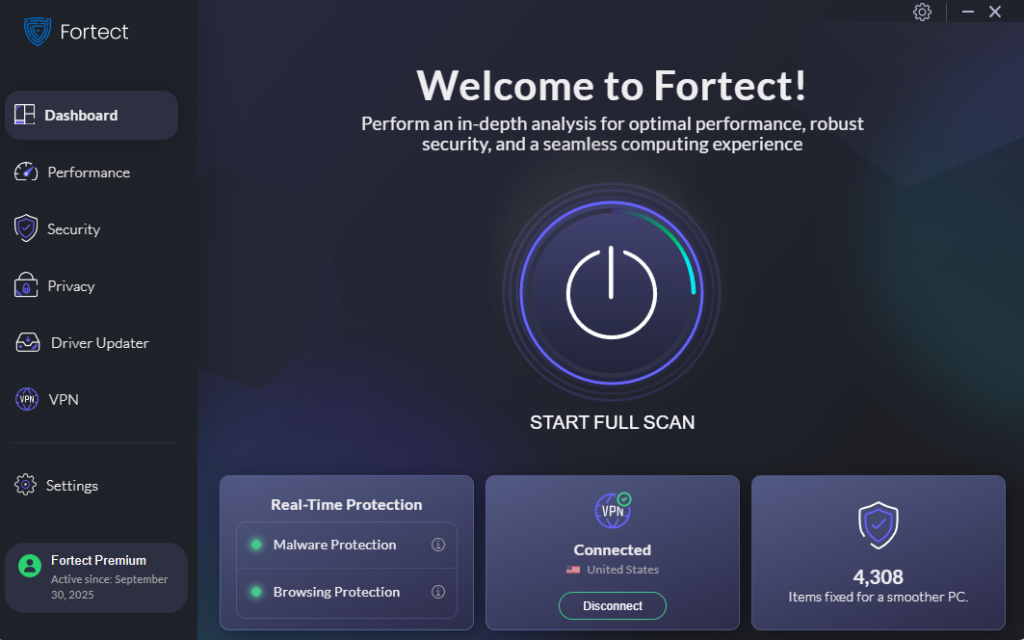
While manual steps can help you escape a back button hijacking incident, the most reliable protection starts before the threat reaches your browser. Fortect delivers advanced real-time malware protection for Windows users. It automatically scans your PC for traditional and emerging threats, including back button hijacking scripts and the malicious sites that deploy them, eliminates them safely, and restores damaged system files for improved performance. Its smart threat-detection engine monitors suspicious browser activity and alerts you before harmful actions can take place, helping keep your device secure and running efficiently.
Download and install Fortect today.
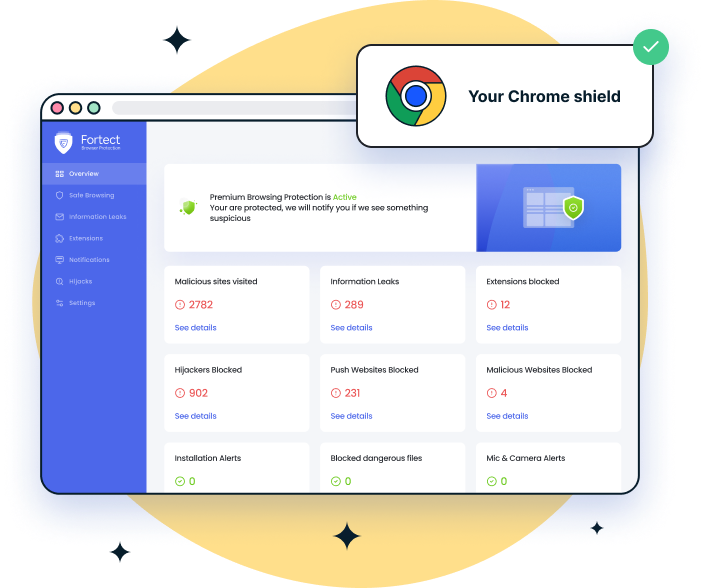
Fortect Browsing Protection for Chrome helps prevent back button hijacking by stopping malicious pages before they fully load, reducing the chance of being trapped in redirect loops. It actively flags suspicious sites that attempt to manipulate browser behavior and warns you before any interaction. In addition, it scans and removes harmful extensions that may interfere with normal navigation, restoring safe and predictable use of your browser.
Use the Long-Press History Menu
- Open your browser (Chrome, Edge, or Firefox).
- Click and hold the back button (←) for about 1–2 seconds.
- A dropdown list of your recent history will appear.
- Select a page from before you landed on the hijacking site.
- Click it to jump directly past all the fake history entries.
Close the Tab Immediately
- Press Ctrl + W to close the current tab instantly.
- If a pop-up asks “Are you sure you want to leave?” — click Leave or OK.
- Do not fill in any forms or click any buttons on the page itself.
Force-Quit the Browser if Frozen
If the browser is unresponsive:
- Press Ctrl + Shift + Esc to open Task Manager.
- Find your browser in the Processes tab (e.g., Google Chrome, Microsoft Edge).
- Right-click it and select End Task.
- Reopen the browser — it will ask if you want to restore your session. Click Don’t restore or open a new tab manually.
Clear Browser History and Cache
After escaping, clean your browser to remove the injected history entries:
Google Chrome:
- Press Ctrl + Shift + Delete.
- Set the time range to Last hour or Last 24 hours.
- Check Browsing history, Cookies and other site data, and Cached images and files.
- Click Clear data.
Microsoft Edge:
- Press Ctrl + Shift + Delete.
- Select the time range and check the same three boxes.
- Click Clear now.
Firefox:
- Press Ctrl + Shift + Delete.
- Choose Everything from the time range dropdown.
- Check Browsing & Download History and Cache.
- Click OK.
How to Prevent Back Button Hijacking on Windows 10/11
Prevention is always better than reaction. These practical steps reduce your exposure significantly.
Enable Pop-Up and Redirect Blocking in Your Browser
In Chrome:
- Open Chrome and go to Settings (three dots menu → Settings).
- Click Privacy and security → Site Settings.
- Scroll to Pop-ups and redirects and click it.
- Toggle the setting to Don’t allow sites to send pop-ups or use redirects.
In Edge:
- Open Edge → Settings (three dots → Settings).
- Click Cookies and site permissions → Pop-ups and redirects.
- Toggle Block to On.
Install a Reliable Browser Extension
These browser extensions actively block scripts responsible for history manipulation:
- uBlock Origin (Chrome, Edge, Firefox) — blocks malicious ad scripts that drive most hijacking attempts.
- NoScript (Firefox) — prevents JavaScript from running on sites you have not whitelisted.
To install uBlock Origin on Chrome or Edge:
- Open the Chrome Web Store or Edge Add-ons store.
- Search for uBlock Origin.
- Click Add to Chrome or Add to Edge.
- Click Add extension in the confirmation pop-up.
Keep Windows and Your Browser Updated
Outdated browsers are more vulnerable to script-based exploits.
Windows 10/11:
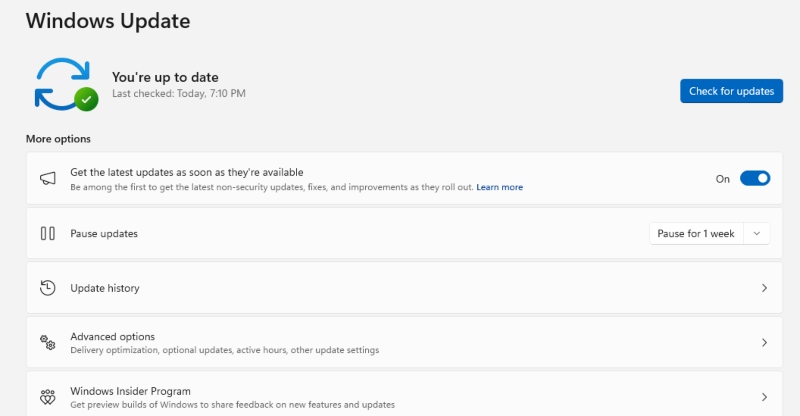
- Click the Start menu and open Settings (gear icon).
- Go to Windows Update.
- Click Check for updates.
- Install any available updates and restart if prompted.
Google Chrome:
- Click the three-dot menu → Help → About Google Chrome.
- Chrome will automatically check and install updates.
- Click Relaunch to apply.
Microsoft Edge:
- Click the three-dot menu → Help and feedback → About Microsoft Edge.
- Edge will check and install updates automatically.
- Restart when prompted.
Use a Secure DNS Service
Secure DNS services like Cloudflare (1.1.1.1) or Google (8.8.8.8) can block connections to known malicious domains before they even load in your browser.
To change DNS in Windows 10/11:
- Open Settings → Network & Internet.
- Click Change adapter options (or Advanced network settings on Windows 11).
- Right-click your active connection → Properties.
- Select Internet Protocol Version 4 (TCP/IPv4) → Properties.
- Choose Use the following DNS server addresses.
- Enter 1.1.1.1 (preferred) and 1.0.0.1 (alternate).
- Click OK and restart your browser.
Is Back Button Hijacking Illegal?
Back button hijacking exists in a legal gray area in many countries. While it is not universally criminalized as a standalone act, it frequently accompanies illegal practices, including phishing, malware distribution, and deceptive advertising. In the United States, the FTC has taken action against deceptive browser practices under consumer protection laws. In the EU, certain aggressive redirect techniques violate the ePrivacy Directive.
If a website traps your browser and demands a phone call or personal information, treat it as a scam and report it to your national cybercrime authority.
Conclusion
Back button hijacking is a frustrating and deceptive tactic, but it is not unstoppable. Knowing what it looks like, how to escape it, and, most importantly, how to block the scripts that enable it puts control firmly back in your hands. Keeping your browser updated, running a quality ad-blocking extension, and enabling pop-up blocking are the three most effective defenses available to everyday Windows users.