
Stop Spam From Becoming Dangerous
Spam is more than just an annoying inbox flood. What starts as unwanted messages can quickly escalate into phishing attacks, malware infections, identity theft, and financial fraud. If you use Windows 10 or 11 and want to protect yourself online, understanding how spam works and how to stop it is one of the most important digital safety skills you can develop.
What Is Spam and Why Is It Dangerous?
Spam refers to any unsolicited, bulk digital communication, most often emails, but also text messages (SMS spam), social media messages, and even pop-up ads. While older spam was mostly promotional clutter, modern spam is frequently a delivery mechanism for serious cyber threats.
Common Types of Spam You Should Know
- Phishing emails: Fake messages that impersonate banks, Microsoft, or online services to steal your login credentials.
- Malware spam: Emails with infected attachments or malicious links that install viruses, ransomware, or spyware on your PC.
- Advance-fee fraud (419 scams): Promises of large sums of money in exchange for upfront payments.
- Tech support scams: Messages or pop-ups falsely claiming your Windows PC has a virus, urging you to call a fake support number.
- SMS spam (smishing): Text messages that try to trick you into clicking dangerous links or revealing personal information.
Why Spam Becomes a Real Threat
Spam becomes dangerous when users click links, download attachments, or respond with personal details. A single click can compromise your Windows account, expose your financial data, or allow attackers to take remote control of your computer. Cybercriminals are increasingly using social engineering, crafting realistic-looking messages that are difficult to distinguish from legitimate ones.
How to Identify Spam Before It Causes Damage
Red Flags to Watch For in Every Message
- Generic greetings like “Dear User” or “Dear Customer” with no personalization
- Urgent or threatening language: “Your account will be suspended in 24 hours.”
- Suspicious or mismatched sender email addresses (e.g., [email protected])
- Unexpected attachments, especially .exe, .zip, or .docm files
- Links that don’t match the company’s official domain when you hover over them
- Offers that seem too good to be true, prize winnings, inheritance, or gift cards
How to Stop Spam on Windows 10 and Windows 11
Windows 10 and 11 come with built-in tools that, when properly configured, significantly reduce your exposure to spam and spam-related threats. Here is how to set them up.
Step 1: Enable and Update Windows Security (Microsoft Defender)
Windows Security provides real-time protection against malicious spam attachments and links. Follow these steps to make sure it is active:
- Press the Windows key, then type Windows Security and press Enter.
- Click Virus & threat protection.
- Under Virus & threat protection settings, click Manage settings.
- Ensure Real-time protection, Cloud-delivered protection, and Automatic sample submission are all toggled On.
- Return to the main screen and click “Check for updates” under “Virus & threat protection updates” to obtain the latest definitions.
Step 2: Keep Windows Up to Date
Many spam-delivered exploits target security vulnerabilities in outdated versions of Windows. Keeping your system current is a critical line of defense.
- Press Windows key + I to open Settings.
- Click Windows Update (Windows 11) or Update & Security (Windows 10).
- Click Check for updates and install any available updates.
- Enable Receive updates for other Microsoft products to also update Outlook, Edge, and other tools that handle email and browsing.
Step 3: Configure the Junk Email Filter in Microsoft Outlook
If you use Microsoft Outlook on Windows, its built-in junk mail filter is your first line of email spam defense.
- Open Outlook and click the Home tab.
- Click Junk in the Delete group, then select Junk Email Options.
- Set the protection level to High to catch most spam.
- Check Permanently delete suspected junk email instead of moving it to the Junk Email folder if you want automatic removal.
- Use the Blocked Senders tab to manually add known spam addresses.
Step 4: Turn On SmartScreen Filter in Microsoft Edge
Microsoft Defender SmartScreen helps block malicious websites often linked in spam emails. Here is how to verify it is active in Microsoft Edge:
- Open Microsoft Edge and click the three-dot menu (…) at the top right.
- Go to Settings > Privacy, search, and services.
- Scroll to the Security section.
- Make sure Microsoft Defender SmartScreen is toggled On. Also enable Block potentially unwanted apps.
Step 5: Restrict Notification Spam from Apps and Websites
Spam can also arrive as browser or app notifications. Here is how to restrict them on Windows 10 and 11:
- Press Windows key + I to open Settings.
- Go to System > Notifications & actions (Windows 10) or System > Notifications (Windows 11).
- Toggle off notifications for any apps you do not recognize or trust.
- In Microsoft Edge, go to Settings > Cookies and site permissions > Notifications and review which sites have permission to send notifications. Remove any unfamiliar ones.
Strengthen Your PC Security with Fortect
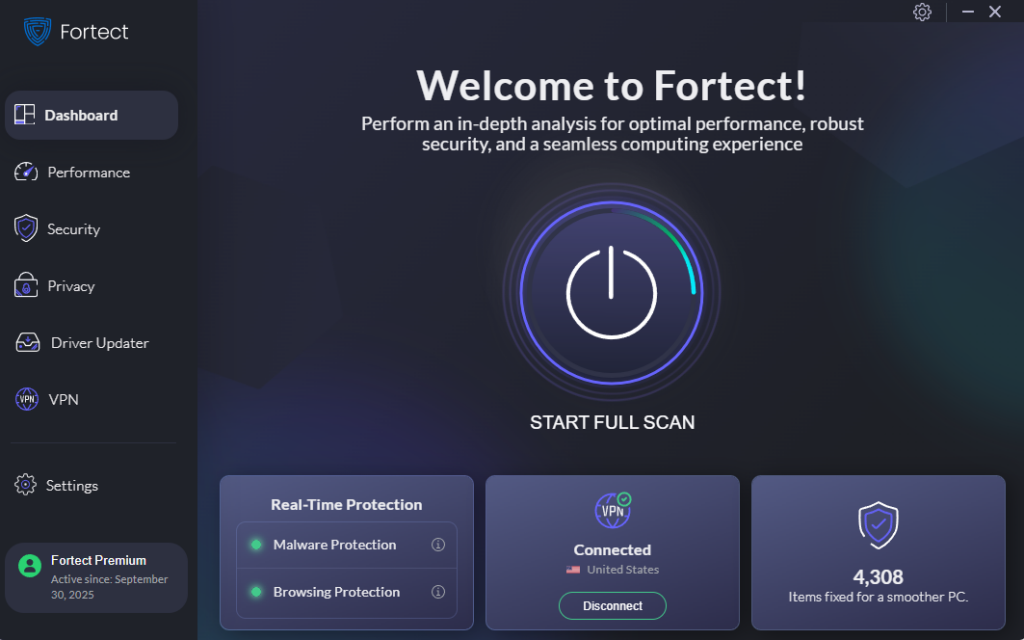
Even with Windows’ built-in tools properly configured, some spam-delivered threats can still slip through, especially zero-day malware and advanced phishing payloads. That’s where Fortect adds an extra layer of protection. Fortect delivers advanced real-time malware protection for Windows users. It automatically scans your PC for traditional and emerging threats, including malicious links or attachments inside spam emails, phishing attempts that try to steal your data, malware from installing if you accidentally click spam, and restores damaged system files for improved performance. Its smart threat-detection engine monitors suspicious activity and alerts you before harmful actions can take place, helping keep your device secure and running efficiently.
Download and install Fortect today.
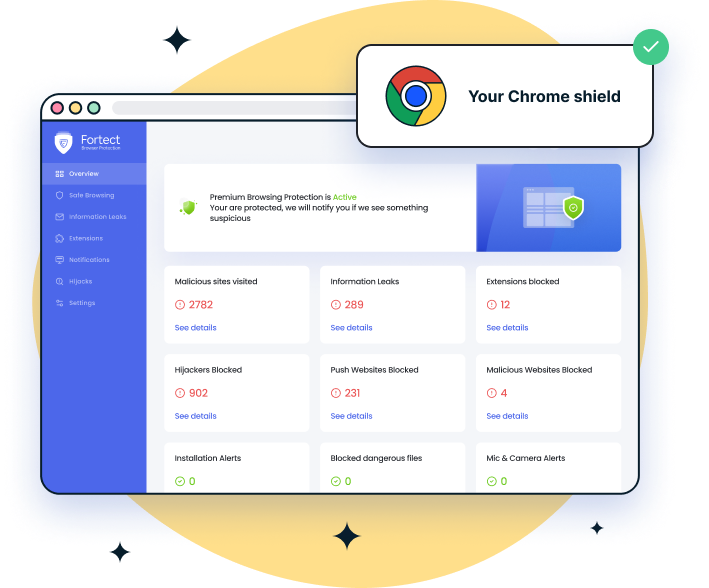
For Chrome users, this easy-to-use extension helps reduce spam-related risks while you browse. Fortect Browsing Protection blocks suspicious and spam-heavy websites before they load, warns you about scam pages, and removes harmful extensions that may flood your browser with ads, pop-ups, or unwanted redirects. It adds an extra layer of protection by keeping spam-driven threats from reaching you in the first place.
Fortect for Mac: Stronger Protection Beyond macOS
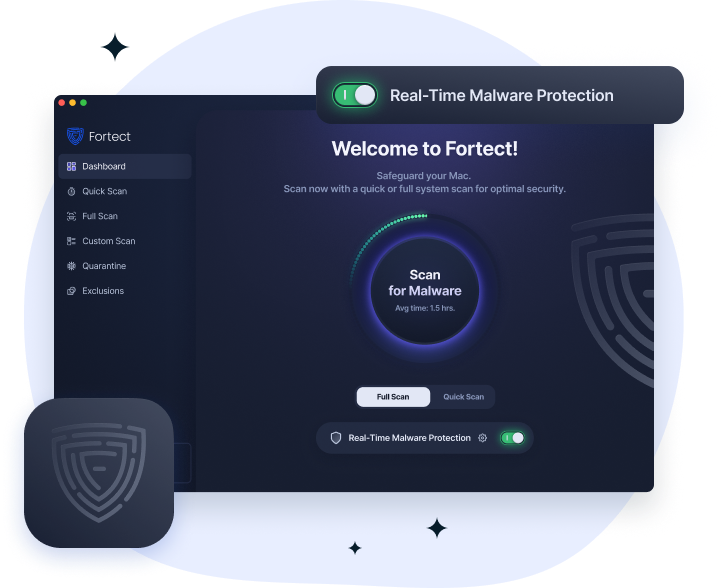
Cyber threats are no longer limited to Windows, and many spam messages now carry hidden risks like phishing links, malicious ads, and harmful downloads. Fortect for Mac adds an extra layer of real-time protection by blocking dangerous websites, detecting emerging threats through cloud intelligence, and scanning your system to catch hidden issues. While it doesn’t remove spam from your inbox, it helps protect you from spam-related threats by stopping unsafe links, pop-ups, and malicious content before they can do any damage.
Best Practices to Prevent Spam From Reaching You
Protect Your Email Address
- Never post your primary email address publicly on forums, comment sections, or social media.
- Use a secondary or disposable email for online signups, contests, or free downloads.
- Unsubscribe from legitimate marketing emails using the unsubscribe link at the bottom. For suspicious senders, do not unsubscribe; just block or delete.
Never Engage With Suspicious Messages
- Do not click links or download attachments from senders you do not recognize.
- Do not reply to spam, even to say “remove me.” Replies confirm your address is active and attract more spam.
- If an email pretends to be from Microsoft, do not call any phone number listed in the message. Contact Microsoft directly through microsoft.com.
What to Do If Spam Gets Through and Causes Damage
If you suspect you have clicked a spam link or downloaded a malicious file, act quickly:
- Disconnect from the internet immediately to limit any potential data exfiltration.
- Run a full Windows Defender scan: Open Windows Security > Virus & threat protection > Quick scan (or select Full scan for a thorough check).
- Change your passwords for any accounts you accessed recently, especially email, banking, and Microsoft accounts.
- Enable two-factor authentication (2FA) on all important accounts.
- Contact your bank if you entered any financial details, and monitor your accounts for unauthorized transactions.
Stay Ahead of Spam
Spam is not going away, but it does not have to become your problem. By using the built-in security tools on Windows 10 and 11, staying alert to warning signs, and following safe email habits, you can stop the vast majority of spam before it causes any damage. Think of spam defense as a habit rather than a one-time fix: check your settings regularly, keep Windows updated, and trust your instincts when something feels off.
The best protection against spam is a combination of technology and awareness. Use Windows Security, stay skeptical of unexpected messages, and never hand out personal information in response to an unsolicited contact. A few minutes of caution today can prevent hours, or even years, of recovery from identity theft or financial fraud.



