Why Old or Outdated Windows Drivers Are a Security Risk
Your Windows PC relies on dozens of drivers to communicate with hardware components like your graphics card, printer, and webcam. While these small software programs work quietly in the background, outdated drivers create serious security vulnerabilities that hackers actively exploit. Understanding why driver updates matter can protect your personal data and system integrity.
What Are Windows Drivers and Why Do They Need Updates?
Drivers act as translators between your Windows operating system and hardware devices. When you print a document or connect a USB device, drivers enable that communication. Manufacturers regularly release driver updates to fix security flaws, improve performance, and ensure compatibility with the latest Windows versions.
Old drivers contain known vulnerabilities that cybercriminals can exploit to gain unauthorized access to your computer. Each unpatched driver becomes a potential entry point for malware, ransomware, and data theft.
Critical Security Risks of Outdated Drivers
Vulnerability to Malware and Exploits
Cybercriminals specifically target outdated drivers because their security weaknesses are publicly documented. Once a vulnerability is discovered, it’s only a matter of time before attackers develop exploits. Your graphics driver, network adapter, or USB controller could allow malicious software to bypass Windows security features and install itself without your knowledge.
System Instability and Data Loss
Outdated drivers can cause system crashes, blue screens of death, and unexpected shutdowns. These stability issues risk corrupting important files and losing unsaved work. Driver conflicts with newer Windows updates can render your system partially or completely unusable.
Privacy Breaches Through Peripheral Devices
Webcam and microphone drivers with security flaws enable unauthorized access to these devices. Attackers can remotely activate your camera or record audio without triggering indicator lights. Similarly, compromised keyboard drivers can log your keystrokes, capturing passwords and sensitive information.
Network Adapter Vulnerabilities
Your Wi-Fi or Ethernet adapter driver controls all network traffic. Outdated network drivers may fail to implement current encryption standards, exposing your internet activity to eavesdropping. Attackers on the same network can intercept login credentials, financial information, and personal communications.
How to Check for Outdated Drivers in Windows 10/11
Identifying which drivers need updates is the first step toward securing your system. Windows provides built-in tools to review your driver status.
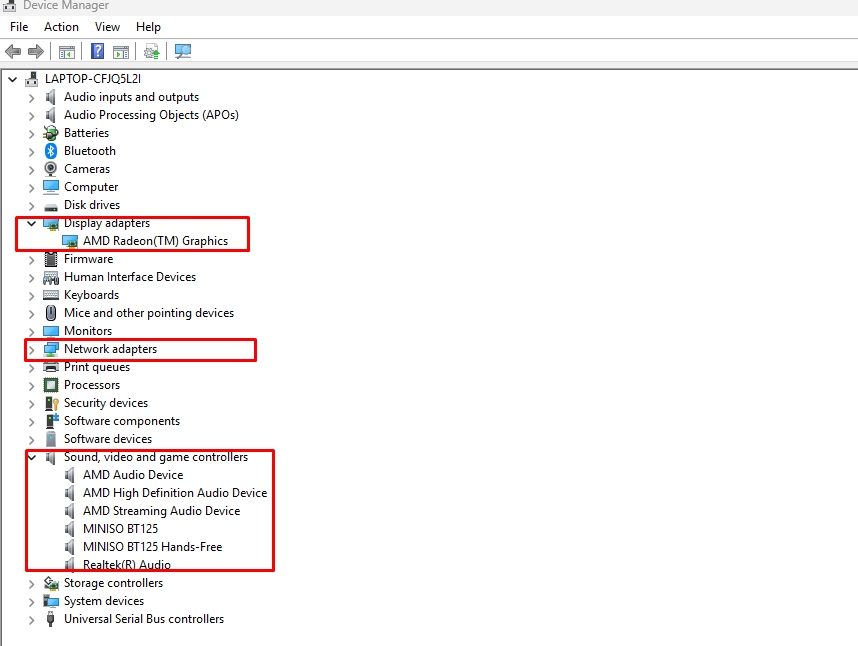
1: Press the Windows key + X and select “Device Manager” from the menu.
2: Device Manager displays all hardware components organized by category. Expand categories like “Display adapters,” “Network adapters,” and “Sound, video and game controllers.”
3: Right-click any device and select “Properties.”
4: Click the “Driver” tab to view the driver version, date, and provider.
5: Look for drivers with dates older than six months, as these likely have available updates.
How to Update Windows Drivers Safely
Keeping drivers current doesn’t require technical expertise. Windows offers multiple methods to update drivers securely.
Using Windows Update
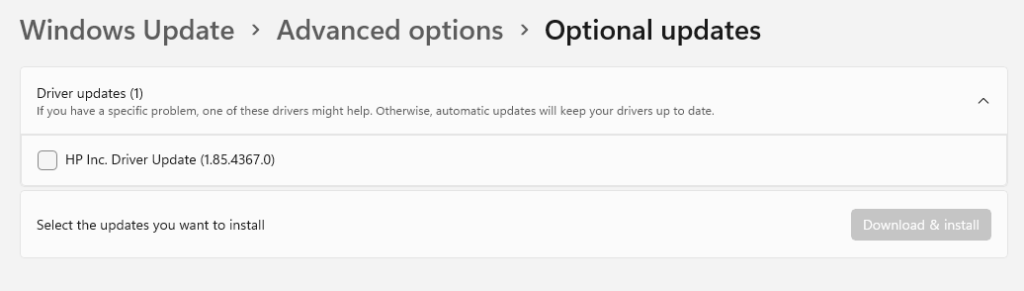
1: Open Settings by pressing Windows key + I.
2: Navigate to “Windows Update” (or “Update & Security” in Windows 10).
3: Click “Check for updates.” Windows automatically downloads and installs available driver updates.
4: Click “Advanced options,” then “Optional updates” to see additional driver updates that aren’t automatically installed.
5: Select the drivers you want to update and click “Download and install.”
Updating Through Device Manager
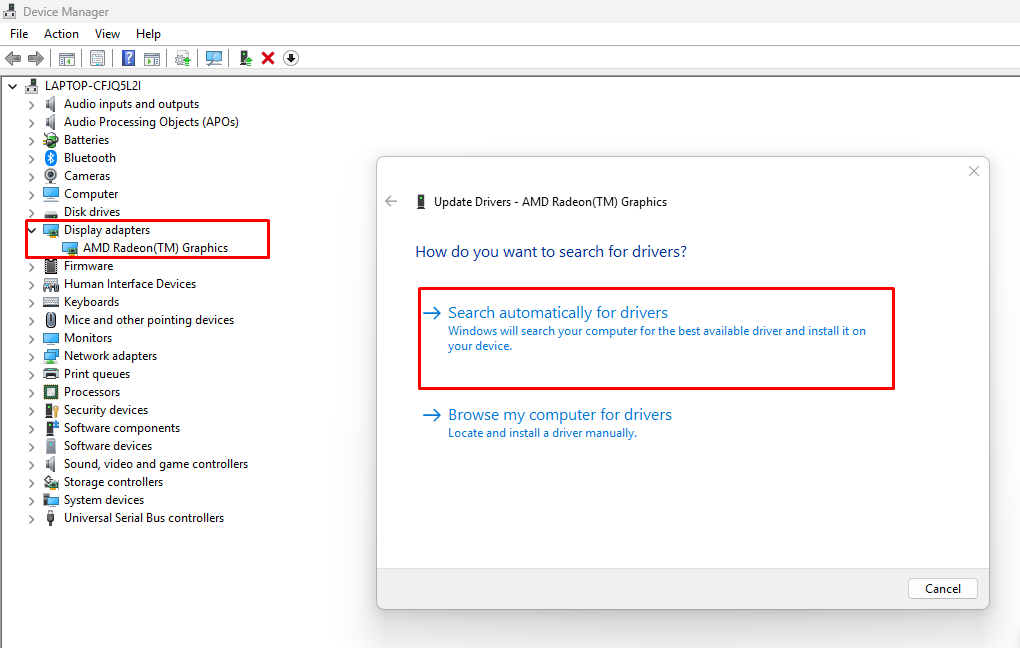
1: Open Device Manager (Windows key + X, then select Device Manager).
2: Right-click the device with an outdated driver.
3: Select “Update driver” from the context menu.
4: Choose “Search automatically for drivers.” Windows searches online for the latest version.
5: Follow the on-screen prompts to complete installation, then restart if prompted.
Downloading from Manufacturer Websites
For critical components like graphics cards, visiting the manufacturer’s website ensures you get the latest drivers.
1: Identify your hardware manufacturer (NVIDIA, AMD, Intel, etc.) through Device Manager.
2: Visit the official manufacturer website and locate their driver download section.
3: Enter your specific hardware model or use their automatic detection tool.
4: Download the recommended driver for your Windows version.
5: Run the installer and follow the installation wizard, restarting when complete.
Strengthen Your PC Security with Fortect
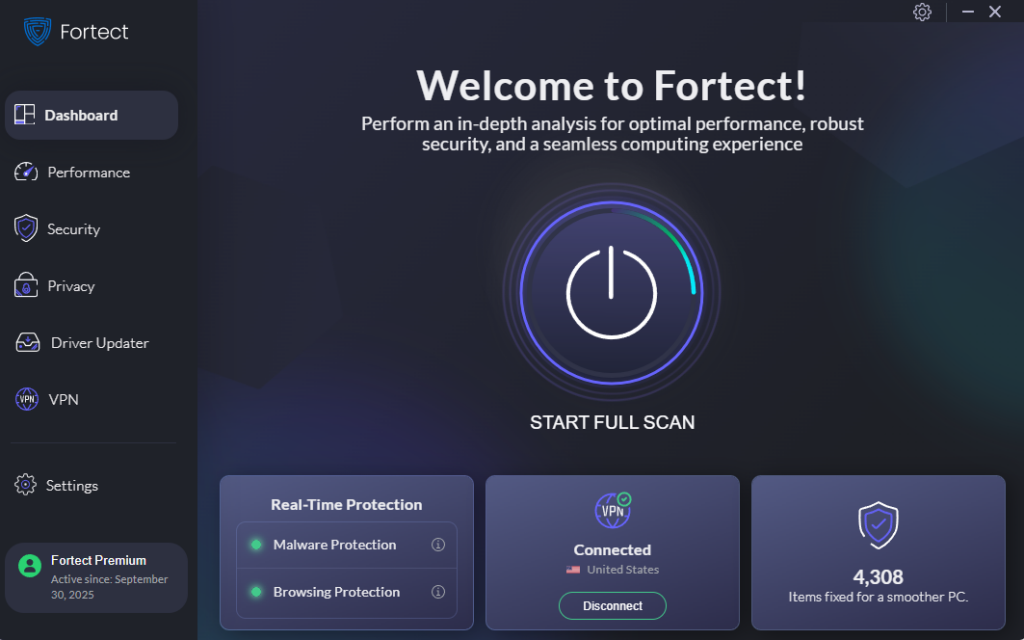
While manually updating drivers works well, many Windows users prefer an automated solution that handles driver maintenance alongside comprehensive security protection. Fortect delivers advanced real-time malware protection for Windows users. It automatically scans your PC for traditional and emerging threats, including outdated drivers, eliminates them safely, and restores damaged system files for improved performance. Its smart threat-detection engine monitors suspicious activity and alerts you before harmful actions can take place, helping keep your device secure and running efficiently.
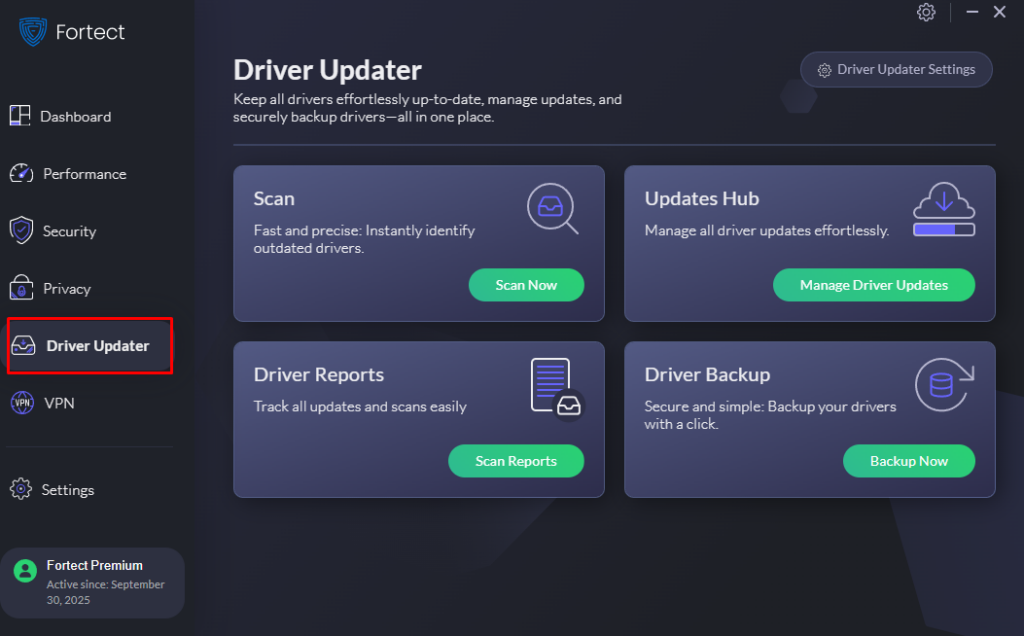
Fortect Premium also features a built-in Driver Updater that identifies and replaces outdated or corrupted drivers with secure, verified versions from trusted sources. This feature is essential because outdated or compromised drivers can expose your computer to cyberattacks. By keeping all drivers updated and stable, Fortect effectively closes these security gaps, strengthens your PC’s defenses, and ensures a cleaner, faster, and more reliable system overall.
Best Practices for Driver Security
Enable automatic Windows updates to receive critical driver updates without manual intervention. Schedule monthly checks for drivers that Windows Update might not cover, particularly for specialized hardware. Always download drivers from official manufacturer websites or through Windows Update, never from third-party driver update utilities that may bundle malware.
Create a system restore point before installing new drivers. This allows you to roll back if a driver causes issues. Keep a record of important driver versions so you can troubleshoot problems effectively.
Take Action Today
Outdated drivers represent one of the most overlooked security risks on Windows PCs. By implementing regular driver updates through Windows Update and Device Manager, you significantly reduce your exposure to cyber attacks while improving system performance and stability. Don’t wait for a security breach; check your drivers today and establish a monthly update routine.



![What Causes Windows Update Failure [How To Prevent It]](https://wp-cdn.fortect.com/uploads/2023/04/12103355/windows-update-failed-2-425x300.jpg)