
SOLVED: Hypervisor Attacks on Windows
Hypervisor attacks represent one of the most dangerous security threats facing Windows users who run virtual machines. These sophisticated exploits target the virtualization layer of your system, potentially compromising not just one virtual machine but your entire computer. Understanding how to protect yourself from hypervisor vulnerabilities is essential for maintaining a secure Windows environment.
What Are Hypervisor Attacks?

Hypervisor attacks are security exploits that target the virtualization software running on your Windows PC. A hypervisor, also known as a virtual machine monitor (VMM), creates and manages virtual machines. When attackers successfully exploit hypervisor vulnerabilities, they can escape from a virtual machine and access the host operating system, steal sensitive data, or gain complete control of the computer.
Common Types of Hypervisor Exploits
VM escape attacks occur when malicious code breaches the boundaries of a virtual machine to access the host system. Hyperjacking involves attackers installing a rogue hypervisor beneath your operating system to intercept all system operations. Resource manipulation attacks exploit shared hardware resources between virtual machines to steal information or crash your system.
How Hypervisor Vulnerabilities Affect Windows Users
Windows 10 and Windows 11 users running Hyper-V, VMware Workstation, or VirtualBox face potential exposure to hypervisor security risks. These attacks can bypass traditional antivirus software because they operate at a lower system level. Cybercriminals exploit memory corruption bugs, privilege escalation vulnerabilities, and configuration weaknesses to compromise virtualization platforms.
How to Protect Your Windows System from Hypervisor Attacks
Use Fortect for Comprehensive Protection
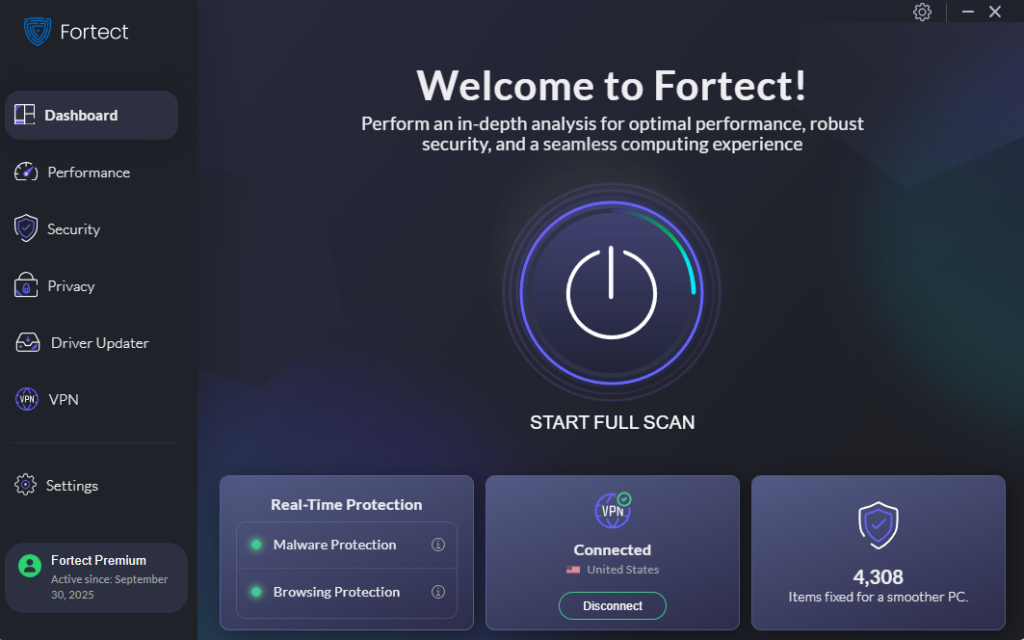
Hypervisor attacks are among the most dangerous cyber threats because they target the very core of your Windows system, its virtualization layer. Once compromised, hackers can gain complete control, bypassing traditional antivirus defenses.
Fortect is an advanced antivirus and system repair tool designed to defend your PC from such deep-level threats. Its real-time malware protection continuously scans for and removes malicious activity, including signs of hypervisor manipulation, ensuring your system remains secure.
Beyond protection, Fortect optimizes your system’s performance, cleaning up unnecessary files, fixing system issues, and ensuring your computer runs cleaner, faster, and more reliably. It’s a powerful all-in-one solution for both security and performance stability.
Download and install Fortect today.
Keep Your Hypervisor Software Updated
Regular updates patch critical security vulnerabilities in virtualization software. Here’s how to update common hypervisors on Windows:
For Hyper-V (Windows 10/11):
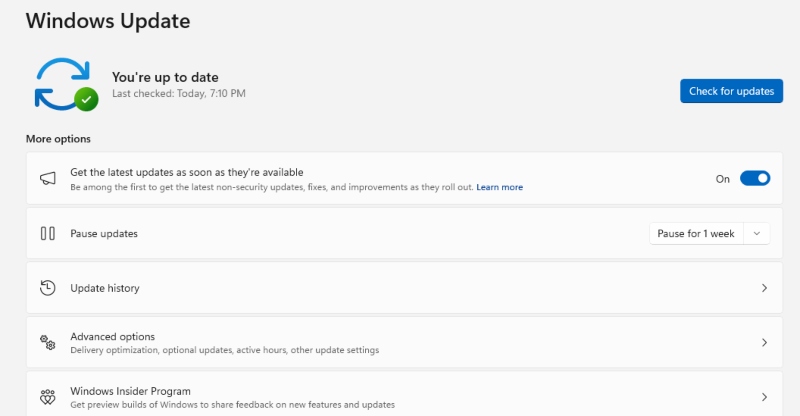
- Press Windows key + I to open Settings
- Click “Update & Security” (Windows 10) or “Windows Update” (Windows 11)
- Select “Check for updates”
- Install all available updates, including optional updates
- Restart your computer when prompted
For VMware Workstation:
- Open VMware Workstation
- Click “Help” in the menu bar
- Select “Software Updates”
- Click “Check for Updates”
- Download and install any available updates
For Oracle VirtualBox:
- Open VirtualBox Manager
- Click “Help” then “Check for Updates”
- Download the latest version if available
- Run the installer and follow the prompts
Enable Windows Security Features
Windows Defender Application Guard and Windows Sandbox provide isolated environments that protect against hypervisor exploits. Virtualization-based security (VBS) adds hardware-level protection to prevent hypervisor attacks.
Enable VBS on Windows 10/11:
- Press Windows key + R to open Run
- Type “msinfo32” and press Enter
- Check if “Virtualization-based security” shows as “Running”
- If not enabled, press Windows key + X and select “Windows Terminal (Admin)”
- Type: bcdedit /set hypervisorlaunchtype auto
- Restart your computer
Configure Virtual Machine Security Settings
Disable unnecessary features like shared folders, clipboard sharing, and drag-and-drop functionality between host and guest systems. These conveniences create potential attack vectors for hypervisor exploits.
Restrict VM Features in Hyper-V:
- Open Hyper-V Manager
- Right-click your virtual machine and select “Settings”
- Navigate to “Integration Services”
- Uncheck “Guest services” and other unnecessary services
- Click “Apply” then “OK”
Use Strong Isolation Practices
Never run untrusted software directly in virtual machines that have access to sensitive data. Create separate VMs for different security levels, one for testing suspicious files and another for personal or work activities. Avoid bridged networking modes that directly expose virtual machines to your local network.
Warning Signs of a Hypervisor Compromise
Unexpected system slowdowns, virtual machines crashing frequently, or unusual network activity from your hypervisor software may indicate a security breach. Memory usage spikes, unauthorized virtual machines appearing in your hypervisor management console, or Windows security warnings about virtualization components deserve immediate investigation.
Recovery Steps After a Suspected Attack
If you suspect a hypervisor attack, immediately disconnect from the internet and shut down all virtual machines. Run a full system scan with Windows Defender or reputable antivirus software. Consider reinstalling your hypervisor software and restoring virtual machines from clean backups. In severe cases, a complete Windows reinstallation may be necessary to ensure your system is clean.
Conclusion
Hypervisor attacks pose serious risks to Windows users, but proper security measures significantly reduce your vulnerability. Regular updates, careful VM configuration, and security-conscious practices protect your virtualization environment. Stay vigilant about suspicious activity and maintain backups to ensure you can recover quickly if an attack occurs.




