Real-Time Protection vs Regular Antivirus: What Windows Users Need to Know
If you’re using Windows 10 or Windows 11, understanding the difference between real-time protection and regular antivirus scanning can dramatically improve your computer’s security. While both defend against malware, viruses, and cyber threats, they work in fundamentally different ways. This guide breaks down everything Windows users need to know about these security features.
What Is Real-Time Protection?
Real-time protection is an active defense system that continuously monitors your computer for threats as they happen. Think of it as a security guard who never sleeps, constantly watching every file you download, every program you run, and every website you visit.
How Real-Time Protection Works?
Real-time antivirus protection operates in the background of your Windows system, scanning files and activities instantly. When you download an attachment, open a document, or install software, real-time protection checks it immediately before allowing it to execute. This immediate threat detection prevents malicious files from ever running on your system.
Windows Defender (now called Microsoft Defender Antivirus) includes built-in real-time protection that activates automatically. It uses behavioral analysis, cloud-delivered protection, and signature-based detection to identify threats the moment they appear.
Key Benefits of Real-Time Scanning
Real-time protection offers instant threat blocking, preventing malware from executing before it causes damage. It consumes minimal system resources since modern antivirus software is optimized for background operation. You also get automatic updates to virus definitions, ensuring protection against the latest threats without manual intervention.
What Is Regular Antivirus Scanning?
Regular antivirus scanning, also called on-demand scanning or scheduled scanning, performs thorough system checks at specific times. Unlike continuous monitoring, these scans examine your entire system or selected folders to find threats that may have slipped through.
Types of Regular Antivirus Scans
Quick Scan: Checks the most vulnerable areas of your Windows system, including temporary files, system folders, and common malware locations. Quick scans typically complete in 5-15 minutes.
Full Scan: Examines every file, folder, and program on your computer. While comprehensive, full scans can take several hours depending on your storage size, and may slow down your system during operation.
Custom Scan: Allows you to select specific drives, folders, or files for targeted scanning when you suspect a particular area might be infected.
When Regular Scans Are Essential
Regular antivirus scans catch dormant threats, rootkits, and deeply embedded malware that may have bypassed initial detection. They’re crucial for identifying infections that occurred before your antivirus was installed or when real-time protection was temporarily disabled.
Real-Time Protection vs Regular Antivirus: The Core Differences
The main difference lies in timing and approach. Real-time protection prevents threats proactively through continuous monitoring, while regular scans detect threats reactively by examining existing files.
Real-time protection uses fewer system resources since it only scans active processes and new files. Regular full scans consume more CPU and disk resources because they examine your entire system at once.
Coverage also differs; real-time protection focuses on active threats and new files, whereas scheduled scans provide comprehensive system-wide checks that can uncover hidden or dormant malware.
How to Enable Real-Time Protection in Windows 10/11
Strengthen Your PC Security with Fortect
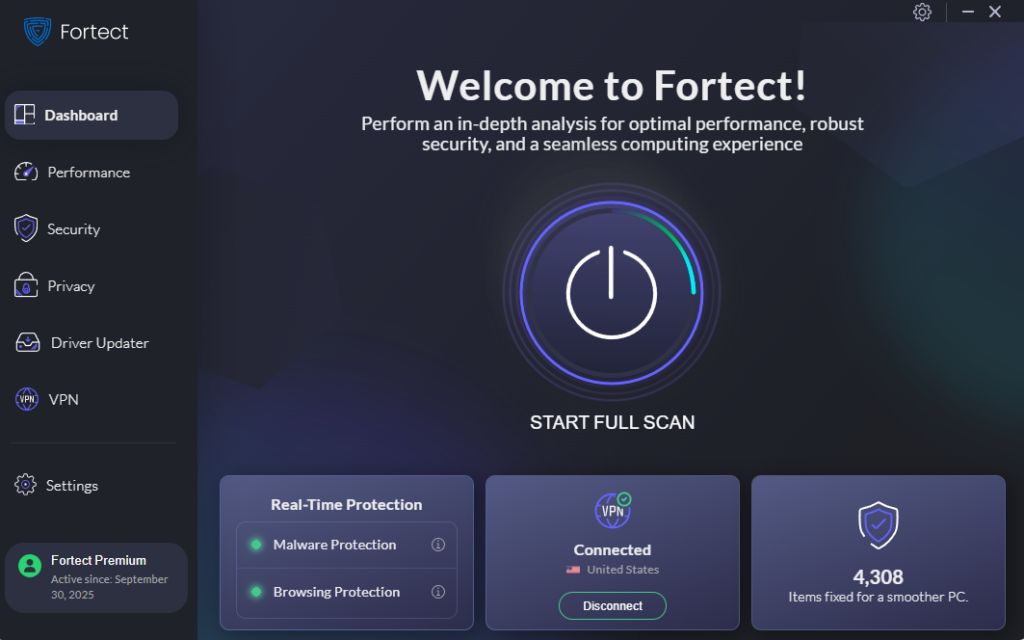
While understanding the differences between real-time protection and regular antivirus software is crucial, Windows users can enhance their defense with specialized tools. Fortect delivers advanced real-time malware protection designed specifically for Windows systems. It automatically scans your PC for both traditional and emerging threats, including modern malware variants discovered as recently as today, eliminating them safely while restoring damaged system files for improved performance. Its smart threat-detection engine continuously monitors suspicious activity and alerts you before harmful actions can take place, providing the comprehensive real-time protection vs regular antivirus scanning combination that keeps your device secure and running efficiently.
Download and install Fortect now.
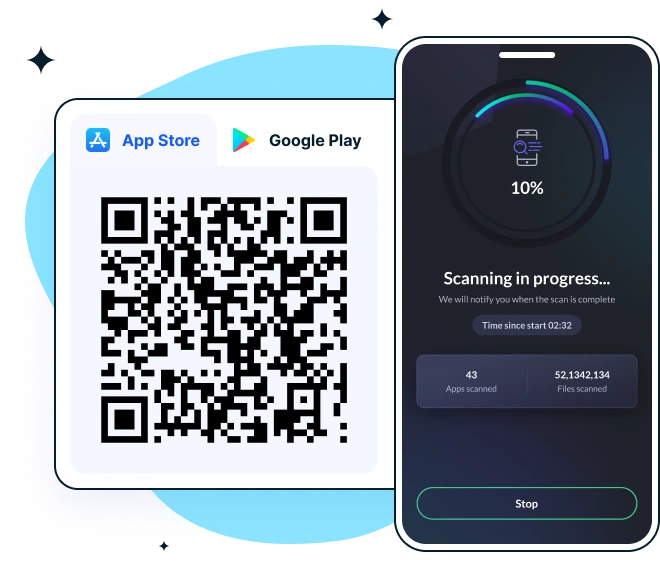
Fortect offers cross-platform security with Fortect Mobile Security for Android and iOS, including real-time web protection, network safety alerts, data breach notifications, advanced antivirus, and system checks. It stands out with cloud-based scanning, automated issue resolution, a user-friendly dashboard, and a lightweight engine for fast, smooth performance across devices.
Fortect Mobile Security is available on App Store and Google Play.
Turn On Real-Time Protection in Windows
Follow these steps to ensure your built-in real-time protection is active:
Step 1: Click the Start button and select Settings (gear icon).
Step 2: Navigate to Privacy & Security (Windows 11) or Update & Security (Windows 10).
Step 3: Click on Windows Security from the left sidebar.
Step 4: Select Virus & threat protection.
Step 5: Under Virus & threat protection settings, click Manage settings.
Step 6: Toggle Real-time protection to On. Also, enable Cloud-delivered protection and Automatic sample submission for enhanced security.
Your real-time protection is now active and will continuously monitor your system for threats.
How to Run a Manual Antivirus Scan in Windows 10/11
Perform regular manual scans to complement your real-time protection:
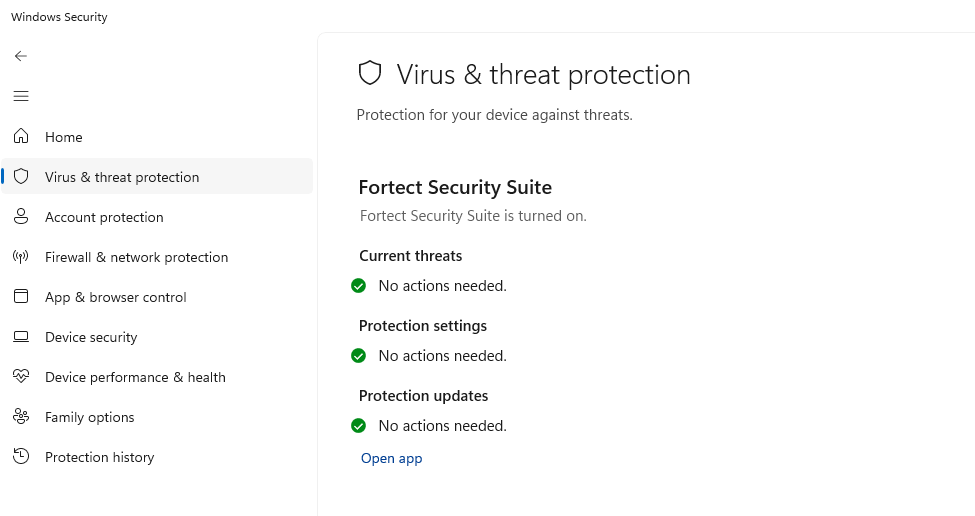
Step 1: Open Windows Security by searching for it in the Start menu.
Step 2: Click Virus & threat protection.
Step 3: Under Current threats, click Scan options.
Step 4: Choose your scan type:
- Quick scan for fast routine checks
- Full scan for thorough system examination
- Custom scan for specific folders
Step 5: Click Scan now to begin.
Windows will display the scan progress and notify you of any detected threats. For optimal protection, run a quick scan weekly and a full scan monthly.
Do You Need Both Real-Time Protection and Regular Scans?
Absolutely. Real-time protection and regular antivirus scanning work together to create layered security for your Windows computer. Real-time protection handles active threats and prevention, while scheduled scans provide the deep cleaning your system needs.
Think of real-time protection as locking your doors and having a security system, while regular scans are like performing periodic security audits of your entire home. Neither replaces the other; both are essential components of comprehensive antivirus protection.
Best Practices for Windows Security
Keep Windows Defender definitions updated automatically through Windows Update. Avoid disabling real-time protection unless necessary for specific software installations. Schedule full scans during off-hours when you’re not actively using your computer.
Combine your antivirus protection with safe browsing habits, regular Windows updates, and caution when downloading files or clicking email links. Modern threats require multiple layers of defense.
Conclusion
Understanding the difference between real-time protection and regular antivirus scanning empowers you to make informed security decisions for your Windows PC. Real-time protection provides instant, continuous defense against active threats, while regular scans offer thorough system checks to catch anything that slips through.
For maximum security, keep both features enabled on your Windows 10 or Windows 11 system. Enable real-time protection to run continuously in the background, and schedule regular full scans monthly with weekly quick scans. This combination gives you comprehensive malware protection without sacrificing system performance.
Take a moment today to verify your real-time protection is enabled and schedule your next full system scan. Your Windows computer’s security depends on both working together.