MFA Bypass Explained: Risks and Prevention Tips
Multi-factor authentication (MFA) is one of the most effective ways to secure your Windows account and online identity. But cybercriminals have found ways to get around it, and that’s exactly what MFA bypass means. In this guide, you’ll learn what MFA bypass is, how attackers pull it off, why it puts you at risk, and, most importantly, what you can do right now on Windows 10 and 11 to protect yourself.
What Is MFA Bypass?
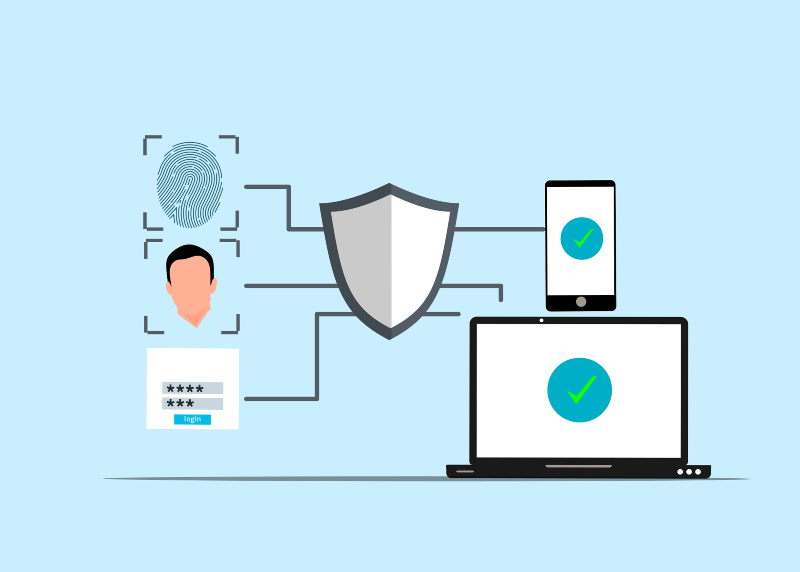
MFA bypass refers to any technique a hacker uses to circumvent multi-factor authentication and gain unauthorized access to an account, even when the account is supposedly protected by a second layer of verification.
When you enable MFA (also called two-factor authentication or 2FA), you typically need two things to log in: your password and a one-time code sent to your phone or email. In theory, even if someone steals your password, they can’t get in without that second factor. MFA bypass attacks break this assumption.
Related terms you may encounter: authentication bypass, 2FA bypass, MFA fatigue attack, session hijacking, SIM swapping, OTP bypass, and real-time phishing.
How Attackers Bypass MFA: Common Techniques
1. MFA Fatigue (Push Bombing)
In an MFA fatigue attack, the attacker already has your password. They repeatedly trigger authentication requests to your phone, hoping you’ll accidentally, or out of frustration, approve one. This method has been used in high-profile breaches and targets users who use push notification-based MFA apps.
2. Real-Time Phishing (Adversary-in-the-Middle)
The attacker sets up a fake login page that looks identical to a real one (like Microsoft’s sign-in page). When you enter your credentials and MFA code, the attacker captures them in real time and uses them immediately, before your one-time password (OTP) expires. Tools like Evilginx2 automate this process.
3. SIM Swapping
If your MFA codes are sent via SMS, a SIM swap attack is a serious threat. The attacker calls your mobile carrier, impersonates you, and convinces them to transfer your phone number to a new SIM card they control. From that point on, all SMS-based MFA codes go directly to the attacker.
4. Session Token Theft
After you log in, websites store a session cookie in your browser to keep you signed in. If an attacker steals this cookie, through malware, browser exploits, or cross-site scripting, they can import it into their own browser and gain full access to your account without ever needing your password or MFA code. This is called session hijacking or pass-the-cookie attack.
5. SS7 Network Exploits
The SS7 (Signaling System No. 7) protocol is used by mobile networks globally. Attackers with access to telecom infrastructure can intercept SMS messages, including OTP codes, without touching your phone at all. This is less common for individual users, but a known vulnerability.
6. Malware and Keyloggers
Malware installed on your Windows PC can capture MFA codes as you type them, screenshot your authenticator apps, or steal session tokens from your browser. This is why endpoint security on your Windows device is critical, even if your accounts are MFA-protected.
Why MFA Bypass Is a Serious Risk for Windows Users
Windows 10 and 11 users are frequent targets because so many personal accounts — Microsoft accounts, OneDrive, Outlook, and third-party services- are tied to a single Windows login. A successful MFA bypass can result in:
- Unauthorized access to your Microsoft account and all connected services
- Theft of personal files stored in OneDrive
- Identity theft and financial fraud
- Ransomware installation if the attacker gains device access
- Account lockouts that prevent you from recovering access
How to Protect Yourself from MFA Bypass on Windows 10 and 11
Strengthen Your PC Security with Fortect
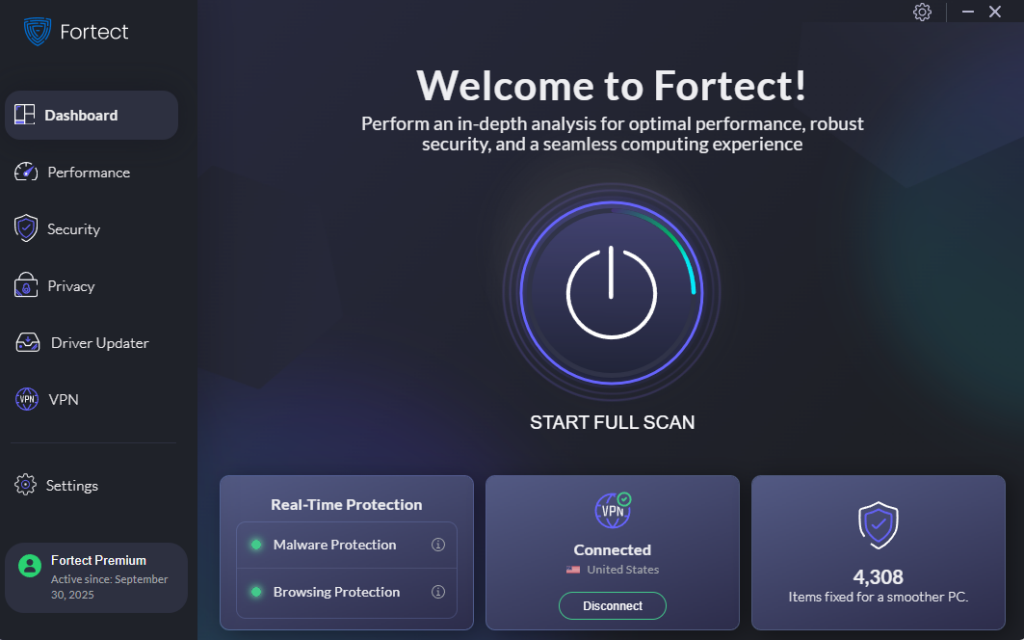
Before diving into the manual steps below, it’s worth knowing that a dedicated security tool can handle a lot of the heavy lifting for you. Fortect delivers advanced real-time malware protection for Windows users, making it an excellent first line of defense against MFA bypass attempts that rely on malware or session token theft. It automatically scans your PC for traditional and emerging threats, including tools commonly used to execute MFA bypass attacks, eliminates them safely, and restores damaged system files for improved performance.
Its robust threat-detection engine monitors suspicious activity and alerts you before harmful actions can take place, helping keep your Windows device secure and running efficiently. Pair Fortect with the manual steps below for a layered, comprehensive approach to account security.
Download and install Fortect now.
Fortect for Mac adds an extra layer of protection that helps reduce the risk of MFA bypass attacks. Cybercriminals often bypass multi‑factor authentication by using malware, session hijacking, token theft, or malicious extensions on a trusted device. If a Mac is already compromised, attackers can intercept authentication codes, steal session cookies, or approve login prompts without the user realizing it.
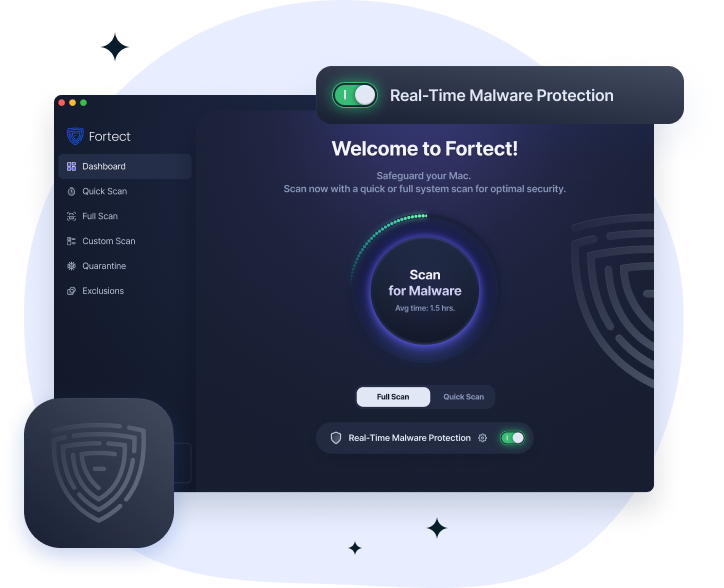
Fortect for Mac helps close these gaps by providing real‑time malware detection, cloud‑based threat intelligence, and deep system scans that identify hidden spyware, credential stealers, and suspicious activity. Removing malicious processes and blocking stealth threats before they can capture login tokens or authentication prompts, it strengthens device security. This matters because MFA is only as strong as the device being used, and protecting the endpoint makes it significantly harder for attackers to bypass authentication safeguards.
Step 1: Switch to an Authenticator App Instead of SMS
SMS-based MFA is the weakest form of two-factor authentication due to SIM swapping and SS7 vulnerabilities. Switch to a time-based OTP authenticator app for stronger protection.
- Open your Microsoft account at account.microsoft.com and sign in.
- Go to Security > Advanced Security Options.
- Under Two-step verification, select Set up two-step verification.
- Choose Use an app instead and follow the prompts to link Microsoft Authenticator.
- Scan the QR code with the Microsoft Authenticator app on your phone.
- Confirm the setup with a test code from the app.
Alternatively, use Google Authenticator or Authy for non-Microsoft accounts.
Step 2: Enable Number Matching in Microsoft Authenticator
Number matching defends against MFA fatigue attacks by requiring you to enter a number displayed on the sign-in screen into your authenticator app, making accidental approvals nearly impossible.
- Open the Microsoft Authenticator app on your phone.
- Tap your account name, then go to Settings.
- Ensure Number Matching is turned on (it is enabled by default in newer versions).
- When a push notification arrives, you must match the number shown on your login screen, not just tap Approve.
Step 3: Use Windows Hello for Passwordless Sign-In
Windows Hello replaces passwords with biometric authentication (fingerprint or face scan) tied to your device’s Trusted Platform Module (TPM). This eliminates password theft, removing the foundation most MFA bypass attacks rely on.
- Open Settings (Windows + I).
- Go to Accounts > Sign-in options.
- Under Windows Hello Fingerprint or Windows Hello Face, click Set up.
- Follow the on-screen prompts to register your biometric.
- Once set up, use your fingerprint or face to log in instead of a password.
Windows Hello credentials never leave your device, making them extremely resistant to remote attacks.
Step 4: Keep Windows Updated to Patch Security Vulnerabilities
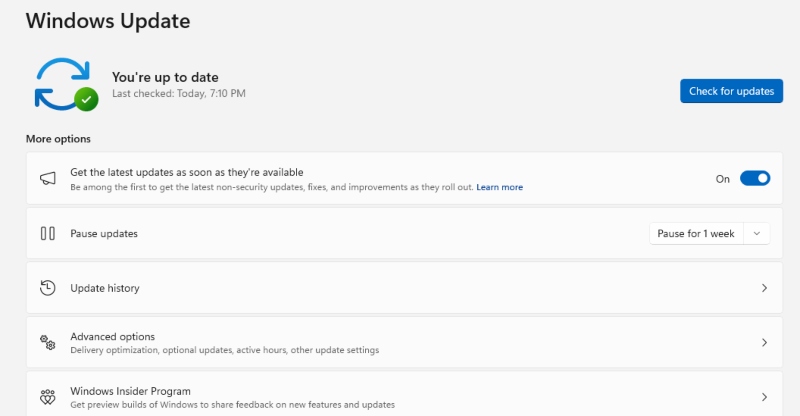
Unpatched Windows systems are easier targets for malware that can steal session tokens or MFA codes. Keeping Windows updated closes these gaps.
- Open Settings (Windows + I).
- Click Windows Update (on Windows 11) or Update & Security > Windows Update (on Windows 10).
- Click Check for updates and install any available updates.
- Enable automatic updates: under Advanced Options, turn on Receive updates for other Microsoft products and keep Automatic updates on.
- Restart your PC when prompted to apply updates.
Step 5: Use a Phishing-Resistant Security Key (FIDO2)
For the highest level of MFA security, use a physical FIDO2 security key (like a YubiKey or Google Titan Key). These are immune to real-time phishing and adversary-in-the-middle attacks because they cryptographically verify the website you’re logging into.
- Purchase a FIDO2-compatible security key (e.g., YubiKey 5 series).
- Go to account.microsoft.com > Security > Advanced Security Options.
- Under Security key, click Manage and follow the setup prompts.
- Plug in your key when prompted and touch the button on it to register.
- Use the physical key as your MFA method going forward.
FIDO2 keys are the gold standard for defeating MFA bypass, even sophisticated real-time phishing attacks fail against them.
Step 6: Monitor Your Account for Suspicious Activity
Even with strong MFA in place, monitor your Microsoft account for signs of unauthorized access attempts.
- Visit account.microsoft.com and sign in.
- Go to Security > Review recent activity.
- Look for sign-in attempts from unfamiliar locations or devices.
- If you spot something suspicious, change your password immediately and revoke active sessions under Security > Sign out everywhere.
MFA Bypass Red Flags to Watch For
Stay alert to these warning signs that someone may be attempting to bypass your MFA:
- You receive unexpected MFA push notifications you did not initiate, deny them immediately.
- Your phone loses cell service unexpectedly (could indicate SIM swapping).
- You receive an SMS OTP you did not request.
- Your email or accounts show recent logins from unknown locations.
- You’re suddenly logged out of accounts without reason.
If you experience multiple of these at once, act fast: contact your mobile carrier to check for SIM activity, change your passwords, and revoke sessions.
Quick Reference: MFA Methods Ranked by Bypass Resistance
Weakest to Strongest:
- SMS OTP — Vulnerable to SIM swapping and SS7 attacks.
- Email OTP — Vulnerable if your email account is already compromised.
- Authenticator App (TOTP) — Strong, but still vulnerable to real-time phishing.
- Push Notification with Number Matching — Resistant to MFA fatigue attacks.
- FIDO2 Hardware Security Key — Strongest; immune to phishing and remote attacks.
- Windows Hello (Biometric + TPM) — Highly resistant; credentials stay on-device.
Conclusion
MFA bypass is a real and growing threat, but it does not make multi-factor authentication useless. Quite the opposite: MFA remains one of your most important defenses. The key is using it correctly. For Windows users, the best approach is to move away from SMS-based codes, adopt Windows Hello for passwordless authentication, stay current with Windows updates, and consider a FIDO2 security key for your most sensitive accounts. Small changes to how you authenticate can dramatically reduce your exposure to even the most sophisticated bypass techniques.