
How to Fix Cloud Security Misconfigurations
Your personal cloud accounts are more exposed than you think. Here’s how to find and fix the most common security gaps, no IT degree required.
If you use OneDrive, Google Drive, iCloud, or any cloud storage on your Windows 10 or 11 PC, there’s a good chance you have at least one cloud security misconfiguration you don’t know about. These are small but serious security mistakes, including incorrect permissions, weak passwords, and the absence of two-factor authentication, that can expose your personal photos, documents, and private data to strangers.
The good news: most cloud misconfigurations are easy to fix once you know where to look. We will walk you through the most common ones and show you exactly how to correct them on a Windows PC, step by step.
What Are Cloud Security Misconfigurations?
A cloud security misconfiguration happens when a cloud service, like OneDrive or Microsoft 365, is set up in a way that accidentally weakens your privacy or security. Think of it like leaving your front door unlocked because you never changed the default setting.
Common examples include: files or folders shared publicly when they should be private, no two-factor authentication (2FA) on your Microsoft or Google account, weak or reused passwords across cloud services, unused apps still connected to your cloud account, excessive permissions granted to third-party apps, and automatic syncing of sensitive folders to the cloud without your awareness.
These cloud configuration errors are among the top causes of personal data breaches. The good news? You can fix them yourself in under 30 minutes.
How to Fix OneDrive Misconfiguration on Windows 10/11
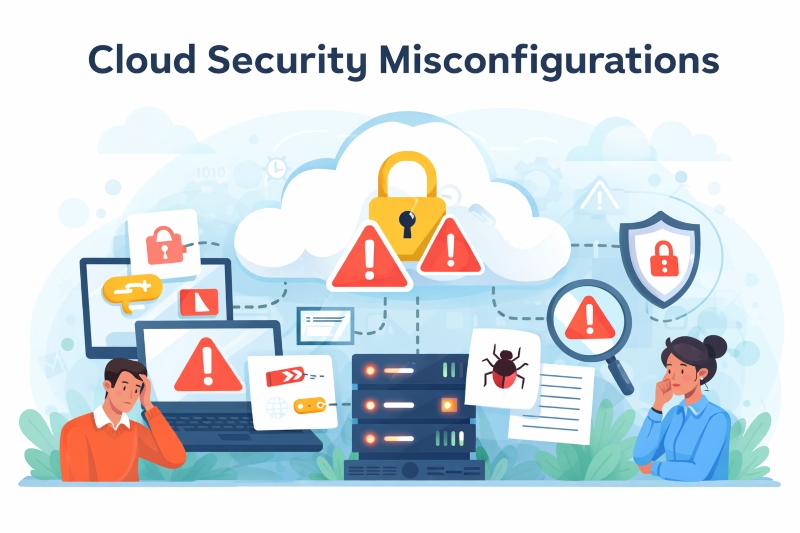
OneDrive is built into Windows and syncs your files to Microsoft’s cloud automatically. If you’ve never reviewed its settings, there’s a real chance it’s sharing more than you intended.
Step 1: Check Which Folders Are Syncing
Windows 10 & 11 — Review OneDrive Sync Settings: 1) Click the OneDrive cloud icon in your taskbar (bottom-right). 2) Select Settings (gear icon), then click Settings from the menu. 3) Go to the Account tab and click Choose folders. 4) Uncheck any folders you do NOT want backed up to the cloud (e.g., Desktop, Documents if they contain sensitive data). 5) Click OK to save.
Step 2: Stop Sharing Files or Folders Publicly
Remove Public Sharing Links in OneDrive: 1) Open File Explorer and navigate to your OneDrive folder. 2) Right-click any file or folder, select OneDrive, then Manage access. 3) In the sharing panel, look for any link that says “Anyone with the link.” 4) Click the three dots next to that link and select Remove link. 5) Change sharing to Specific people if you need to share, instead of “Anyone.”
Warning: Never share a folder using “Anyone with the link” unless you intend it to be fully public. This is one of the most common cloud storage security mistakes made by everyday users.
Strengthen Your PC Security with Fortect
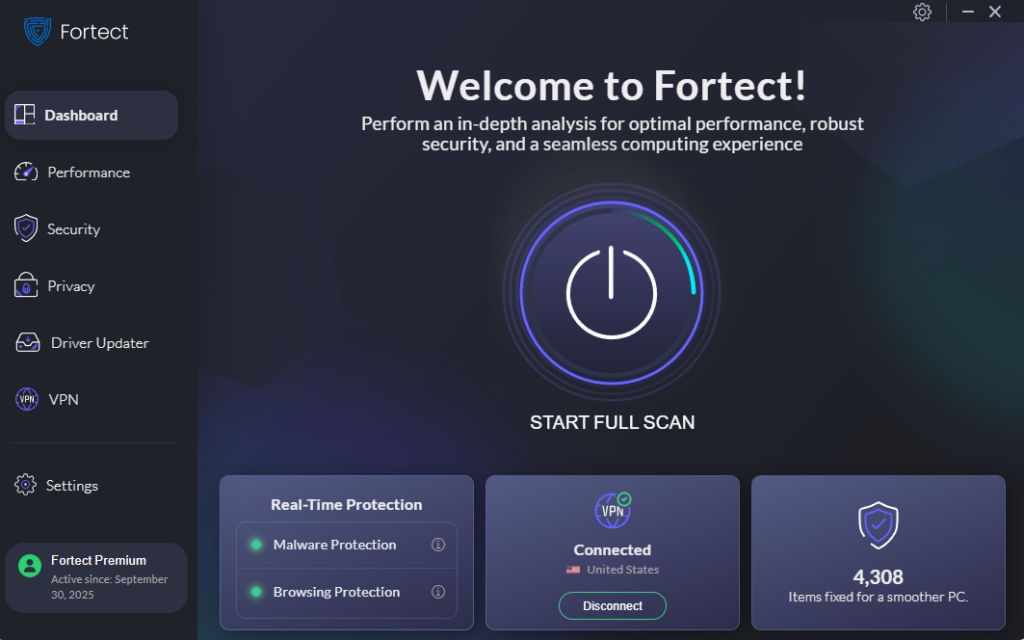
Even after fixing cloud security misconfigurations manually, your Windows PC can still be exposed to threats that slip through the cracks, corrupted system files, malware that hijacks your cloud sync settings, or unauthorized changes to your account permissions. That’s where Fortect comes in. Fortect delivers advanced real-time malware protection for Windows users, going a layer deeper to catch threats that settings alone can’t stop.
It automatically scans your PC for traditional and emerging threats, including malware that exploits cloud security misconfigurations to gain access to your synced files and folders, eliminates them safely, and restores damaged system files for improved performance. Its robust threat-detection engine monitors suspicious activity and alerts you before harmful actions can take place, helping keep your device secure and running efficiently, so you’re protected even when you’re not actively checking your settings.
Download and install Fortect today.
How to Secure Your Microsoft Account (Windows 10/11)
Your Microsoft account is the master key to OneDrive, Windows settings, and Microsoft 365. Securing it is the single most important step to fixing cloud account security misconfigurations.
Remove Unused App Permissions
Third-party apps that you’ve connected to your Microsoft account can read your files or data. If you’ve forgotten about them, they’re a silent cloud permission misconfiguration risk.
Revoke App Access from Your Microsoft Account: 1) Visit account.microsoft.com/privacy. 2) Click Apps and services, then Apps and services that can access your data. 3) Review the list. For any app you no longer use or don’t recognize, click it and select Remove these permissions.
Quick Tip: Do this review every few months. Apps you authorized years ago may still have access to your calendar, contacts, or OneDrive files.
Fix Windows 10/11 Privacy Settings Tied to the Cloud
Windows itself sends some data to Microsoft’s cloud by default. While most of this is diagnostic, tightening these settings reduces your overall cloud data exposure.
Enable Two-Factor Authentication (2FA)
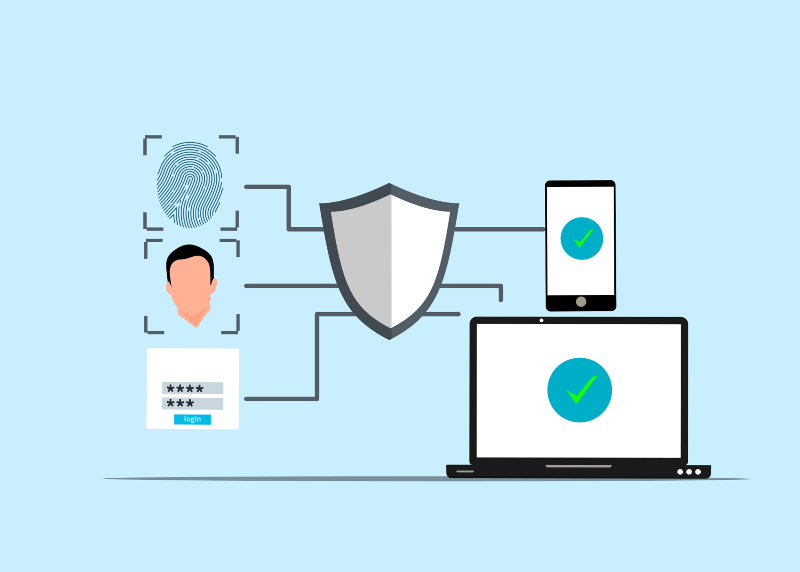
Turn On 2-Step Verification for Microsoft Account: 1) Go to account.microsoft.com in your browser and sign in. 2) Click on Security in the top navigation bar. 3) Select Advanced security options. 4) Under Two-step verification, click Turn on. 5) Follow the prompts to add your phone number or the Microsoft Authenticator app. 6) Click Finish. You’ll now need to verify your identity each time you sign in from a new device.
Limit Diagnostic & Activity Data Sent to Microsoft
Reduce Cloud Data Collection in Windows 10/11: 1) Open Settings (Win + I) and go to Privacy & security. 2) Click Diagnostics & feedback. 3) Under Diagnostic data, select Send required diagnostic data only (not Optional). 4) Scroll down to Activity history and toggle off Send my activity history to Microsoft. 5) Under Search permissions, turn off Cloud content search if you don’t want Microsoft to index your files.
Common Cloud Misconfiguration Mistakes and How to Avoid Them
- Public sharing link left active — Risk: High — Fix: Remove via OneDrive “Manage access.”
- No 2FA on Microsoft account — Risk: High — Fix: Enable at account.microsoft.com/security.
- Forgotten third-party app permissions — Risk: Medium — Fix: Revoke at account.microsoft.com/privacy.
- Desktop/Documents auto-syncing to cloud — Risk: Medium — Fix: Deselect folders in OneDrive settings.
- Weak or reused cloud password — Risk: High — Fix: Update password and use a password manager. Optional diagnostic data enabled — Risk: Low — Fix: Switch to “Required only” in Privacy settings.
Additional Tips to Prevent Cloud Security Issues
- Use a Strong, Unique Password: Your cloud account password should be at least 12 characters long and not reused from any other website. Consider using a free password manager like Bitwarden to generate and store strong passwords safely.
- Regularly Review Signed-In Devices: Check which devices are signed into your Microsoft account at account.microsoft.com/devices. Remove any devices you no longer own or recognize. Forgotten sign-ins are a common cloud access control misconfiguration.
- Keep Windows and OneDrive Updated: Security patches fix known vulnerabilities. To update Windows: 1) Press Win + I to open Settings. 2) Go to Windows Update. 3) Click Check for updates and install anything available. 4) Restart your PC when prompted.
Conclusion
Fixing cloud security misconfigurations doesn’t require any technical background, just a few minutes in the right settings menus. Start with two-factor authentication and a review of your OneDrive sharing settings, then work through the checklist above at your own pace. The small effort it takes today is far less painful than dealing with a compromised account later. Your files, photos, and personal data are worth protecting, and now you know exactly how to do it on Windows 10/11.
Related Reads:
Using Performance Monitor to Spot Unusual Activity




