
GPU Vulnerabilities: Risks and Fixes
Your graphics card does more than render stunning visuals; it processes sensitive data that hackers can exploit. GPU vulnerabilities have emerged as a serious security threat, putting your personal information, passwords, and system stability at risk. Understanding these graphics card security flaws and knowing how to protect yourself is essential for every Windows user.
What Are GPU Vulnerabilities?
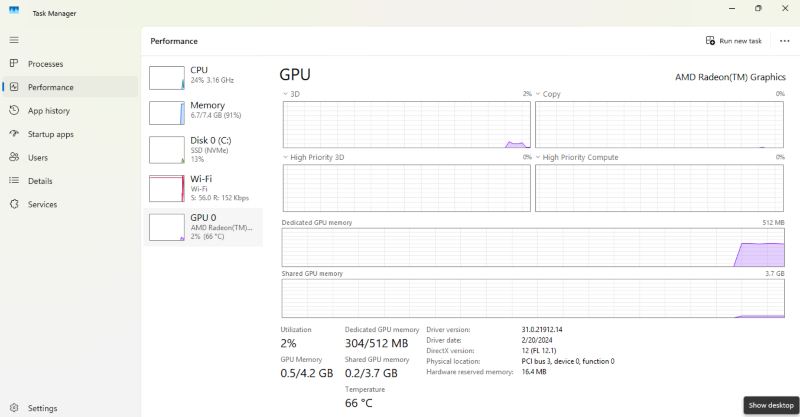
GPU vulnerabilities are security weaknesses in your graphics processing unit that cybercriminals can exploit to steal data, execute malicious code, or crash your system. Unlike traditional CPU attacks, these graphics card exploits target the specialized processors in NVIDIA, AMD, and Intel GPUs.
Common Types of Graphics Card Security Flaws
Side-channel attacks allow hackers to extract sensitive information by monitoring your GPU’s power consumption, timing, or electromagnetic emissions. Researchers have demonstrated stealing encryption keys and passwords through these methods.
Driver vulnerabilities represent the most frequent attack vector. Outdated or buggy graphics drivers contain security holes that malware can exploit to gain system-level access. These GPU driver security issues affect millions of users who neglect regular updates.
Memory corruption exploits occur when attackers manipulate GPU memory to execute unauthorized code. These buffer overflow attacks can bypass Windows security features and compromise your entire system.
WebGPU and browser-based threats emerged with hardware-accelerated web graphics. Malicious websites can exploit GPU rendering vulnerabilities to steal data from other browser tabs or execute code on your machine.
Real Risks to Your Windows PC
GPU security risks extend beyond theoretical concerns; they have tangible consequences for everyday users.
Data Theft and Privacy Breaches
Hackers exploit GPU vulnerabilities to steal passwords, credit card information, and personal files. Machine learning applications and cryptocurrency wallets are particularly vulnerable since GPUs process this sensitive data directly.
System Instability and Crashes
Exploiting graphics card weaknesses can cause blue screens, system freezes, and corrupted files. Some attacks deliberately crash your GPU to create denial-of-service conditions.
Cryptojacking and Performance Issues
Cybercriminals inject malware that hijacks your GPU’s processing power to mine cryptocurrency without your consent. This GPU malware slows your computer, increases electricity bills, and accelerates hardware wear.
Privilege Escalation
Attackers leverage GPU vulnerabilities to gain administrator rights on your Windows system. Once inside, they can disable security software, install ransomware, or create persistent backdoors.
How to Protect Your GPU and Fix Security Issues
Securing your graphics card requires proactive measures and regular maintenance. Follow these practical steps to defend against GPU attacks.
Step 1: Update Your Graphics Drivers
Keeping drivers current patches known vulnerabilities and improves GPU security.
For Windows 10/11:
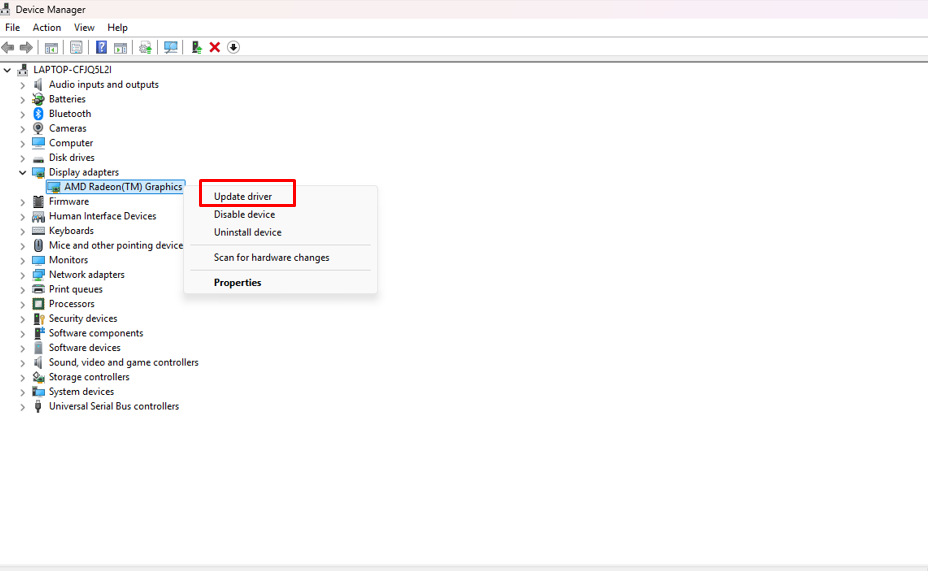
- Press Windows key + X and select Device Manager
- Expand the Display adapters section
- Right-click your graphics card and choose Update driver
- Select Search automatically for drivers
- Restart your computer after installation completes
Alternatively, download drivers directly from NVIDIA, AMD, or Intel’s official websites for the latest security patches.
Step 2: Enable Windows Security Features
Configure Windows Defender:
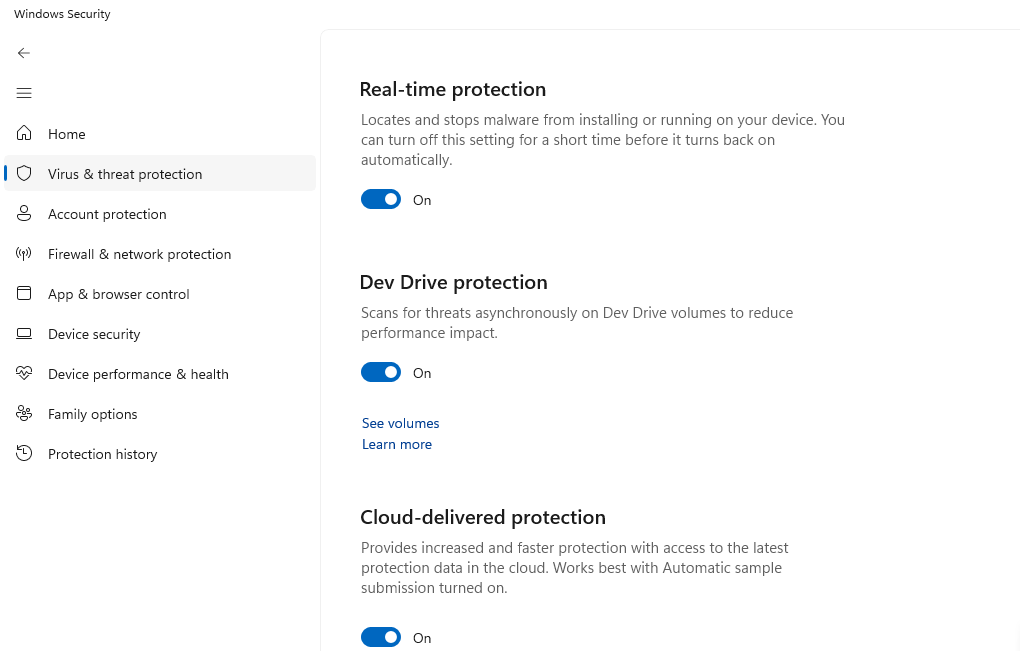
- Open Settings (Windows key + I)
- Navigate to Privacy & security > Windows Security
- Click Virus & threat protection
- Select Manage settings and ensure Real-time protection is turned on
- Enable Cloud-delivered protection for advanced threat detection
Step 3: Update Windows for GPU Security Patches
Microsoft releases critical GPU vulnerability fixes through Windows Update.
For Windows 10/11:
- Press Windows key + I to open Settings
- Select Windows Update (or Update & Security in Windows 10)
- Click Check for updates
- Install all available updates, especially optional driver updates
- Restart when prompted
Enable automatic updates to receive GPU security patches immediately.
Step 4: Restrict Unnecessary GPU Access
Limit which applications can access your graphics card to reduce attack surfaces.
To manage GPU permissions:
- Open Settings > System > Display
- Scroll down and click Graphics settings
- Review apps with hardware acceleration enabled
- Select suspicious applications and choose Options
- Set to Power saving mode to restrict GPU access
Step 5: Use Browser Security Extensions
Install extensions that block WebGPU exploits and prevent malicious websites from accessing your graphics hardware. Disable hardware acceleration in browsers when visiting untrusted sites.
Step 6: Monitor GPU Activity
Watch for unusual GPU usage that indicates cryptojacking or malware.
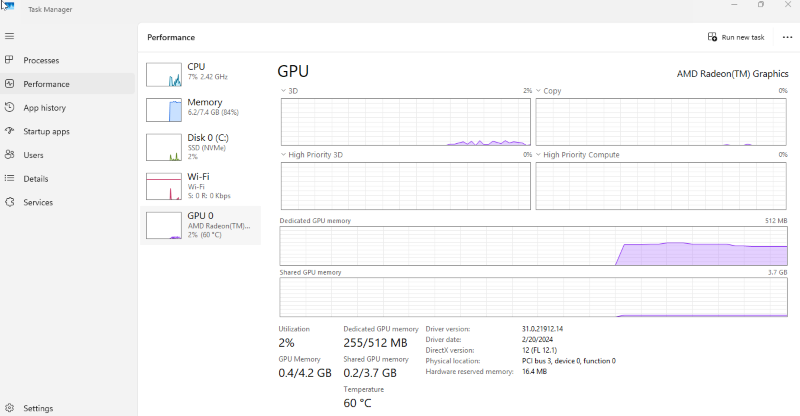
Check GPU performance:
- Press Ctrl + Shift + Esc to open Task Manager
- Click the Performance tab
- Select GPU from the left panel
- Monitor usage when idle, activity above 10% warrants investigation
Use Fortect for Complete Protection
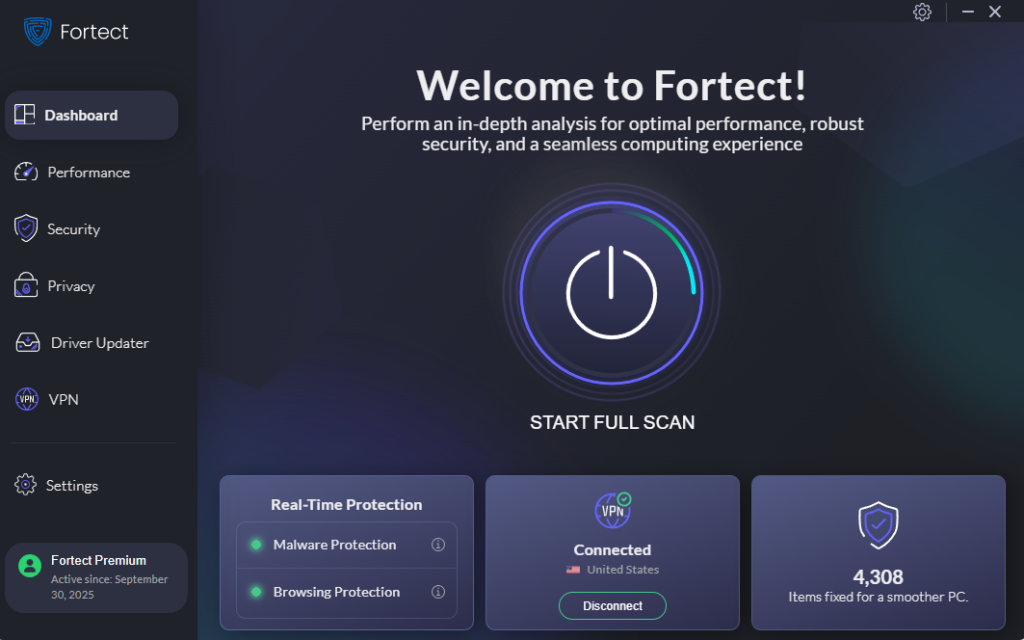
Fortect is a powerful and intelligent antivirus solution with real-time malware protection designed to keep your Windows PC secure. It automatically detects and removes potential threats, including GPU vulnerabilities and graphics driver exploits, that attackers may use to compromise your system. Beyond protection, Fortect optimizes overall performance, ensuring your computer runs smoothly.

Fortect Premium also features a built-in Driver Updater that scans for outdated or corrupted GPU and system drivers, then safely replaces them with verified versions from trusted sources. This proactive approach is crucial because cybercriminals often target outdated drivers to inject malware or gain unauthorized access. By keeping all drivers, especially GPU-related ones, secure and updated, Fortect closes potential attack points and strengthens your PC’s defenses. The result is a faster, cleaner, and fully protected system ready to perform at its best.
Download Fortect now.
Additional GPU Protection Best Practices
Avoid downloading graphics drivers from third-party websites; always use official manufacturer sources. Consider disabling unused GPU features in your BIOS settings to minimize potential attack vectors.
Keep firmware updated for your graphics card when manufacturers release security updates. Join your GPU manufacturer’s security advisory mailing list to stay informed about new threats and patches.
Conclusion
GPU vulnerabilities pose genuine security risks to Windows users, but you can significantly reduce your exposure through regular driver updates, Windows security features, and vigilant monitoring. By implementing these protective measures, you’ll safeguard your personal data, maintain system stability, and keep your graphics card secure from evolving threats. Don’t wait for an attack; secure your GPU today.




