Fix Slowdowns Caused by AI Features on Windows
Windows has integrated artificial intelligence capabilities that promise enhanced productivity and smarter computing. However, many users report significant performance issues after enabling these AI-powered tools. If your PC feels sluggish since AI features arrived, you’re experiencing a common problem with straightforward solutions.
Understanding Why AI Features Slow Down Your Computer
AI features consume substantial system resources because they perform complex calculations locally on your device. Windows Copilot, live captions, background intelligence, and AI-enhanced search all require processing power, memory, and storage that might overwhelm older or mid-range computers.
Resource-Intensive AI Processes
Modern AI tools use machine learning models that constantly analyze your activities, index files, and process requests in real-time. These background operations compete with your regular applications for CPU cycles and RAM, creating noticeable lag during everyday tasks like browsing, document editing, or gaming.
Hardware Compatibility Issues
Many AI features were designed for newer processors with dedicated neural processing units. Running these features on systems without NPU support forces your standard CPU to handle the workload, dramatically increasing resource consumption and heat generation.
Disable Windows Copilot to Improve Performance
Windows Copilot is the most resource-demanding AI feature in Windows 11. Disabling it can immediately free up significant system resources.
Optimize System Performance with Fortect
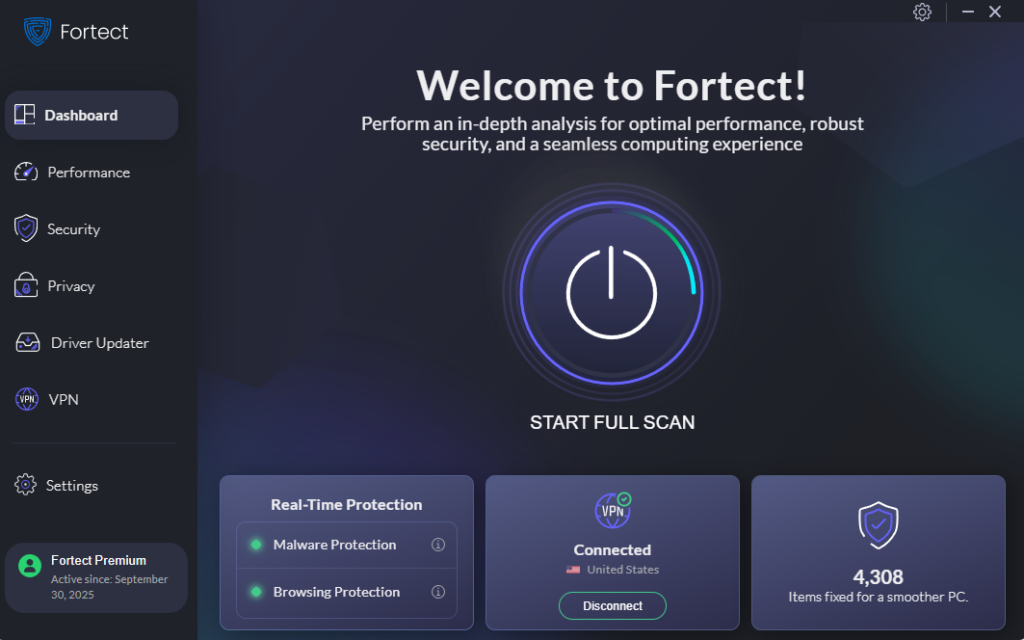
While AI features slowing down Windows can often be resolved through manual adjustments, underlying system issues may compound performance problems. Fortect provides comprehensive PC optimization that goes beyond basic troubleshooting, automatically scanning your system for corrupted files and resource-hogging processes that amplify slowdowns caused by AI features.
The software’s smart diagnostic engine identifies damaged system components that interfere with normal operations, safely repairs them, and restores optimal performance levels. This is particularly valuable when AI features have caused system instability or file corruption that manual fixes cannot address.
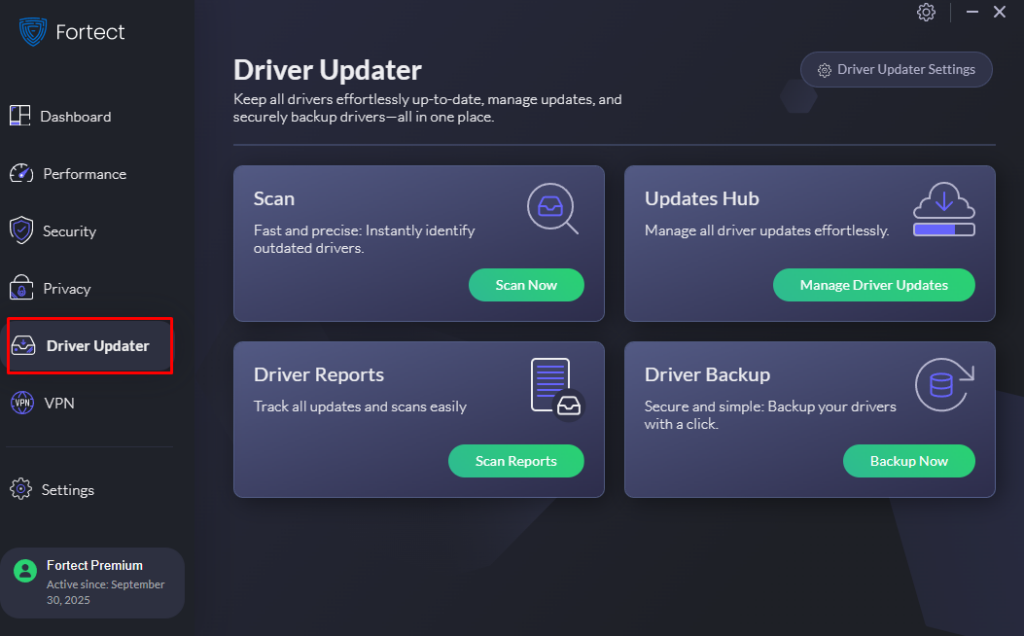
Fortect Premium includes an advanced Driver Updater that ensures all hardware components run with the latest, most efficient drivers. Outdated drivers frequently conflict with new AI features, creating performance bottlenecks and system crashes. By automatically installing verified driver versions from trusted sources, Fortect eliminates compatibility issues that contribute to AI-related slowdowns while maintaining system stability and security.
Download and install Fortect today.
Steps to Turn Off Copilot in Windows 11
- Right-click the taskbar and select Taskbar settings
- Scroll down to Taskbar items
- Toggle off Copilot
- Restart your computer to ensure all background processes stop
Alternatively, disable Copilot through Settings by navigating to Settings > Personalization > Taskbar and turning off the Copilot toggle.
Optimize Search Indexing and AI-Enhanced Search
Windows Search with AI enhancement continuously indexes your files and learns from your behavior, consuming considerable disk and CPU resources.
Reduce Search Indexing Load
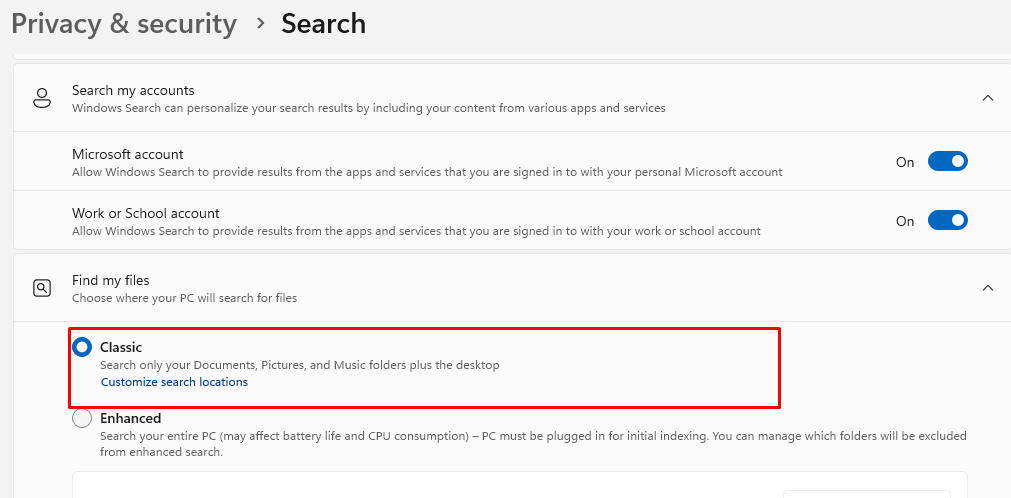
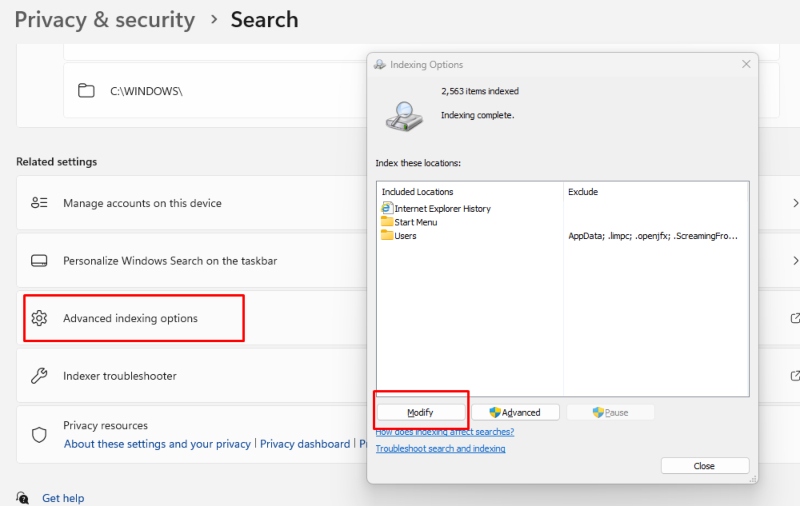
- Open Settings and select Privacy & security
- Click Searching Windows
- Select Find my files and choose Classic instead of Enhanced
- Click Advanced Search Indexer Settings
- Select Modify and uncheck folders you don’t need indexed
- Click OK and then Close
This prevents Windows from constantly scanning and analyzing files you rarely access, significantly reducing background activity.
Disable Unnecessary AI Background Services
Multiple AI-powered services run automatically in Windows, consuming resources even when not actively used.
Turn Off AI Features in Windows 10/11

- Press Windows + I to open Settings
- Navigate to Privacy & security
- Select General
- Disable Let apps use advertising ID
- Go to Speech
- Turn off Online speech recognition
- Return to Privacy & security and select Diagnostics & feedback
- Change diagnostic data collection to Required diagnostic data only
These adjustments prevent AI systems from continuously learning your patterns and transmitting data, freeing valuable system resources.
Manage Startup Programs and AI Tools
AI applications often configure themselves to launch at startup, immediately consuming resources when you boot your computer.
Control Startup Impact on Windows 10/11
- Press Ctrl + Shift + Esc to open Task Manager
- Click the Startup apps tab
- Review each application’s startup impact rating
- Right-click any AI-related apps with “High” impact
- Select Disable
- Restart your computer for changes to take effect
Focus on disabling AI assistants, machine learning tools, and intelligent system monitors that aren’t essential for your workflow.
Adjust Visual Effects and Animation Settings
AI-driven visual enhancements like smart animations and predictive UI elements add processing overhead without meaningful benefits.
Optimize Visual Performance
- Press Windows + I and open System
- Select About and click Advanced system settings
- Under Performance, click Settings
- Choose Adjust for best performance or manually uncheck AI-enhanced effects
- Click Apply then OK
This configuration prioritizes system responsiveness over visual flair, particularly beneficial for computers struggling with AI feature overhead.
Update Windows for AI Optimization Patches
Microsoft regularly releases updates that improve AI feature efficiency and fix performance bugs.
Check for Windows Updates
- Open Settings by pressing Windows + I
- Select Windows Update from the left sidebar
- Click Check for updates
- Install all available updates, especially optional updates
- Restart your computer when prompted
Recent updates have included optimizations specifically addressing AI-related slowdowns, making this step essential for maintaining peak performance.
Monitor and Identify AI Resource Hogs
Understanding which AI features consume the most resources helps you make informed decisions about what to disable.
Use Task Manager for AI Process Monitoring
- Open Task Manager with Ctrl + Shift + Esc
- Click More details if needed
- Sort by CPU or Memory usage
- Identify processes related to AI, search indexing, or Copilot
- Note which processes consistently show high usage
This diagnostic approach reveals specific bottlenecks, allowing targeted optimization rather than blanket disabling of all AI features.
Conclusion
AI features in Windows offer impressive capabilities but demand substantial computing resources. By selectively disabling resource-intensive AI tools, optimizing search indexing, managing startup programs, and keeping your system updated, you can restore smooth performance without sacrificing essential functionality. Implement these solutions based on your specific slowdown symptoms and hardware capabilities for the best results.