Fix & Prevent 7-Zip Remote Code Execution Vulnerabilities
7-Zip is one of the most popular file compression tools for Windows users, but recent security vulnerabilities have put millions of computers at risk. Remote code execution (RCE) flaws in 7-Zip allow attackers to run malicious code on your system simply by getting you to open a compromised archive file. Understanding these vulnerabilities and taking immediate action can protect your personal data and keep your Windows PC secure.
What Are 7-Zip Remote Code Execution Vulnerabilities?
Remote code execution vulnerabilities in 7-Zip are security flaws that let cybercriminals execute harmful code on your computer without your permission. These exploits work when you extract or even preview specially crafted archive files like ZIP, RAR, or 7Z formats.
How These Vulnerabilities Work
When 7-Zip processes a malicious archive, the vulnerability triggers before you even realize something is wrong. Attackers embed exploit code within compressed files that takes advantage of memory corruption issues or buffer overflow problems in older 7-Zip versions. Once activated, this code can install malware, steal passwords, or give hackers complete control over your system.
The danger is particularly serious because 7-Zip integrates directly into Windows Explorer, meaning these attacks can happen with a simple right-click or double-click on a downloaded file.
How to Update 7-Zip on Windows 10/11
Keeping 7-Zip updated is your first line of defense against security exploits. Here’s how to update the software on your Windows computer:
Step 1: Strengthen Your PC Security with Fortect
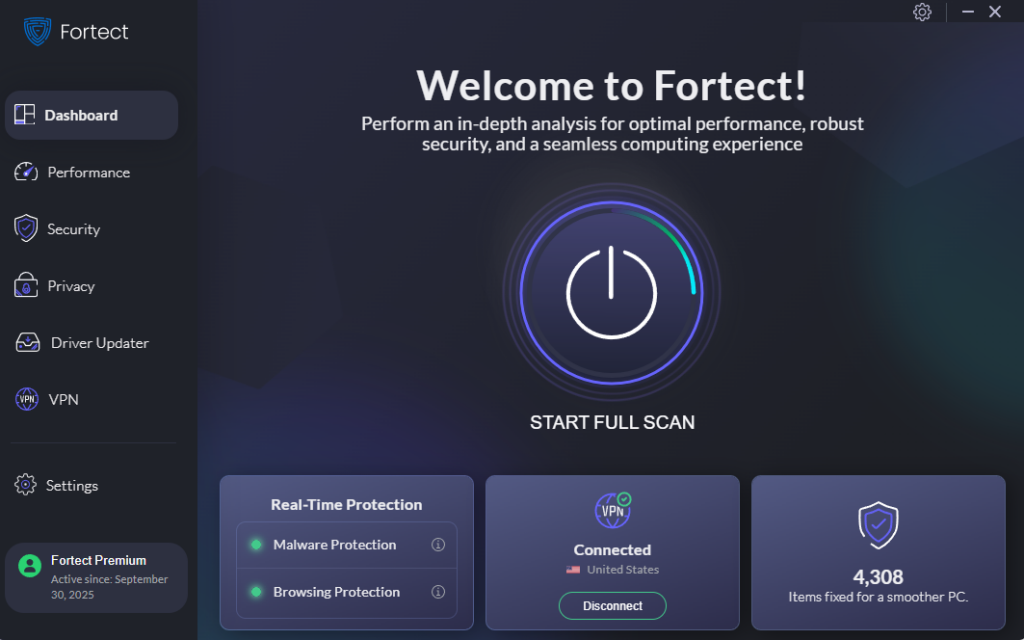
Fortect delivers advanced real-time malware protection for Windows users. It automatically scans your PC for traditional and emerging threats, including vulnerabilities in 7-Zip, eliminates them safely, and restores damaged system files for improved performance. Its smart threat-detection engine monitors suspicious activity and alerts you before harmful actions occur, helping keep your device secure and running efficiently.
Download and install Fortect now.
Step 2: Check Your Current Version
- Open 7-Zip File Manager from your Start menu
- Click “Help” in the top menu bar
- Select “About 7-Zip”
- Note the version number displayed
Step 3: Download the Latest Version
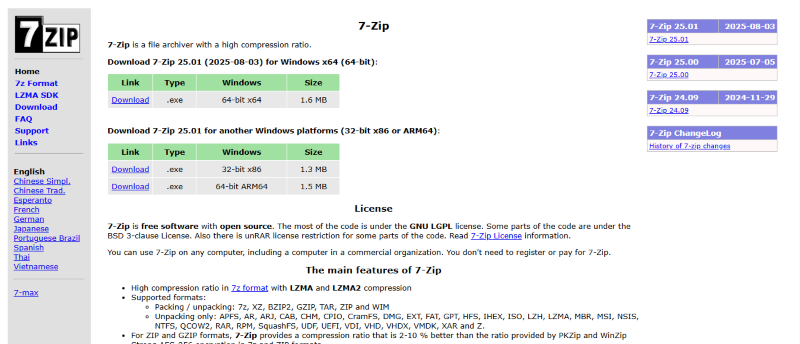
- Visit the official 7-Zip website at www.7-zip.org
- Click the appropriate download link for your system (64-bit for most modern Windows PCs)
- Save the installer file to your Downloads folder
Step 4: Install the Update
- Close any open 7-Zip windows and Windows Explorer windows
- Double-click the downloaded installer file
- Click “Yes” when Windows asks for permission
- Follow the installation prompts, selecting “Install” to replace your current version
- Click “Finish” once installation completes
Your 7-Zip installation is now updated with the latest security patches.
How to Enable Automatic Windows Updates
Since 7-Zip doesn’t update automatically, keeping your Windows operating system current helps protect against related vulnerabilities. Here’s how to ensure automatic updates are enabled:
For Windows 10
- Press Windows key + I to open Settings
- Click “Update & Security”
- Select “Windows Update” from the left sidebar
- Click “Check for updates”
- Click “Advanced options”
- Ensure “Automatic (recommended)” is selected under update settings
For Windows 11
- Press Windows key + I to open Settings
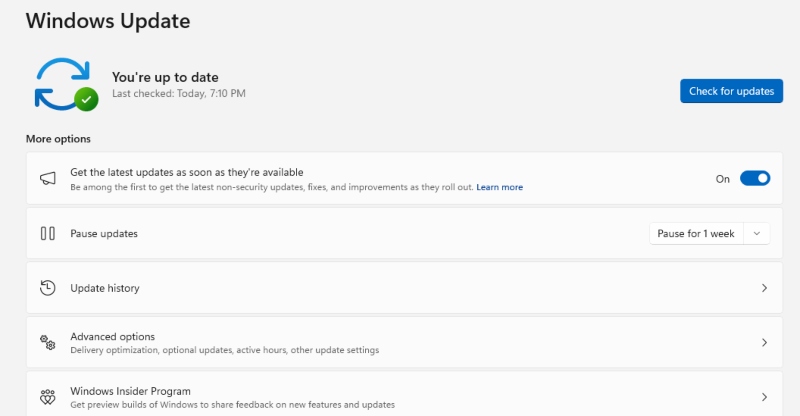
- Click “Windows Update” in the left panel
- Click “Check for updates”
- Select “Advanced options”
- Toggle on “Receive updates for other Microsoft products”
Additional Security Measures for 7-Zip Users
Verify File Sources
Only extract archive files from trusted sources. Email attachments and file-sharing websites are common distribution methods for malicious archives. If you receive an unexpected compressed file, contact the sender before opening it.
Use Windows Defender
Windows 10 and 11 include built-in antivirus protection that scans files before extraction. Ensure Windows Defender is active and up-to-date to catch known threats.
Disable Shell Integration for Untrusted Files
If you frequently download files from the internet, consider extracting archives in a sandboxed environment or using Windows Sandbox for testing suspicious files before extracting them on your main system.
Keep Regular Backups
Maintain current backups of your important files using Windows Backup or an external drive. If an exploit compromises your system, you can restore your data without paying ransoms or losing irreplaceable files.
Signs Your System May Be Compromised
Watch for these warning signs after extracting archive files: unexpected system slowdowns, new programs appearing without installation, disabled antivirus software, or unusual network activity. If you notice these symptoms, disconnect from the internet immediately and run a full system scan with Windows Defender.
Stay Protected Against Future Vulnerabilities
Security researchers continue discovering new vulnerabilities in compression software. Subscribe to security bulletins, check for 7-Zip updates monthly, and maintain healthy skepticism about files from unknown sources. Your proactive approach to software updates and digital hygiene is the best defense against remote code execution attacks.
By following these steps and maintaining updated software, you can continue using 7-Zip safely while protecting your Windows computer from exploitation.