Windows Optional Features & Legacy Drivers That Attackers Exploit
Your Windows computer comes with hidden vulnerabilities that hackers actively target. Optional features and outdated drivers create security gaps that cybercriminals exploit to gain unauthorized access to your system. Understanding these risks and taking action protects your personal data, photos, and files from potential threats.
What Are Windows Optional Features and Why Do They Matter?
Windows optional features are additional components you can enable or disable on your system. While Microsoft includes these for compatibility and advanced functionality, many remain active by default even when you don’t use them. Each enabled feature expands your attack surface, giving hackers more potential entry points.
Common optional features that attackers target include SMBv1 (Server Message Block version 1), Internet Explorer components, PowerShell version 2.0, and Windows Media Features. These legacy components contain known vulnerabilities that malware and ransomware exploit regularly.
SMBv1: The Ransomware Gateway
SMBv1 is an outdated file-sharing protocol that enabled the devastating WannaCry ransomware attack in 2017. Despite its dangers, this feature still exists on many Windows systems. Attackers use SMBv1 vulnerabilities to spread malware across networks and encrypt your files for ransom.
PowerShell 2.0: The Hacker’s Toolkit
PowerShell 2.0 lacks modern security features like logging and script blocking. Cybercriminals prefer this version because it helps them hide malicious activities and bypass antivirus detection. If you don’t specifically need PowerShell 2.0 for legacy software, removing it strengthens your security.
How to Disable Dangerous Optional Features in Windows 10/11
Taking control of optional features requires just a few minutes. Follow these steps to secure your system:
Steps to Access Optional Features
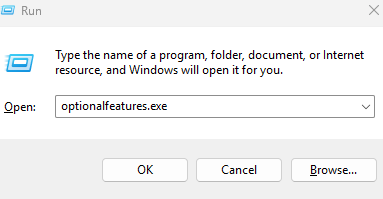
- Press the Windows key + R to open the Run dialog
- Type optionalfeatures.exe and press Enter
- The Windows Features window will appear with a list of all optional components
Steps to Disable Risky Features
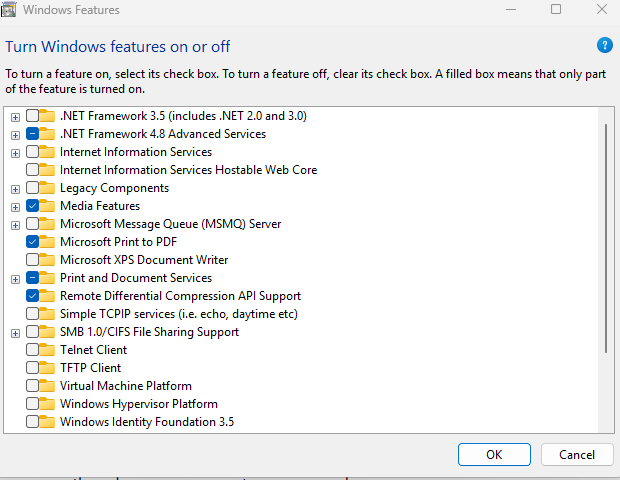
- In the Windows Features window, scroll through the list carefully
- Uncheck SMB 1.0/CIFS File Sharing Support to remove this vulnerable protocol
- Uncheck Windows PowerShell 2.0 if you don’t use legacy scripts
- Uncheck Internet Explorer 11 and related components if you use modern browsers
- Click OK to apply changes
- Restart your computer when prompted to complete the removal
Windows will take several minutes to uninstall these features. Your system becomes more secure once these legacy components are removed.
The Hidden Danger of Legacy Drivers
Legacy drivers are older device software that manufacturers no longer update. These outdated drivers contain security flaws that attackers exploit to gain system-level access. Once compromised through a driver vulnerability, hackers control your entire computer.
Common Legacy Driver Risks
Outdated graphics drivers, printer drivers, and chipset drivers present significant risks. Attackers use driver exploits to bypass Windows security features, install rootkits, and maintain persistent access to your system. Even if you run antivirus software, compromised drivers operate at a level below most security tools.
How to Update Drivers and Remove Outdated Versions
Keeping drivers current eliminates known vulnerabilities that cybercriminals target.
Steps to Update Drivers in Windows 10/11
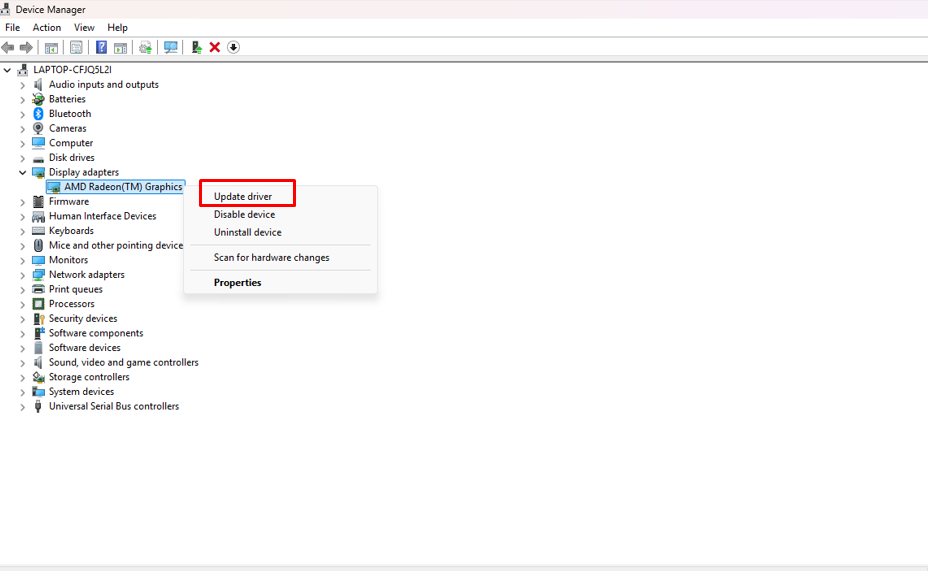
- Right-click the Start button and select Device Manager
- Expand each category to view installed devices
- Right-click any device and select Update driver
- Choose Search automatically for drivers
- Windows will download and install the latest version if available
- Repeat this process for all critical devices (graphics cards, network adapters, chipsets)
Steps to Check for Driver Updates via Windows Update
- Press Windows key + I to open Settings
- Click Windows Update (or Update & Security in Windows 10)
- Click Check for updates
- Select Advanced options
- Click Optional updates
- Check for any driver updates listed and install them
- Restart your computer to complete the installation
Visit your computer manufacturer’s website quarterly to download the latest drivers. Hardware vendors often release security patches between Windows Update cycles.
Use Fortect for Complete Protection
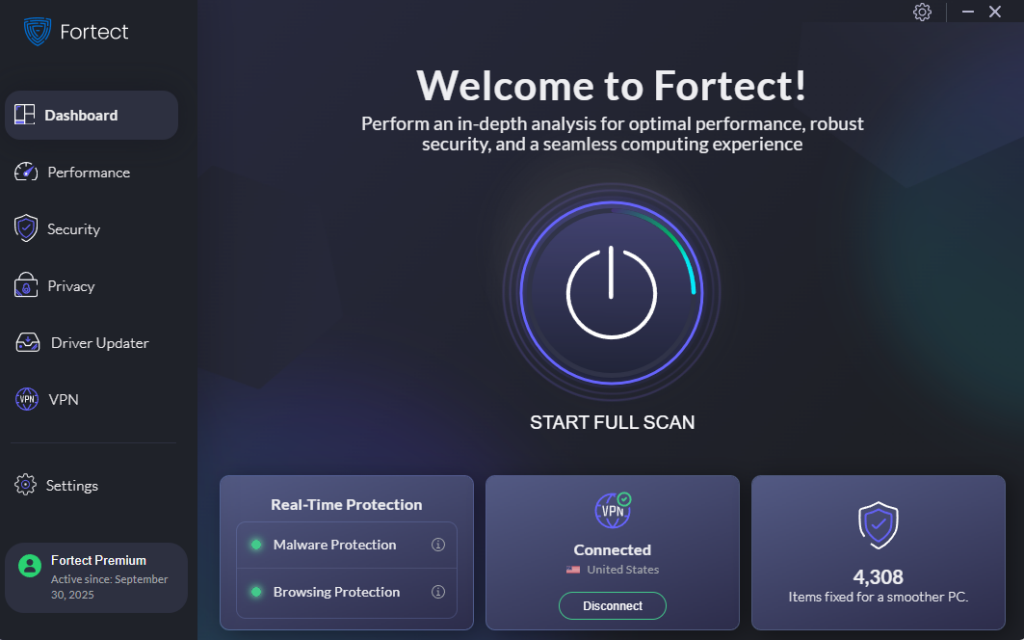
Fortect is a powerful and advanced antivirus with real-time malware protection. It automatically scans your Windows PC for any threats, such as exploits targeting optional features and legacy drivers, then removes and updates them safely and optimizes your system for better performance.
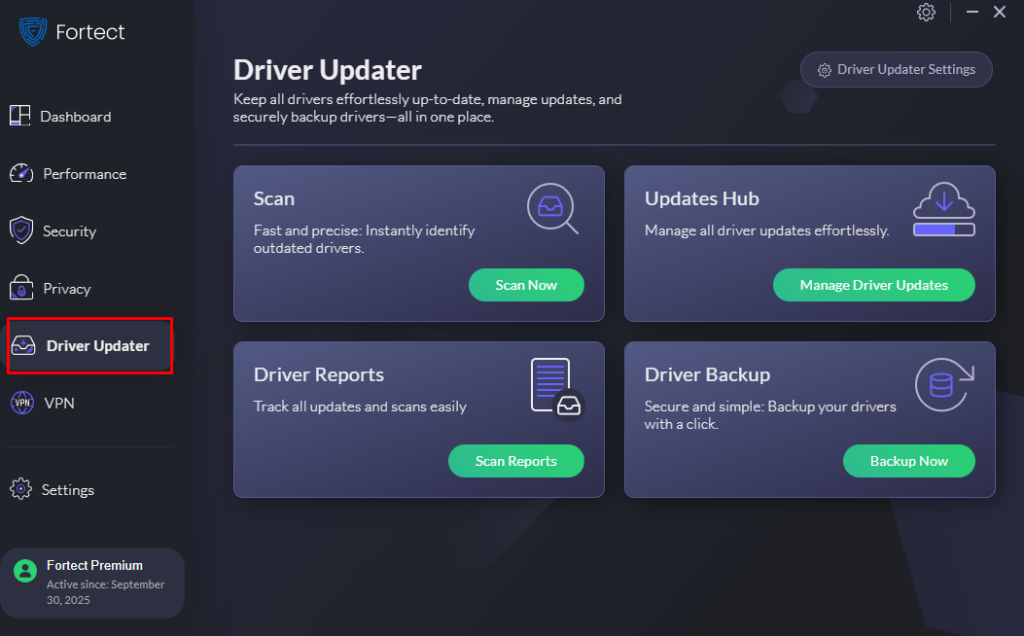
Fortect Premium comes with a built-in Driver Updater that automatically scans your PC for outdated or corrupted drivers and replaces them with secure versions from trusted sources. This feature is vital because cybercriminals can exploit compromised or outdated drivers. By keeping your drivers up-to-date, Fortect helps close these vulnerabilities and strengthen your system’s defenses. Once the
Download Fortect today.
Protecting Your System: Additional Security Measures
Beyond disabling optional features and updating drivers, implement these protective steps:
Keep Windows Update enabled and install security patches immediately. Enable Windows Defender or install reputable antivirus software. Use a standard user account instead of an administrator account for daily tasks. Enable Windows Firewall and configure it to block unauthorized connections.
Regular system maintenance prevents attackers from exploiting known vulnerabilities. Schedule monthly reviews of your optional features and driver status to ensure nothing has reverted or become outdated.
Take Action Today
Windows optional features and legacy drivers can expose home users to serious risks. Taking just 15 minutes to disable unsafe features and update drivers can greatly strengthen your PC’s security. Cybercriminals are always scanning for vulnerable systems. Don’t let yours be one of them.
Start by disabling SMBv1 and PowerShell 2.0, then update your drivers through Device Manager. These quick steps help protect your personal data, prevent ransomware attacks, and ensure your system is more resilient. If your device has reached its end of life or no longer receives driver updates or support, consider investing in a new, supported PC or hardware to maintain your security.