
SOLVED: Windows Slow Internet Despite Fast Connection
Is your Windows PC crawling at a snail’s pace online while your speed test shows blazing-fast internet? You’re not alone. Many users experience frustratingly slow browsing, streaming, and downloads despite having a high-speed connection. This guide reveals the actual culprits behind your sluggish performance and provides proven solutions to restore your internet speed.
Why Your Windows Internet Is Slow Despite Fast Speed Test Results
When your speed test shows 100+ Mbps but web pages take forever to load, the problem isn’t your internet service provider; it’s your Windows configuration. Network throttling, outdated drivers, background applications, and misconfigured DNS settings all sabotage your connection speed without affecting raw bandwidth measurements.
Clear Your DNS Cache to Fix Slow Browsing
Corrupted DNS cache entries force your browser to struggle to find websites, creating delays that feel like slow internet. Flushing this cache resolves most browsing speed issues instantly.
Steps to Flush DNS Cache
For Windows 10:
- Press Windows + X and select Command Prompt (Admin) or Windows PowerShell (Admin)
- Type ipconfig /flushdns and press Enter
- Wait for the confirmation message “Successfully flushed the DNS Resolver Cache”
- Restart your browser and test your connection
For Windows 11:
- Right-click the Start button and choose Terminal (Admin)
- Enter ipconfig /flushdns and press Enter
- Close the terminal after seeing the success message
- Reopen your browser to experience improved speeds
Optimize Your System Performance with Fortect
When Windows slows down your internet despite a fast connection, underlying system issues like corrupted files, junk data, and outdated drivers often share the blame. Fortect provides comprehensive system optimization that directly addresses performance bottlenecks affecting your browsing experience.
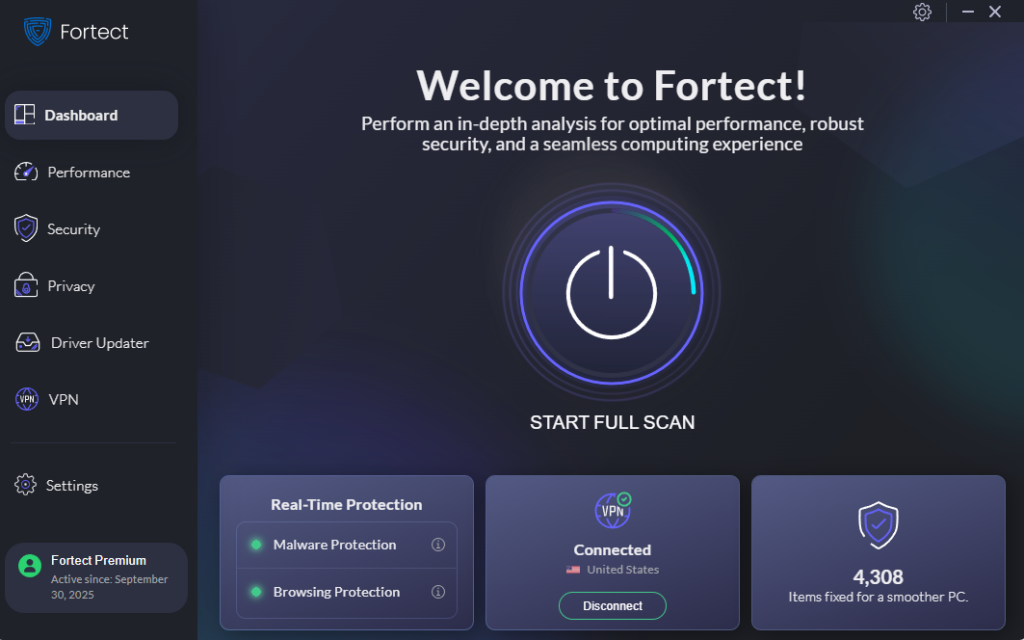
Fortect’s built-in performance scanner automatically identifies and removes junk files, crashed programs, and corrupted system components that interfere with network performance. By cleaning these digital roadblocks, it ensures your Windows system operates at peak efficiency, delivering the smooth browsing and download speeds your connection should provide.
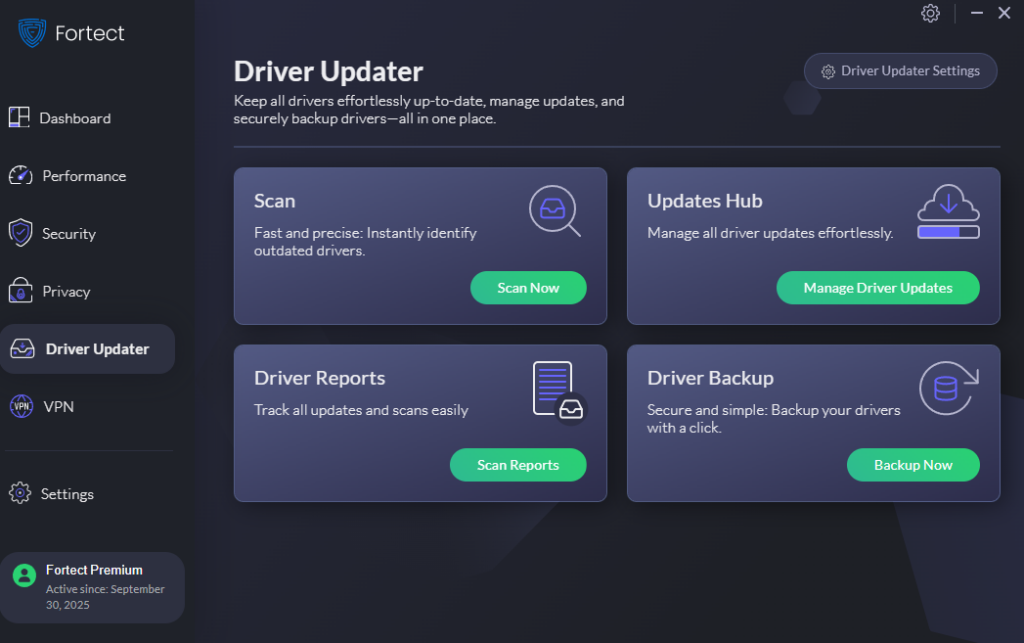
The software’s Driver Updater feature is particularly valuable for resolving slow internet issues, as it identifies and replaces outdated or corrupted network adapter drivers with secure, verified versions from trusted sources. Since outdated drivers are among the most common causes of Windows internet slowdowns, keeping them current through Fortect effectively eliminates this performance barrier while strengthening your PC’s overall stability and responsiveness.
Download and install Fortect now.
Disable Windows Update Bandwidth Throttling
Windows automatically limits how much bandwidth updates can consume, which paradoxically slows down your entire internet experience. Adjusting delivery optimization settings eliminates this bottleneck.
How to Stop Background Update Throttling
For Windows 10:
- Open Settings (Windows + I)
- Navigate to Update & Security > Delivery Optimization
- Click Advanced options
- Under Download settings, check Limit how much bandwidth is used
- Set both sliders to 100% or uncheck the box entirely
- Restart your computer
For Windows 11:
- Press Windows + I to open Settings
- Select Windows Update from the left sidebar
- Click Advanced options > Delivery Optimization
- Choose Advanced options again
- Toggle on Limit how much bandwidth is used and set to maximum
- Reboot your system
Update Your Network Adapter Drivers
Outdated or corrupted network drivers are the silent killers of internet performance. Windows doesn’t always install the optimal drivers automatically, leaving your adapter running inefficiently.
Steps to Update Network Drivers
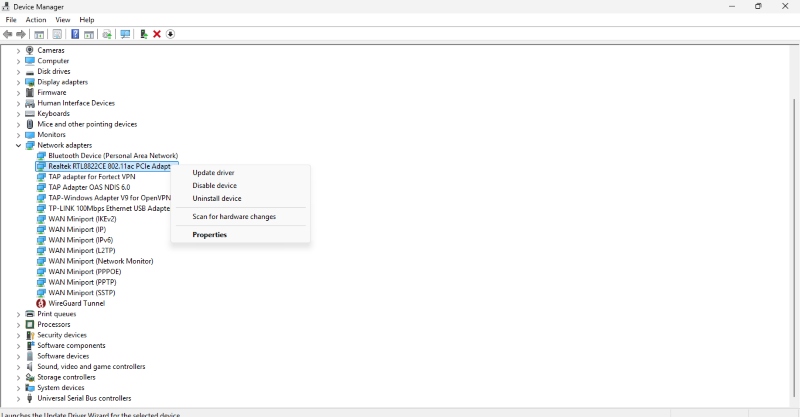
For Windows 10/11:
- Right-click Start and select Device Manager
- Expand Network adapters
- Right-click your active network adapter (usually containing “Ethernet” or “Wi-Fi”)
- Select Update driver
- Choose Search automatically for drivers
- If Windows finds nothing, visit your PC manufacturer’s website to download the latest driver manually
- Restart your computer after installation
Adjust Your DNS Server for Faster Resolution
Your ISP’s default DNS servers often respond slowly to website requests. Switching to faster public DNS servers like Google or Cloudflare dramatically improves page load times.
How to Change DNS Settings
For Windows 10:
- Open Control Panel > Network and Internet > Network and Sharing Center
- Click your active connection, then Properties
- Select Internet Protocol Version 4 (TCP/IPv4) and click Properties
- Choose Use the following DNS server addresses
- Enter 8.8.8.8 (Preferred) and 8.8.4.4 (Alternate) for Google DNS
- Check Validate settings upon exit and click OK
For Windows 11:
- Right-click the Network icon in the system tray
- Select Network and Internet settings
- Click your connection type (Ethernet or Wi-Fi)
- Scroll down and click Edit next to DNS server assignment
- Change to Manual, toggle on IPv4
- Enter 1.1.1.1 (Preferred DNS) and 1.0.0.1 (Alternate DNS) for Cloudflare
- Click Save
Disable Network-Hogging Background Apps
Dozens of applications silently consume bandwidth in the background, from cloud storage syncing to automatic updates. Identifying and restricting these programs frees up your connection.
Steps to Limit Background Data Usage
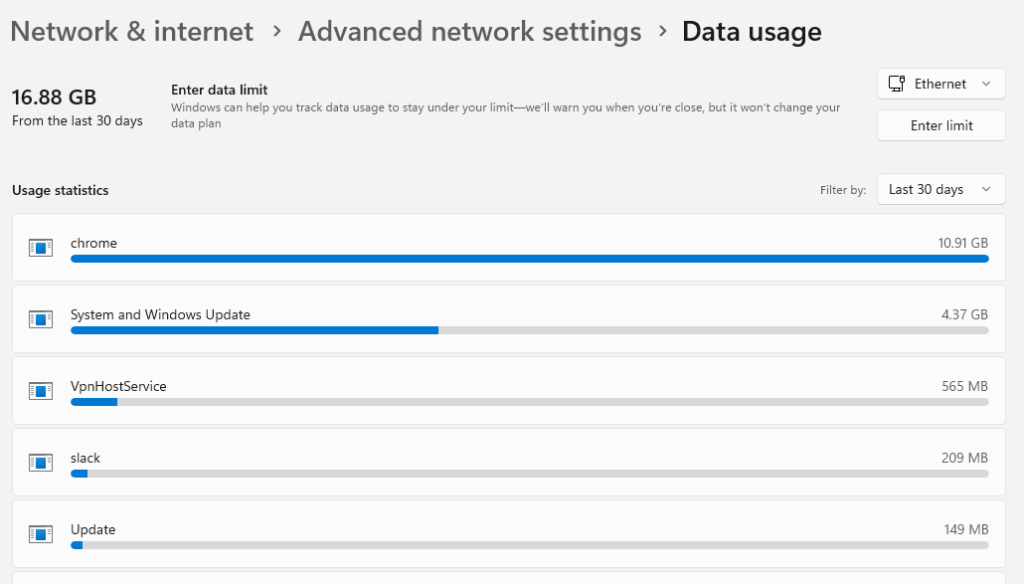
For Windows 10/11:
- Press Windows + I to open Settings
- Go to Network & Internet > Data usage
- Click View usage per app (Windows 10) or scroll to see app usage (Windows 11)
- Identify bandwidth-heavy applications like OneDrive, Dropbox, or Steam
- Close unnecessary programs or adjust their sync settings to manual
Quick Fixes That Restore Internet Speed
Sometimes simple solutions resolve complex-seeming problems. Try these immediate fixes before diving deeper:
- Restart your router and modem: Unplug for 30 seconds, then reconnect
- Disable VPN temporarily: VPNs can dramatically slow connection speeds
- Turn off Windows Auto-Tuning: Run netsh interface tcp set global autotuninglevel=disabled in Command Prompt (Admin)
- Check for malware: Run Windows Security full scan to eliminate bandwidth-stealing malware
Your Windows PC’s slow internet, despite a fast connection, stems from configuration issues, not your internet plan. By flushing DNS cache, updating drivers, optimizing Windows settings, and switching DNS servers, you’ll unlock your connection’s full potential and enjoy the speed you’re actually paying for.





