
SOLVED: Unnecessary Background Apps Draining CPU/RAM
Is your Windows PC running slower than usual? You’re not alone. Unnecessary background apps silently consume your system resources, causing sluggish performance, overheating, and reduced battery life. This guide shows you exactly how to identify and stop these resource hogs.
What Are Background Apps and Why Do They Drain Your System
Background apps are programs that run continuously even when you’re not actively using them. They perform tasks like checking for updates, syncing data, or sending notifications. While some are essential for system functionality, many unnecessarily drain CPU and RAM resources.
Common Signs Your Background Apps Are Causing Problems
- Slow startup times and application loading
- High CPU usage even when idle
- Excessive RAM consumption
- Overheating laptop or desktop
- Rapid battery drain on laptops
- System freezing or lagging during basic tasks
How to Check Which Background Apps Are Draining Resources
Before disabling apps, identify the culprits consuming your system resources.
Use Fortect for Automatic Detection and Optimization
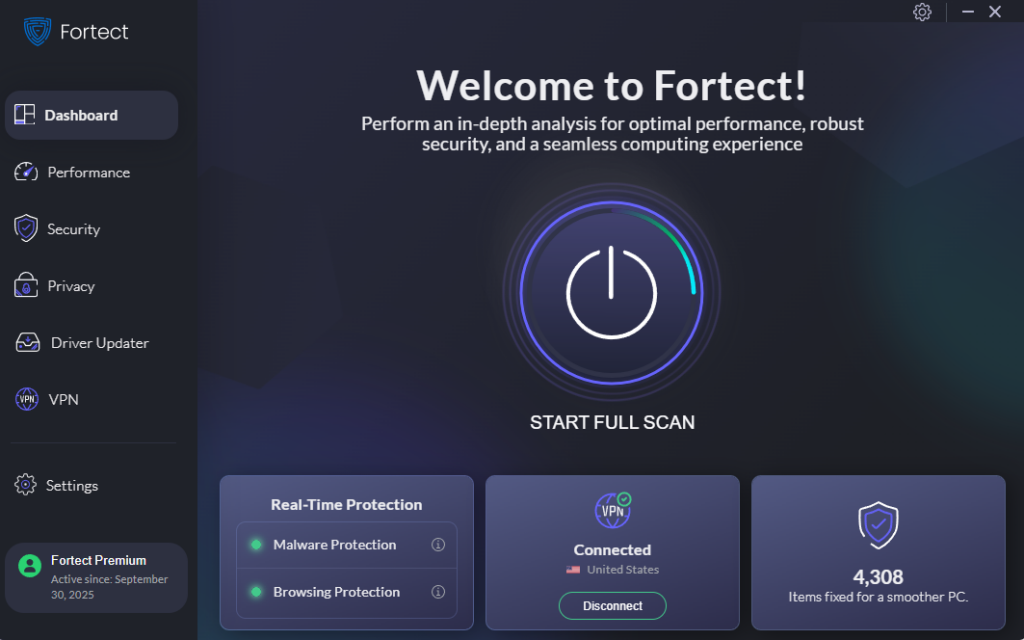
Fortect is a powerful and advanced anti-virus with real-time malware protection that automatically scans your Windows PC for any threats, including unnecessary background apps draining your CPU and RAM. After scanning, Fortect fixes detected issues and optimizes your computer for peak performance.
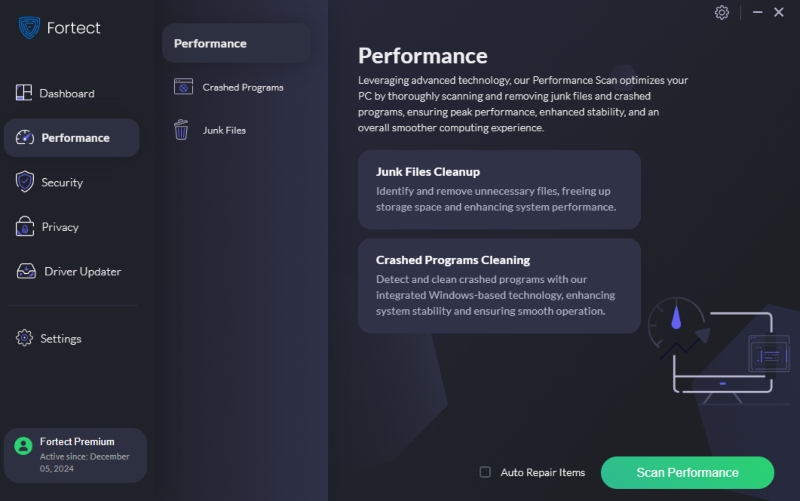
Beyond threat detection, Fortect functions as a comprehensive optimizer that scans and removes crashed programs and junk files to free storage space for a faster computer. Background apps that drain your CPU are automatically detected during the scan process. Once Fortect applies its optimizations, your computer delivers cleaner, faster, and more reliable performance without manual intervention.
Download and install Fortect today!
Manual Method: Check Resource Usage with Task Manager
Step 1: Open Task Manager
- Press Ctrl + Shift + Esc simultaneously
- Alternatively, right-click the taskbar and select Task Manager
- Click More details if you see a simplified view
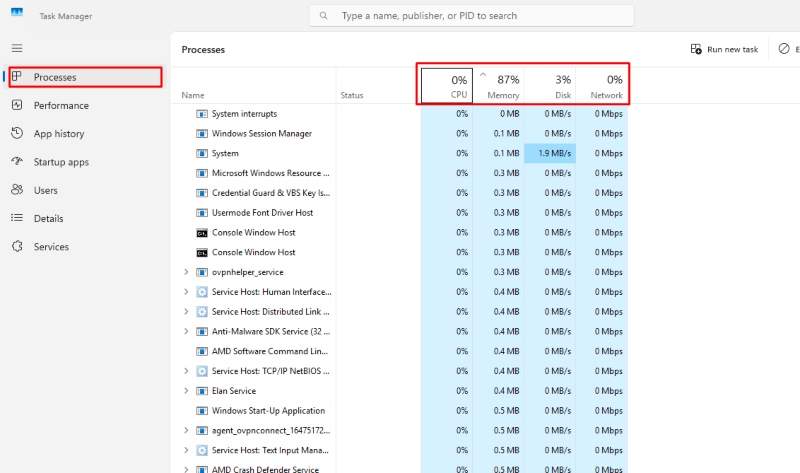
Step 2: Analyze Resource Usage
- Click the Processes tab
- Click the CPU column header to sort by processor usage
- Click the Memory column to sort by RAM consumption
- Look for apps using high percentages consistently
- Note any unfamiliar programs running in the background
Common resource-draining apps include chat applications, cloud storage services, gaming platforms, and pre-installed bloatware.
How to Disable Unnecessary Background Apps in Windows 10/11
Method 1: Through Windows Settings
For Windows 11:
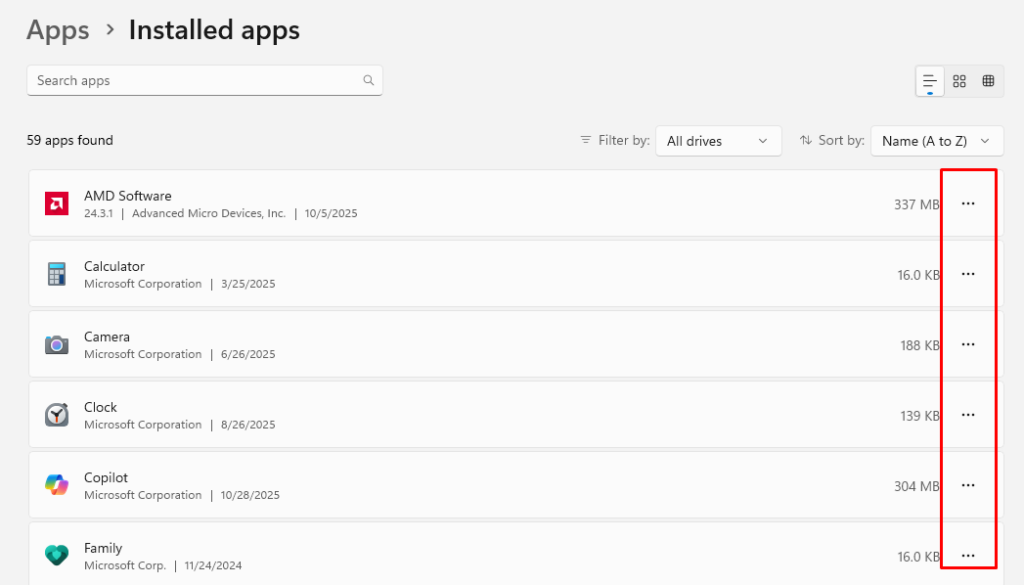
- Press Windows + I to open Settings
- Click Apps in the left sidebar
- Select Installed apps
- Scroll to find the app you want to disable
- Click the three-dot menu next to the app
- Select Advanced options
- Under Background apps permissions, choose Never
For Windows 10:
- Press Windows + I to open Settings
- Click Privacy
- Scroll down and select Background apps in the left menu
- Toggle off the switch for apps you don’t need running
- Alternatively, toggle off Let apps run in the background to disable all
Method 2: Disable Startup Programs
Many background apps launch automatically when Windows starts.
- Press Ctrl + Shift + Esc to open Task Manager
- Click the Startup tab
- Review the list of programs
- Right-click any unnecessary app
- Select Disable
- Restart your computer for changes to take effect
Focus on disabling startup items with “High” impact ratings first, as these significantly slow down boot times.
Method 3: End Background Processes
For immediate relief from resource drain:
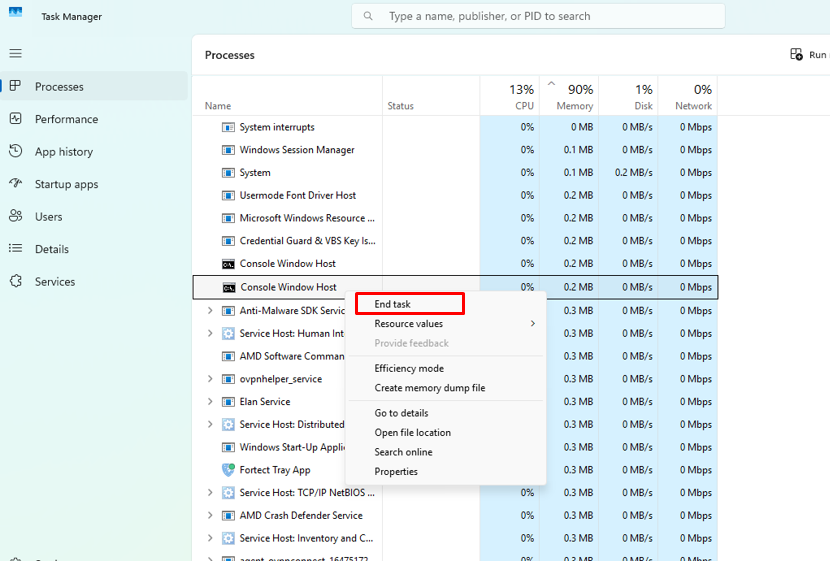
- Open Task Manager (Ctrl + Shift + Esc)
- Find the resource-heavy background app
- Right-click the process
- Select End task
- Confirm if prompted
Note that some system processes shouldn’t be terminated. Only end tasks from recognizable applications.
Apps You Should Keep Running in the Background
While disabling unnecessary apps improves performance, some should remain active:
- Windows Security: Protects against malware and threats
- Windows Update services: Ensures system security patches
- Graphics drivers: Maintains display performance
- Audio services: Required for sound functionality
- System services: Essential Windows components
Advanced Tips to Optimize Background App Performance
Adjust Power Settings
- Press Windows + X and select Power Options
- Choose High performance for desktop PCs
- For laptops, select Balanced and click Change plan settings
- Adjust sleep settings to close inactive apps faster
Clean Up System Resources
Regular maintenance prevents background app buildup. Clear temporary files monthly, uninstall unused programs completely, and use Disk Cleanup to remove system junk files that background processes might access.
Monitor Long-Term Resource Usage
Install Resource Monitor for detailed tracking. Press Windows + R, type “resmon” and hit Enter. This provides real-time data on how apps consume CPU, memory, disk, and network resources over time.
Results You’ll See After Disabling Unnecessary Background Apps
After following these steps, you should experience:
- Faster boot times and application loading
- Lower CPU temperatures and reduced fan noise
- Extended laptop battery life
- More available RAM for active programs
- Smoother multitasking and gaming performance
Most users report 20-40% improvement in system responsiveness after disabling resource-draining background apps.
Conclusion
Unnecessary background apps silently rob your Windows PC of valuable resources. By identifying these culprits through Task Manager and systematically disabling them through Windows Settings and Startup management, you’ll reclaim your system’s full performance potential. Start with the highest resource consumers, avoid disabling essential system services, and monitor your improvements. Your PC will thank you with faster speeds and better reliability.





