SOLVED: Supply-Chain Attacks on Printer/Scanner Drivers
Supply-chain attacks on printer and scanner drivers occur when cybercriminals compromise the software distribution process, injecting malware into legitimate driver updates before they reach your computer. These attacks exploit your trust in manufacturer software, turning routine driver installations into security threats.
Unlike traditional malware that tries to break through your defenses, supply-chain attacks arrive disguised as trusted updates from HP, Canon, Epson, or other printer manufacturers. This makes them particularly dangerous for Windows users who regularly update their devices.
Why Printer Drivers Are Vulnerable Targets
Printer drivers require deep system access to communicate with your hardware, making them attractive targets for attackers. These drivers run with elevated privileges, giving malicious code significant control over your system. Recent incidents have shown that compromised driver updates can install backdoors, steal personal data, or turn your computer into part of a botnet.
How Supply-Chain Attacks Compromise Your System

The Attack Process Explained
Attackers infiltrate manufacturer websites, third-party driver repositories, or software update servers. They replace legitimate driver files with infected versions that look identical to authentic updates. When you download and install what appears to be a normal printer driver, you’re actually installing malware alongside functional driver software.
Common Entry Points for Malicious Drivers
Third-party driver download sites pose the highest risk. Many users search for printer drivers on unofficial websites rather than manufacturer pages, creating opportunities for attackers to distribute compromised files. Outdated automatic update mechanisms and unverified driver packages also create vulnerabilities.
How to Protect Your Windows 10/11 Computer
Use Fortect for Complete Protection
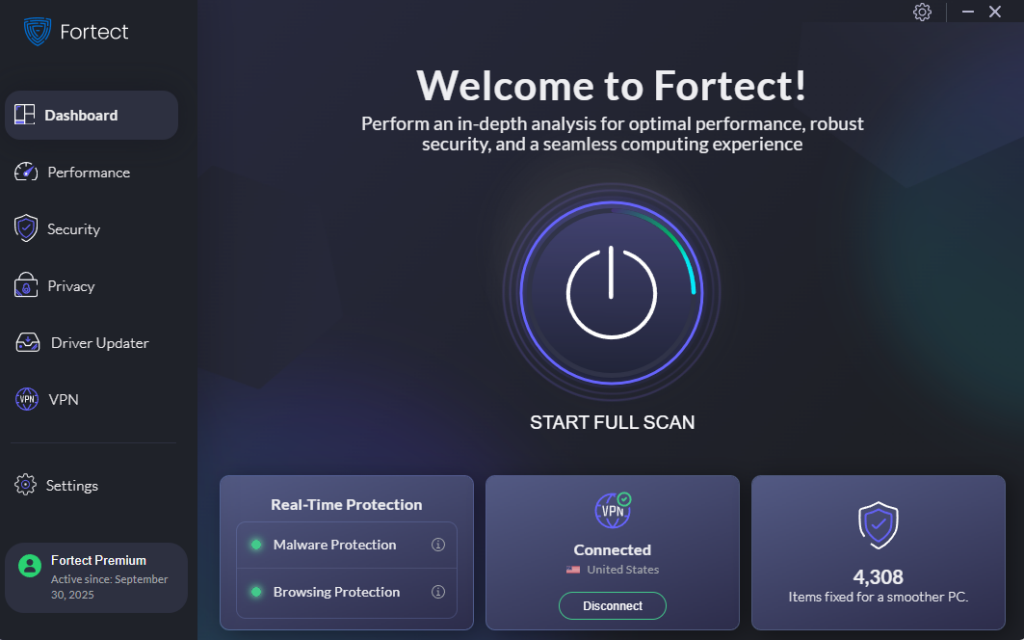
Fortect is a robust antivirus solution with real-time malware protection. It automatically scans your Windows PC for threats such as supply-chain attacks, removes them safely, and helps maintain optimal system performance.

Fortect Premium also includes a built-in Driver Updater that detects outdated or vulnerable drivers, including those for printers, scanners, and other peripherals- and replaces them with verified, secure versions. Keeping drivers up to date closes potential system-level vulnerabilities, strengthens defenses against cyberattacks, and ensures a faster, more stable, and reliable PC.
Download and install Fortect today.
Download Drivers Only from Official Sources
Always obtain printer and scanner drivers directly from the manufacturer’s websites. Avoid third-party driver repositories, even if they appear in search results. Bookmark your printer manufacturer’s support page and use it exclusively for driver downloads.
Enable Windows Security Features
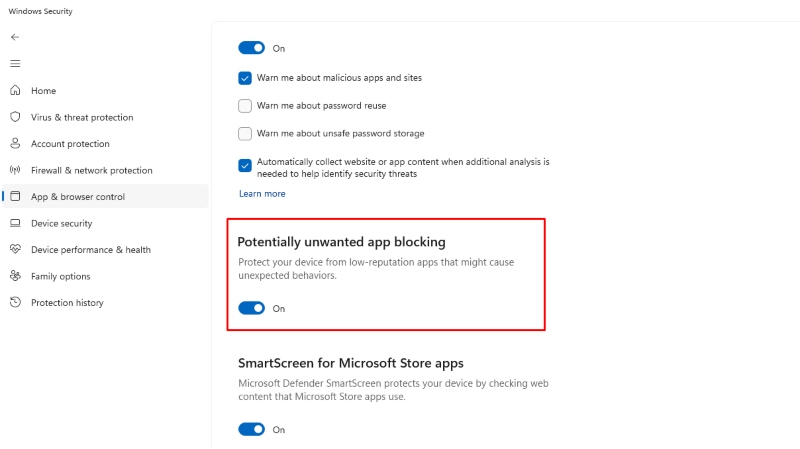
Step 1: Press the Windows key and type “Windows Security”
Step 2: Click “Open” to launch Windows Security
Step 3: Select “App & browser control” from the left menu
Step 4: Click “Reputation-based protection settings”
Step 5: Enable “Check apps and files” and “SmartScreen for Microsoft Edge”
Step 6: Turn on “Potentially unwanted app blocking”
These settings help Windows detect and block suspicious driver installations.
Update Windows Regularly
Step 1: Press Windows key + I to open Settings
Step 2: Click “Windows Update” (Windows 11) or “Update & Security” (Windows 10)
Step 3: Click “Check for updates”
Step 4: Click “Advanced options”
Step 5: Enable “Receive updates for other Microsoft products” to get driver updates through Windows Update
Step 6: Set active hours to prevent interruptions during updates
Regular Windows updates patch security vulnerabilities that attackers exploit in supply-chain attacks.
Verify Driver Authenticity Before Installation
Step 1: Right-click the downloaded driver file
Step 2: Select “Properties”
Step 3: Click the “Digital Signatures” tab
Step 4: Select the signature and click “Details”
Step 5: Verify the signer matches the printer manufacturer’s official name
Step 6: Check that the signature is valid and not expired
If the Digital Signatures tab is missing or shows invalid signatures, delete the file immediately.
What to Do If You’ve Installed a Suspicious Driver
Remove Compromised Drivers Immediately
Step 1: Open Settings and navigate to “Apps” > “Installed apps” (Windows 11) or “Apps & features” (Windows 10)
Step 2: Search for your printer or scanner software
Step 3: Click the three dots and select “Uninstall”
Step 4: Press Windows key + X and select “Device Manager”
Step 5: Expand “Print queues” or “Imaging devices”
Step 6: Right-click your printer/scanner and select “Uninstall device”
Step 7: Check “Delete the driver software for this device” and confirm
Run a Complete System Scan
Step 1: Open Windows Security
Step 2: Click “Virus & threat protection”
Step 3: Select “Scan options”
Step 4: Choose “Full scan” and click “Scan now”
Step 5: Allow the scan to complete (this may take several hours)
Step 6: Follow prompts to remove any detected threats
Prevention Is Your Best Defense
Supply-chain attacks on printer drivers continue evolving, but staying vigilant protects your personal data and system integrity. Download drivers exclusively from verified manufacturer websites, keep Windows updated, verify digital signatures, and maintain active security software. These simple practices significantly reduce your risk of becoming a victim.
Remember: if a driver source seems questionable or a download request appears unexpected, trust your instincts and verify authenticity before proceeding.