SOLVED: Credential-Harvesting via Browser on Windows
If you’ve noticed suspicious login attempts or received security alerts about unauthorized access to your accounts, your browser credentials might have been compromised. Credential-harvesting via browser is a serious threat that targets Windows users by stealing saved passwords, cookies, and login information directly from web browsers like Chrome, Edge, and Firefox.
We will help you understand how attackers harvest your browser credentials and provide actionable steps to protect yourself on Windows 10 and Windows 11.
What Is Credential-Harvesting via Browser?
Credential-harvesting is a cyberattack method where hackers steal your usernames, passwords, and authentication tokens stored in your web browser. Unlike phishing attacks that trick you into entering credentials on fake websites, credential-harvesting malware directly extracts saved login data from your browser’s storage files.
Modern browsers offer to save your passwords for convenience, but this feature becomes a vulnerability when malware infiltrates your system. Attackers use specialized tools called “stealers” that scan your browser files and extract saved credentials, autofill data, cookies, and even payment information.
How Attackers Access Your Browser Data
Cybercriminals deploy credential-harvesting malware through infected downloads, malicious email attachments, or compromised websites. Once installed, these programs target specific browser folders where credentials are stored. Windows browsers typically save encrypted passwords in local files, but malware can decrypt this data using your Windows login session.
Common infection methods include:
- Trojanized software: Fake installers for popular programs that bundle malware
- Phishing emails: Attachments disguised as invoices or documents
- Malicious browser extensions: Add-ons that request excessive permissions
- Drive-by downloads: Automatic malware installation from compromised websites
Signs Your Browser Credentials Have Been Harvested
Watch for these warning signs that indicate possible credential theft:
- Unexpected login alerts from services you haven’t accessed
- Password reset emails you didn’t request
- Unfamiliar devices are listed in your account security settings
- Unauthorized transactions or purchases
- Your antivirus detects threats with names containing “stealer,” “password,” or “credential.”
- Sudden browser crashes or performance issues
How to Remove Credential-Harvesting Malware on Windows 10/11
Use Fortect for Automated Protection and Removal
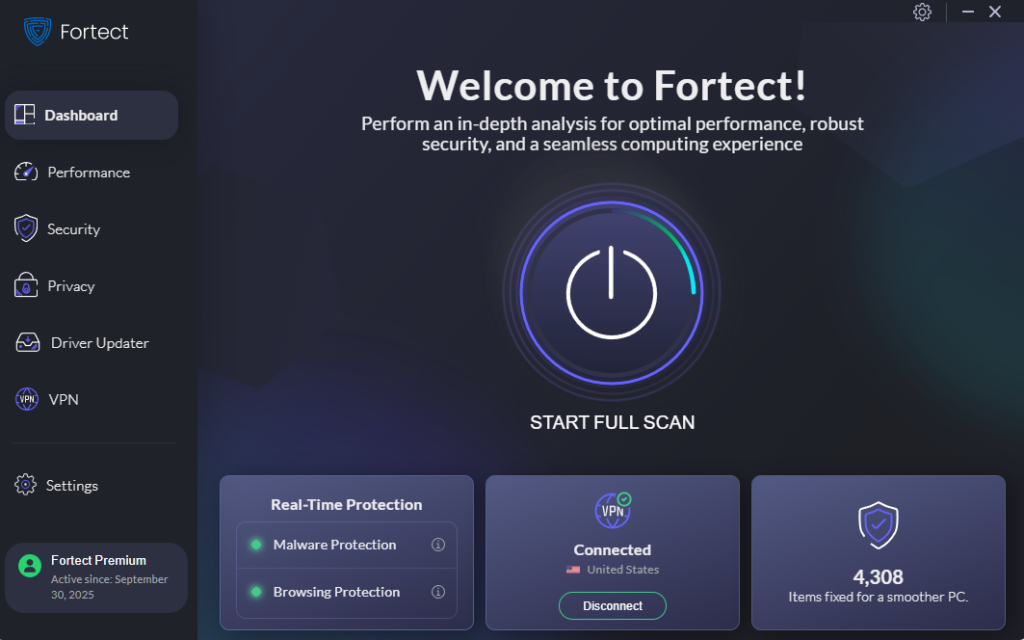
Credential-harvesting malware targets browsers to steal saved logins, autofill data, and other sensitive information. Before attempting manual removal, consider using Fortect, an advanced antivirus and system repair tool with real-time malware protection. It automatically scans your Windows PC for threats, including credential-stealing programs, removes them safely, and restores optimal system performance.
Fortect Browsing Protection for Chrome Users:
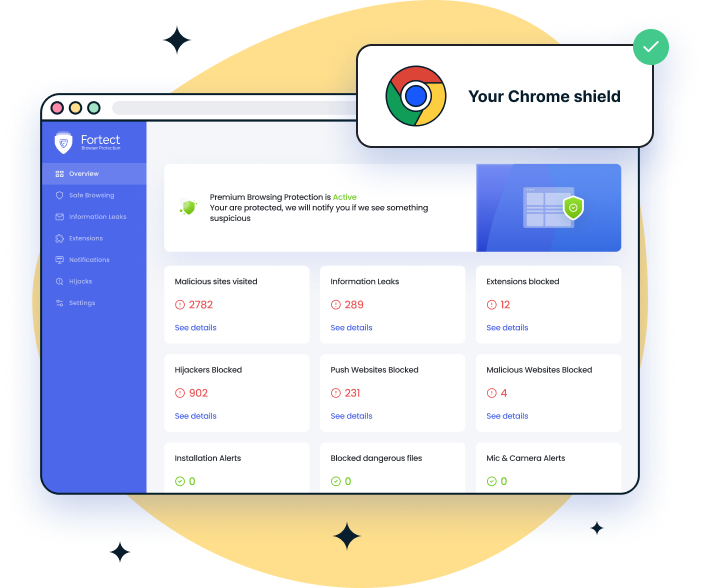
If you use Chrome, Fortect Browsing Protection extension adds an extra shield against online threats. It blocks malicious websites before they load, alerts you to suspicious or phishing pages, and removes harmful extensions that could capture your personal data, ensuring your online activity remains secure and private.
How to Get Started:
- Easy Installation: Click ‘Add to Chrome’ to start
- Swift Scan: Initiate a scan for immediate threat assessment
- Threat Elimination: Click to remove any detected risks instantly
- Real-Time Protection: Stay protected with automatic, real-time updates
Download and install Fortect today.
Step 1: Disconnect from the Internet
Immediately disconnect your computer from Wi-Fi or unplug the ethernet cable. This prevents the malware from transmitting stolen data to attackers and stops further infection.
Step 2: Boot into Safe Mode
Safe Mode loads Windows with minimal drivers and programs, preventing most malware from running.
For Windows 10:
- Click the Start button and select the Power icon
- Hold the Shift key and click Restart
- Choose Troubleshoot > Advanced options > Startup Settings
- Click Restart and press F5 to select Safe Mode with Networking
For Windows 11:
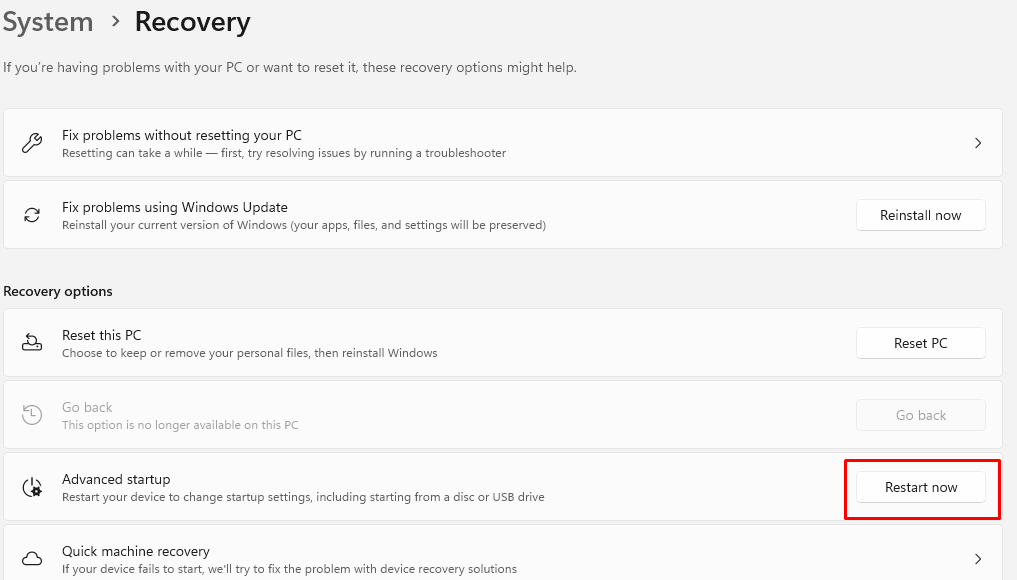
- Press Windows + I to open Settings
- Go to System > Recovery
- Under Advanced startup, click Restart now
- Select Troubleshoot > Advanced options > Startup Settings
- Click Restart and press F5 for Safe Mode with Networking
Step 3: Run a Complete Antivirus Scan
Use Windows Security or your installed antivirus software to perform a full system scan.
- Press Windows + I and open Settings
- Click Privacy & security > Windows Security
- Select Virus & threat protection
- Click Scan options > Full scan
- Click Scan now and wait for completion
- Follow prompts to quarantine or remove detected threats
For stubborn infections, use additional malware removal tools like Malwarebytes or HitmanPro.
Step 4: Clear Browser Data and Remove Extensions
After removing malware, clean your browser thoroughly.
For Microsoft Edge or Chrome:
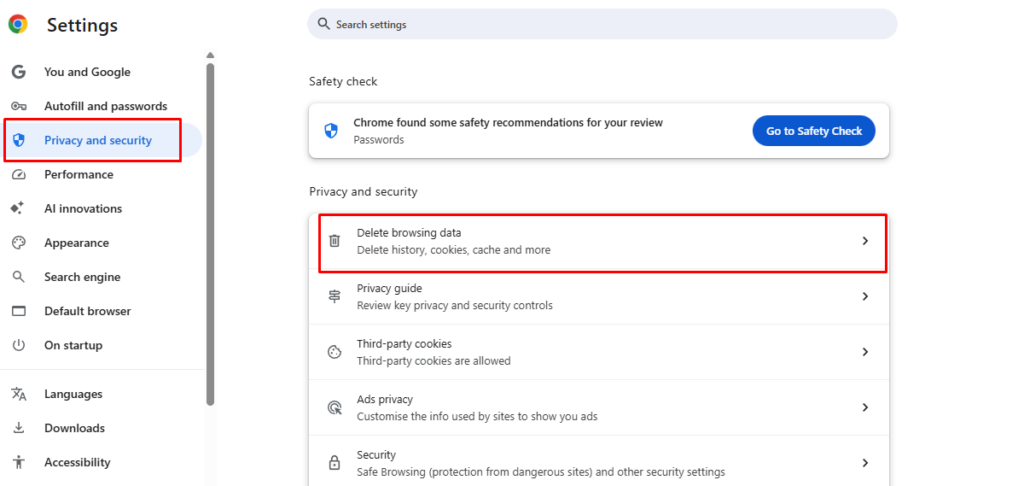
- Click the three-dot menu and select Settings
- Go to Privacy, search, and services
- Click Choose what to clear under Clear browsing data
- Select All time from the time range dropdown
- Check Cookies, Cached images, and Passwords
- Click Clear now
- Navigate to Extensions and remove any unfamiliar add-ons
Step 5: Change All Passwords
Once your system is clean and you’ve reconnected to the internet, immediately change passwords for:
- Email accounts (prioritize these first)
- Banking and financial services
- Social media platforms
- Shopping websites
- Any service that stores payment information
Enable two-factor authentication (2FA) wherever possible for an additional security layer.
How to Prevent Credential-Harvesting Attacks
Use a Dedicated Password Manager
Instead of saving passwords in your browser, use a reputable password manager like Bitwarden, 1Password, or Dashlane. These tools use stronger encryption and additional security features that make credential theft significantly harder.
Keep Windows Updated
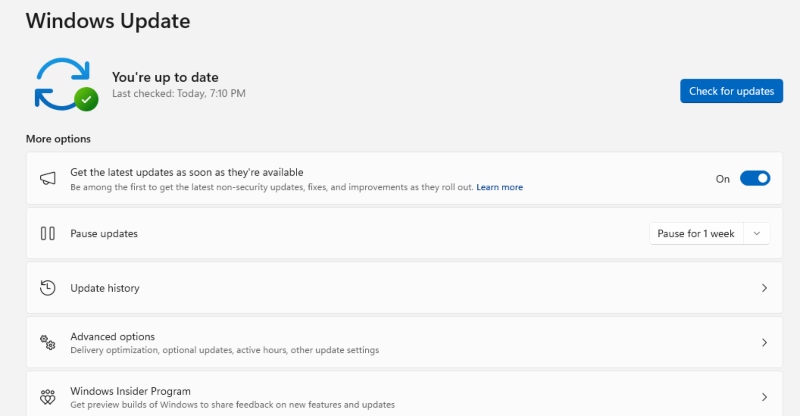
Regular Windows updates patch security vulnerabilities that malware exploits.
To update Windows 10/11:
- Press Windows + I to open Settings
- Click Windows Update
- Click Check for updates
- Install all available updates and restart if prompted
Enable automatic updates to ensure you’re always protected with the latest security patches.
Enable Windows Defender Credential Guard
Windows 11 Pro and Enterprise include Credential Guard, which uses virtualization-based security to protect credentials.
- Press Windows + R and type “gpedit.msc”
- Navigate to Computer Configuration > Administrative Templates > System > Device Guard
- Double-click “Turn On Virtualization Based Security”
- Select Enabled and click OK
- Restart your computer
Practice Safe Browsing Habits
- Download software only from official websites
- Verify email sender addresses before opening attachments
- Avoid clicking suspicious links
- Review browser extension permissions before installing
- Use different passwords for different accounts
Conclusion
Credential-harvesting via browser represents a growing threat to Windows users, but you can significantly reduce your risk by following the security practices outlined above. Regular system maintenance, strong authentication methods, and cautious online behavior form your best defense against these attacks. If you suspect your credentials have been compromised, act quickly; every minute counts in preventing unauthorized access to your accounts.
You can also take a look at our article on hacks on browser autofill to better understand browser vulnerabilities and learn how to fix them.