
RDP Security Tips for Safe Remote Access 2026
Remote Desktop Protocol (RDP) is one of the most convenient features built into Windows; it lets you access your PC from anywhere. But it’s also one of the most targeted entry points for hackers. Whether you use RDP to work from home or access a second PC, following the right RDP security practices in 2026 is essential to keeping your data safe.
Why RDP Security Matters More Than Ever
Cybercriminals actively scan the internet for open RDP ports every day. Once they find an exposed connection, they attempt brute-force attacks, credential stuffing, or exploit known RDP vulnerabilities to break in. A compromised RDP session can give an attacker full control of your Windows PC, including your files, passwords, and even your webcam.
The good news: most RDP attacks are preventable. The tips below are designed for everyday Windows 10 and 11 users who want to use Remote Desktop safely without needing an IT background.
Top RDP Security Tips for Windows Users in 2026
1. Keep Windows Updated at All Times
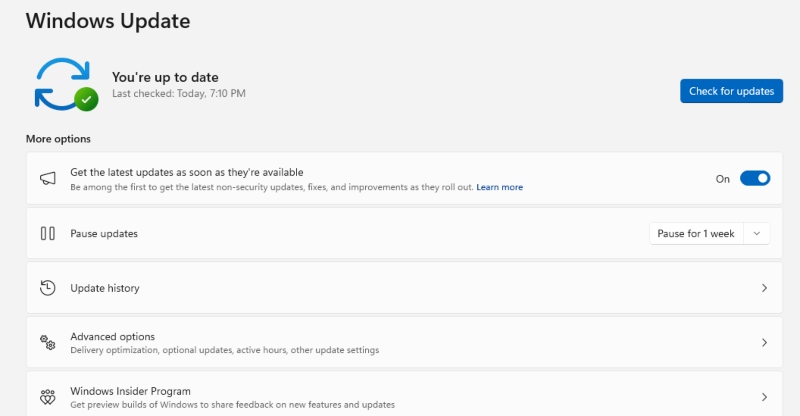
Outdated Windows systems are the number one target for RDP exploits. Microsoft regularly patches RDP vulnerabilities, so staying up to date is the single most impactful thing you can do.
How to update Windows 10/11:
- Click the Start menu and open Settings (gear icon).
- Go to Windows Update (Windows 11) or Update & Security (Windows 10).
- Click Check for updates.
- If updates are available, click Download & Install.
- Restart your PC when prompted to apply the updates.
Enable automatic updates so critical security patches are never missed.
2. Use a Strong, Unique Password for Your Windows Account
Brute-force attacks work by guessing common passwords thousands of times per minute. A weak password like “admin123” can be cracked in seconds.
Best practices for a secure RDP password:
- Use at least 12–16 characters
- Mix uppercase, lowercase, numbers, and symbols
- Avoid using your name, birthday, or dictionary words
- Use a password manager (like Bitwarden or KeePass) to generate and store passwords
How to change your Windows password:
- Press Ctrl + Alt + Delete and select Change a password.
- Enter your current password, then type and confirm a new strong password.
- Click the arrow button to save.
3. Enable Network Level Authentication (NLA)
Network Level Authentication requires users to verify their identity before a full RDP session is established. This adds an extra layer of protection against unauthorized connections and certain malware attacks.
How to enable NLA on Windows 10/11:
- Right-click This PC on your desktop and select Properties.
- Click Remote settings (or search “Allow remote access” in the Start menu).
- Under the Remote Desktop section, check the box: “Allow connections only from computers running Remote Desktop with Network Level Authentication.”
- Click Apply, then OK.
4. Change the Default RDP Port (3389)
By default, RDP listens on port 3389, and attackers know this. Changing the default port won’t make RDP bulletproof, but it significantly reduces automated scan attacks targeting that specific port.
How to change the RDP port in Windows:
- Press Windows + R, type regedit, and press Enter.
- Navigate to: HKEY_LOCAL_MACHINE\System\CurrentControlSet\Control\Terminal Server\WinStations\RDP-Tcp
- Double-click PortNumber.
- Select Decimal, then enter a new port number (e.g., 54321 — avoid ports below 1024).
- Click OK and restart your PC.
- Update your firewall rules to allow the new port.
Note: After changing the port, connect using the new port by typing YourIP:54321 in the Remote Desktop client.
5. Restrict RDP Access to Specific Users Only
Not every Windows account on your PC should have Remote Desktop access. Limiting RDP to only the users who actually need it reduces risk dramatically.
How to restrict RDP users on Windows 10/11:
- Right-click This PC and select Properties.
- Click Remote settings.
- Under Remote Desktop, click Select Users.
- In the dialog box, click Add to include specific users, or select a user and click Remove to revoke access.
- Click OK to save changes.
Also, make sure your administrator account is not the account you use for everyday tasks; create a separate standard user account for regular use.
6. Enable Windows Firewall and Limit RDP by IP Address
The Windows Firewall can be configured to allow RDP connections only from specific IP addresses, meaning even if someone has your password, they can’t connect from an unknown location.
How to restrict RDP by IP in Windows Firewall:
- Open Windows Defender Firewall with Advanced Security (search in Start menu).
- Click Inbound Rules in the left panel.
- Find the rule named Remote Desktop – User Mode (TCP-In).
- Double-click it and go to the Scope tab.
- Under Remote IP address, select These IP addresses and add your trusted IP(s).
- Click OK to apply.
7. Use a VPN Before Connecting via RDP
One of the safest approaches is to never expose RDP directly to the internet at all. Instead, connect to a VPN first, then use RDP within that private network. This hides the RDP port from public access entirely.
Once connected to your VPN, you can RDP into your home machine without it being visible on the open internet.
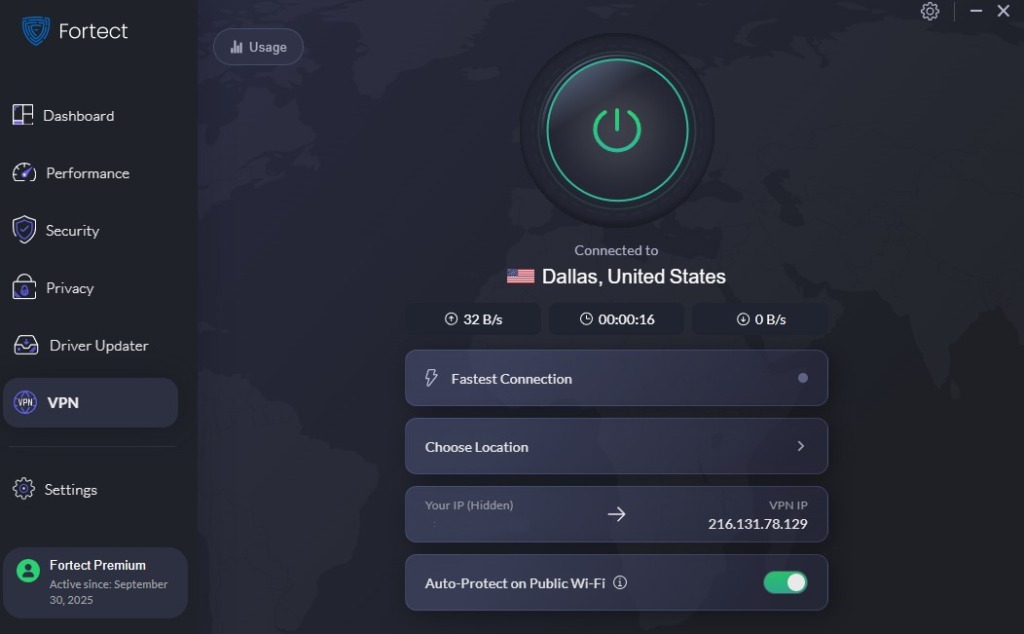
Remote Desktop Protocol (RDP) security requires protecting your connection from interception and unauthorized access, especially when using remote networks. Fortect Premium now adds a built-in VPN with Auto-Protect on public Wi-Fi, helping secure RDP sessions even on open or untrusted networks. It encrypts your internet traffic, keeping sensitive data private and reducing the risk of hackers exploiting weak connections, one of the common entry points for network-based attacks and zero-day threats.
8. Enable Account Lockout Policy
An account lockout policy automatically blocks login attempts after a set number of failed tries, stopping brute-force attacks in their tracks.
How to enable account lockout on Windows 10/11:
- Press Windows + R, type secpol.msc, and press Enter.
- Go to Account Policies → Account Lockout Policy.
- Double-click Account lockout threshold and set it to 5 invalid logon attempts.
- Click OK — Windows will automatically suggest values for lockout duration and reset time.
- Confirm the suggested settings and click OK.
9. Disable RDP When Not in Use
If Remote Desktop isn’t needed regularly, disable it entirely. An RDP service that isn’t running can’t be exploited.
How to disable RDP on Windows 10/11:
- Open Settings → System → Remote Desktop.
- Toggle Remote Desktop to Off.
- Click Confirm when prompted.
Re-enable it only when needed, then turn it off again afterward.
10. Monitor RDP Login Activity
Keeping an eye on who is logging into your PC via RDP can help catch unauthorized access early.
How to check RDP login history:
- Press Windows + R, type eventvwr.msc, and press Enter.
- Navigate to Windows Logs → Security.
- Look for Event ID 4624 (successful logon) and Event ID 4625 (failed logon).
- Filter by these Event IDs to review recent remote login activity.
If you see failed login attempts from unknown IPs, tighten your firewall rules immediately.
Strengthen Your PC Security with Fortect
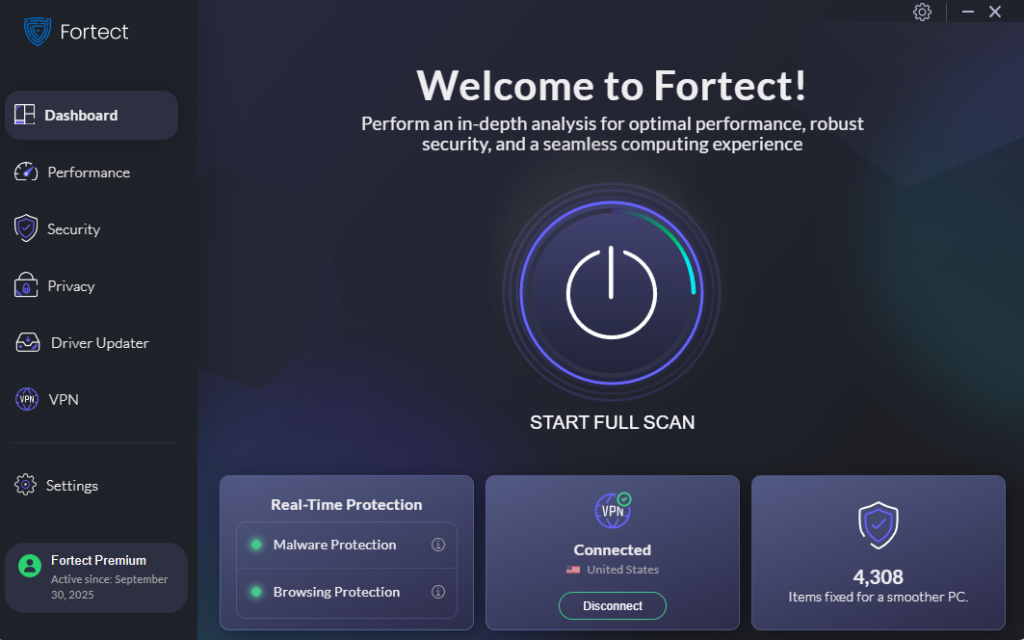
Even with every manual RDP security setting in place, threats can still slip through, especially newer, more sophisticated attack methods that exploit remote desktop vulnerabilities before users even notice. That’s where an extra layer of automated protection makes a real difference.
Fortect delivers advanced real-time malware protection for Windows users. It automatically scans your PC for traditional and emerging threats, including remote desktop threats and unauthorized remote access attempts, eliminates them safely, and restores damaged system files for improved performance. Its smart threat-detection engine monitors suspicious activity and alerts you before harmful actions can take place, helping keep your device secure and running efficiently.
For Windows 10 and 11 users who rely on remote desktop, pairing good security habits with Fortect gives your system a well-rounded defense, both at the settings level and at the software level.
Download and install Fortect today.
Quick RDP Security Checklist for 2026
| Security Step | Status |
|---|---|
| Windows fully updated | ✅ |
| Strong password set | ✅ |
| NLA enabled | ✅ |
| Default RDP port changed | ✅ |
| RDP restricted to specific users | ✅ |
| Firewall IP restriction active | ✅ |
| VPN in use before connecting | ✅ |
| Account lockout policy enabled | ✅ |
| RDP disabled when not in use | ✅ |
| Login activity monitored | ✅ |
Conclusion
Securing remote desktop access doesn’t require advanced technical skills, it requires consistent habits. By applying t;ese RDP security tips on your Windows 10 or 11 PC, the risk of unauthorized access drops dramatically. Start with the basics, update Windows, set a strong password, and enable NLA, then layer on additional protections like VPN use and IP restrictions for a truly hardened setup.
Remote access is a powerful tool. With the right precautions in place, it stays that way.





