Preventing Driver Rollback Attacks on Windows
Your Windows PC relies on drivers to communicate with hardware like graphics cards, printers, and network adapters. While keeping drivers updated is essential for security, cybercriminals have discovered a dangerous exploit called driver rollback attacks. These attacks downgrade your drivers to older, vulnerable versions, creating security holes that hackers can exploit to take control of your system.
What Are Driver Rollback Attacks?
Driver rollback attacks occur when malicious actors intentionally install outdated device drivers on your Windows computer. These older driver versions often contain known security vulnerabilities that Microsoft has already patched in newer releases. By forcing your system to use these compromised drivers, attackers can bypass modern security protections and gain unauthorized access to your PC.
This attack method is particularly dangerous because it exploits legitimate Windows functionality. The operating system allows driver rollbacks for troubleshooting purposes, but hackers abuse this feature to weaken your defenses. Once an outdated driver is installed, cybercriminals can leverage its vulnerabilities to execute malicious code, steal sensitive data, or install ransomware.
Why Windows Users Are at Risk?

Windows 10 and Windows 11 users face exposure to driver rollback attacks because the operating system doesn’t automatically prevent driver downgrades by default. While Windows Update typically installs the latest drivers, users with administrative privileges can manually install older versions. Attackers who gain temporary access to your system, through phishing emails, malicious downloads, or social engineering, can exploit this flexibility.
The risk intensifies if you frequently download drivers from unofficial sources or disable security features like Driver Signature Enforcement. Additionally, users who delay Windows updates leave their systems vulnerable longer, as Microsoft continuously patches driver-related security flaws.
How to Protect Your Windows PC from Driver Rollback Attacks
Enable Hypervisor-Protected Code Integrity (HVCI)
HVCI prevents unauthorized driver installations by using virtualization-based security. Here’s how to enable it on Windows 11:
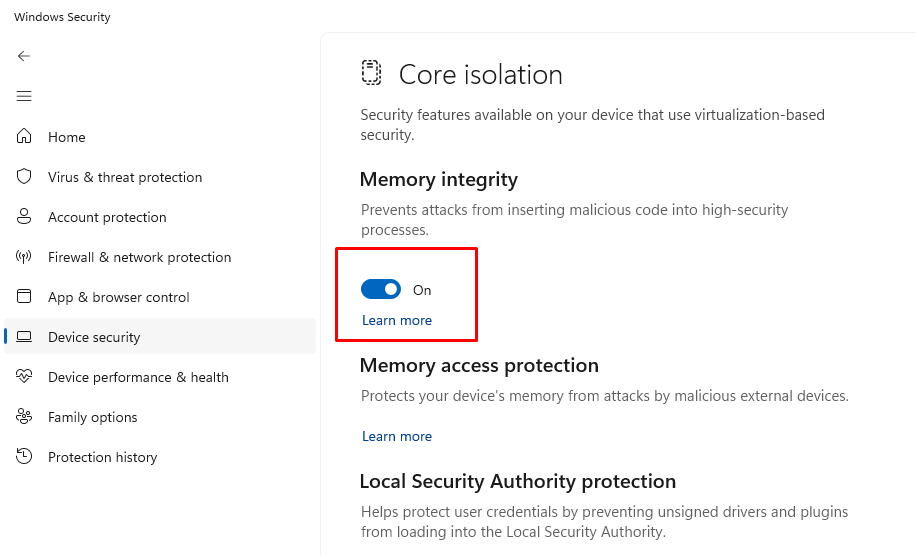
- Press Windows + I to open Settings
- Navigate to Privacy & security > Windows Security
- Click Device security > Core isolation details
- Toggle Memory integrity to On
- Restart your computer when prompted
For Windows 10 users, access this through Settings > Update & Security > Windows Security > Device Security, then follow the same steps.
Configure Driver Installation Restrictions
Limiting who can install drivers adds a critical security layer. Follow these steps to restrict driver installations:
- Press Windows + R, type gpedit.msc, and press Enter (Note: Group Policy Editor is only available in Windows Pro, Enterprise, and Education editions)
- Navigate to Computer Configuration > Administrative Templates > System > Device Installation > Device Installation Restrictions
- Double-click Prevent installation of devices not described by other policy settings
- Select Enabled and click OK
- Restart your PC to apply changes
Home edition users can achieve similar protection by creating a standard user account for daily tasks and only using the administrator account for trusted installations.
Keep Windows and Drivers Updated
Enabling automatic updates ensures you receive the latest security patches immediately:
- Open Settings (Windows + I)
- Select Windows Update from the left sidebar
- Click Advanced options
- Under Additional options, turn on Receive updates for other Microsoft products
- Enable Download updates over metered connections if you need critical updates, regardless of connection type
Windows 11 users should also verify that Get the latest updates as soon as they’re available is toggled on for faster security patch deployment.
Use Microsoft Defender and Enable Tamper Protection
Windows Defender provides built-in protection against malicious driver installations:
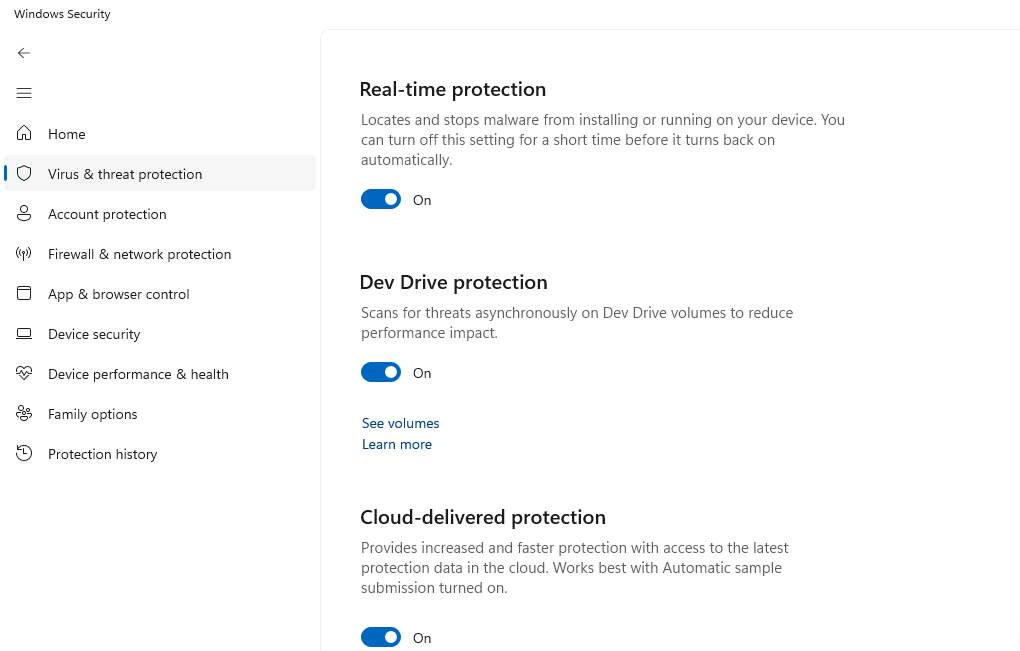
- Open Windows Security from the Start menu
- Go to Virus & threat protection > Manage settings
- Ensure Real-time protection and Cloud-delivered protection are enabled
- Navigate to Virus & threat protection > Manage settings again
- Scroll down and turn on Tamper Protection to prevent attackers from disabling security features
Additional Security Best Practices
Never download drivers from third-party websites or unofficial sources. Always obtain drivers directly from your hardware manufacturer’s official website or through Windows Update. Create regular system restore points before installing any new drivers, allowing you to revert changes if problems occur.
Consider enabling BitLocker encryption on your system drive to protect data if an attack succeeds. Use strong, unique passwords for your administrator account, and enable two-factor authentication on your Microsoft account for additional protection against unauthorized access.
Use Fortect for Complete Protection
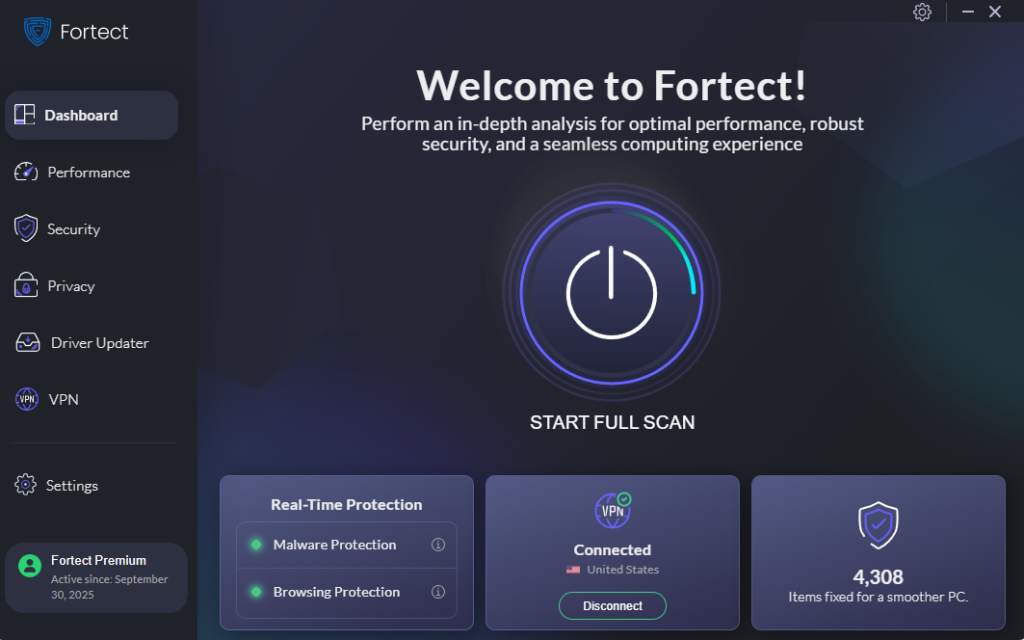
Driver rollback attacks exploit vulnerabilities in outdated or downgraded drivers to bypass system security and install hidden malware. Fortect offers comprehensive protection against these threats with its advanced antivirus and real-time malware defense. It automatically scans your Windows PC for any signs of driver rollback attacks, removes malicious components safely, and optimizes your system for peak performance.
With Fortect Premium, you also get a built-in Driver Updater that identifies and replaces outdated or corrupted drivers with verified versions from trusted sources. This is crucial because attackers often take advantage of old drivers to reintroduce vulnerabilities into your system.
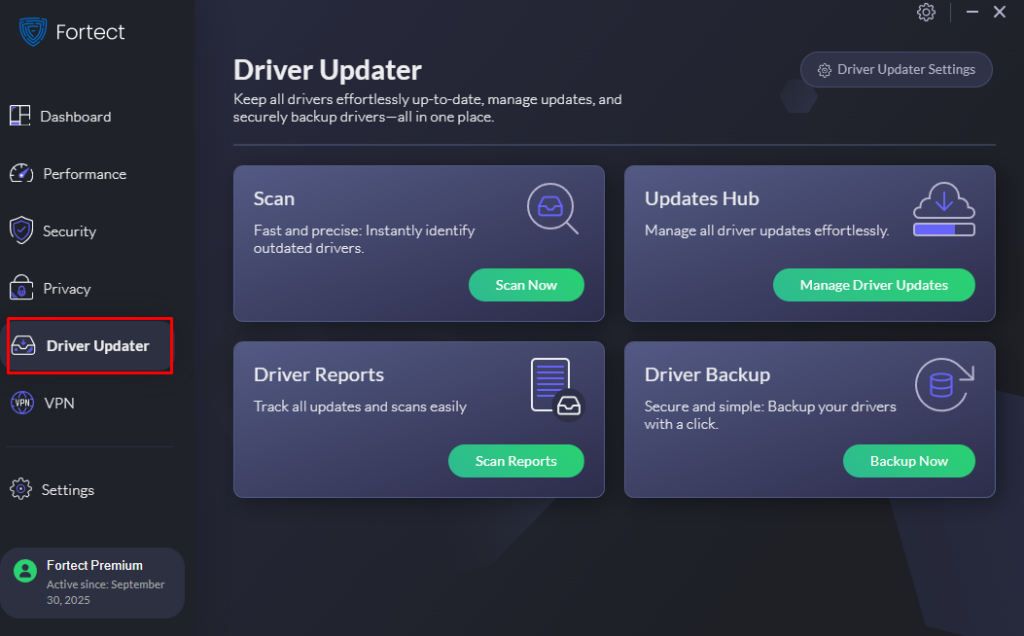
By keeping all your drivers current, Fortect effectively seals these security loopholes, enhances system stability, and ensures your PC runs cleaner, faster, and more securely, fully protected against driver rollback attacks and other advanced malware threats.
Download and install Fortect now.
Staying Vigilant Against Evolving Threats
Driver rollback attacks represent a growing cybersecurity concern for Windows users. By implementing these protective measures, enabling HVCI, restricting driver installations, maintaining updated systems, and using built-in security tools like Fortect, you significantly reduce your vulnerability to these sophisticated attacks. Regular vigilance and proactive security habits remain your best defense against emerging threats targeting Windows driver systems.