Microsoft Copilot Phishing Attacks to Watch For
Microsoft Copilot has revolutionized how Windows users interact with their computers, offering AI-powered assistance for various tasks. However, cybercriminals have quickly exploited this popular feature’s trust and recognition to launch sophisticated phishing attacks. Understanding these Microsoft Copilot phishing attacks and knowing how to protect yourself is essential for maintaining your digital security and personal information safety.
What Are Microsoft Copilot Phishing Attacks?
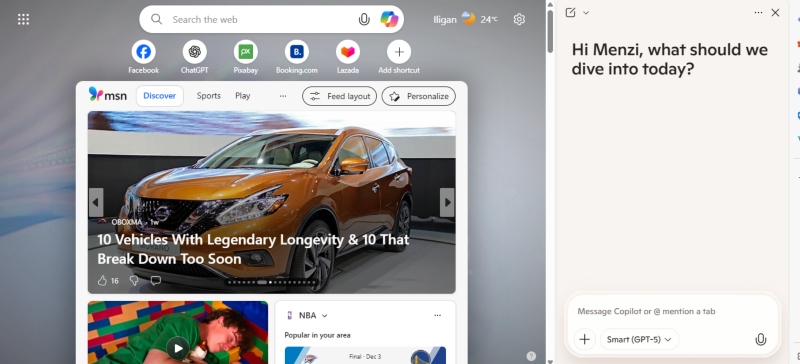
Microsoft Copilot phishing attacks are deceptive schemes where cybercriminals impersonate Microsoft’s AI assistant to trick users into revealing sensitive information or installing malware. These attacks exploit the trust users place in Microsoft products and the growing popularity of AI-powered tools.
Attackers create fake emails, websites, or pop-up messages that appear to come from Microsoft Copilot, requesting login credentials, payment information, or system access. The sophisticated nature of these scams makes them particularly dangerous, as they closely mimic legitimate Microsoft communications and interfaces.
Common Types of Microsoft Copilot Phishing Attacks
Fake Copilot Subscription Emails
One of the most prevalent Microsoft Copilot phishing attacks involves fraudulent emails claiming your Copilot subscription needs renewal or has expired. These emails often include urgent language, warning that you’ll lose access to AI features unless you click a link and “verify” your account information.
The emails contain links to fake Microsoft login pages designed to steal your credentials. Once attackers obtain your username and password, they can access your Microsoft account, personal files, and potentially your financial information.
Malicious Copilot Update Notifications
Cybercriminals send fake notifications claiming a critical Copilot update is available. These messages may appear as email alerts, browser pop-ups, or system notifications. When you click the update link, you’re directed to download malware disguised as a Copilot enhancement or security patch.
This malware can range from keyloggers that record your passwords to ransomware that locks your files until you pay a ransom. Some variants steal personal data, banking information, or cryptocurrency wallet credentials.
Phishing Through Fake Copilot Support
Scammers impersonate Microsoft Copilot support teams, reaching out via email or phone, claiming to detect issues with your account or AI assistant. They request remote access to your computer or ask you to download “diagnostic tools” that are actually malicious software.
These fake support representatives may use technical jargon to sound legitimate and create urgency by claiming your system is compromised or at risk. Their goal is to gain control of your computer or extract sensitive information directly from you.
Fraudulent Copilot Feature Offers
Some Microsoft Copilot phishing attacks promise exclusive or early access to new Copilot features, premium upgrades, or special AI capabilities. These offers arrive through emails with links to fake registration pages that harvest your personal information and payment details.
Attackers may also offer free trials of “Copilot Pro” or similar fictitious services, requiring credit card information for verification purposes. Once entered, this financial data is stolen and potentially used for unauthorized purchases.
How to Identify Microsoft Copilot Phishing Attempts
Check the Sender’s Email Address
Legitimate Microsoft communications come from official @microsoft.com email addresses. Phishing emails often use similar-looking domains like @micros0ft.com (with a zero instead of ‘o’) or @microsoft-support.net. Always verify the complete email address, not just the display name.
Look for Spelling and Grammar Errors
While professional phishing attacks have improved in quality, many still contain subtle spelling mistakes, grammatical errors, or awkward phrasing. Microsoft’s official communications are professionally written and thoroughly proofread.
Examine Links Before Clicking
Hover your mouse over any links without clicking to preview the destination URL. Legitimate Microsoft links should direct to official microsoft.com domains. Be suspicious of shortened URLs or links containing random characters and unfamiliar domain names.
Verify Urgent Requests Independently
Phishing attacks frequently create false urgency to pressure for quick action. If you receive an urgent message about your Copilot subscription or account, don’t click links in the email. Instead, manually navigate to your Microsoft account through your browser and check for legitimate notifications there.
How to Protect Yourself from Microsoft Copilot Phishing Attacks
Strengthen Your PC Security with Fortect
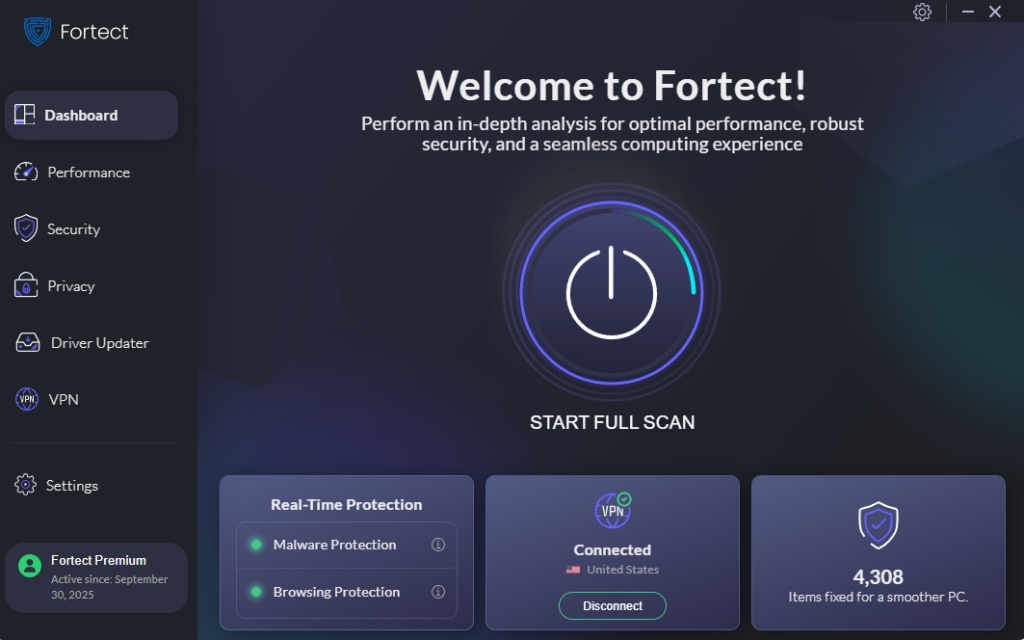
Fortect delivers advanced real-time malware protection for Windows users. It automatically scans your PC for traditional and emerging threats, including Microsoft Copilot phishing attacks, eliminates them safely, and restores damaged system files for improved performance. Its smart threat-detection engine monitors suspicious activity and alerts you before harmful actions occur, helping keep your device secure and running efficiently. Integrating Fortect into your security strategy provides comprehensive protection against evolving phishing threats targeting Microsoft Copilot users.
Download Fortect today.
Enable Two-Factor Authentication
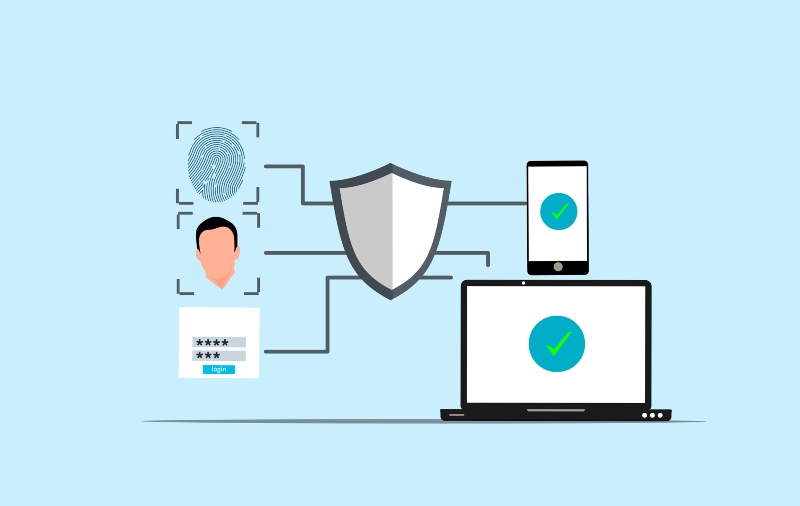
Two-factor authentication (2FA) adds an extra security layer to your Microsoft account, making it significantly harder for attackers to gain access even if they obtain your password.
Steps to Enable 2FA on Your Microsoft Account:
- Visit account.microsoft.com and sign in
- Click on “Security” in the top navigation menu
- Select “Advanced security options”
- Under “Two-step verification,” click “Turn on”
- Follow the prompts to set up authentication through your phone or authenticator app
- Complete the verification process
Keep Windows and Microsoft Applications Updated
Regular updates patch security vulnerabilities that phishing attacks might exploit. Ensure your system receives automatic updates.
Steps to Configure Automatic Updates in Windows 10/11:
- Press the Windows key and click the Settings gear icon
- Select “Update & Security” (Windows 10) or “Windows Update” (Windows 11)
- Click “Advanced options”
- Ensure “Receive updates for other Microsoft products” is toggled on
- Under “Pause updates,” verify automatic updates aren’t paused
- Click “Check for updates” to install any pending updates immediately
Use Microsoft Defender SmartScreen
SmartScreen helps protect against phishing websites and malicious downloads by warning you before accessing potentially dangerous sites.
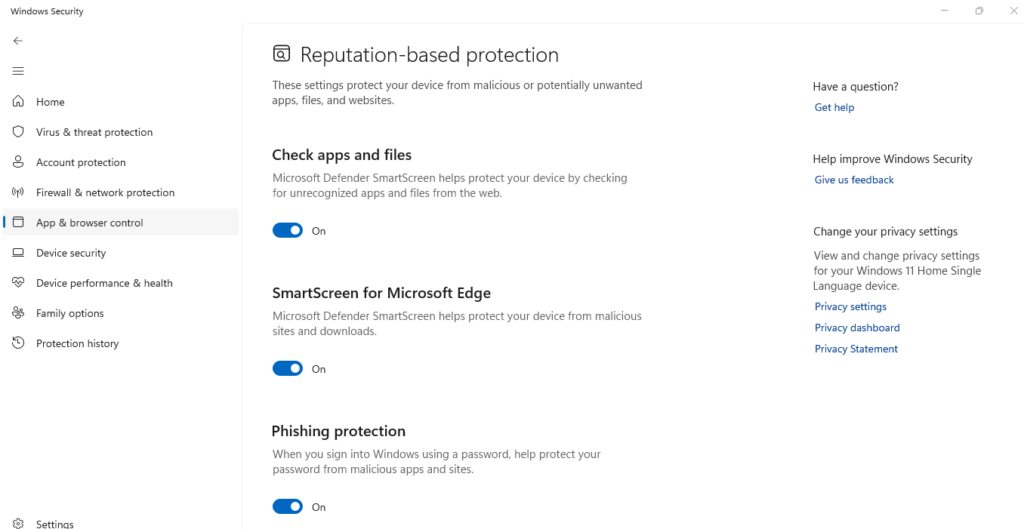
Steps to Enable SmartScreen in Windows 10/11:
- Open Windows Security by searching for it in the Start menu
- Click “App & browser control”
- Under “Reputation-based protection,” click “Reputation-based protection settings”
- Ensure all SmartScreen toggles are turned on
- Verify that “Check apps and files” and “SmartScreen for Microsoft Edge” are enabled
Verify Copilot Communications Through Official Channels
Never trust unsolicited messages about your Copilot subscription or features. Always verify information by:
- Logging into your Microsoft account directly through account.microsoft.com
- Checking the official Microsoft 365 admin center for subscription status
- Visiting Microsoft’s official support website rather than clicking email links
- Contacting Microsoft support through verified phone numbers from their official website
Install and Maintain Antivirus Software
While Windows Defender provides solid baseline protection, consider supplementing it with reputable third-party antivirus software for enhanced security against sophisticated phishing attempts and malware.
What to Do If You’ve Fallen Victim
Immediate Actions
If you’ve clicked a phishing link or provided credentials to a fraudulent site, act quickly. Immediately change your Microsoft account password from a secure device. Disconnect your compromised computer from the internet to prevent further data theft.
Run a complete system scan using Windows Defender or your antivirus software to detect and remove any malware. Check your Microsoft account activity for unauthorized access by visiting the “Recent activity” section in your account security settings.
Monitor Your Accounts
Watch your bank statements, credit card transactions, and Microsoft account activity closely for any unauthorized actions. Consider placing a fraud alert with credit bureaus if you’ve shared financial information.
Report the phishing attempt to Microsoft through their official reporting channels at microsoft.com/reportascam. This helps Microsoft track and combat phishing campaigns targeting its users.
Conclusion
Microsoft Copilot phishing attacks represent a growing threat as cybercriminals exploit the popularity and trust associated with Microsoft’s AI assistant. By understanding common attack methods, recognizing warning signs, and implementing robust security measures like two-factor authentication and regular updates, you can significantly reduce your risk. Remember that Microsoft will never request sensitive information through unsolicited emails or ask you to download software from unofficial sources. Stay vigilant, verify all communications through official channels, and maintain updated security software to protect yourself from these sophisticated scams.