
How to Spot Phishing Emails Pretending to Be Microsoft Support
Cybercriminals frequently impersonate Microsoft Support to steal your personal information, passwords, and financial data. These phishing emails pretending to be Microsoft Support have become increasingly sophisticated, making it crucial for Windows users to recognize the warning signs before falling victim to these scams.
What Are Phishing Emails Pretending to Be Microsoft Support?
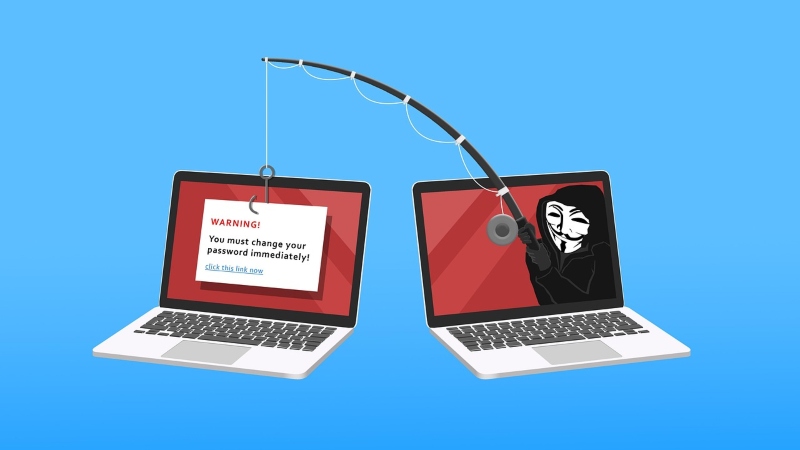
Phishing emails are fraudulent messages designed to trick you into revealing sensitive information or downloading malware. When scammers impersonate Microsoft Support, they create convincing fake emails that appear legitimate, often claiming there’s a security issue with your account, suspicious activity detected, or an urgent need to verify your information.
These fake Microsoft emails typically pressure you to click malicious links, download harmful attachments, or provide login credentials. Understanding how to identify these threats protects your Windows device and personal data from compromise.
Red Flags of Fake Microsoft Support Emails
Generic Greetings and Poor Grammar
Legitimate Microsoft emails address you by name, not with generic phrases like “Dear User” or “Valued Customer.” Phishing emails often contain spelling mistakes, grammatical errors, and awkward phrasing that professional companies wouldn’t send.
Suspicious Sender Email Addresses
Always examine the sender’s email address carefully. Scammers use addresses that look similar to official Microsoft domains but contain subtle differences like “micros0ft.com” (with a zero instead of ‘o’) or “microsoft-support.net” instead of the genuine “microsoft.com” domain.
Real Microsoft emails come from addresses ending in @microsoft.com or @email.microsoft.com. Hover over the sender name without clicking to reveal the actual email address.
Urgent Threats and Pressure Tactics
Phishing emails create artificial urgency, claiming your account will be closed, you’ve been charged for a subscription you didn’t purchase, or suspicious activity requires immediate action. Microsoft Support never threatens to suspend your account via email or demands an immediate response within hours.
Suspicious Links and Attachments
Legitimate Microsoft communications rarely include attachments. Phishing emails may contain ZIP files, executable files (.exe), or documents with macros. Links in these emails often redirect to fake login pages designed to steal your credentials.
Before clicking any link, hover over it to preview the destination URL. If it doesn’t lead to an official Microsoft domain, don’t click it.
How to Verify Legitimate Microsoft Communications
Check the Message Center in Your Microsoft Account
Microsoft sends important notifications through your account’s Message Center, not just via email. Log in to your Microsoft account directly by typing the official URL into your browser (never clicking email links) and check for any genuine notices.
Verify Security Alerts Through Official Channels
If you receive a security alert, don’t respond to the email. Instead, visit the official Microsoft account security page directly and review your recent activity there. Genuine security concerns will appear in your account dashboard.
Look for Digital Signatures
Authentic Microsoft emails often include digital signatures or security indicators. However, the absence of these doesn’t automatically mean an email is fake, so use this as one factor among several when evaluating legitimacy.
Steps to Protect Yourself on Windows 10/11
Strengthen Your PC Security with Fortect
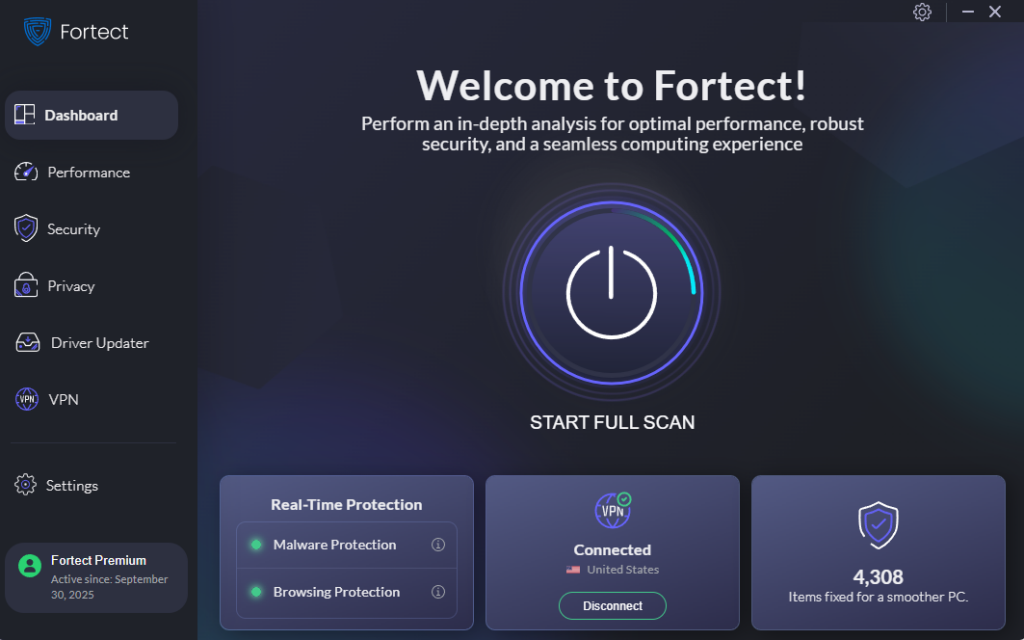
Phishing emails impersonating Microsoft Support often use urgent security warnings to trick users into clicking malicious links or opening infected attachments, which can silently install malware on Windows systems.
Fortect helps protect against these attacks by detecting and removing malware delivered through fake Microsoft emails, repairing damaged Windows system files, and alerting you in real time if suspicious activity starts after an accidental click.

For users who rely on public Wi-Fi or unsecured networks while checking email, Fortect Premium adds another layer of protection with its built-in VPN. The Auto-Protect feature secures your connection on open networks, encrypting your data so attackers can’t intercept credentials or inject malicious content, tactics often used to support phishing campaigns that mimic Microsoft services.
Download and install Fortect today.
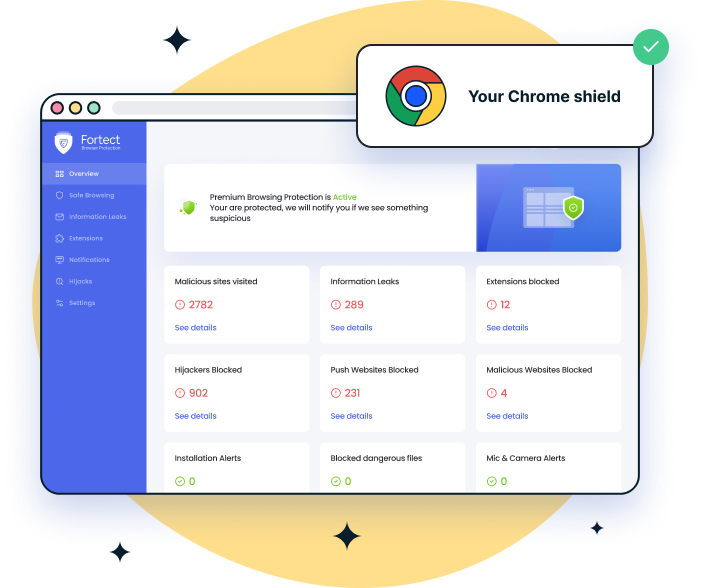
Another useful option is Fortect Browsing Protection for Chrome. Since phishing emails often redirect users to fake Microsoft login pages, this lightweight extension blocks dangerous websites before they load, flags suspicious pages in real time, and removes harmful browser extensions that could harvest credentials or track activity. Together, these tools help reduce the risk of falling victim to convincing Microsoft Support phishing attempts and keep your Windows system stable and secure.
Enable Windows Security Features
-Click the Start button and select “Settings” (gear icon)
-Navigate to “Privacy & security” (Windows 11) or “Update & Security” then “Windows Security” (Windows 10)
-Click “Windows Security” and then “Open Windows Security”
-Select “Virus & threat protection”
-“Real-time protection” is turned ON
-Click “Manage settings” and verify all protection features are enabled
Configure SmartScreen for Microsoft Edge

-Open Microsoft Edge browser
-Click the three-dot menu in the top-right corner
-Select “Settings”
-Choose “Privacy, search, and services” from the left sidebar
-Scroll to “Security” section
-Toggle ON “Microsoft Defender SmartScreen”
-Enable “Block potentially unwanted apps”
This feature helps prevent phishing websites and malicious downloads from compromising your system.
Keep Windows Updated
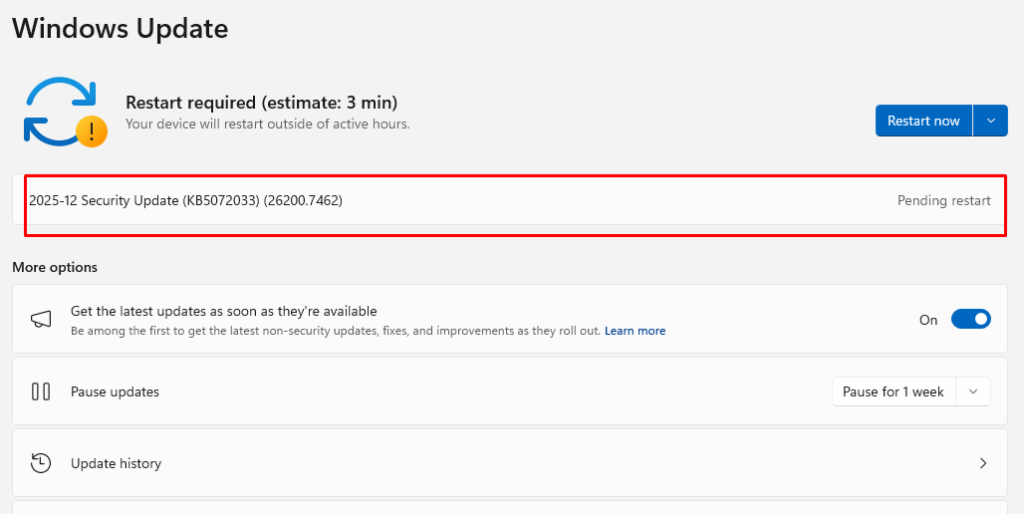
-Press Windows key + I to open Settings
-Click “Windows Update” (located at the top in Windows 11 or bottom-left in Windows 10)
-Click “Check for updates”
-If updates are available, click “Download and install”
-Enable “Get the latest updates as soon as they’re available” for better protection
Regular updates patch security vulnerabilities that scammers exploit to make their phishing emails more convincing.
Enable Two-Factor Authentication
-Go to account.microsoft.com in your browser
-Sign in to your Microsoft account
-Select “Security” from the top menu
-Choose “Advanced security options”
-Under “Additional security,” click “Turn on” for two-step verification
-Follow the prompts to add your phone number or authenticator app
Two-factor authentication significantly reduces the risk of account compromise, even if scammers obtain your password through phishing.
What to Do If You’ve Clicked a Phishing Link
If you accidentally clicked a link in a suspicious Microsoft email, act immediately. Disconnect from the internet, run a full Windows Security scan, and change your Microsoft account password from a different device. Enable two-factor authentication on your account for added protection.
Report the phishing email to Microsoft by forwarding it to [email protected] and then delete it from your inbox. Check your bank statements and credit reports for unusual activity if you provided financial information.
Conclusion
Phishing emails pretending to be Microsoft Support remain one of the most common cyber threats facing Windows users. By recognizing suspicious characteristics, verifying communications through official channels, and maintaining updated security settings, you can protect yourself from these increasingly sophisticated scams. Remember: when in doubt, go directly to Microsoft’s official website rather than clicking email links, and never share sensitive information via email.





