
How to Optimize Windows Prefetch & Superfetch for SSD/HDD
Whether to enable or disable Prefetch & Superfetch depends entirely on your storage type; SSDs generally benefit from turning them off, while HDDs run better with both features active.
These two Windows performance features work quietly in the background, and most users never think about them until the PC slows down. Understanding what they do, and when to adjust them, is one of the simplest Windows performance tuning moves you can make.
Prefetch vs Superfetch: What’s the Difference?
Prefetch is a Windows feature that tracks which apps you open at startup and preloads parts of them into memory. The goal is to make programs launch faster by having data ready before you click anything.
Superfetch (called SysMain in Windows 10 and 11) takes this further. It learns your usage habits over time and proactively loads frequently used apps into RAM, even when the PC is idle. It’s smarter, but also more resource-intensive.
On a traditional hard drive (HDD), both features are genuinely useful; loading data from RAM is far faster than reading it from spinning disks. On a solid-state drive (SSD), the speed advantage disappears since SSDs are already fast enough that preloading adds little benefit, while still using RAM and CPU resources.
Should You Enable or Disable Superfetch on Your System?
Keep both enabled if you have an HDD. Disabling them on a spinning hard drive will likely make your PC feel slower, especially at startup. The features were designed with HDDs in mind.
Disable both if you have an SSD. Superfetch optimization on Windows 10/11 with an SSD often causes unnecessary disk writes that can slightly reduce the drive’s lifespan over time. It can also cause high disk usage spikes, especially on systems with limited RAM.
Not sure which storage type you have? Press Windows + E to open File Explorer, right-click your C: drive, select Properties, then click the Hardware tab. It will list your drive model, which you can search online to confirm.
How to Adjust Windows Prefetch Settings (Step-by-Step)
Changing these settings takes about two minutes and requires no technical background. Follow the steps below carefully.
Disable Superfetch (SysMain) via Windows Services
- Press Windows + R to open the Run dialog box.
- Type services.msc and press Enter. The Services window will open.
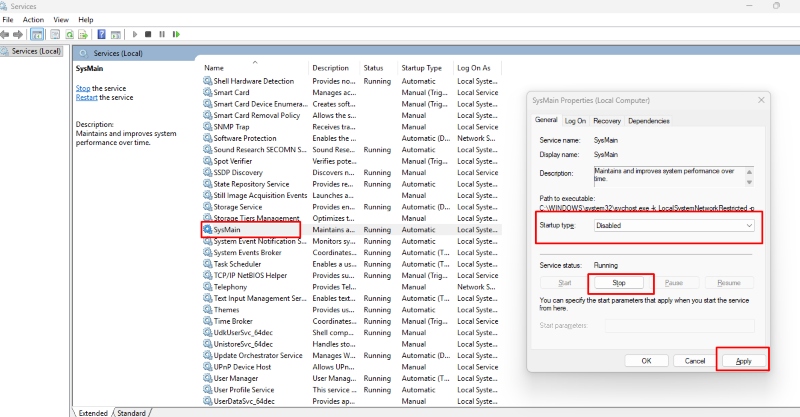
- Scroll down and find SysMain (this is Superfetch in Windows 10 and 11).
- Double-click SysMain, set Startup type to Disabled, then click Stop.
- Click Apply, then OK. Restart your PC for changes to take effect.
Adjust Prefetch via the Registry Editor
Windows Prefetch settings can be fine-tuned through the Registry. This lets you disable Prefetch entirely or configure it to preload only boot files, only applications, or both.
- Press Windows + R, type regedit, and press Enter.
- Navigate to: HKEY_LOCAL_MACHINE\SYSTEM\CurrentControlSet\Control\Session Manager\Memory Management\PrefetchParameters
- Double-click EnablePrefetcher. Set the value: 0 = Disabled, 1 = Boot only, 2 = Apps only, 3 = Both (default).
- Do the same for EnableSuperfetch using the same value options.
- Close the Registry Editor and restart your computer.
For SSD users, set both values to 0. For HDD users, leave both at 3 unless you experience slowdowns.
Keep Your PC Running at Its Best with Fortect
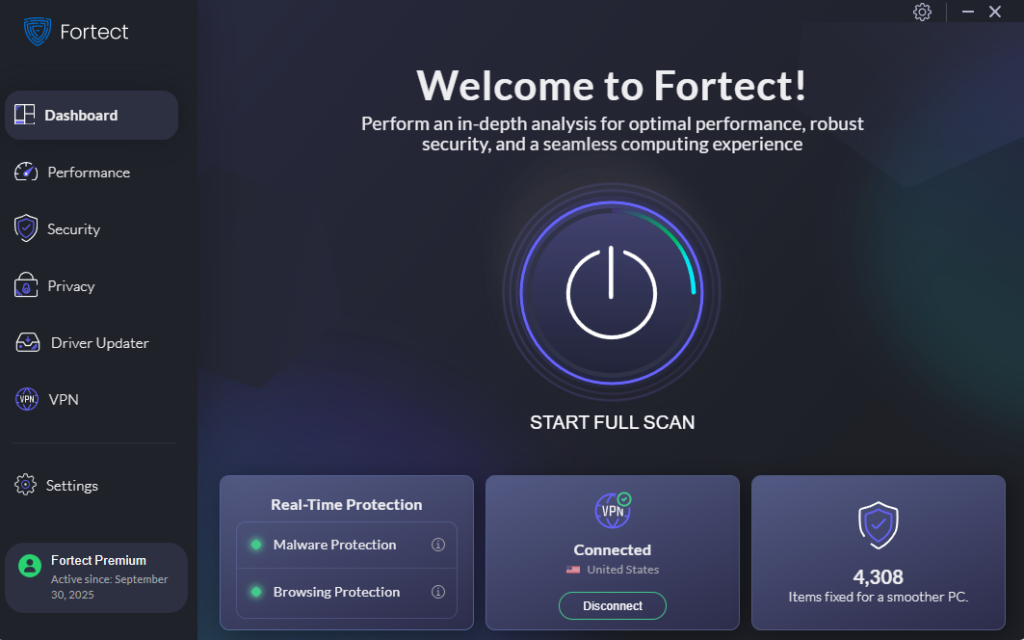
Manually adjusting Prefetch & Superfetch is a smart first step, but Windows performance issues often run deeper. Fortect provides real-time protection that detects threats lurking in system processes, removes them, and automatically restores damaged or corrupted system files, without requiring a full reinstall.
Beyond protection, Fortect cleans out junk files, removes crashed program remnants, and frees up system resources, so your PC feels noticeably faster without any manual digging around.
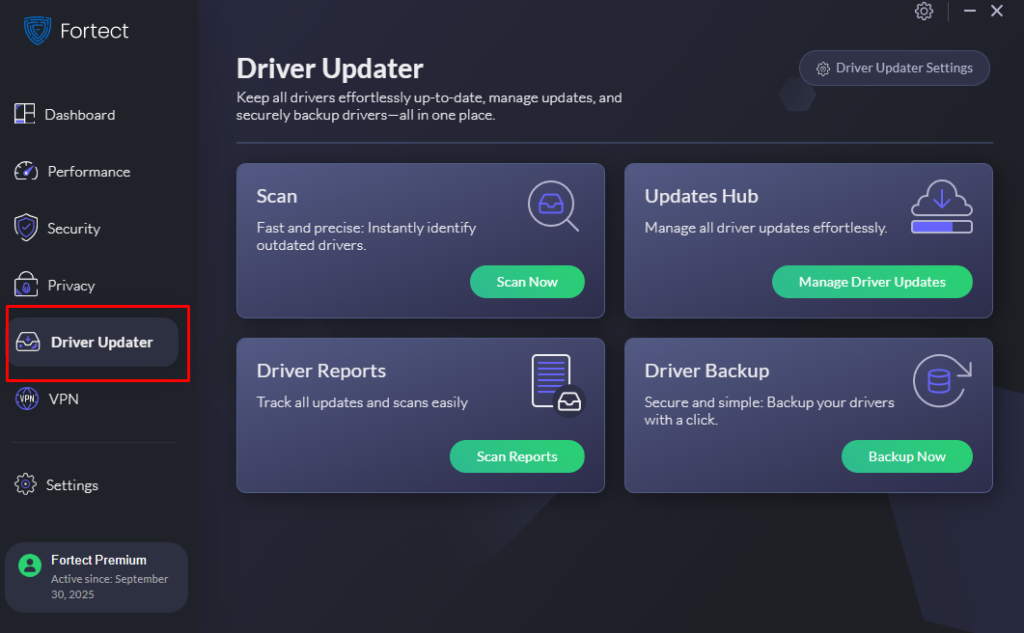
Even after optimizing Windows Prefetch and Superfetch, system performance issues may persist if deeper system components are outdated. One of the most common hidden causes is outdated or corrupted drivers, which can affect disk usage, boot speed, and overall responsiveness. Tools like Fortect include a built-in Driver Updater that identifies and replaces these problematic drivers with verified versions, helping maintain smoother system performance over time. If your PC needs more than a one-time tweak, ongoing maintenance tools like this can help keep performance consistent.
Download and install Fortect for your Windows PC now.
Match Your Settings to Your Hardware
Optimizing Prefetch & Superfetch is one of those small changes that makes a real difference once you understand how your storage works. SSD users should disable both features to avoid unnecessary resource usage. HDD users should keep them on; they genuinely help.
Windows performance tuning doesn’t have to be complicated. Start with the right settings for your drive, keep your system clean, and your PC will reward you with a noticeably smoother experience.



